Access Point
What is an Access Point
An Access Point (AP) is a networking hardware device that allows a Wi-Fi-enabled device to connect to a wired network. It acts as a bridge between wireless clients and a wired local area network (LAN), facilitating communication between devices within the network.
Why do we need an Access Point
An access point is essential for creating a wireless network, providing connectivity for devices such as laptops, smartphones, and other Wi-Fi-enabled devices. They enable seamless access to wired networks, which allows users to connect and communicate without the need for physical cables.
How to create an Access Point
-
Click on the Access Points menu located on the left side.

-
Click Access Point menu and a list of the Access Point Devices will be shown. Click the Add New button.

-
After clicking the Add New button, a new window will appear.

-
Fill in your details.
1. MAC Address: Enter the MAC Address. The MAC address can be added by typing in the MAC address and clicking on the + icon. Multiple MAC addresses can be entered here. For example, here in the screenshot, 4 MAC addresses have been added. This can also read a CSV file by clicking the Choose File button. The CSV file should be MAC addresses separated by commas or newlines.
2. Select Organization: Select Organization. It can register single or multiple access points in an organization. The multiple MAC addresses provided will be registered to the organization selected from the drop-down.
-
Then click on the located right side Save button.

-
After the Access point Section is saved successfully, a success message will display Devices are registered successfully. If the MAC Address is already registered, a red text message will indicate This MAC address is already registered. On the other hand, If the access point is not available in the system, a green text message will confirm Registered successfully.
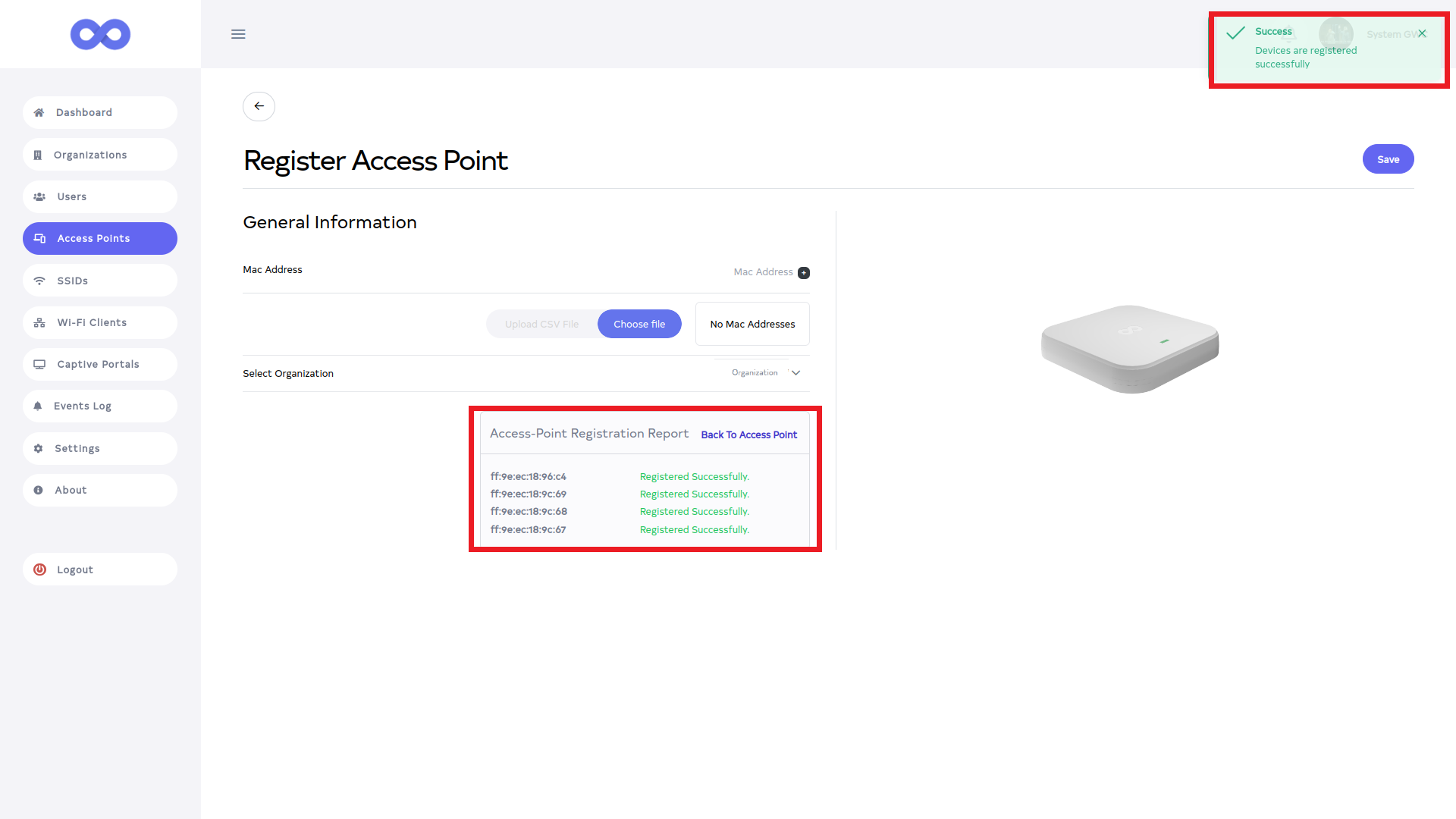
-
Click Back To Access Point to go to the main page of the Access Point.
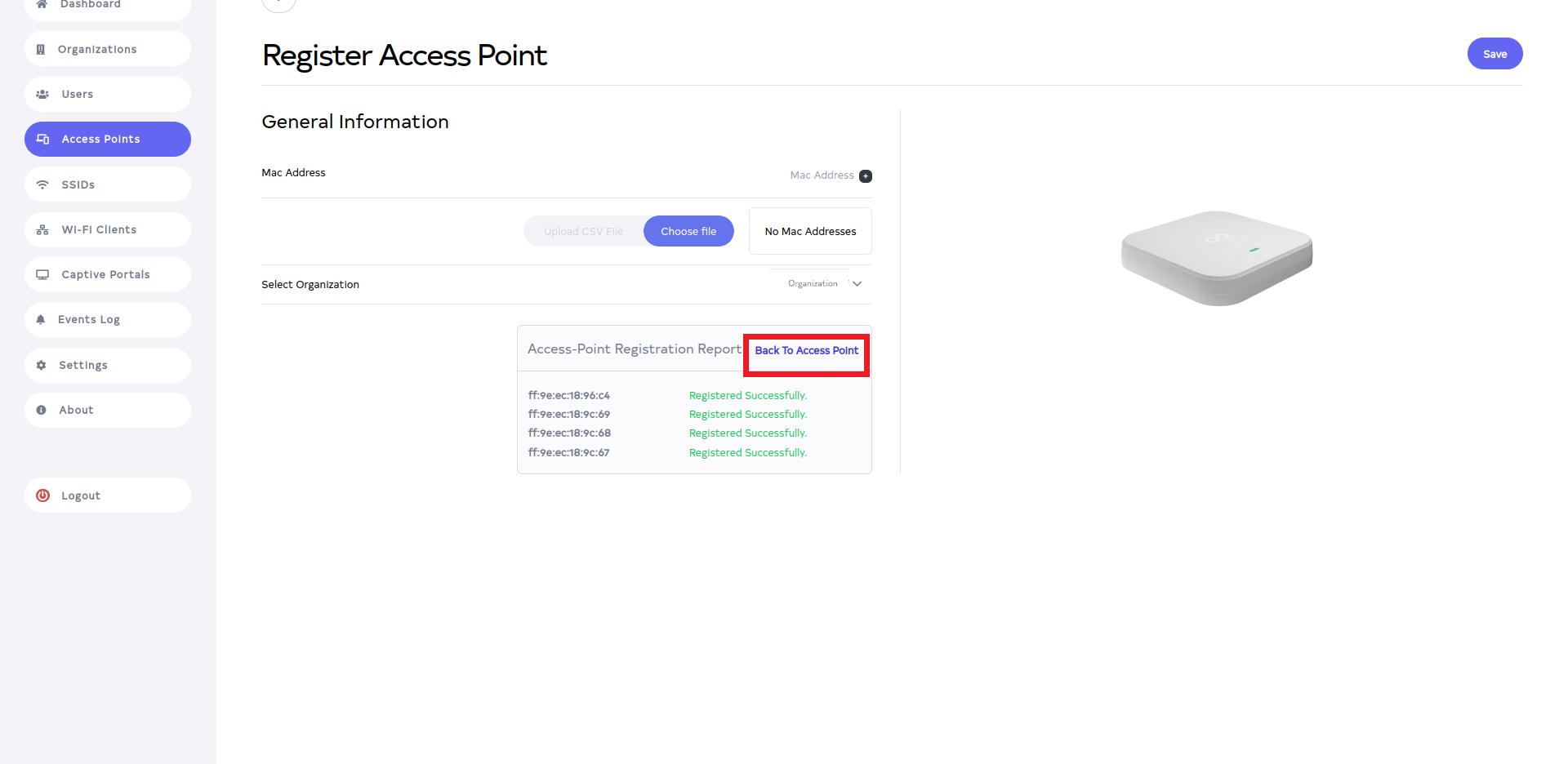
-
After redirecting to the Access Point grid, the registered MAC addresses will be displayed in grey and will not be configurable or editable. This is because the access point isn't sending any registration requests or communicating with our system. Once the access point communicates with our system, we will be able to configure or edit the access point record.

How to edit Access Point
-
Go to the access point you want to edit. Here find the name of the access point and find infinite-demo-AP access points to edit the data.
-
Click on the Edit button located on the right side of the Access Point.
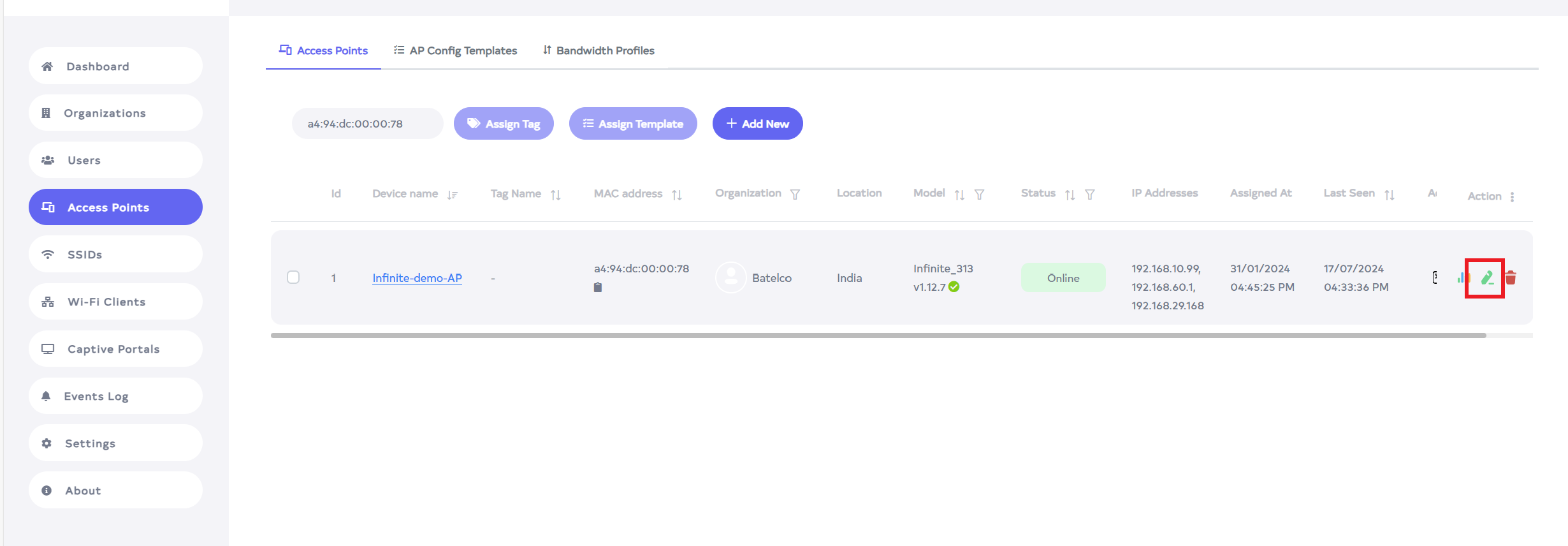
-
Clicking will open the details for editing.

-
In Access Point Section, configure System Config, Radio Configuration, Commands, Logging, SNMP, Port Forwarding, Firmware Upgrade, VPN Passthrough, and static Routes.
-
Then click on the Save button.

-
After the Access point Section is saved successfully, a success message will display Device Config is updated successfully.
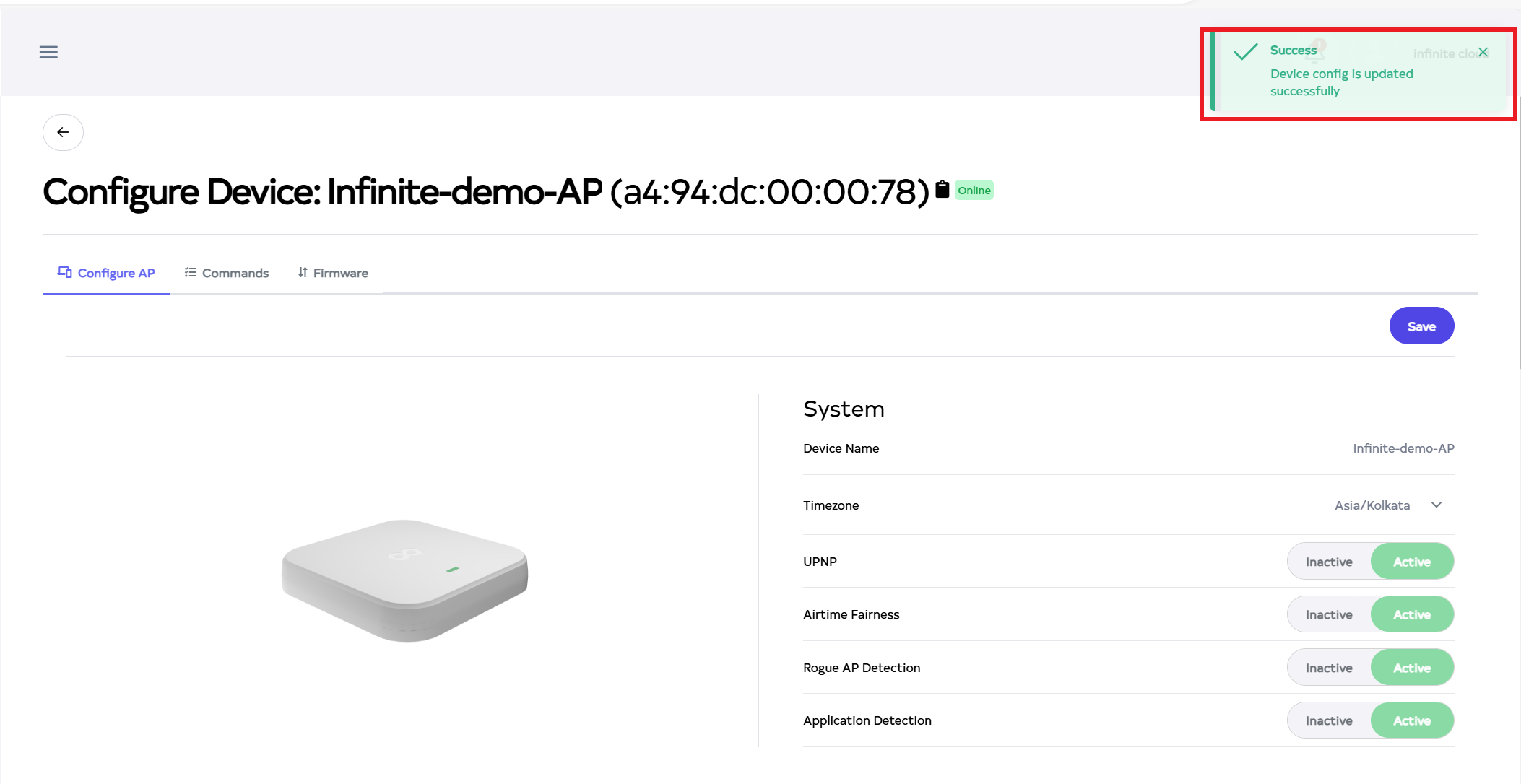
How to delete Access Point
-
Click on the delete located on the right side.

-
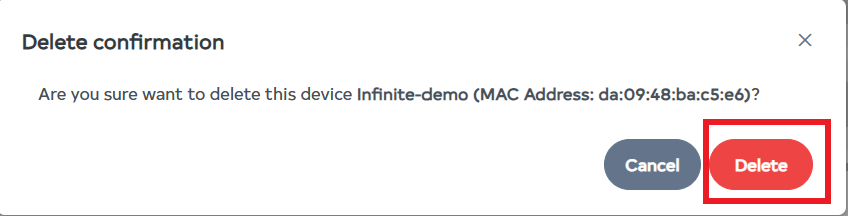
After clicking, you will be directed to a page where you will receive a confirmation message. Click on the Delete button.
-
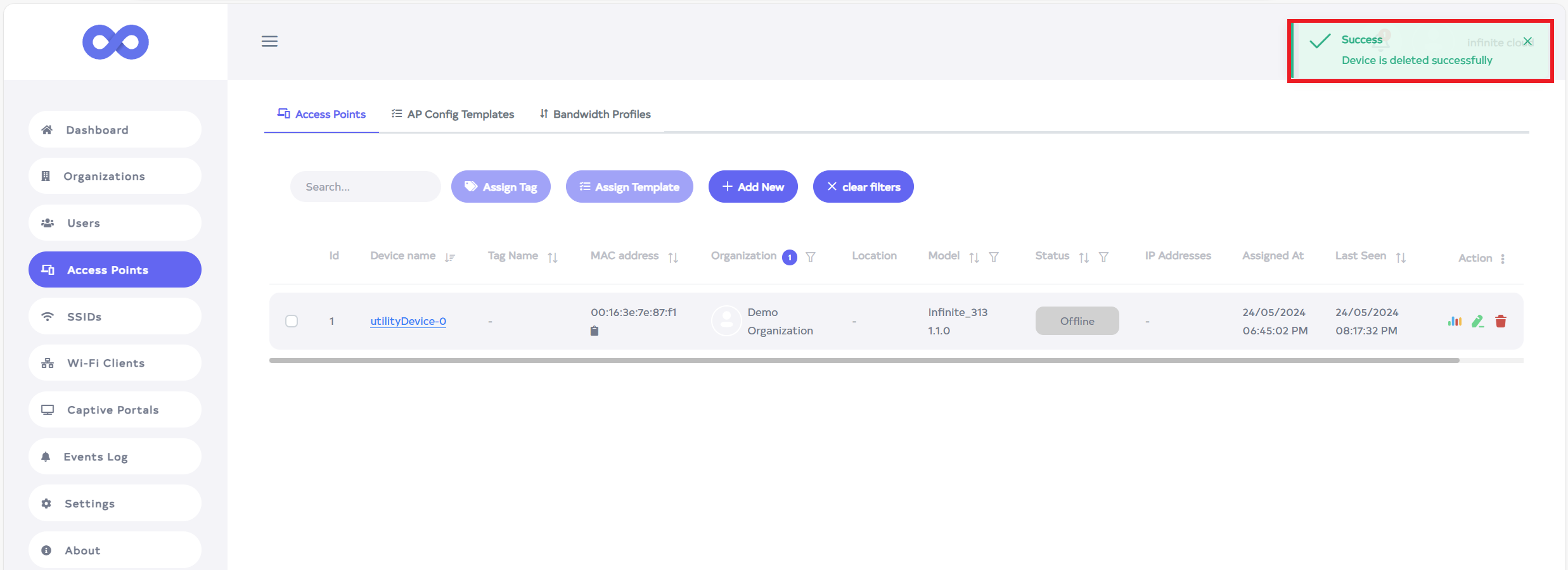
After the Access point is deleted successfully, a success message will display Device is deleted successfully.
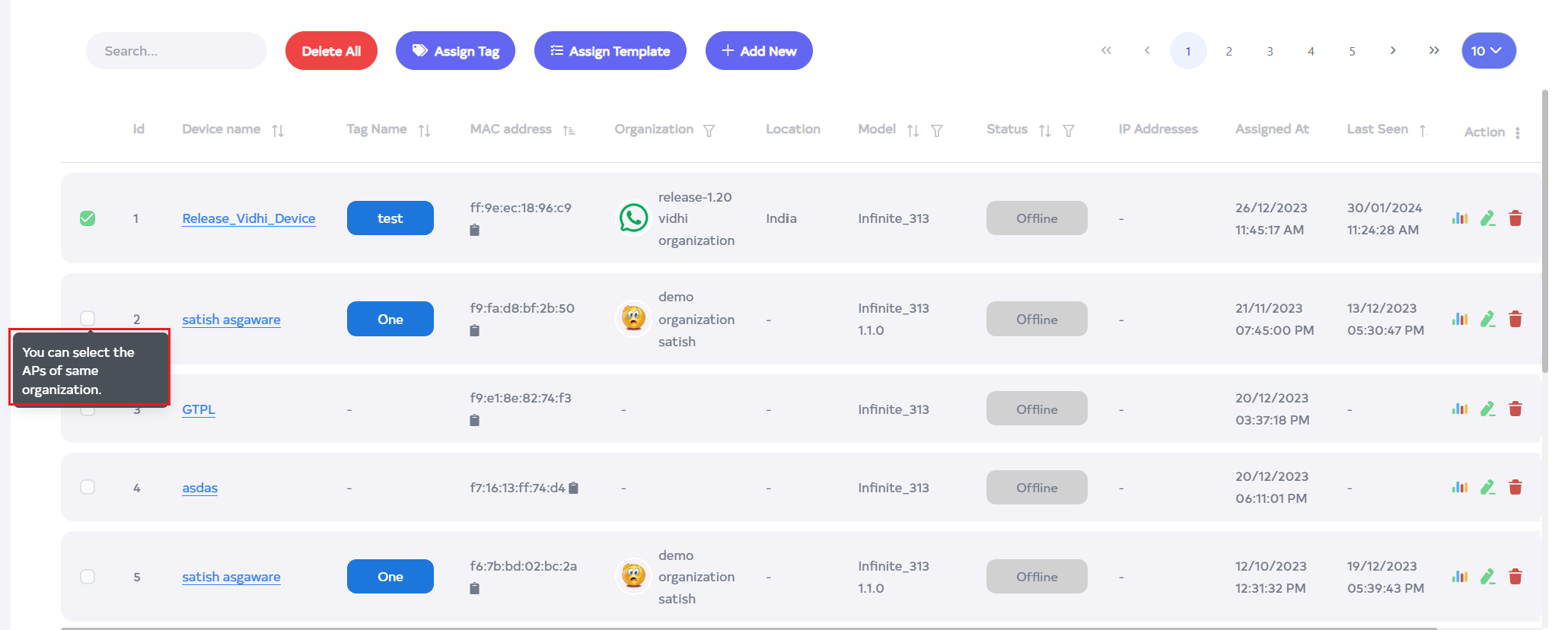
Select the desired access point devices by clicking the checkboxes adjacent to each access point entry to delete multiple access point devices. for delete all selected devices click on "Delete All" to execute the bulk deletion process.

Only access points in the same organization can be deleted. If an attempt is made to select an access point from a different organization, a tooltip indicating the restriction will be displayed.
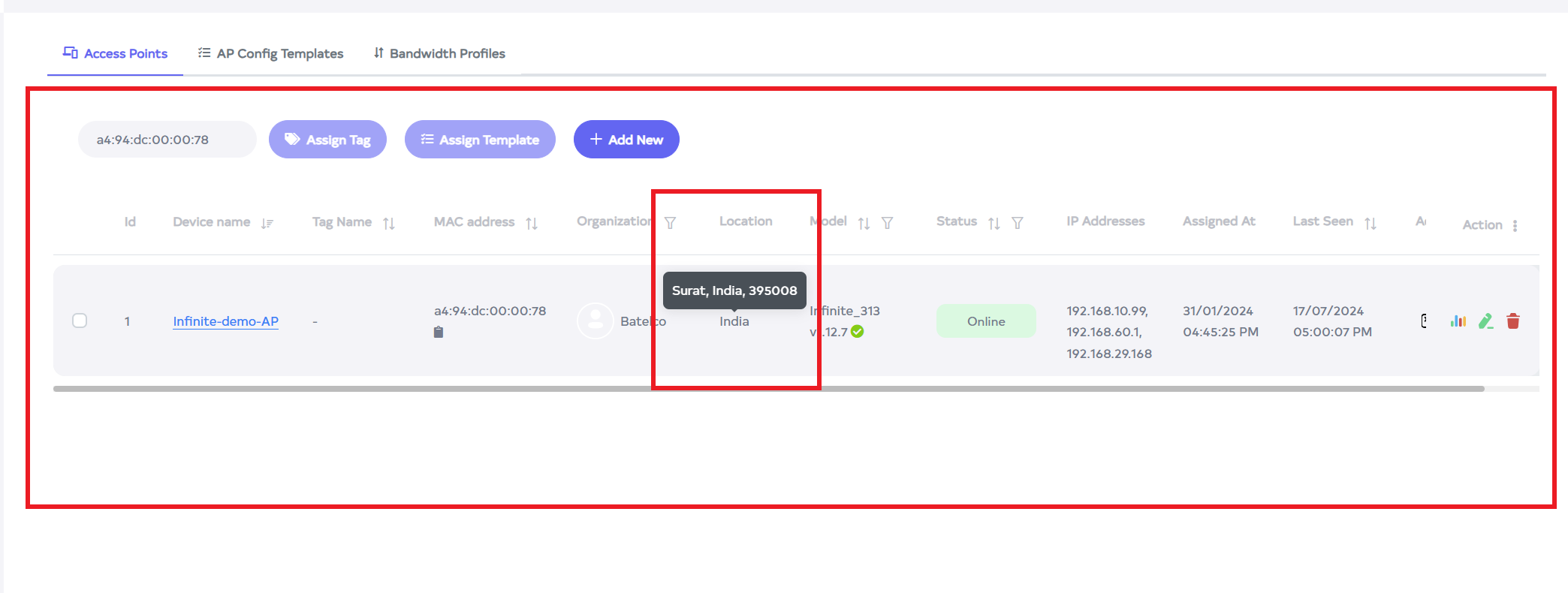
In the location section, the device will display the name of the country where it is located. Hovering over it will display its name along with the country and city, as shown in the image.
The access point can be accessed remotely using a web terminal and web UI. Please visit the link here for how to access it Step for the AP remote access