Advanced Menu
This document outlines advanced product configuration, focusing on log configuration, log lists, and global configuration settings. It provides step-by-step instructions on how to configure these settings to ensure optimal functionality and performance.
Detailed Configuration Steps
Log Configuration
The log configuration section allows you to set the log level for your application. Based on the log level set, the entries in the log list will be recorded accordingly. This section is crucial for managing and filtering log data.
- Login to the Application
- Login to your application by entering username and password.
- Access the Advanced Configuration
-
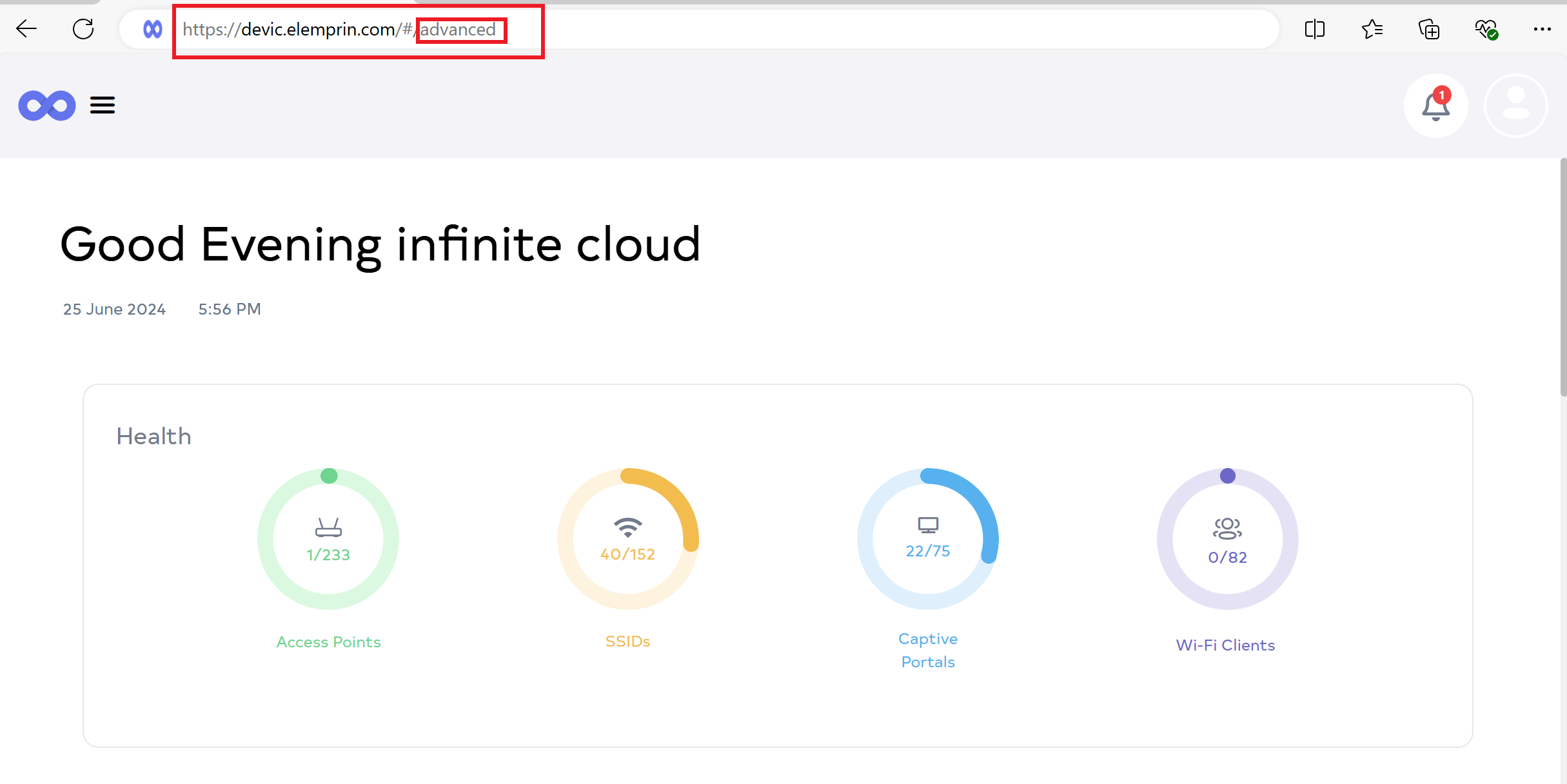
Enter advanced in the application URL as demonstrated in the image. For instance, with the URL devic.elemprin.com the term advanced is appended. Replace this with the appropriate application URL.
- Open Advanced Configuration Page
-
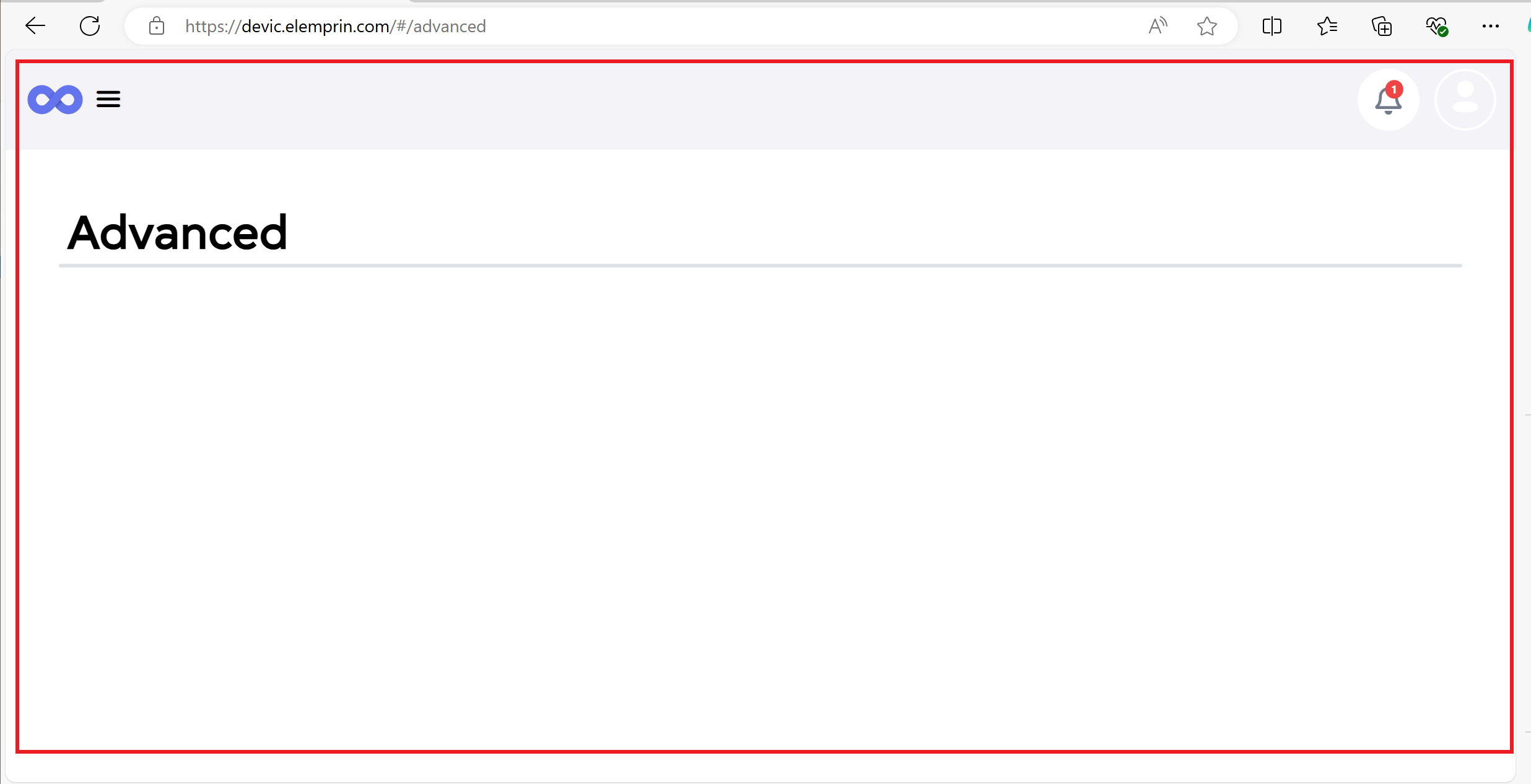
Entering advanced in the URL will open a new page like this.
- Open Developer Tools
-
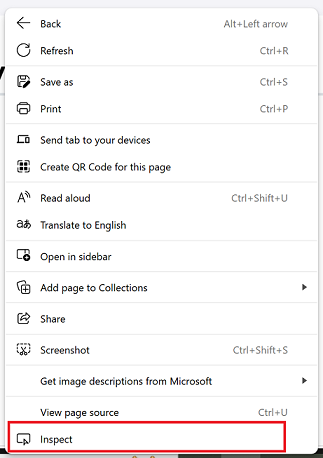
Right-click on the page and select Inspect from the context menu.
-
Navigate to the Console tab. In the Console, enter the following command. Press Enter to execute the command and reveal the Log Configuration section.
document.getElementById('showContent').style.display='block';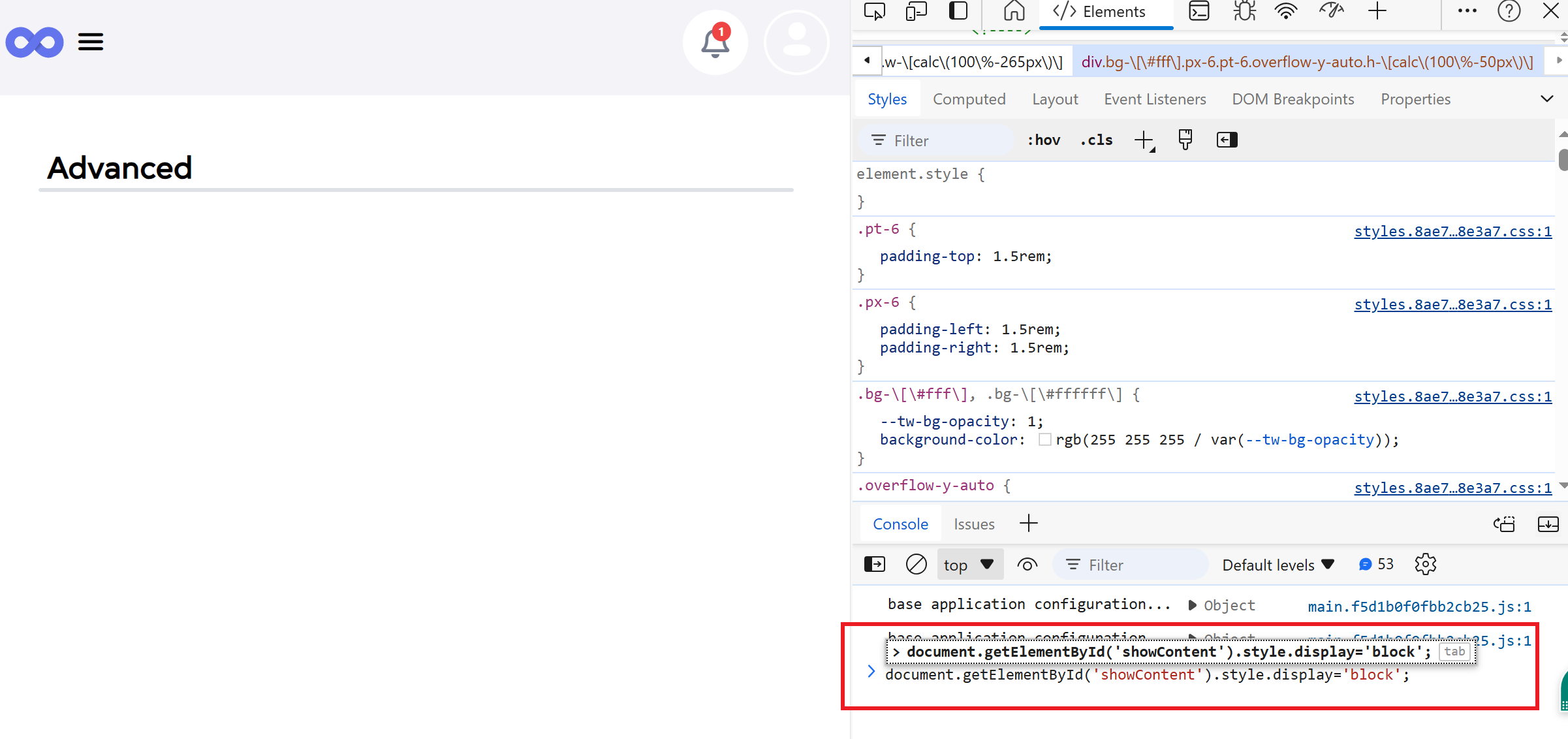
- Configure Log Level
-
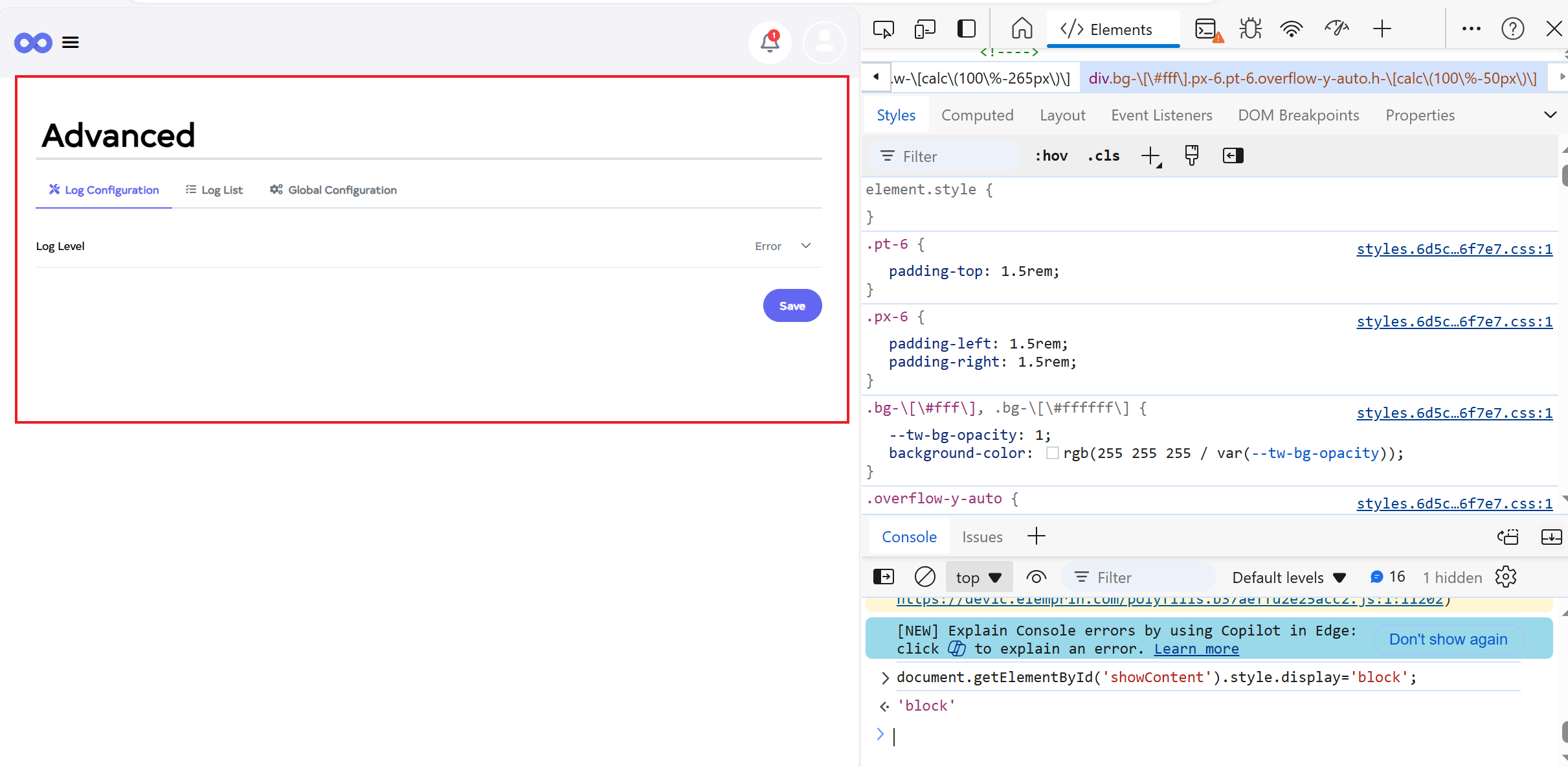
Click on the Log Configuration tab.
-
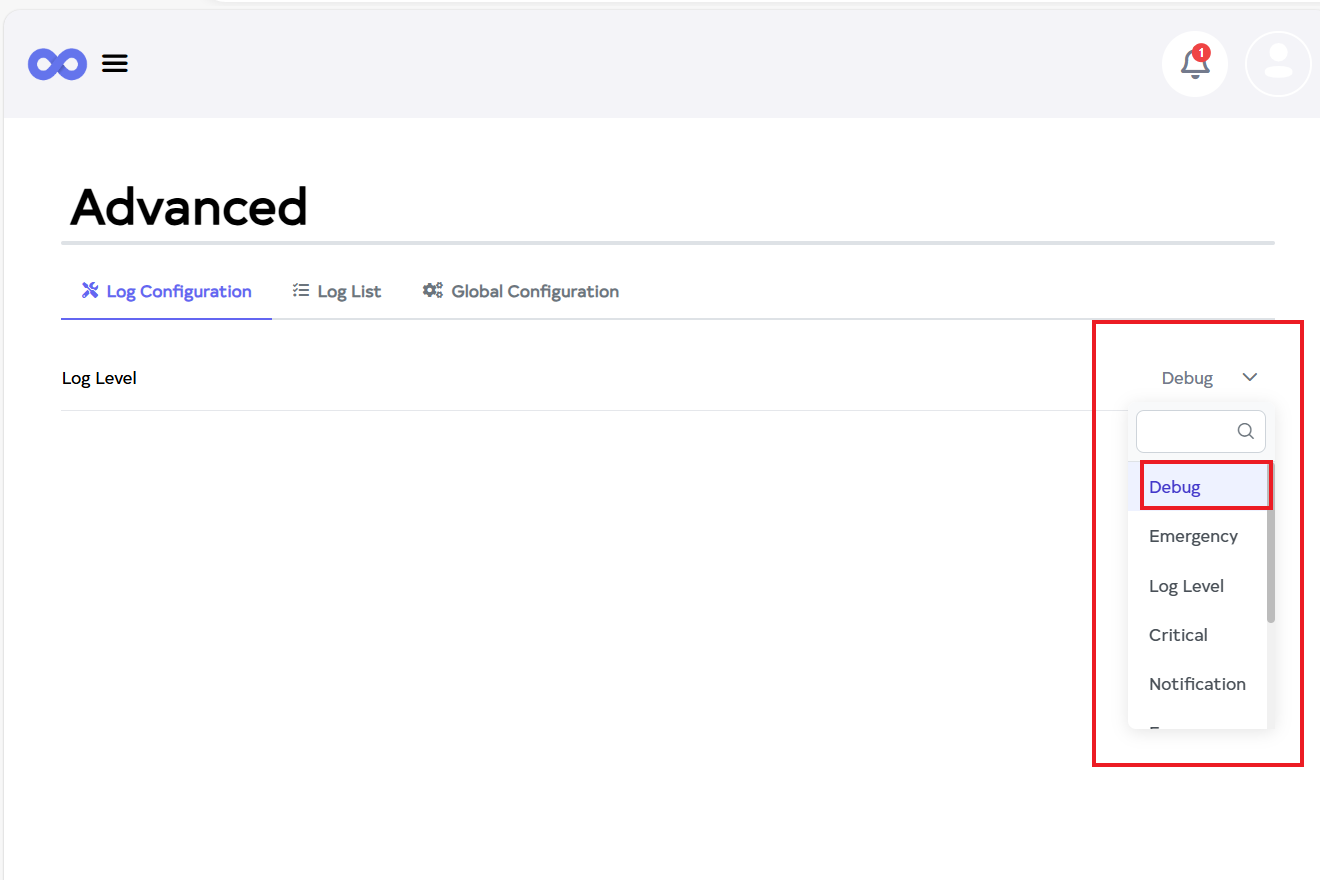
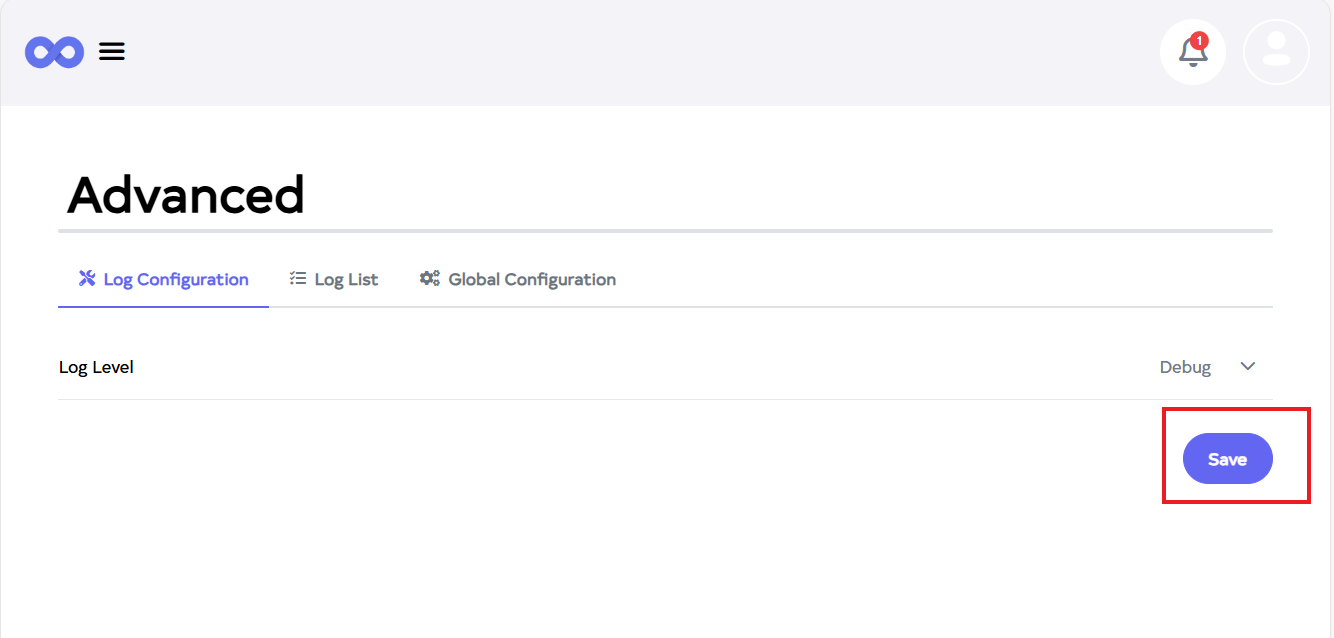
Then clicking on the Log Configuration given here and select the log level. Here if there is any log level store in the DB then by defualt it will show the log level here and if there is no log level store then by defualt ALL will come.For example debug selected.
- Save Configuration
-
Then click on Save button.
-
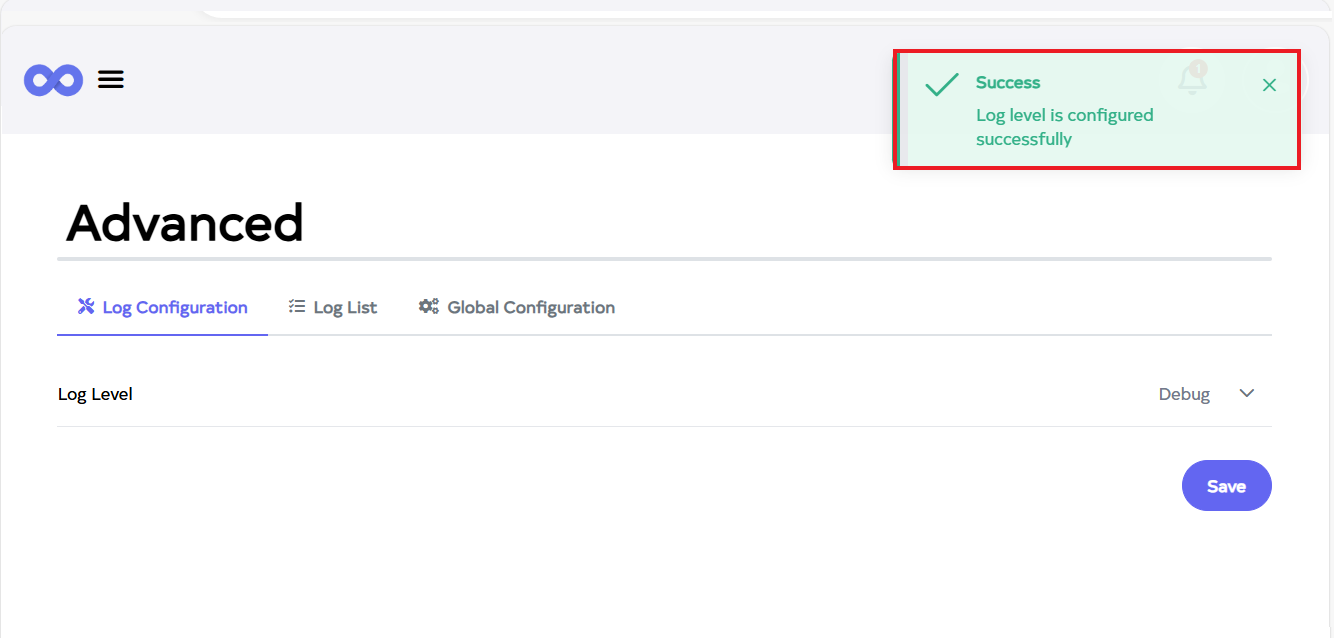
After the Log configuration Section is saved successfully, a success message will display Log level is configured successfully
 Info:
Info:A message will be logged at the selected log level.
Log List
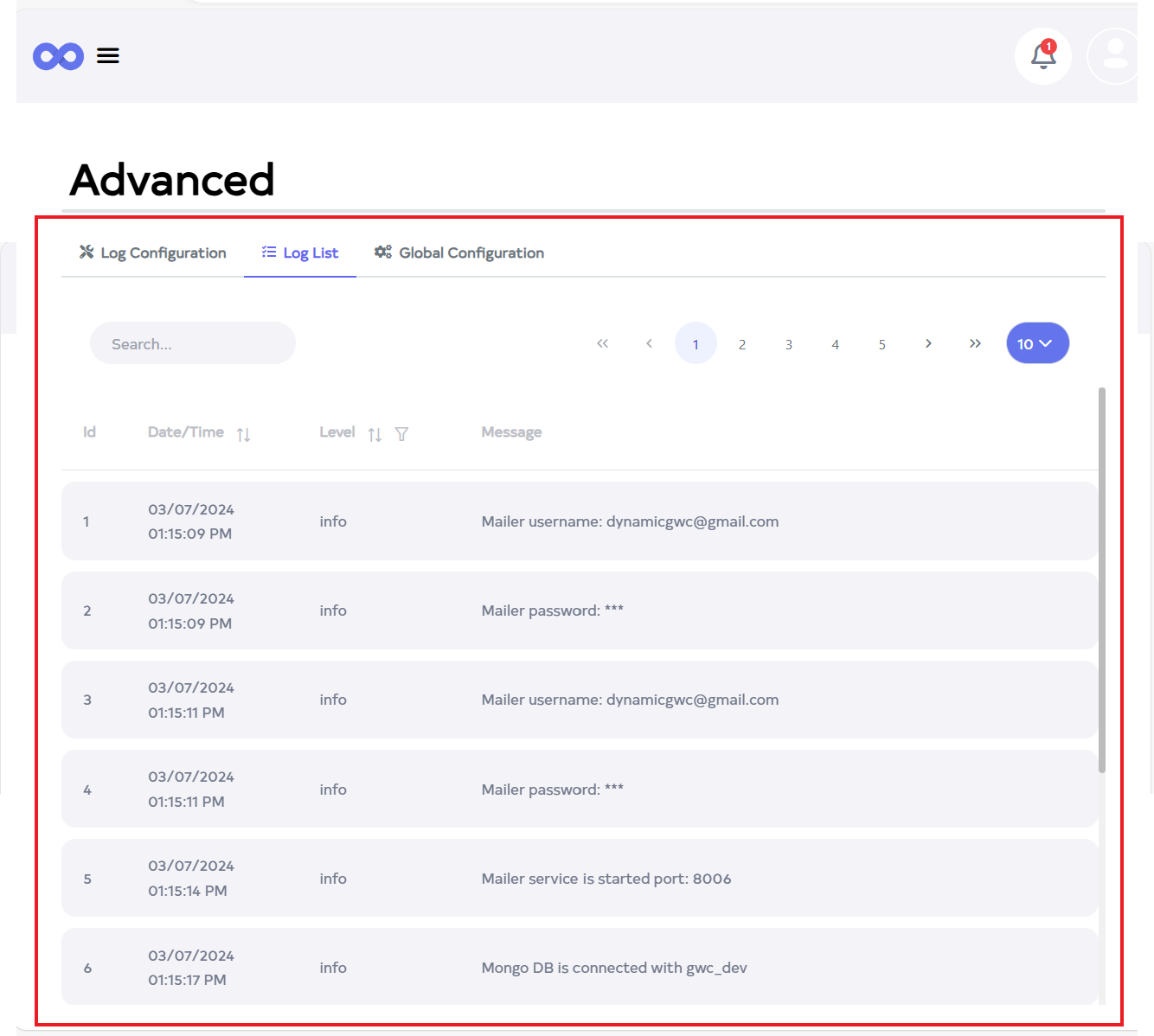
The Log List section displays a comprehensive list of logs that have been recorded based on the configured log levels. This section provides filtering and search options to help you quickly find specific log entries.
- Access the Log List
- Click on the Log List tab to view recorded logs.
- Search Specific Log Entries
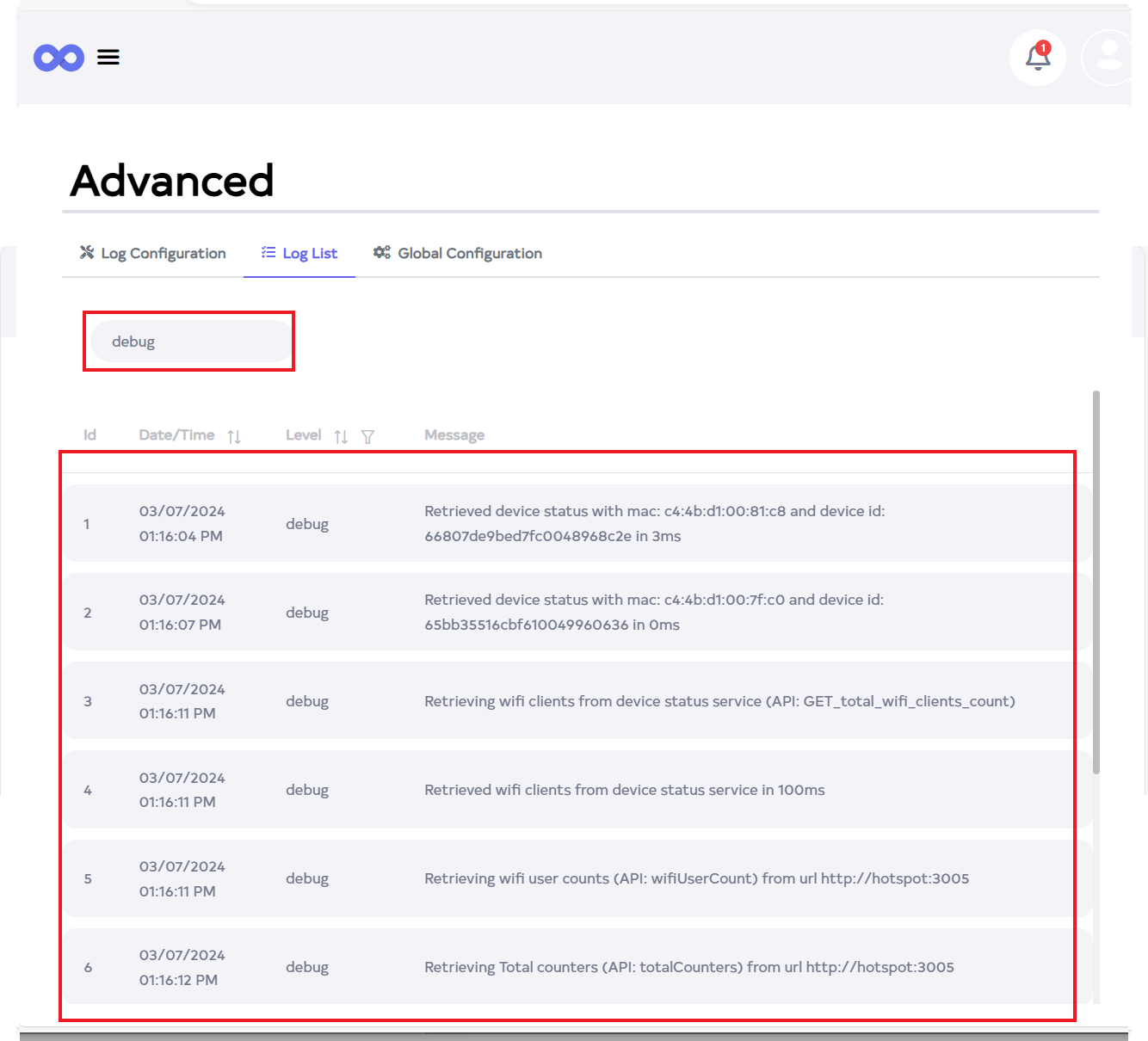
- To check a specific level and message, go to the Search tab and search. For example,a debug search will display the corresponding level.
- Filter Logs by Level
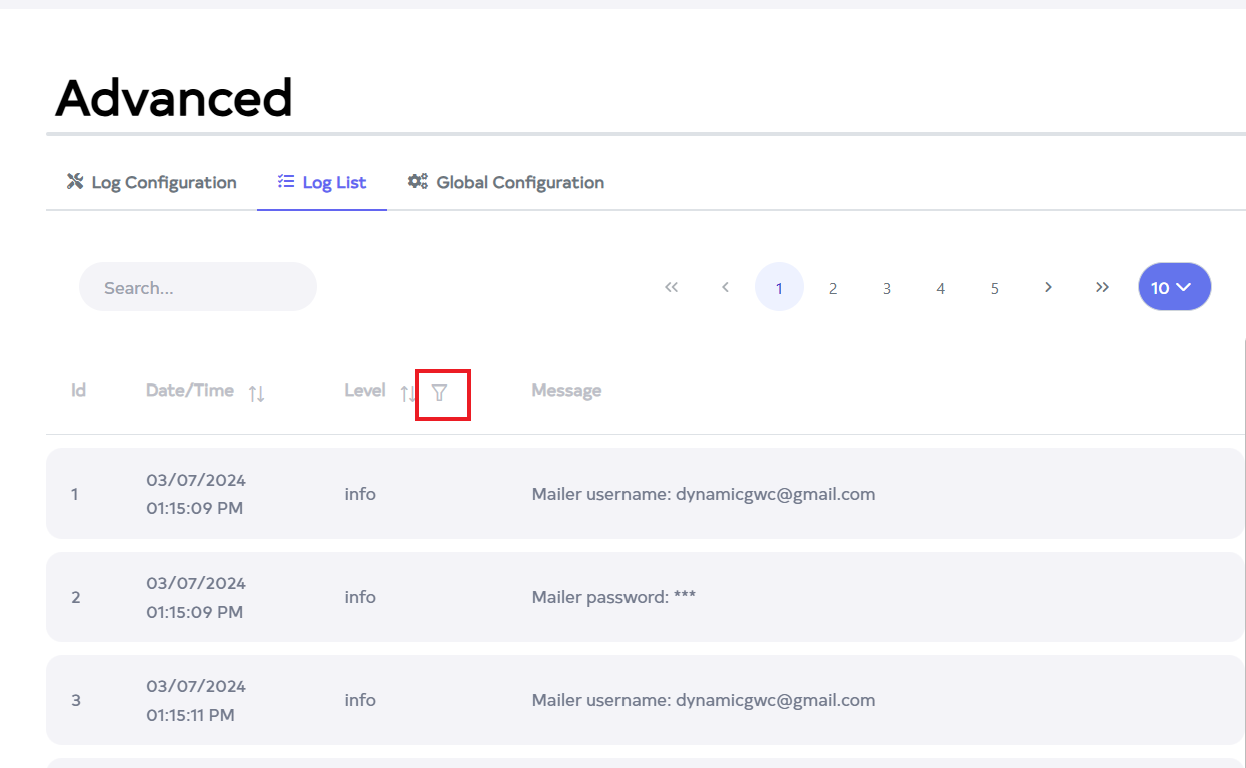
- The level can also be seen by filtering. Click on the level filter.
- Apply Filter
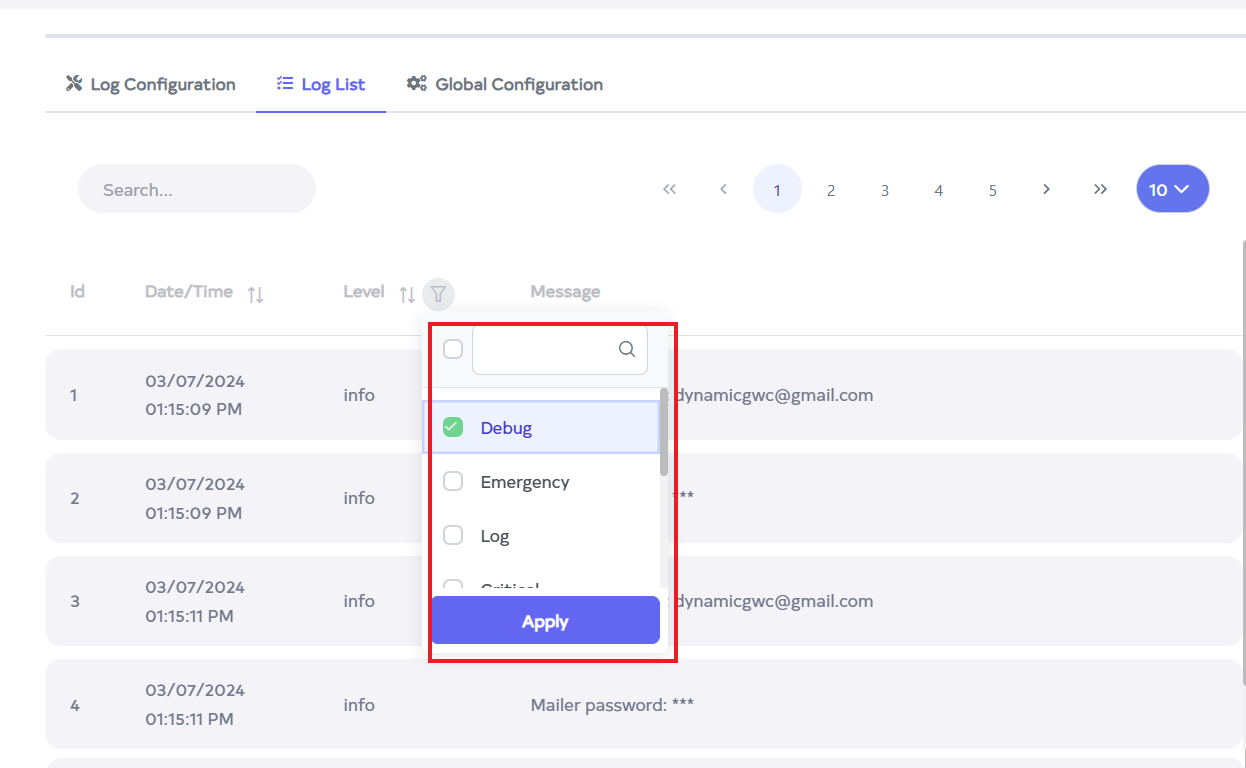
- Open the new popup. Different levels will be displayed. Click the checkbox for the desired level, then click the Apply button.
Global Configuration
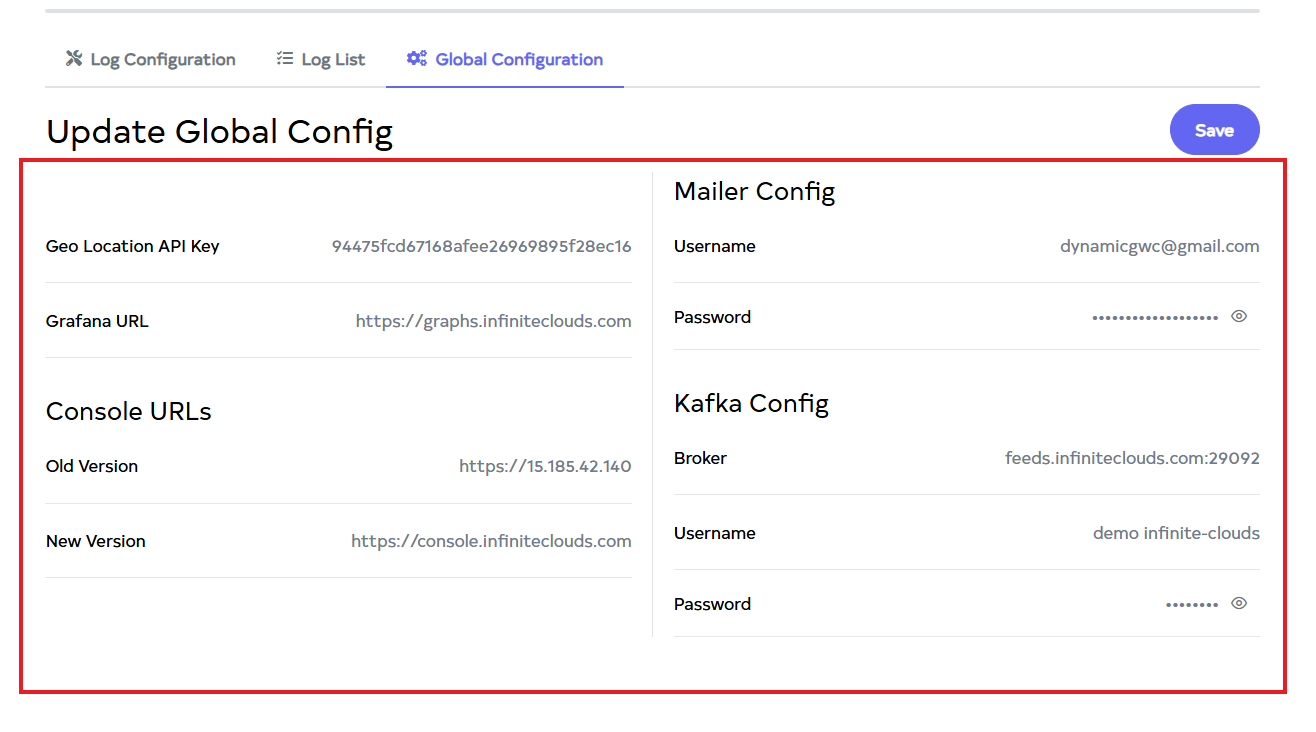
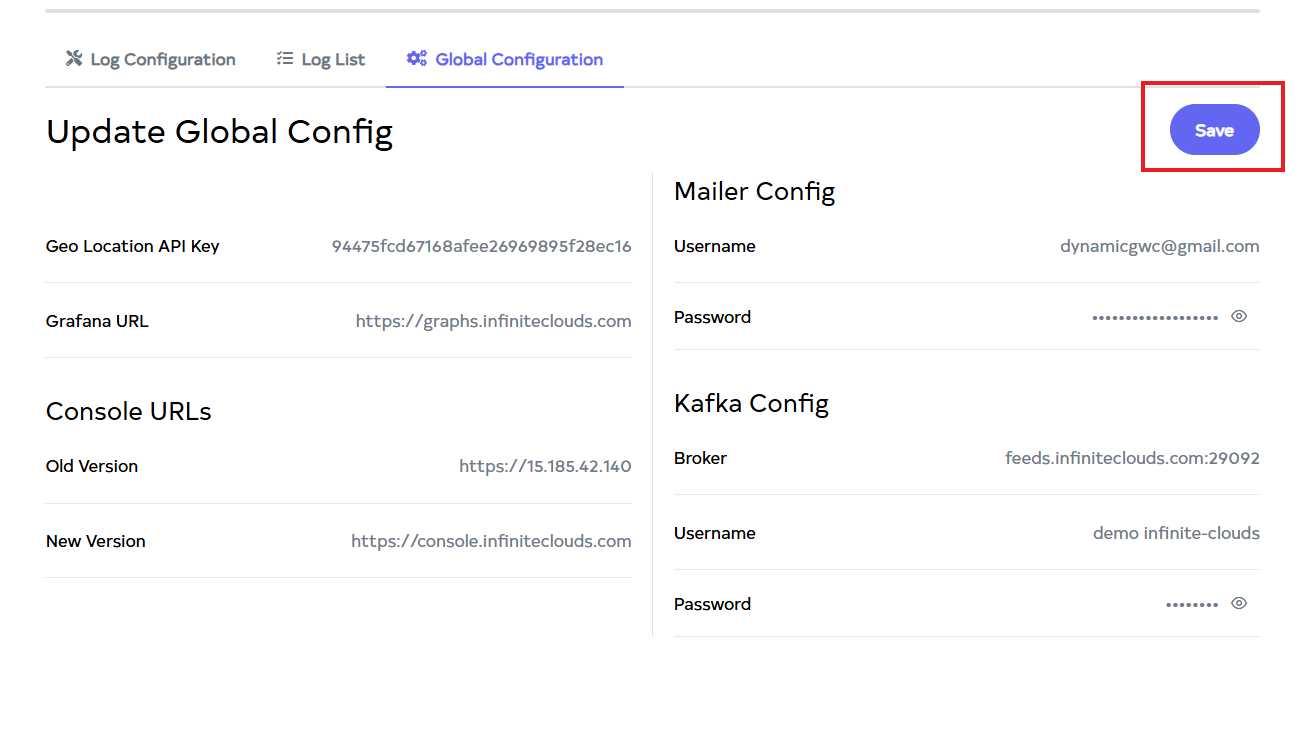
The Global Configuration section allows you to configure essential system-wide settings such as Geo Location API Key, Grafana URL, Console URLs, Mailer Config, and Kafka Config. These settings ensure seamless integration and communication across various services in your system.
- Access Global Configuration
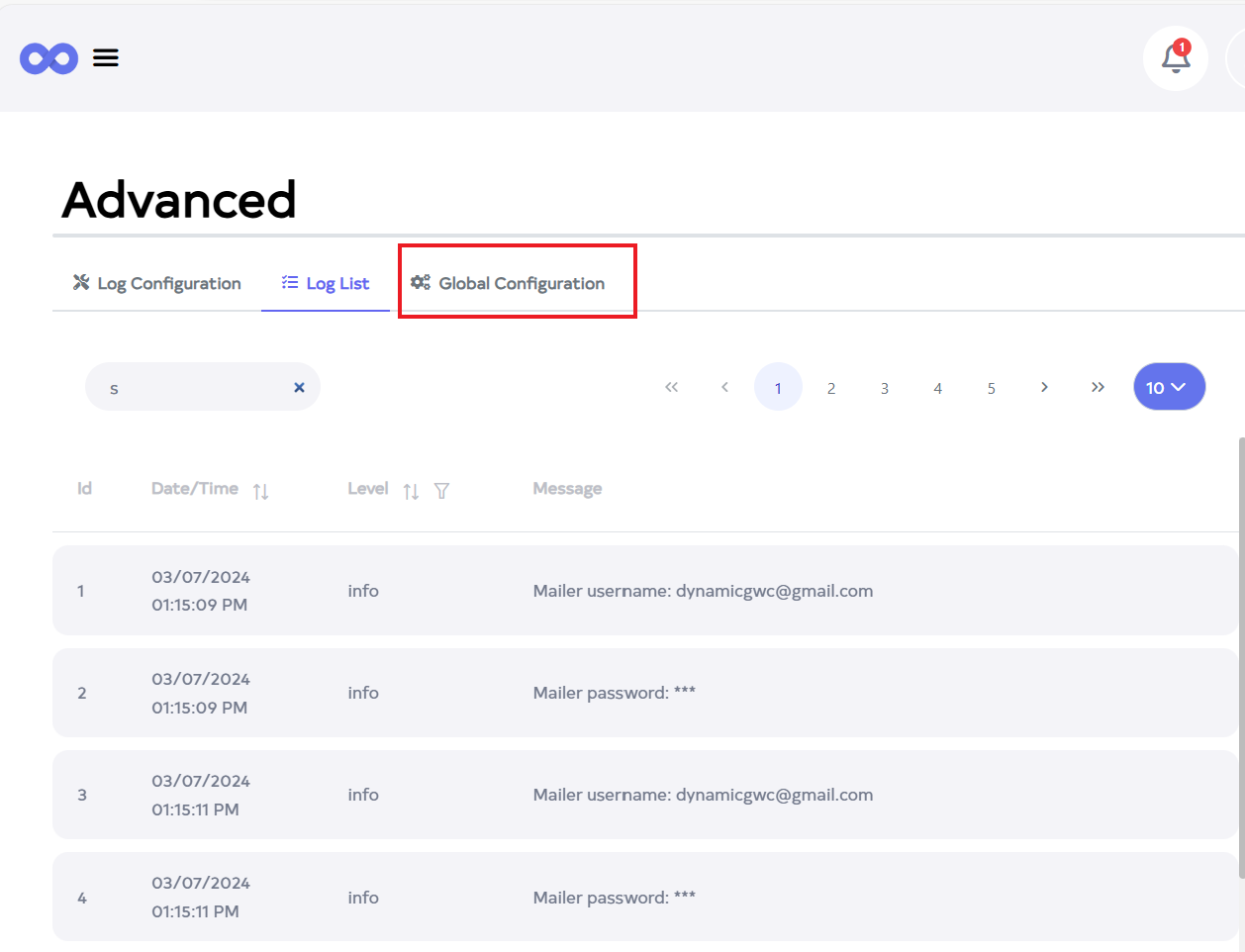
- Click on the Global Configuration tab.
- Update Configuration Settings
-
Clicking the Global Configuration will reveal its settings. Here in this section, Users can update the
-
Geo Location API Key,
-
Grafana URL,
-
Console URLs,
-
Mailer Config, and Kafka Config. They can also add their own Grafana URL and Console URLs.
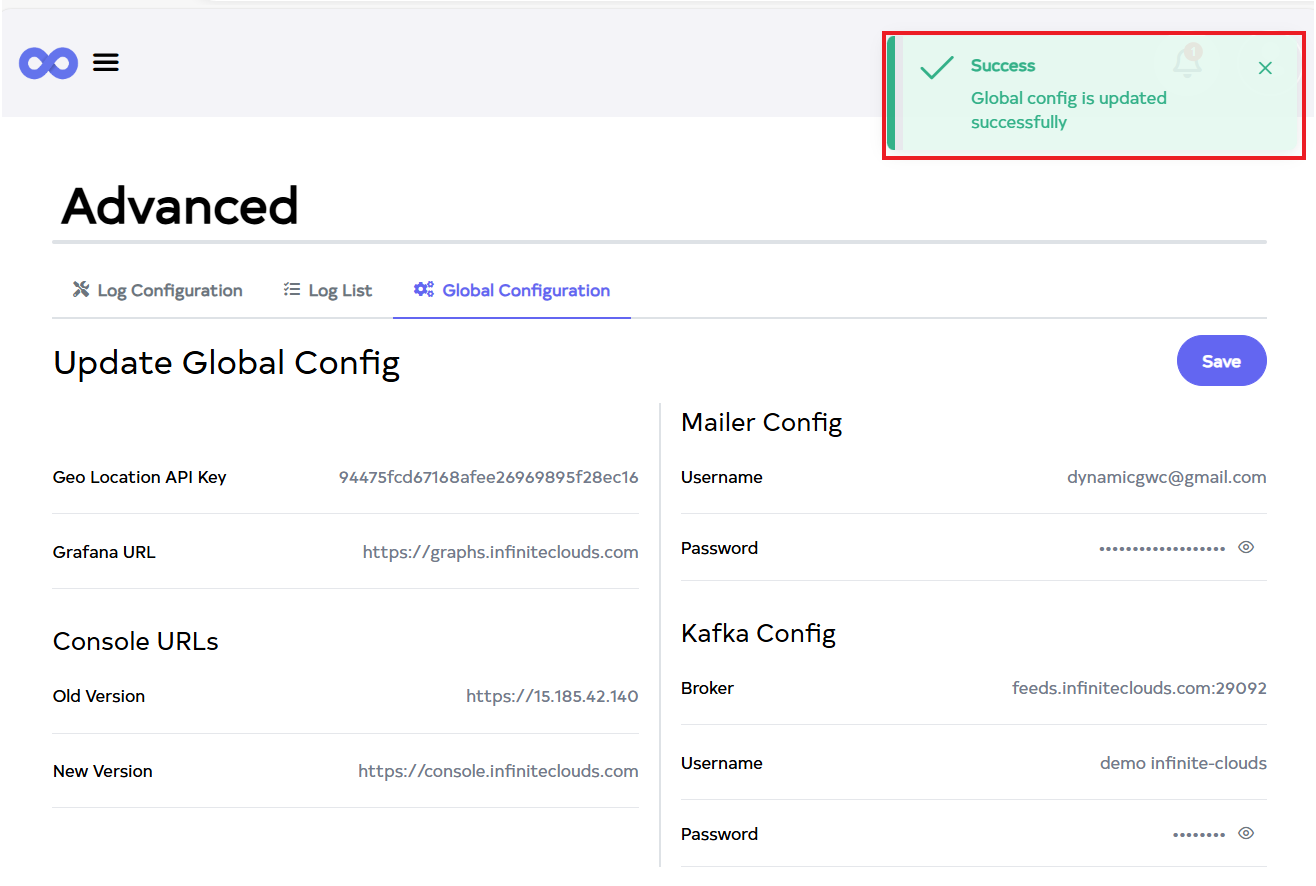
- Save Global Configuration
-
Press on the Save button.
-
After the Global Configuration Section has been saved, a success message will appear stating Global config is updated successfully.