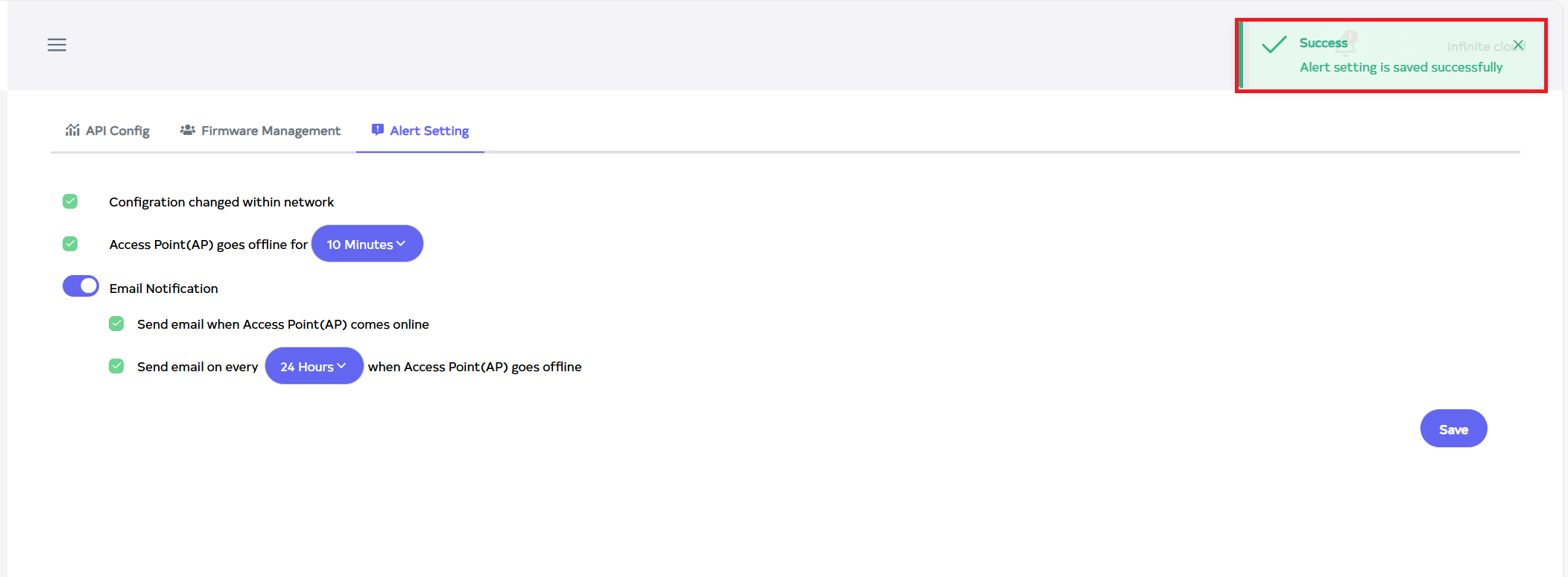
Alert Setting
This document provides detailed guidance on configuring alert settings to monitor network changes and access point (AP) status. Alert settings enable notifications for key events such as network configuration changes and AP offline status, ensuring that admin users are immediately notified via email.
Steps to Configure Alert Settings
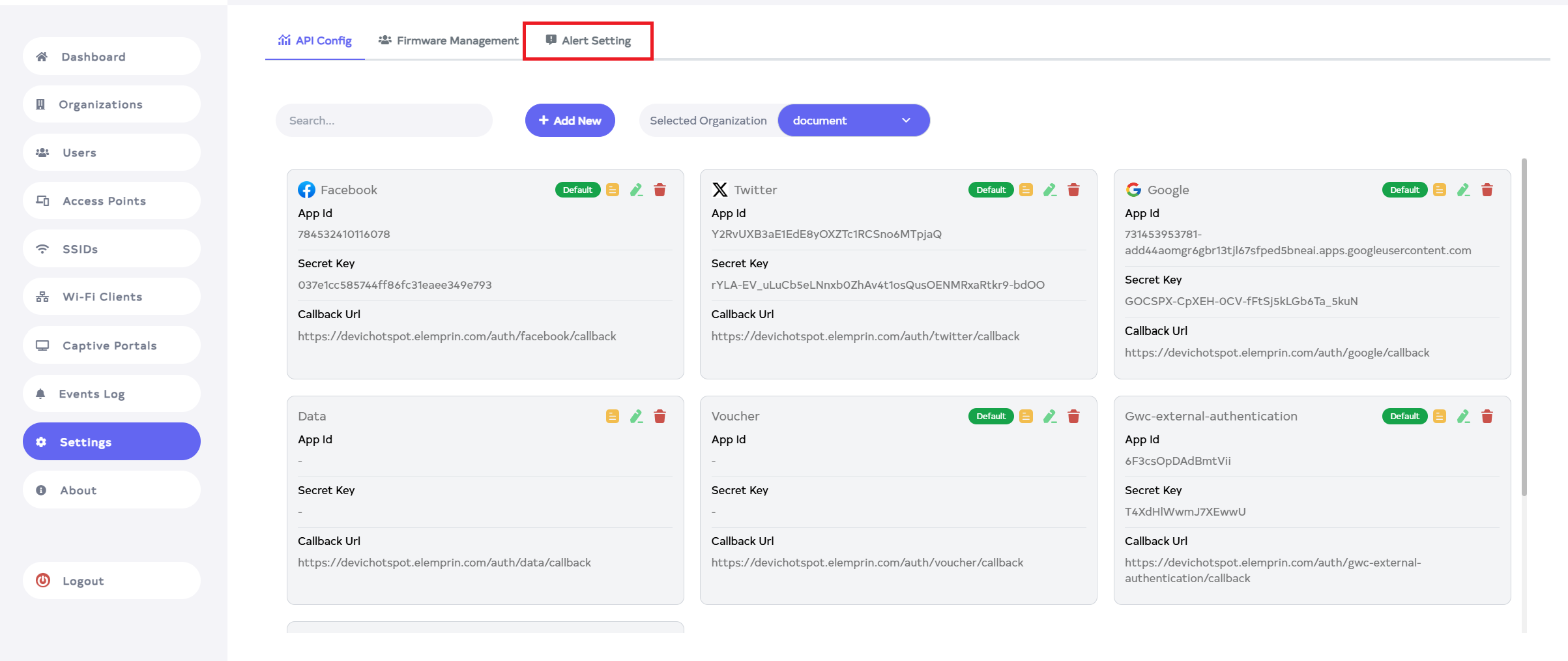
Access the Alert Settings
- Navigate to Login > Settings > Alert Settings tab.
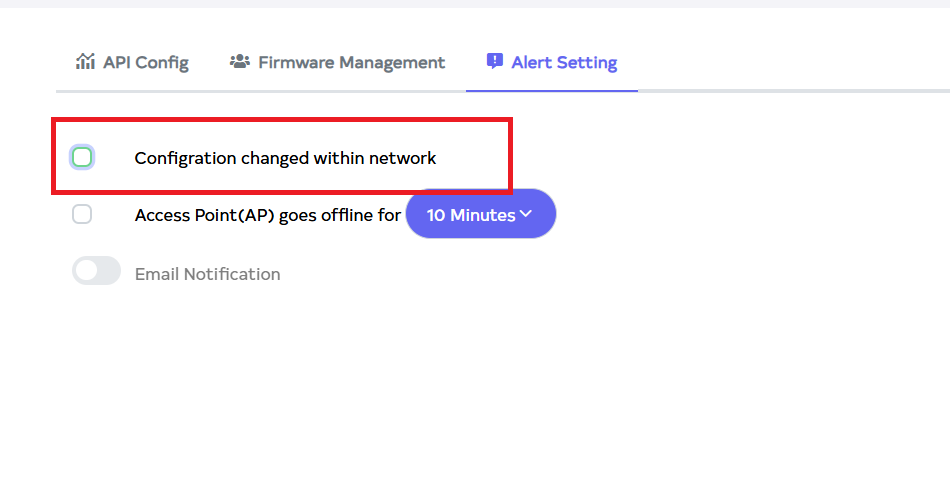
Configure Network Change Alerts
- When the access point (AP) configuration is updated, enable the Configration Changed within Network checkbox to trigger the associated event.
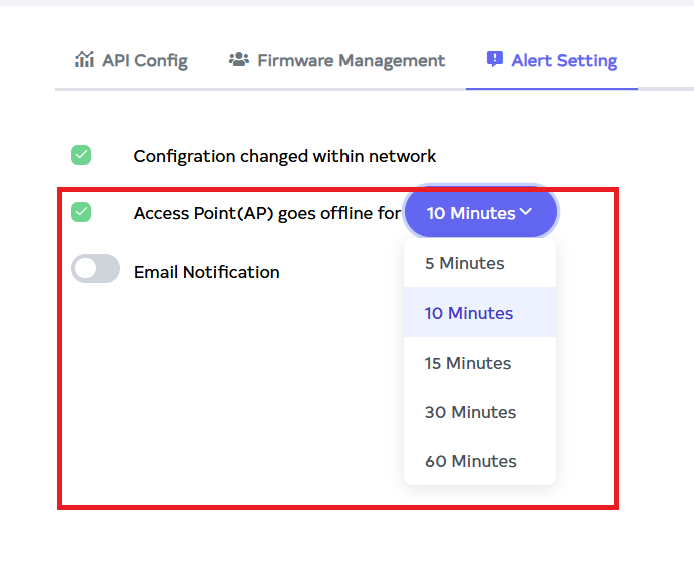
Configure AP Offline Alerts
- To receive a notification in the event log when a device goes offline, enable the Access Point (AP) goes Offline for Minutes checkbox. The configurable options are 5 Minutes, 10 Minutes, 15 Minutes, 30 Minutes, and 60 Minutes, with a default setting of 10 minutes. If the device remains offline for the duration specified by the user, an event log notification will be triggered.
Email notifications are triggered based on log availability Thus, an email notification can be sent only if the corresponding log is present. To enable email notifications, the Access Point goes Online option must first be enabled. Only then will the user have the option to activate email notifications.
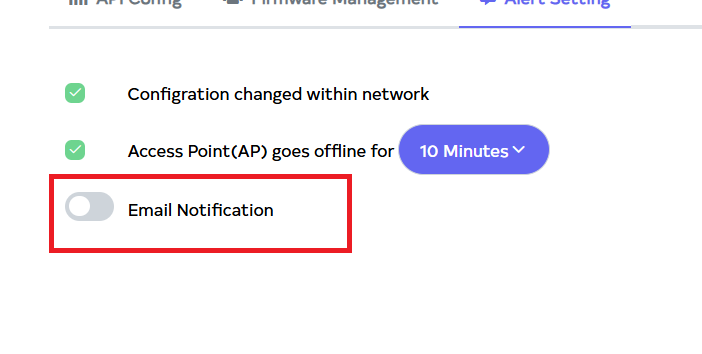
Enable Email Notifications
- Turn on the Email Notification feature.
Configure Email Notification Options
-
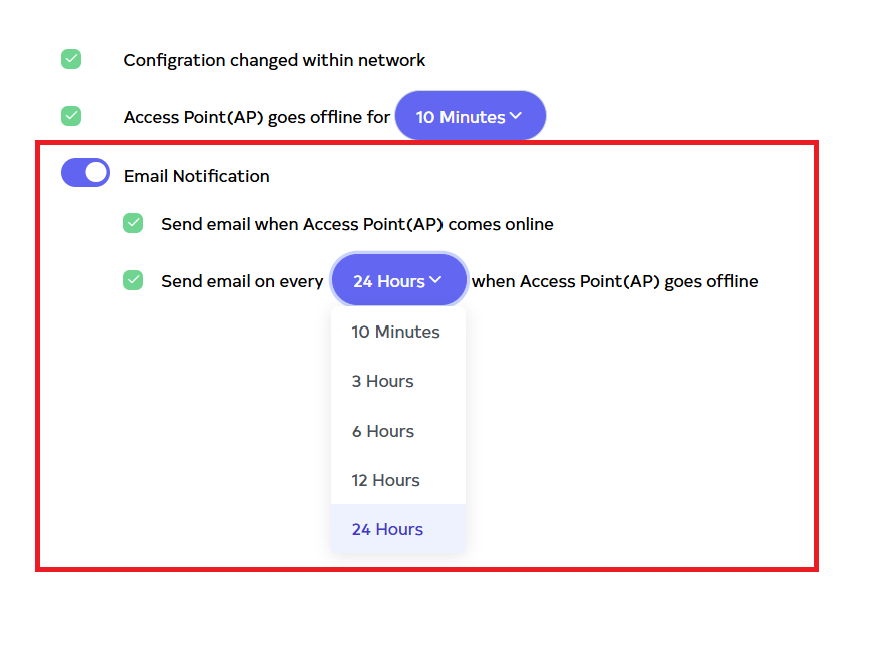
Once email notifications are enabled, the following options can be configured:
- Send email when access point comes online: Sends a email notification to the organization admin user’s email when an AP comes back online.
- Send email every 10 minutes when access point goes offline: When an access point (AP) goes offline, an email notification is generated to indicate its offline status. Configurable time intervals to trigger the notification are 10 minutes, 3 hours, 6 hours, 12 hours and 24 hours. If the AP remains offline for a period selected by the user, an email notification will be sent to the designated organization user.
Save the Alert Settings
-
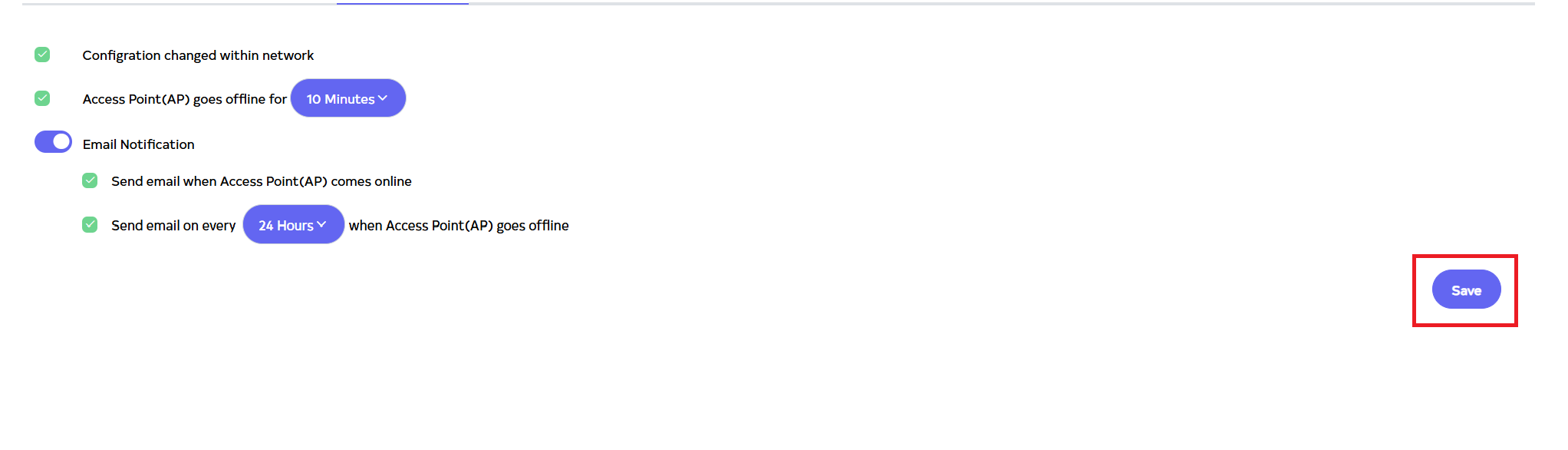
Click on the Save button to apply the configured settings.
-
Upon successfully saving, a confirmation message will appear, Alert settings is saved successfully.