AP Confing Templates
The AP Config Templates section in the Access Points menu allows users to create, configure, assign, update, clone, and delete templates for access point devices. These templates streamline the configuration process by applying predefined settings such as system, logging, radio configuration, SNMP, and port forwarding to multiple devices. The following steps demonstrate how to effectively manage AP Config templates.
Steps to Manage AP Config Templates
Accessing AP Config Templates
- Navigate to AP Config Templates:
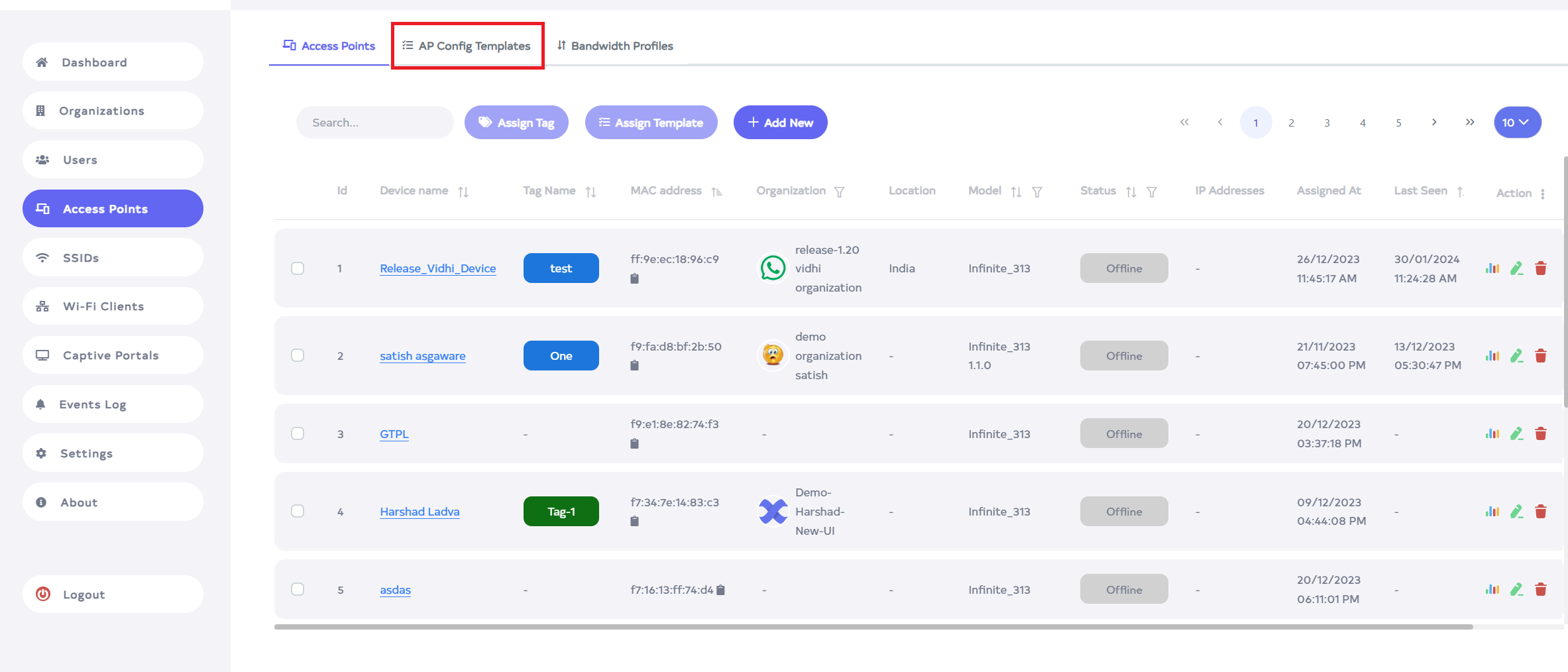
- Log in to the system and go to the Login > Access Points menu.
- Select the AP Config Templates tab
Creating a New AP Config Template
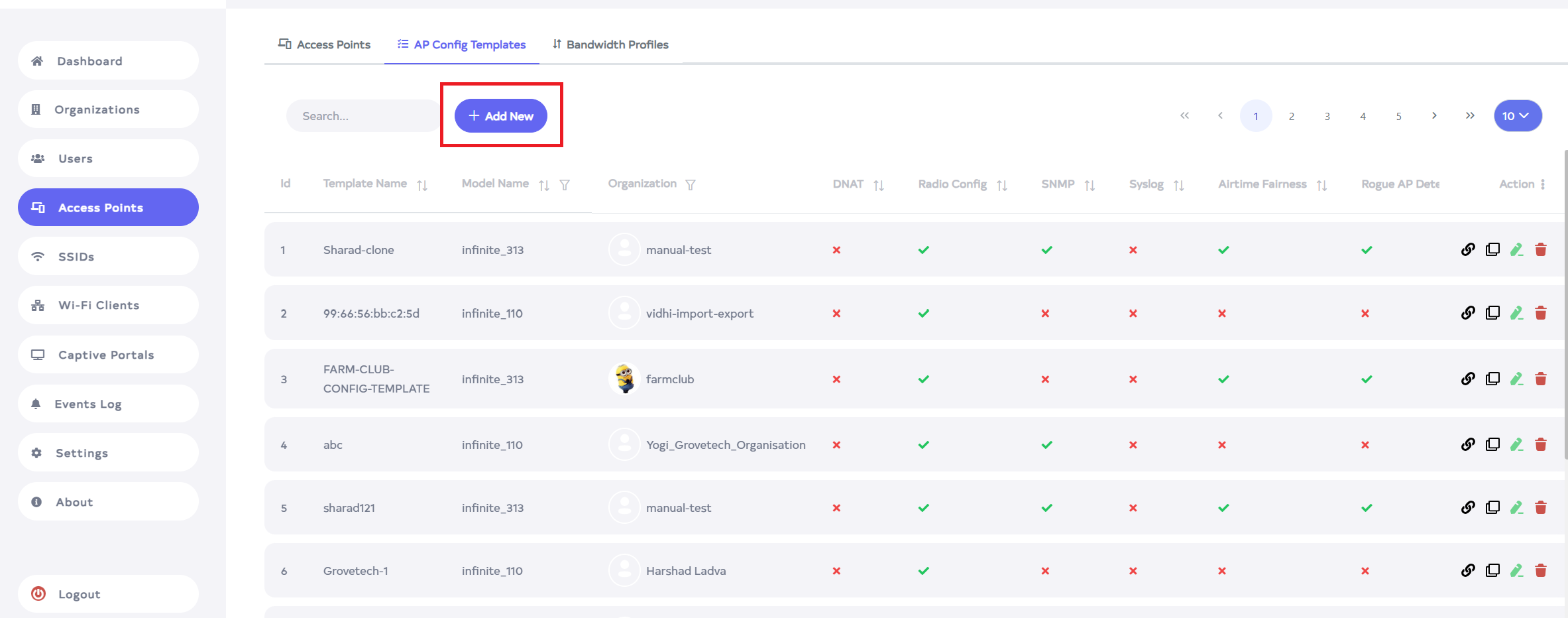
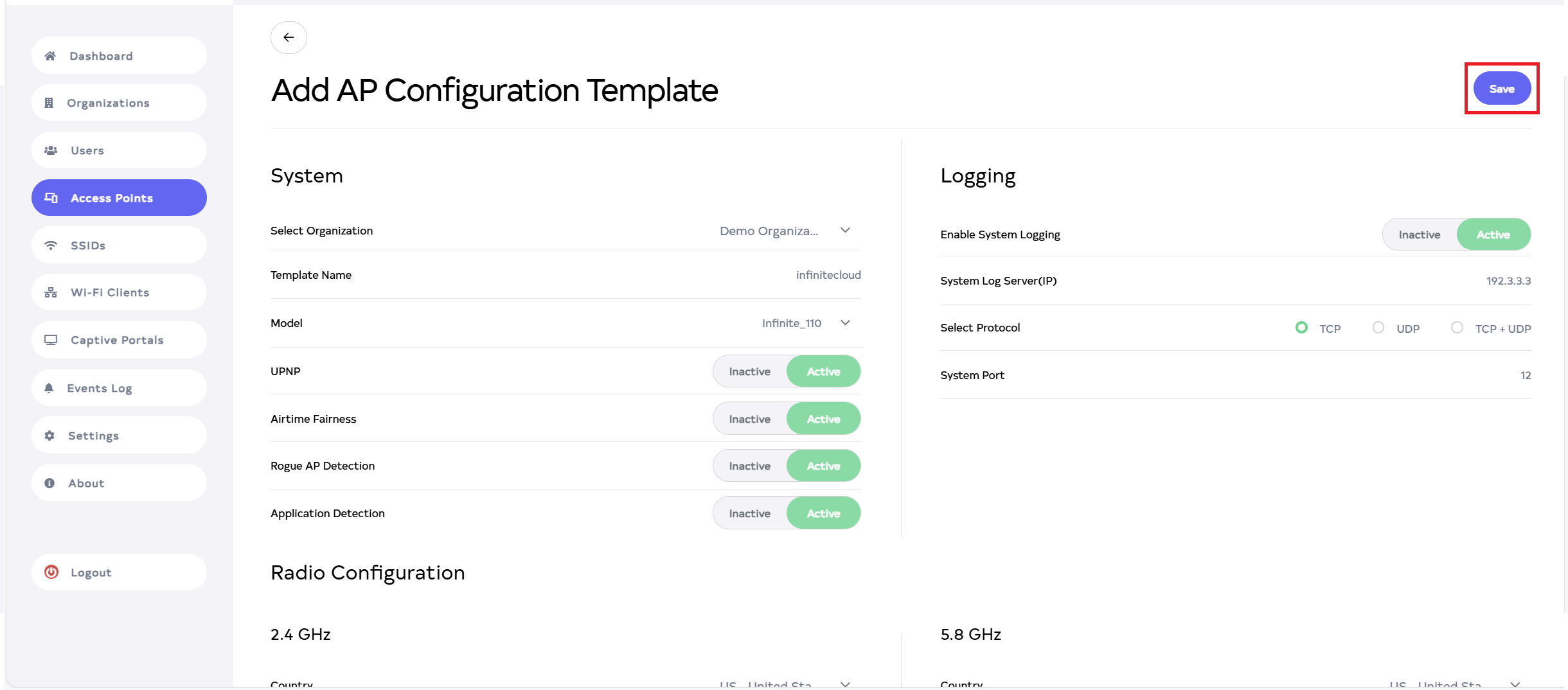
- Add a New Template:
- Click the Add New button.
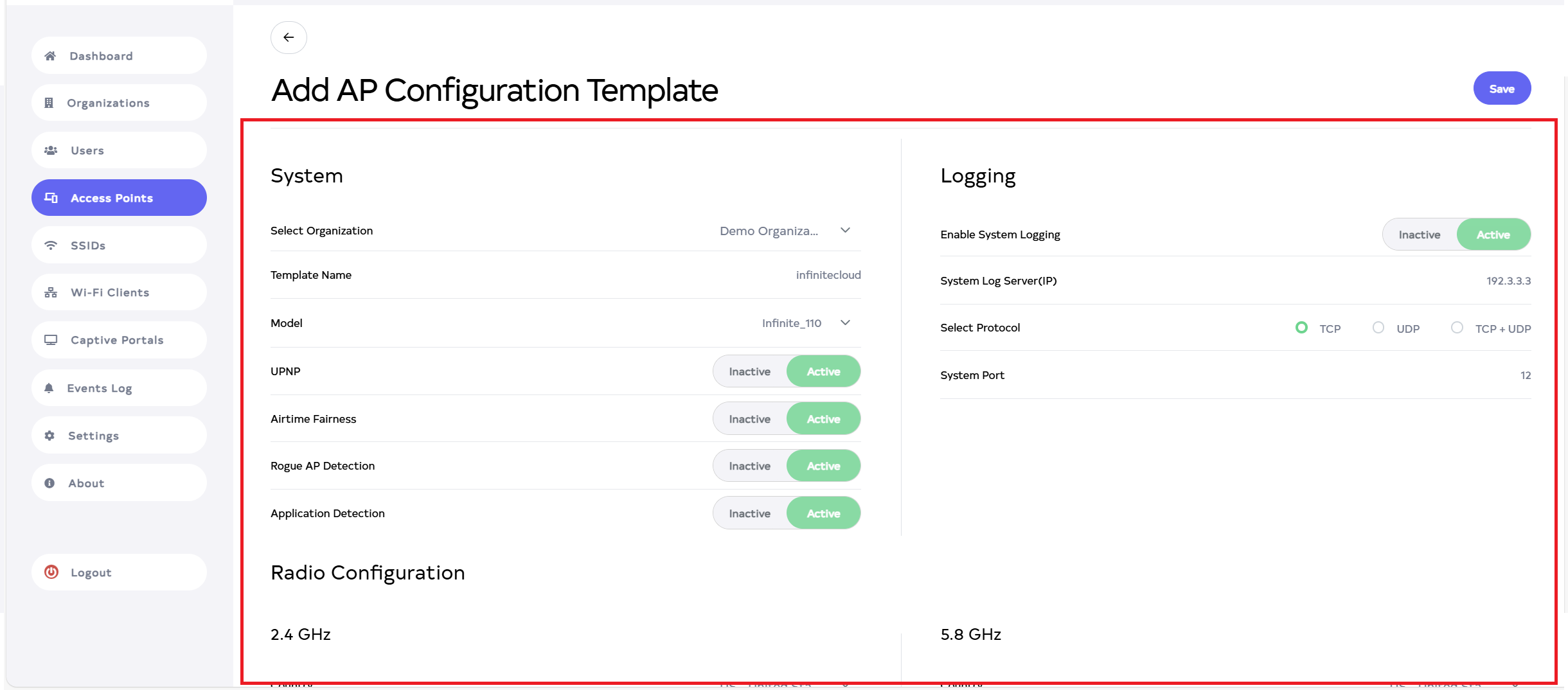
- Configure Template Details:
- Input and configure details for System, Logging, Radio Configuration,SNMP and Port Forwarding.
- Save the Template:
- Click on Save button, located right side on top.
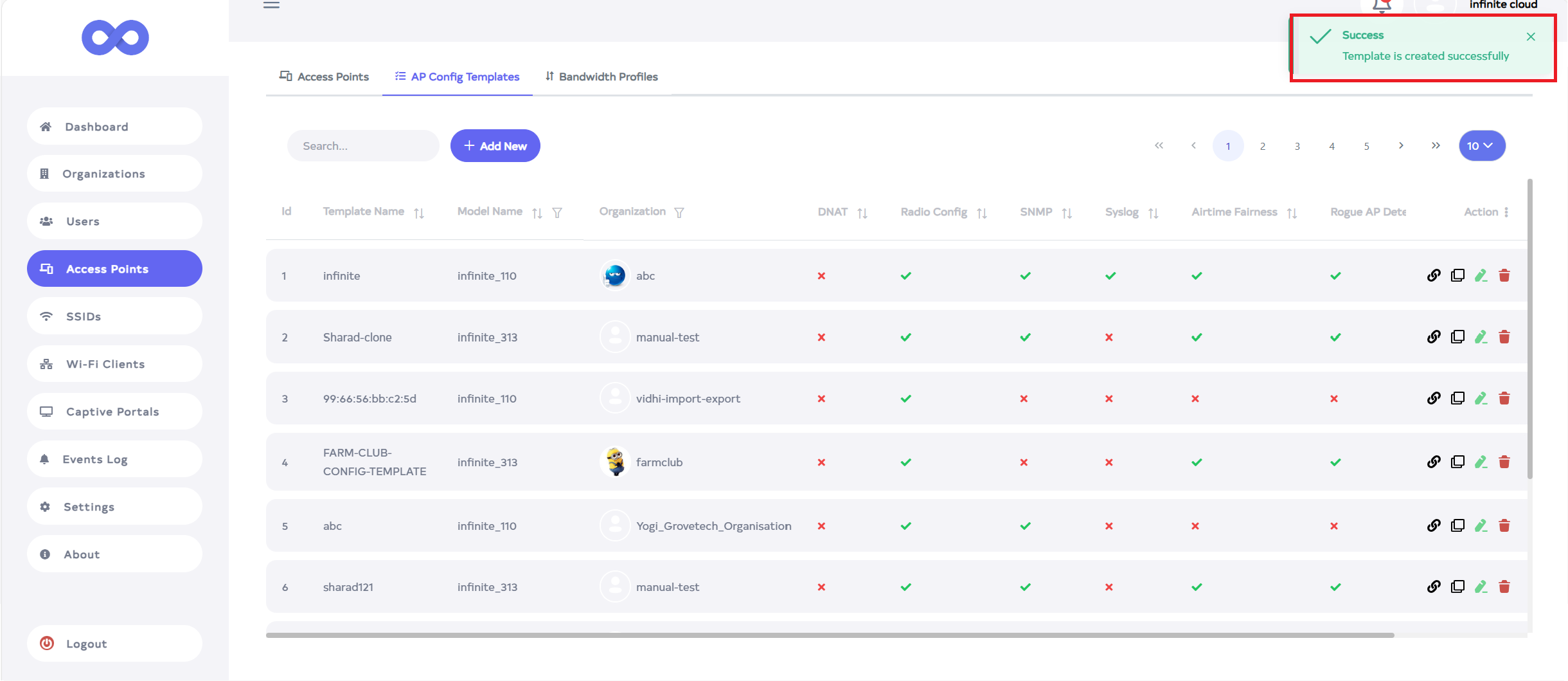
- Confirmation:
- Then that the AP Config Template Section is saved successfully, a success message will display Template is Created successfully.
Assigning an AP Config Template
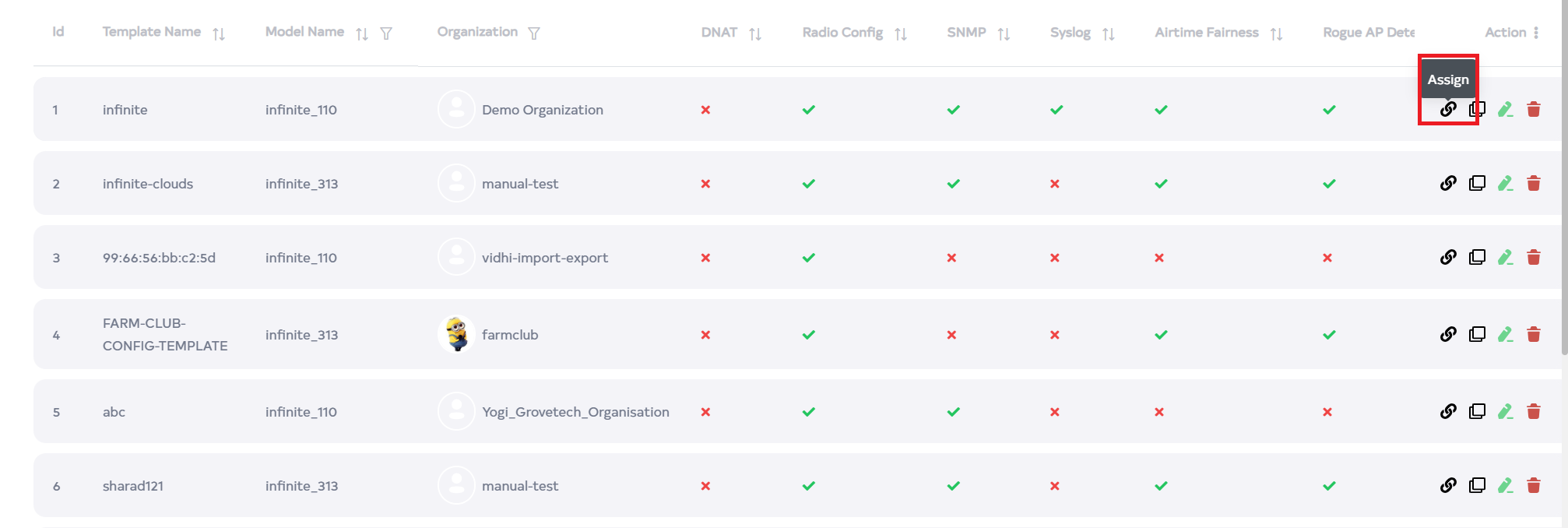
- Assign to a Device:
-
Click the link icon to assign the AP Confing Templates to a specific access point.
- Select Device:
-
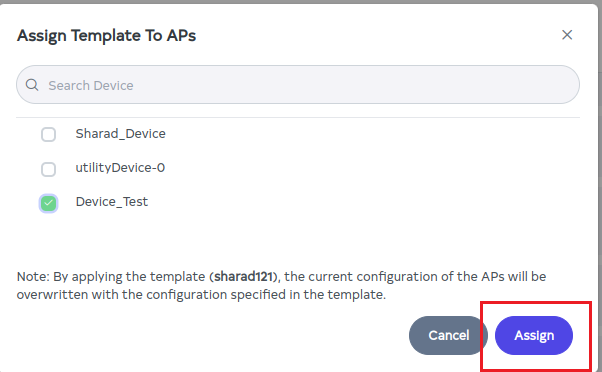
A popup will appear showing the names of the access points associated with the selected template. Select the device to assign this template.
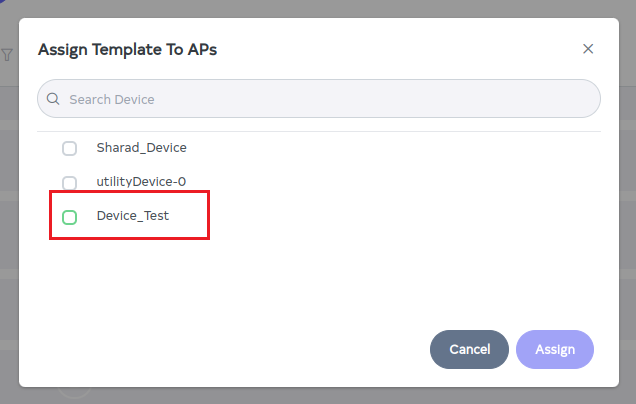
- Assign the Template:
- Click the Assign button to apply the template to the selected device.
While assigning a template to the device, when the user selects a device, a note will appear at the bottom stating that by assigning a template, the current configuration of the APs will be overwritten with the configuration specified in the template.
- Confirmation:
-
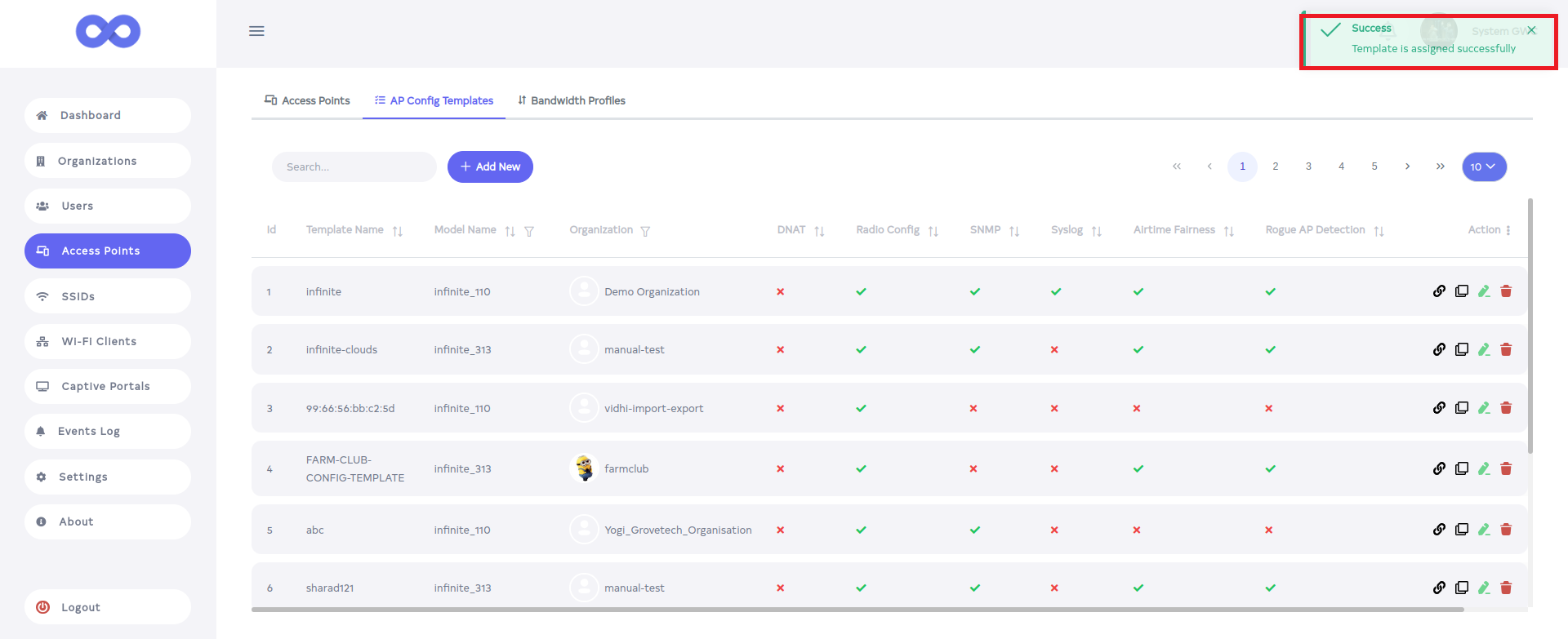
After the assignment of the template to device, a success message will display Template is assigned successfully.
Editing an AP Config Template
- Edit Existing Template:
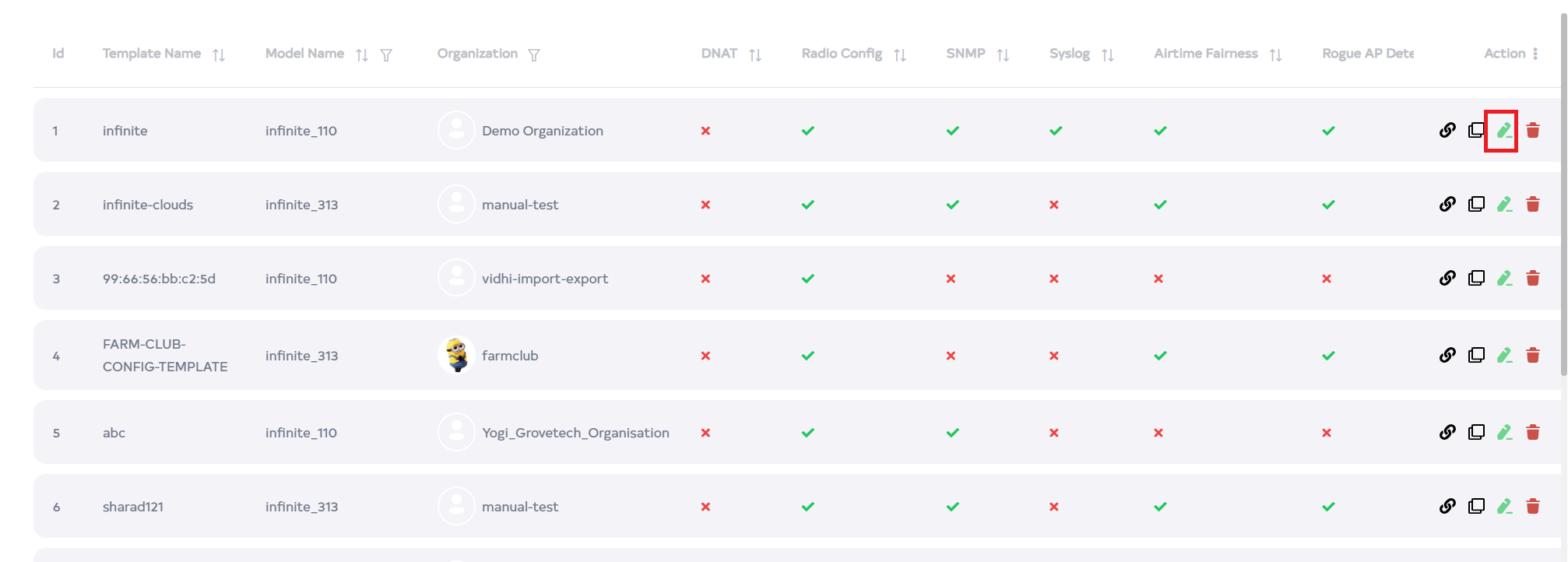
- To edit AP Confing Templates, click on the edit icon associated with the AP Confing Templates.
- Update Template Details:
edit-info
Editing a template does not impact devices that have already been assigned to it. The updated template configuration will only be applied when it is assigned to a new device.
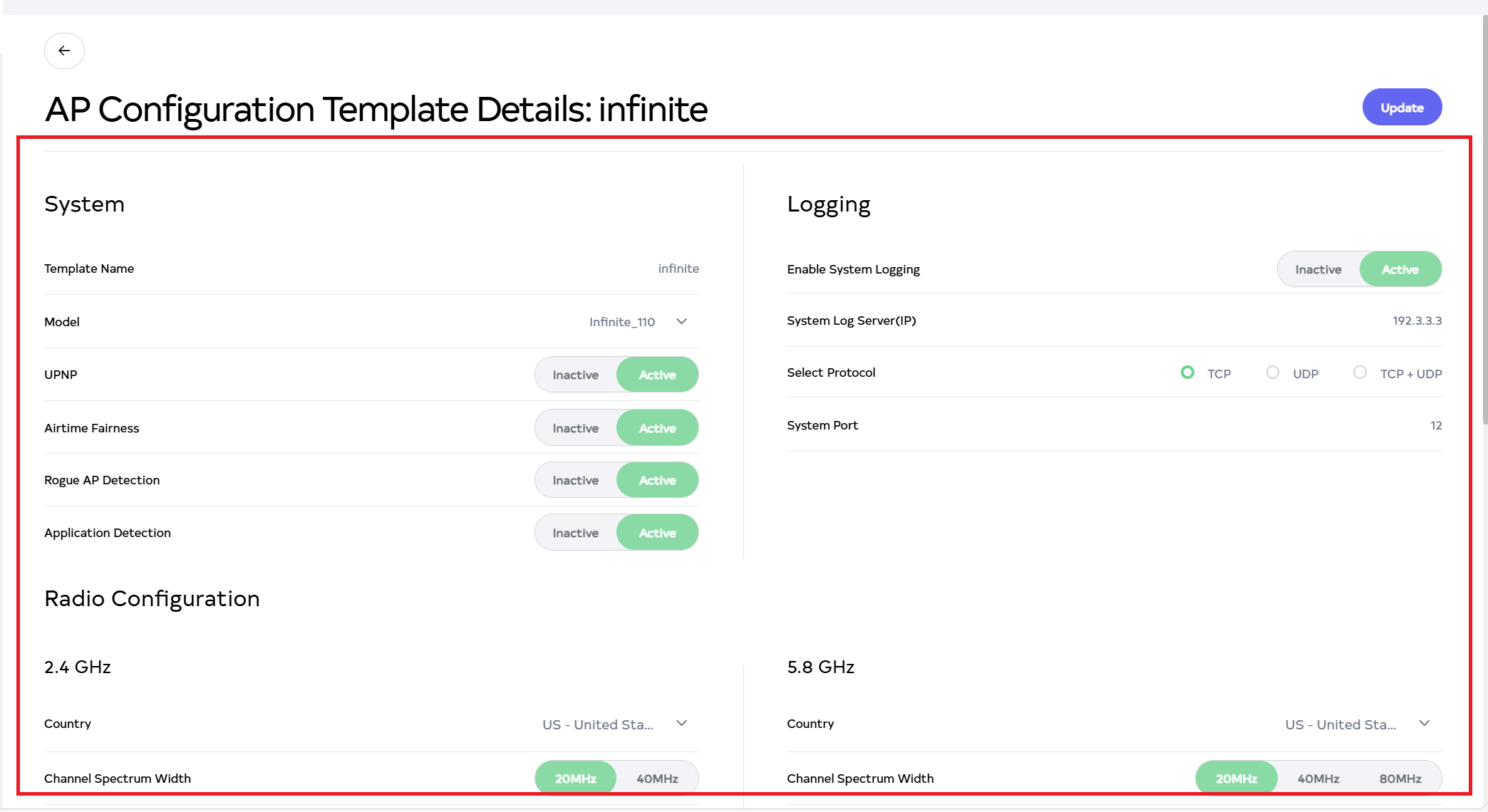
- In AP Confing Templates Section, configure System, Logging , Radio Configuration, SNMP, Port Forwarding.
- Save Changes:
- Click on Update button, located right side on top.
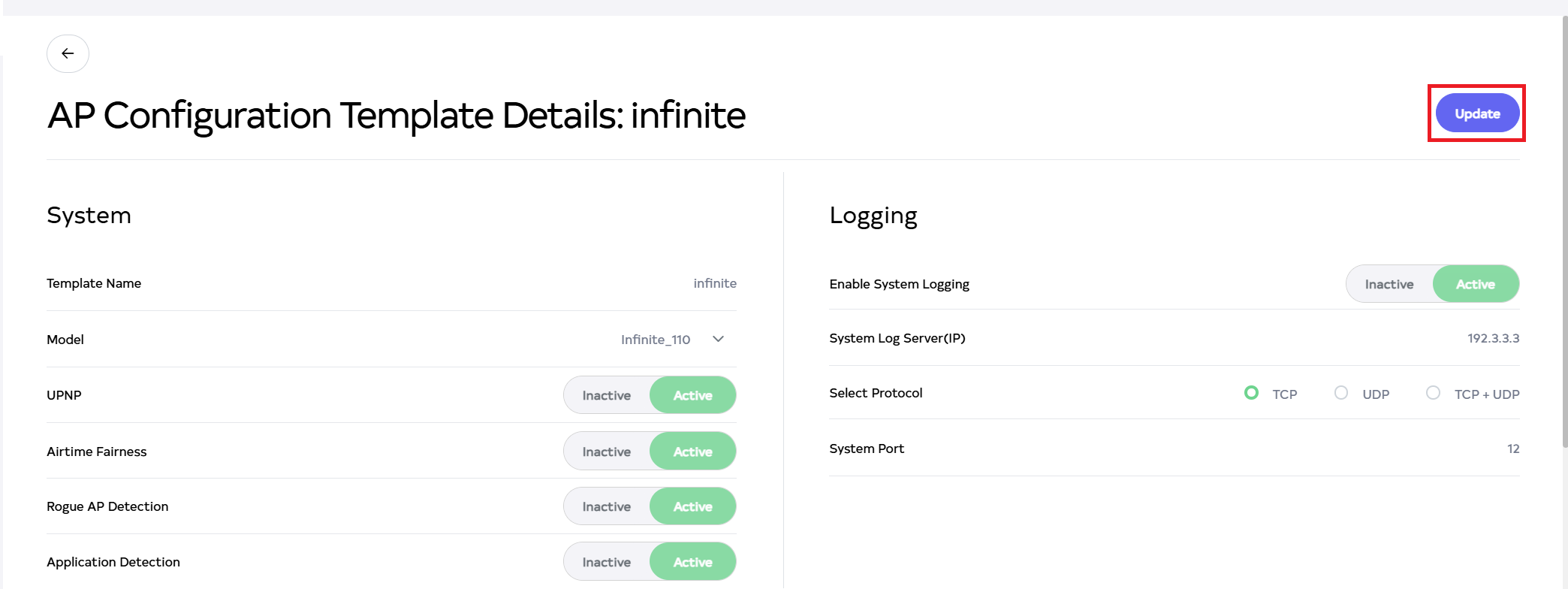
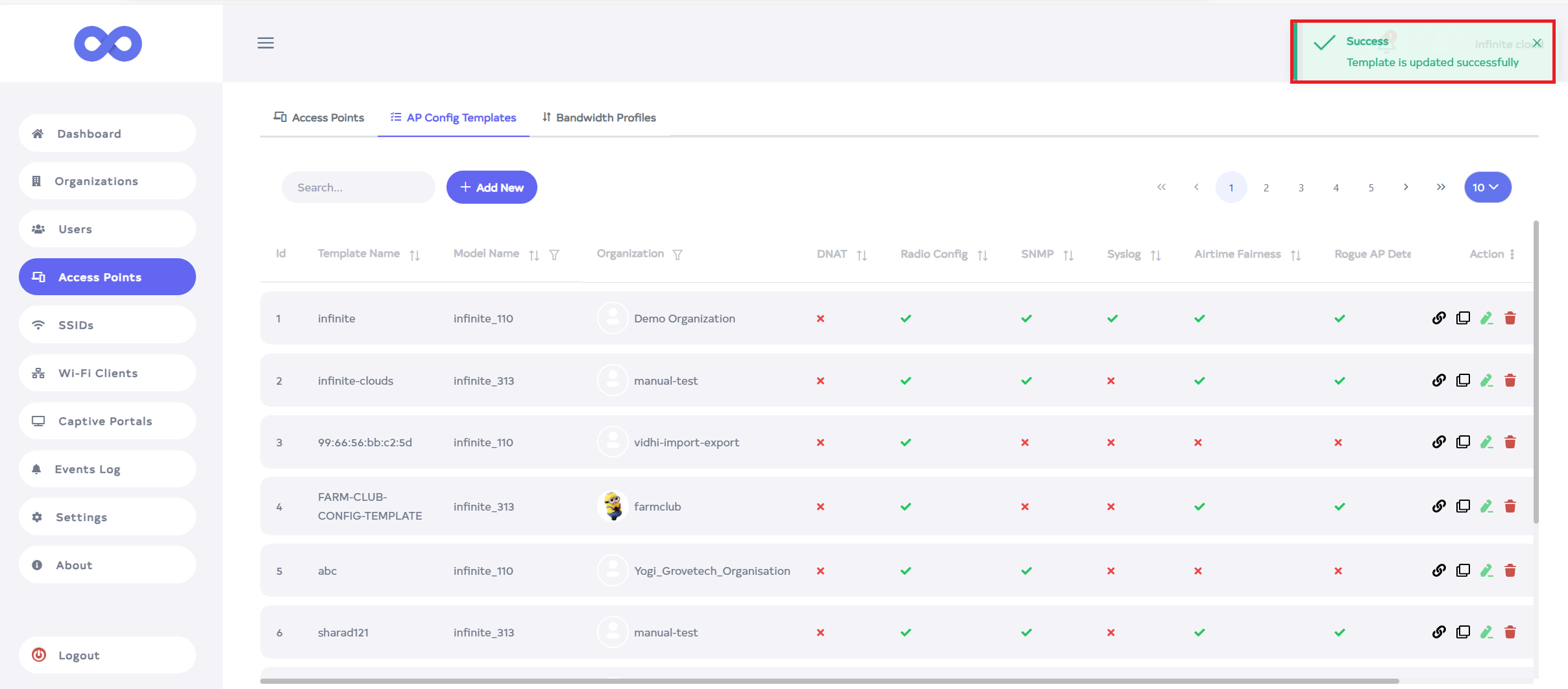
- Confirmation:
- Then that the AP Config Template Section is Updated successfully, a success message will display Template is Updated successfully.
Cloning an AP Config Template
- Clone a Template:
- To create a duplicate of an existing template, click the clone icon associated with the template.
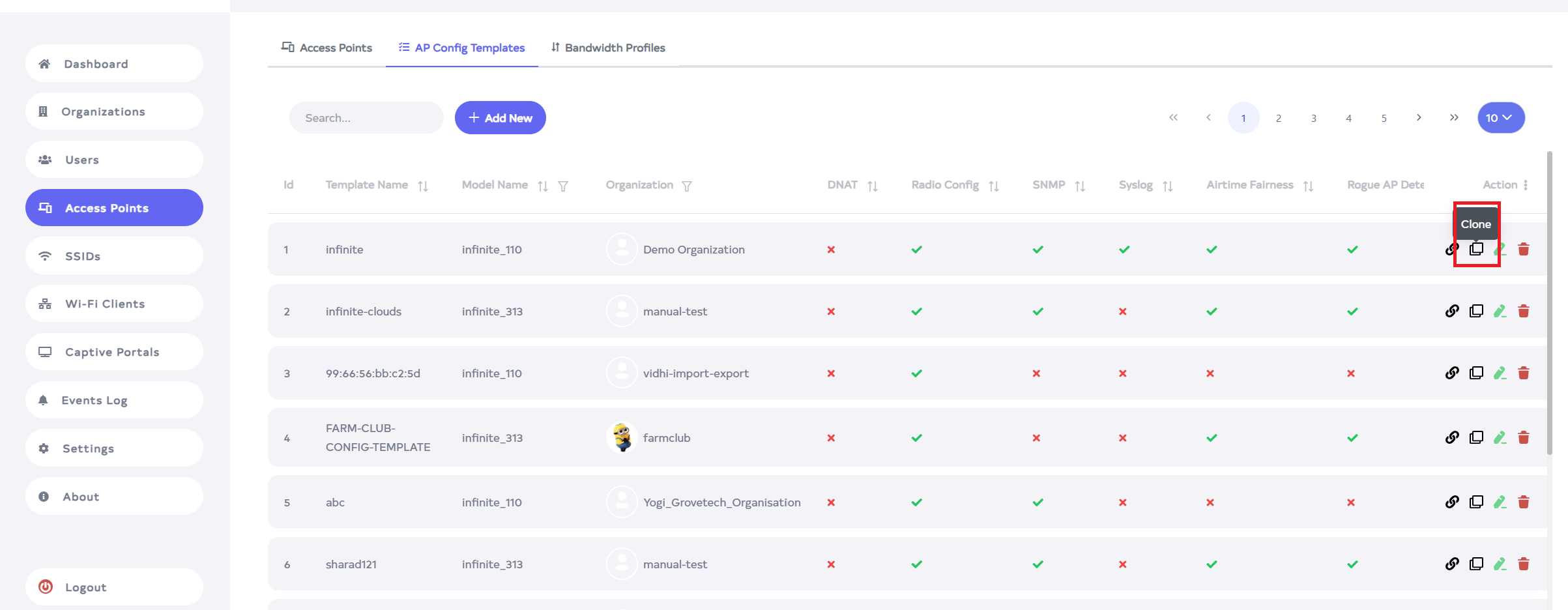
- Clone Details:
- A popup window will appear. Enter a new Template Name and click the Clone button to create the duplicate.
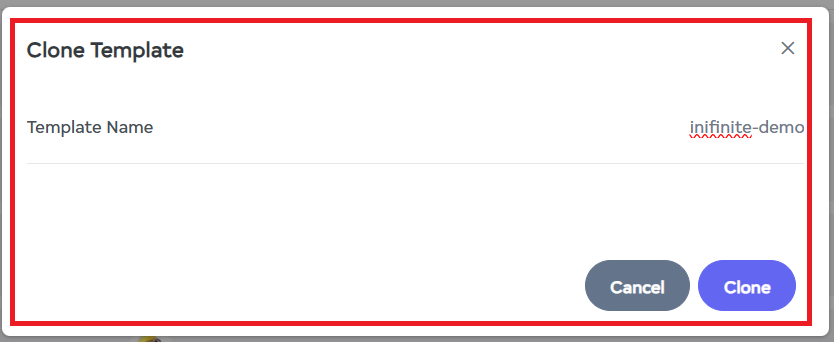
- Confirmation:
- Upon successfully cloning, a success message will display Template is Cloned successfully.
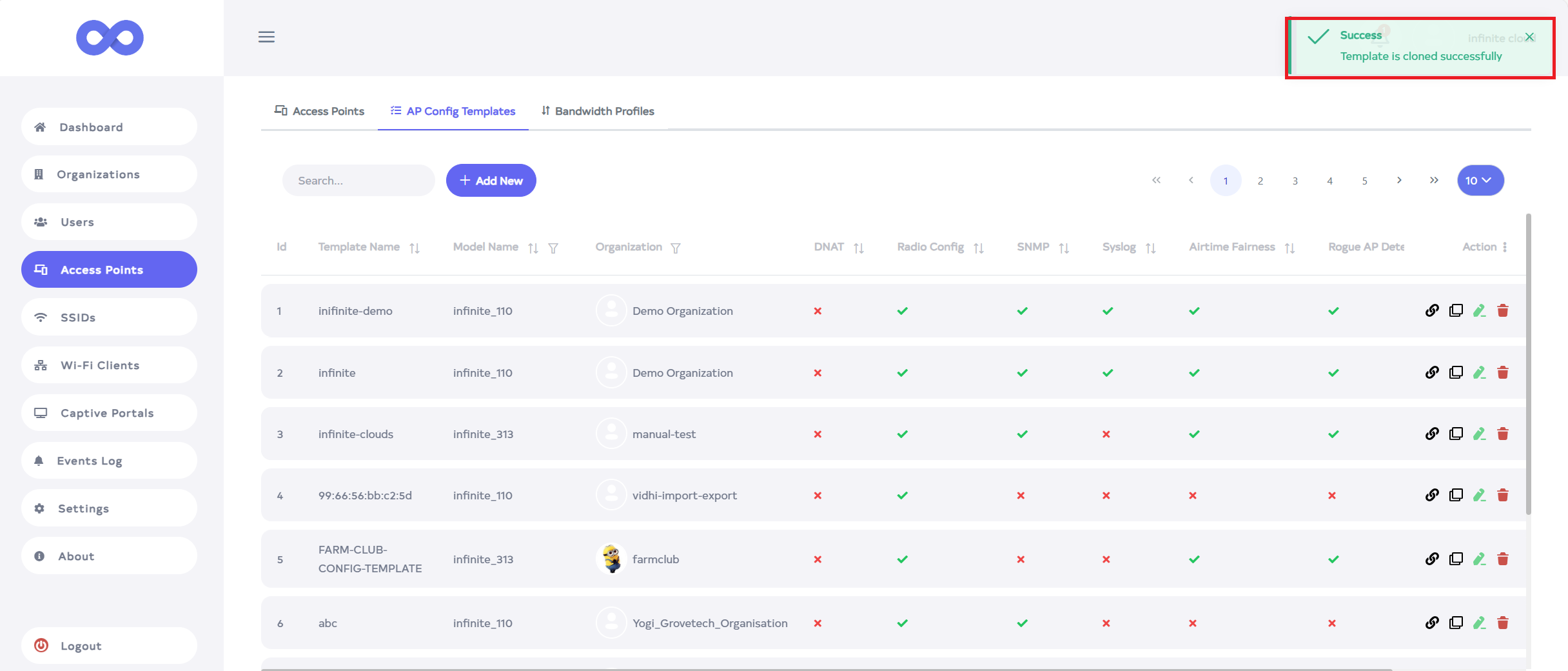
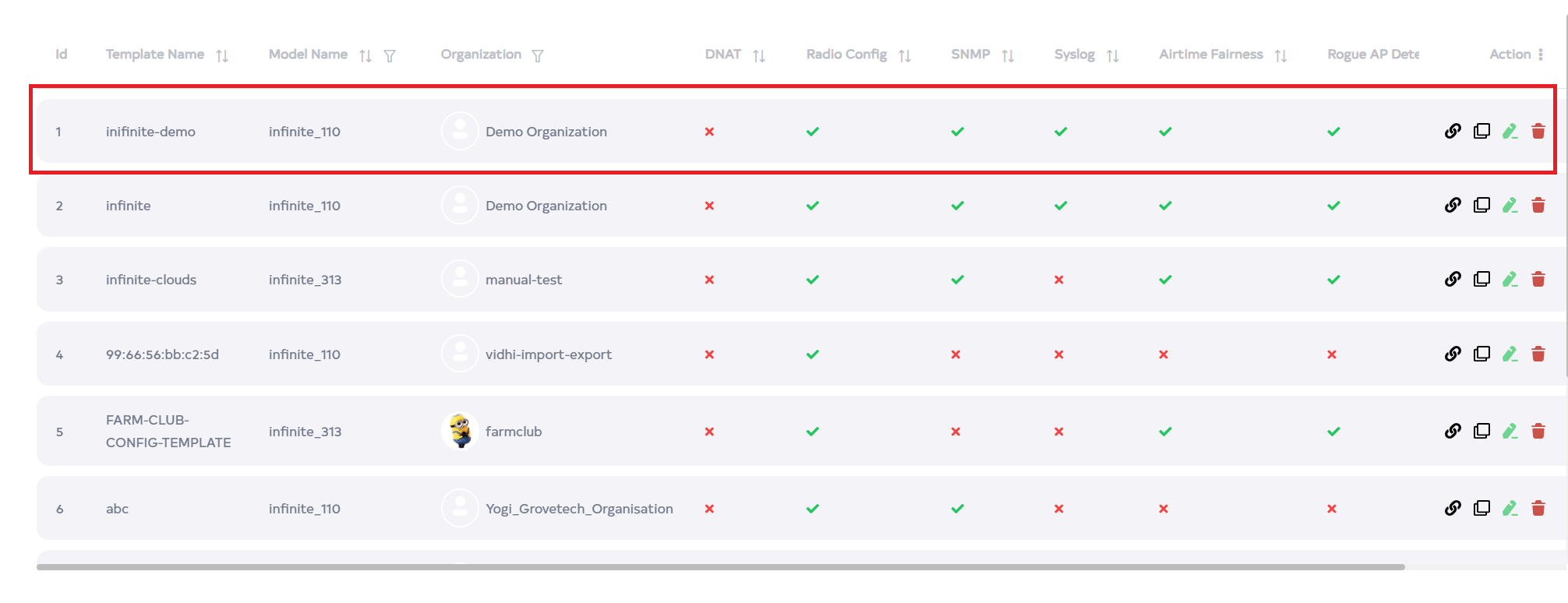
- The cloned template will appear in the list of templates.
Deleting an AP Config Template
- Delete a Template:
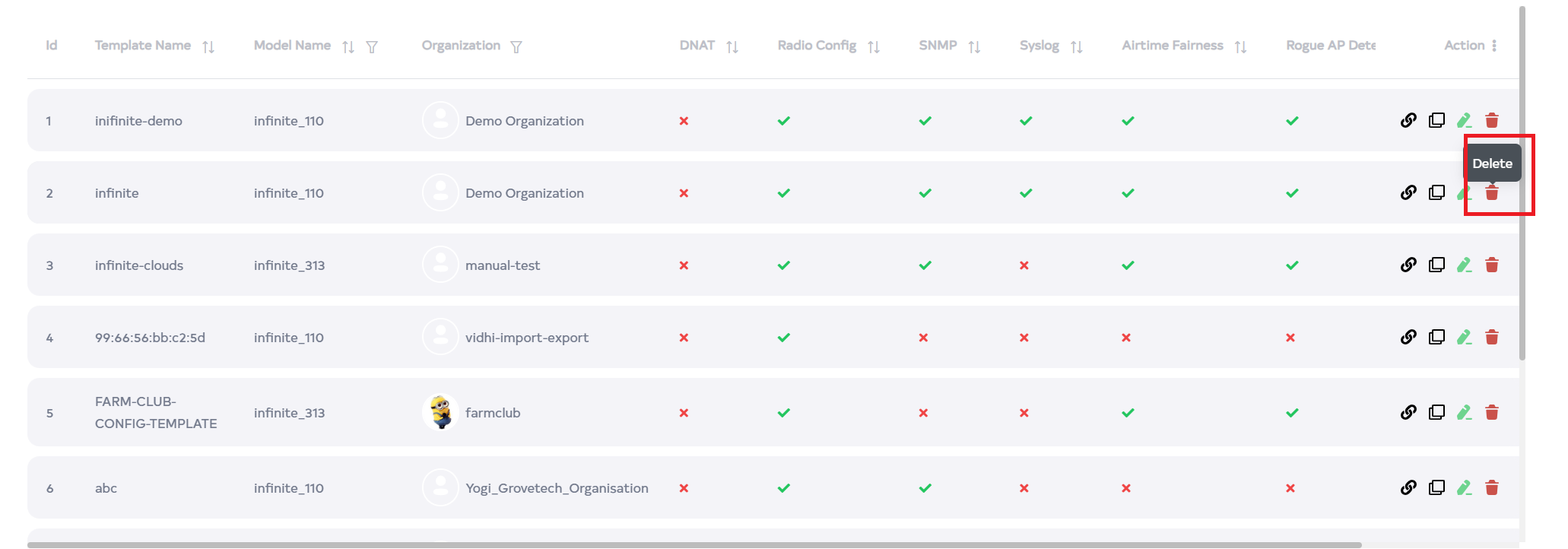
- To delete a AP Config Template, click on the delete icon associated with the AP Config Template.
- Confirmation Prompt:
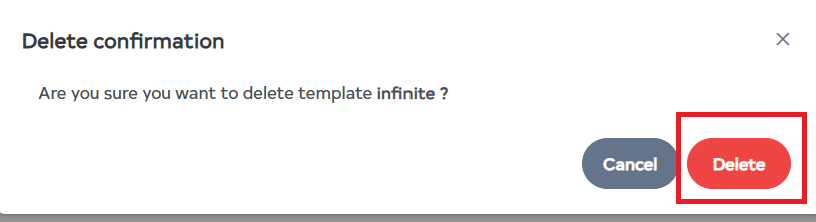
- After clicking, a confirmation message will appear. clicking the Delete button.
- Completion:
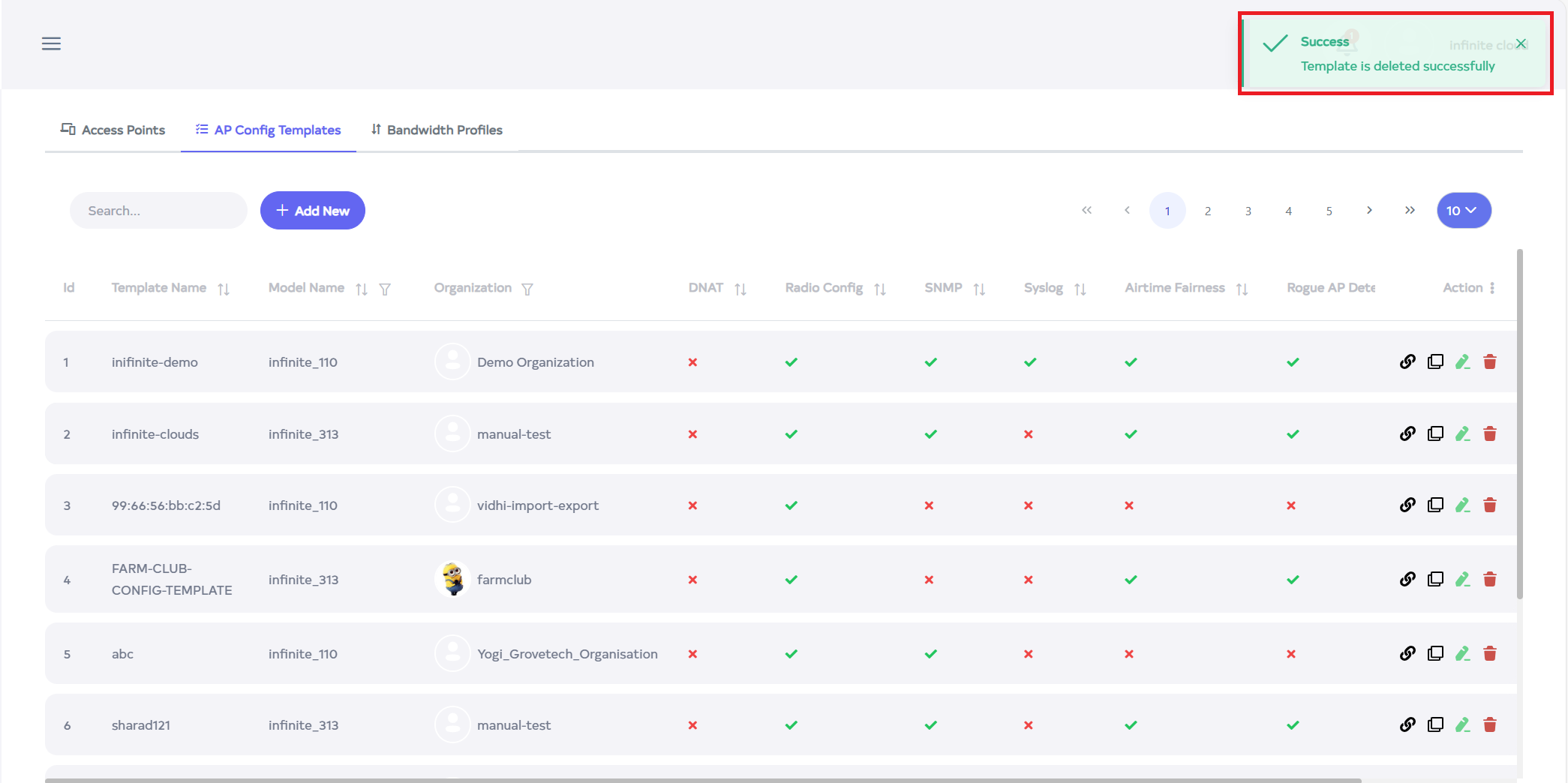
- Once confirmed, a Template is deleted successfully message will be displayed, indicating the AP Template has been removed from the system.