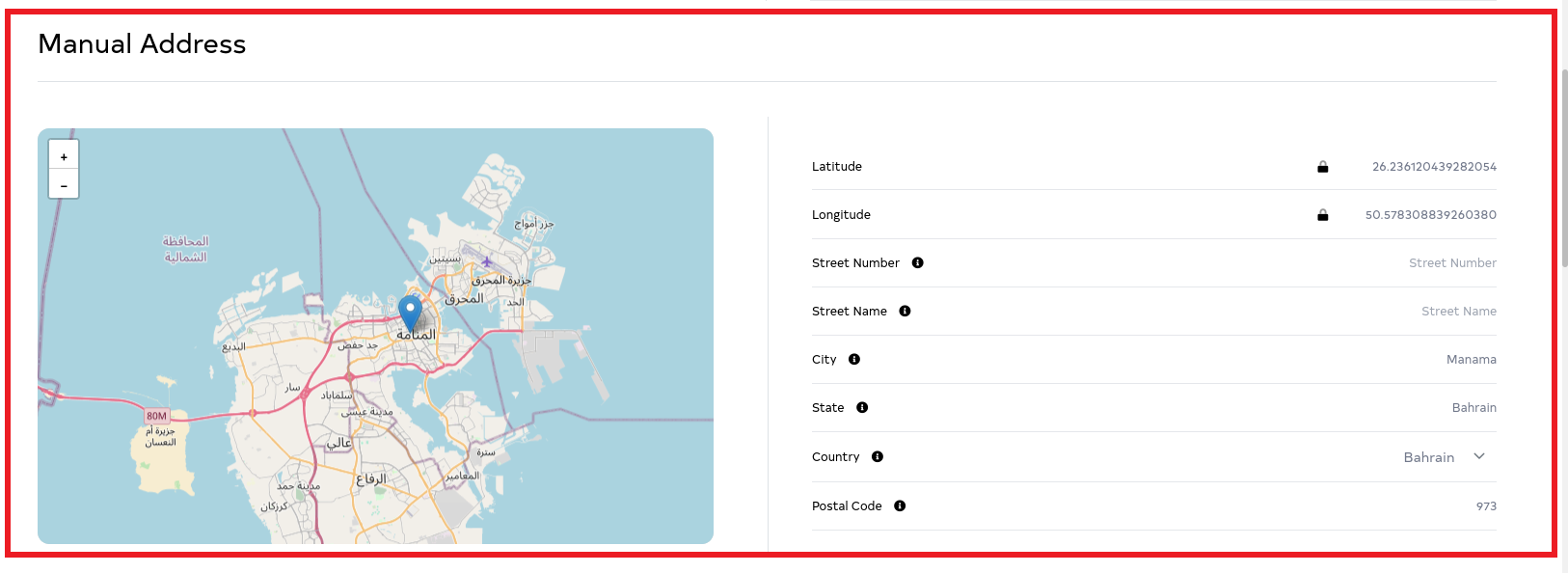
Manual Address
AP (Access Point) location configuration allows users to accurately set the location details of their access points. Settings include mandatory fields for city, state, and country, while latitude and longitude are automatically generated based on the selected location. It can be changed only by selecting the city, state and country ensuring the exact geographical location.
Steps to Set Up Manual Address
-
Go to the Login > Access Points menu > Access Point edit button.
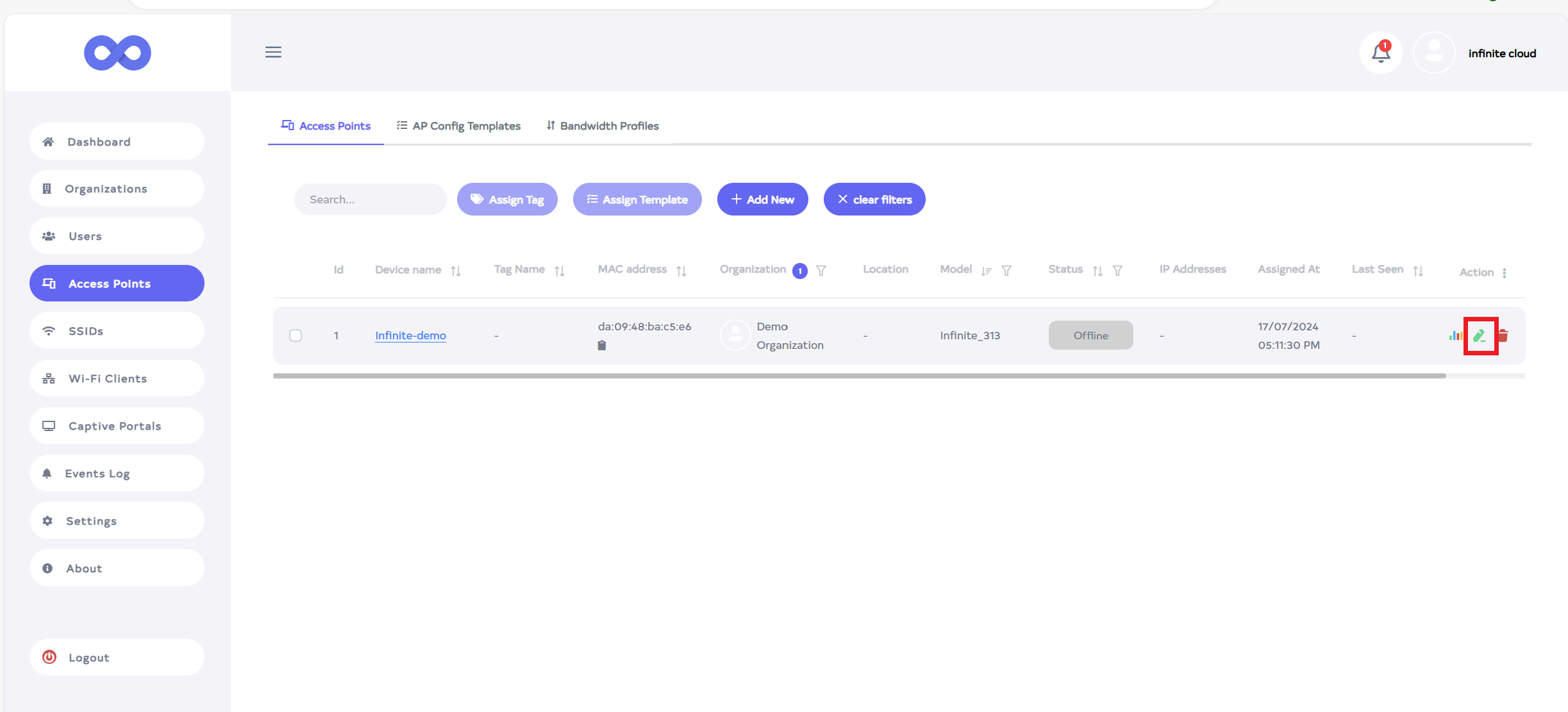
-
After clicking on the edit button, scroll down to see the Manual Address. Here, the following fields will be visible: Latitude, Longitude, Street Number, Street Name, City, State, and Country, Postal Code.
- Latitude and Longitude: These fields display the latitude and longitude of the selected location. The coordinates can be modified by dragging and dropping the pin on the map to any desired area or city. Alternatively, clicking on the map will automatically update the fields with the selected location's coordinates. Manual adjustments via the pin are also supported. Note that direct input of coordinates is not allowed.
- Street Number:- Enter the Street Number.
- Street Name:- Enter the Street Name.
- City:- Enter the City. For example here the Surat city is entered.
- State:- Enter the State. For example here the Gujarat state is entered.
- Country:- Enter the Country. For example here the country India is entered.
- Postal Code:- Enter the Postal Code.
manual-address-filed
The Street Number, Street Name, and Postal Code fields are optional. It is not mandatory.
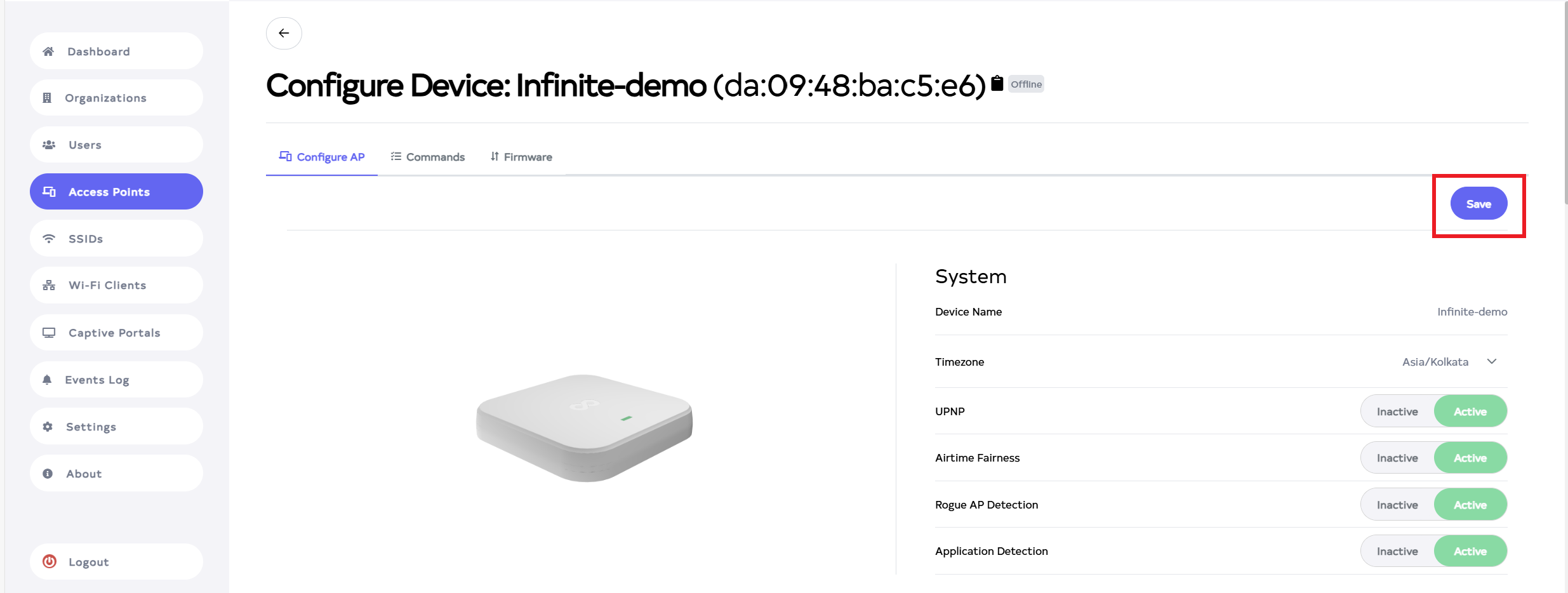
- click on Save button, located right side on top.
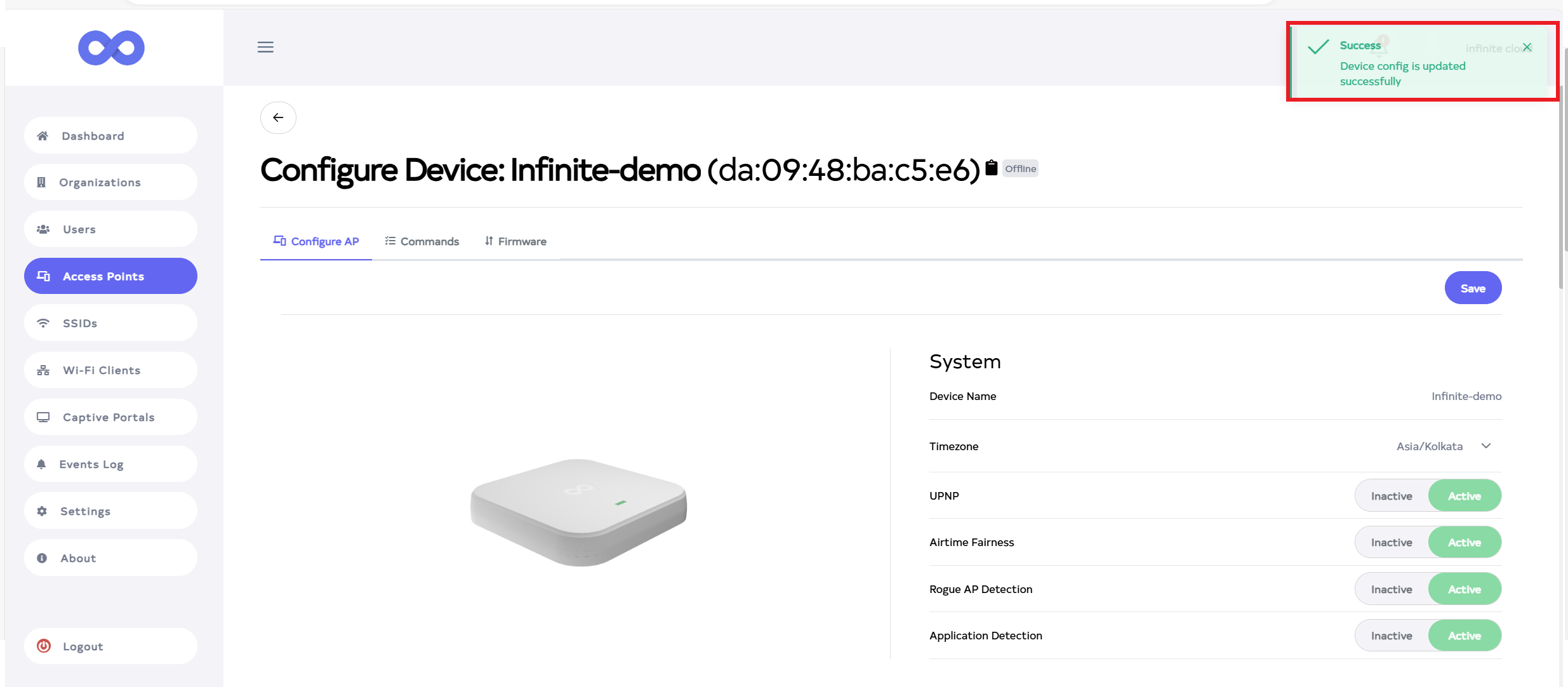
- Then that the Manual Address Section is saved successfully, a success message will display Device config is updated successfully.