AP Remote access
The access point can be accessed remotely via the web terminal and web UI. Detailed steps for accessing it are provided in the Infinite Clouds product documentation.
Steps for AP Remote Access
-
Web Terminal
-
Go to the Login > Access Points menu > Access Point Web Terminal.
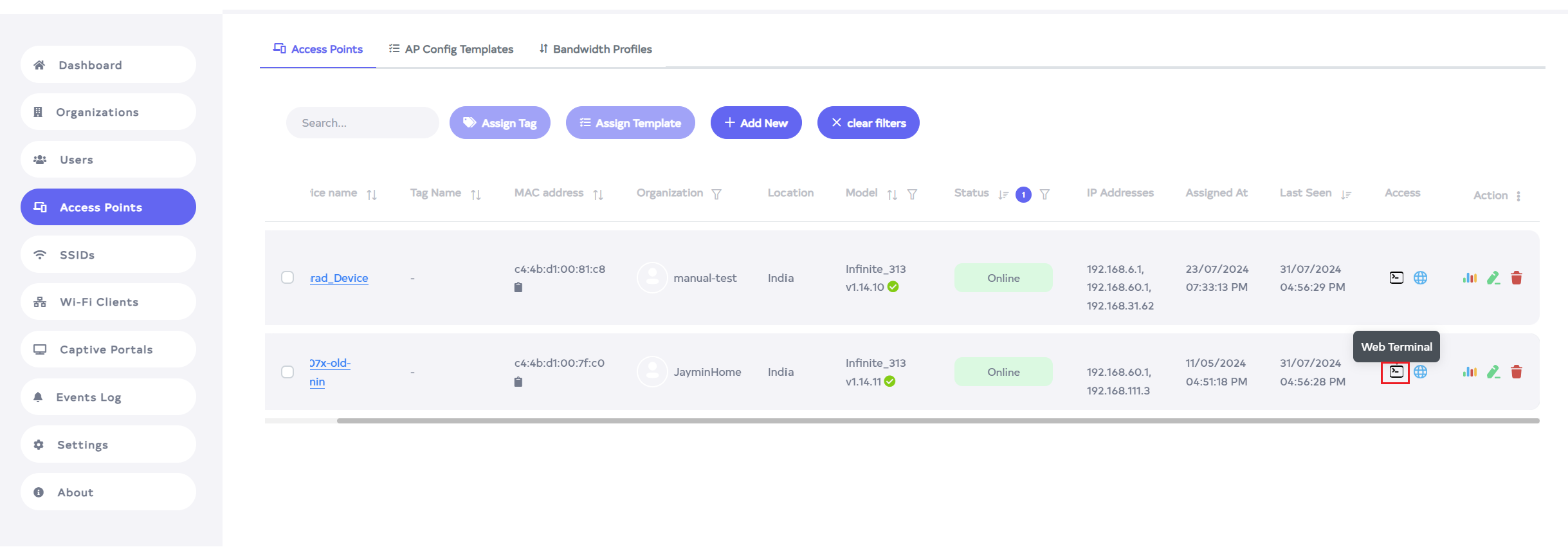
-
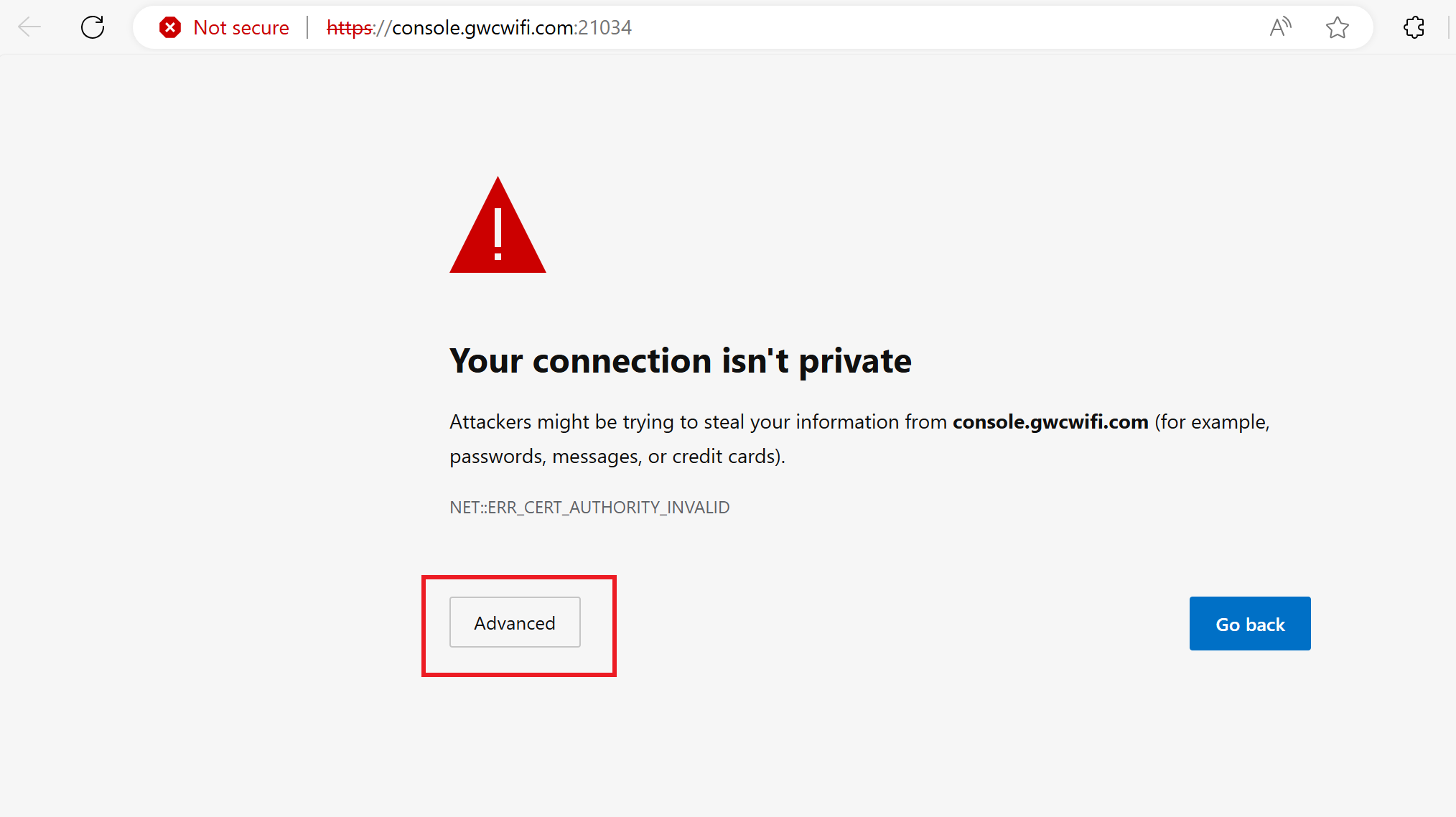
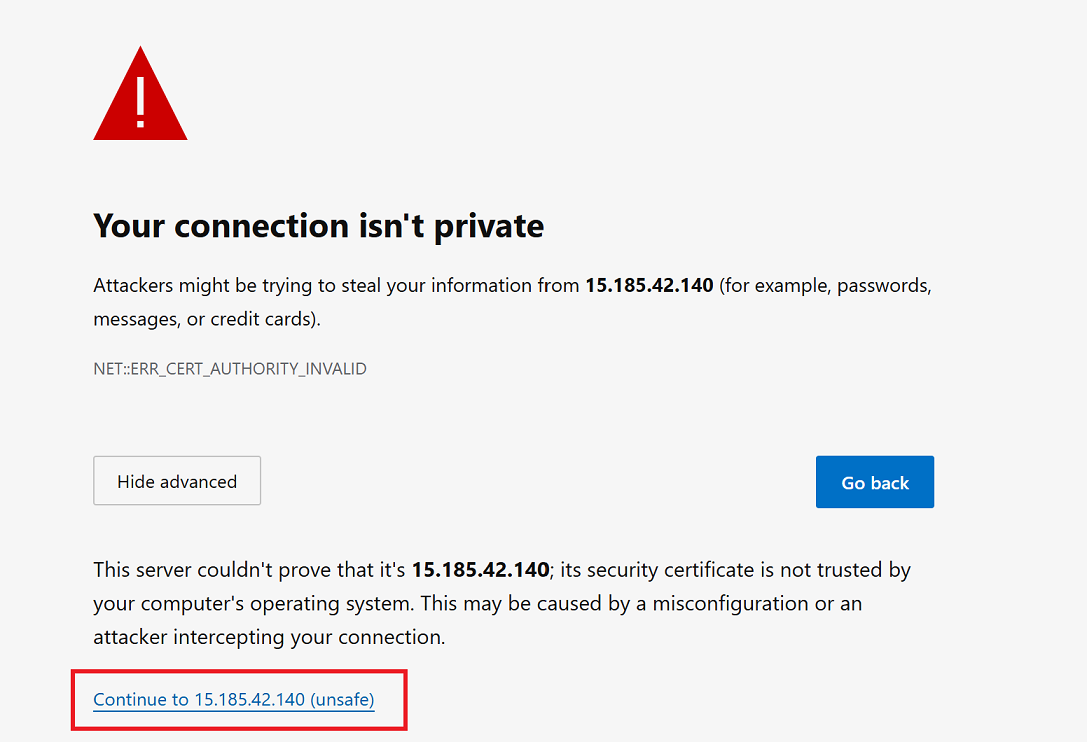
Clicking on the Web terminal will open a new window, click on the given advance text.
-
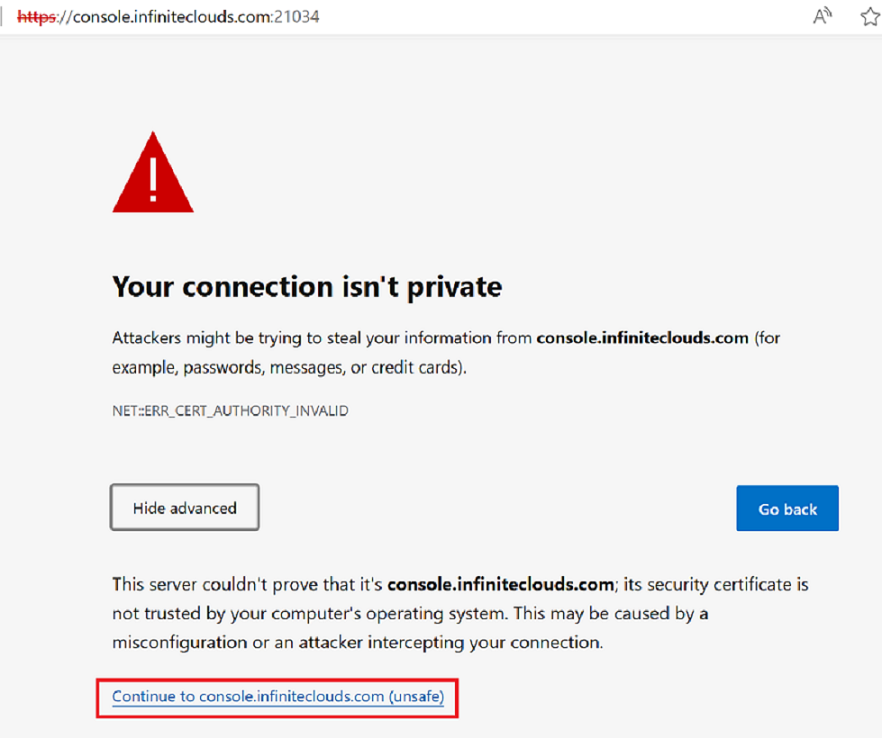
Next, there will be a security message on the screen. Click the Continue to Console.infiniteclouds.com(unsafe) part.
 version-update
The link will change for the old and new versions. By default, the console.infiniteclouds.com link will open. As shown in the image The 15.185.42.140 (unsafe) link will open for versions older than v1.15.1
-
As shown in the image, this will occur when we open version v1.14.10.

-
As shown in the image, this will occur when we open version v1.15.1.

-
-
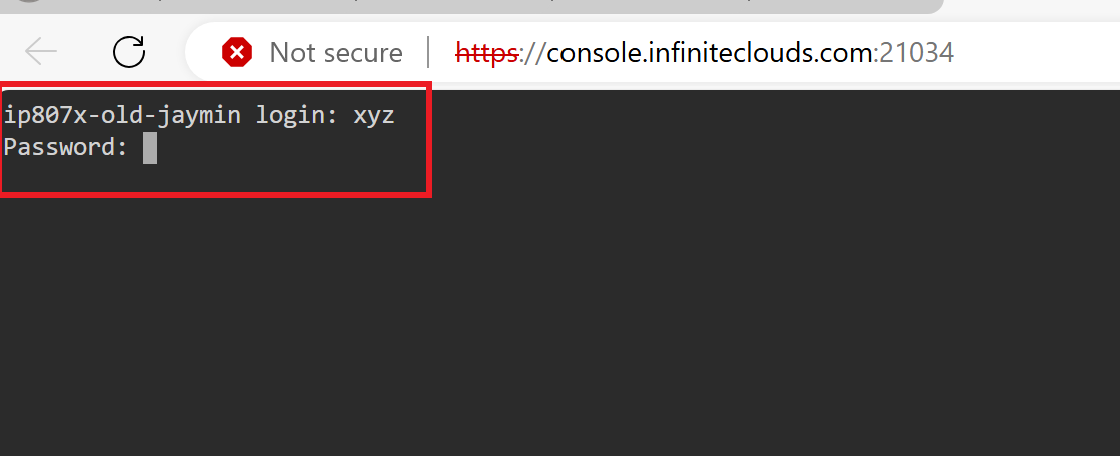
Clicking will open a terminal. After opening, there will be an open login in 5 minutes as shown in the image. User Entering the username (for example, here is xyz). If entered correctly, a password option will appear. Then enter the password, and the login will be successful.
-
Web UI
-
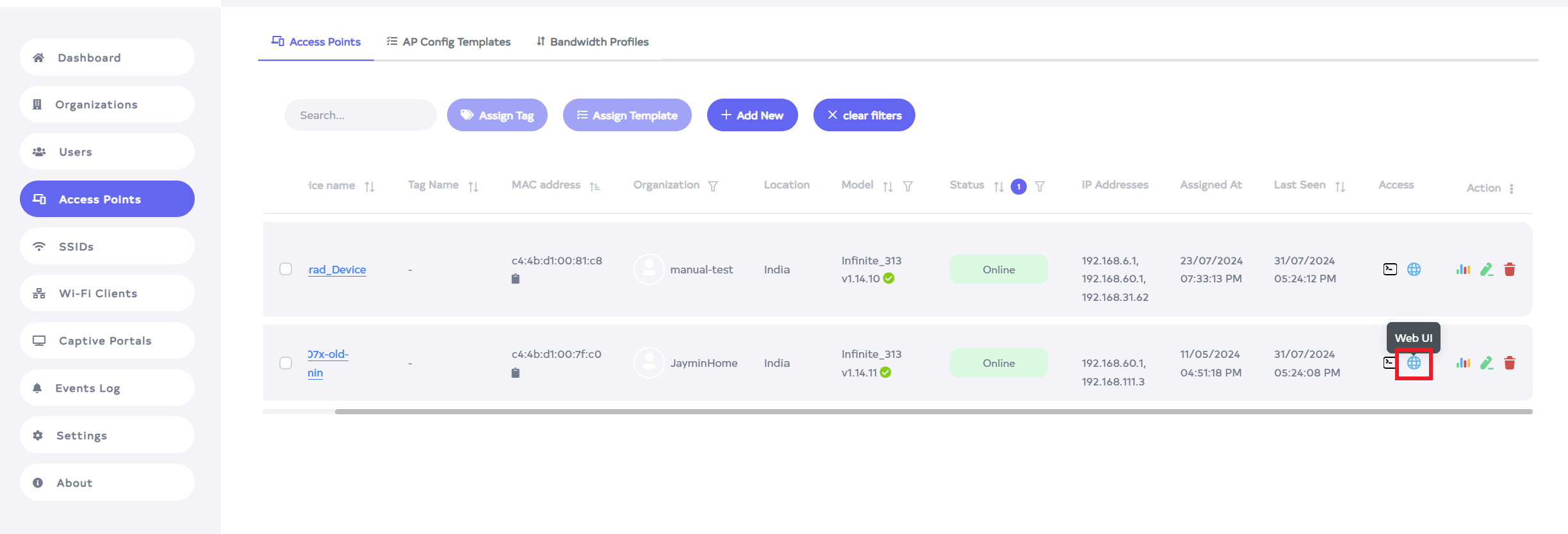
Go to the Login > Access Points menu > Access Point Web UI
-
Clicking on Web UI will open a new window, after that enter the username and password (for example here is username:-demo@infiniteclouds.com) and click on Login button.