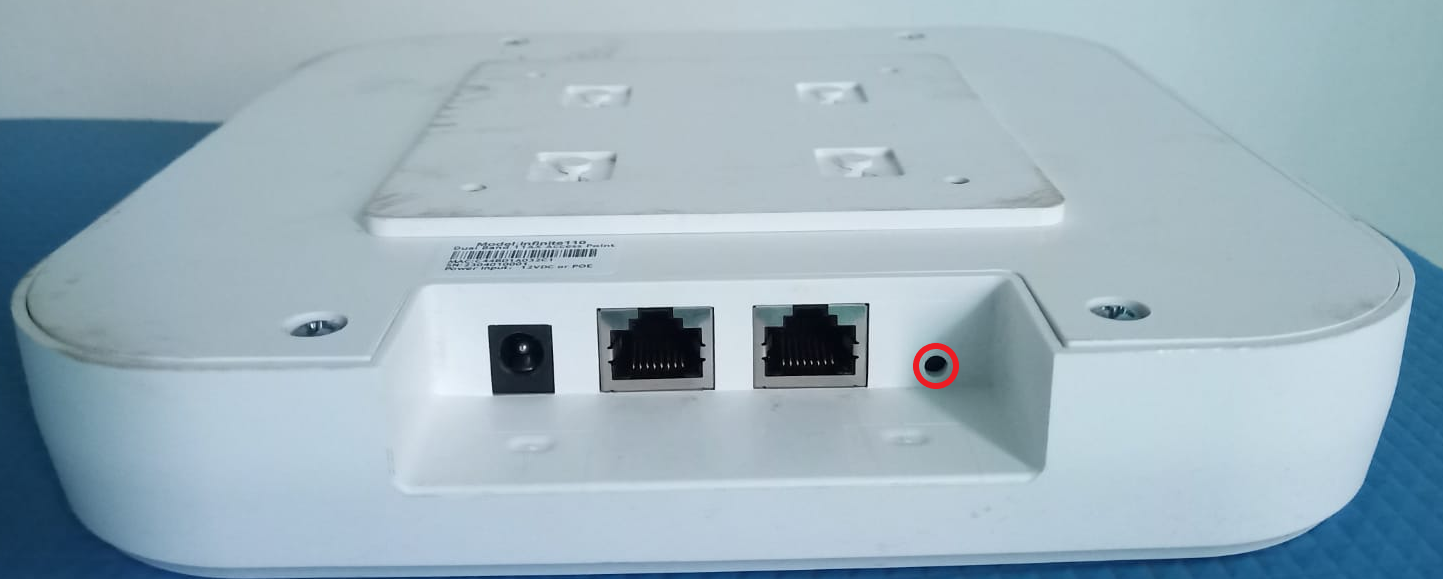
Switch AP Modes
This document explains how to switch between different Access Point (AP) modes using the factory reset button. The modes available are Cloud Controller Mode, On-Premise Mode, and Stand-Alone Mode. Each mode provides a unique way to manage and configure the AP, depending on your network requirements.
The mode switching process is simple and can be performed by pressing and holding the factory reset button for varying durations. This allows for flexibility when adjusting the device’s functionality based on the operational environment.
Mode Switching Using the Factory Reset Button
Make sure the access point is connected to power and turned on before pressing and holding the button.
Cloud Controller Mode
- Press and hold the factory reset button for 10 to 20 seconds.
- This switches the device to a centrally managed Cloud Controller Mode, where the AP is controlled via a cloud-based platform.
On-Premise Controller Mode
- Press and hold the factory reset button for 20 to 30 seconds.
- This puts the device into On-Premise Controller Mode, ideal for localized control using a dedicated server without internet dependency.
Stand-Alone Mode
-
Press and hold the factory reset button for 30 to 40 seconds.
-
This switches the AP to Stand-Alone Mode, allowing independent operation without any controller, suitable for smaller networks.