AP Commands Configuration
AP Commands Configuration Overview
The device is controlled by a variety of commands. There are three categories of commands: reset, reboot, and locate. All these types of commands have different functions that help in efficiently maintaining and controlling the device. The reset commands set the device back to its default setting; the reboot commands reboot the device; and the locate commands help in finding the device. These commands ensure the smooth working of the device and make it easier to manage and troubleshoot when necessary.
Importance of AP Commands Configuration
A good way for the maintenance and management of devices is through commands. They are used to reset the device to its default settings, to reboot the device in case of temporary problems, and to find the device in case it goes missing. That means these commands ensure that the devices work properly, are safe, and recoverable. In sum, commands are important to have devices functioning well and for handling them effectively.
How to config AP Commands Configuration
-
Go to the Access Point menu > Press on Edit Button > Go to Logging section.
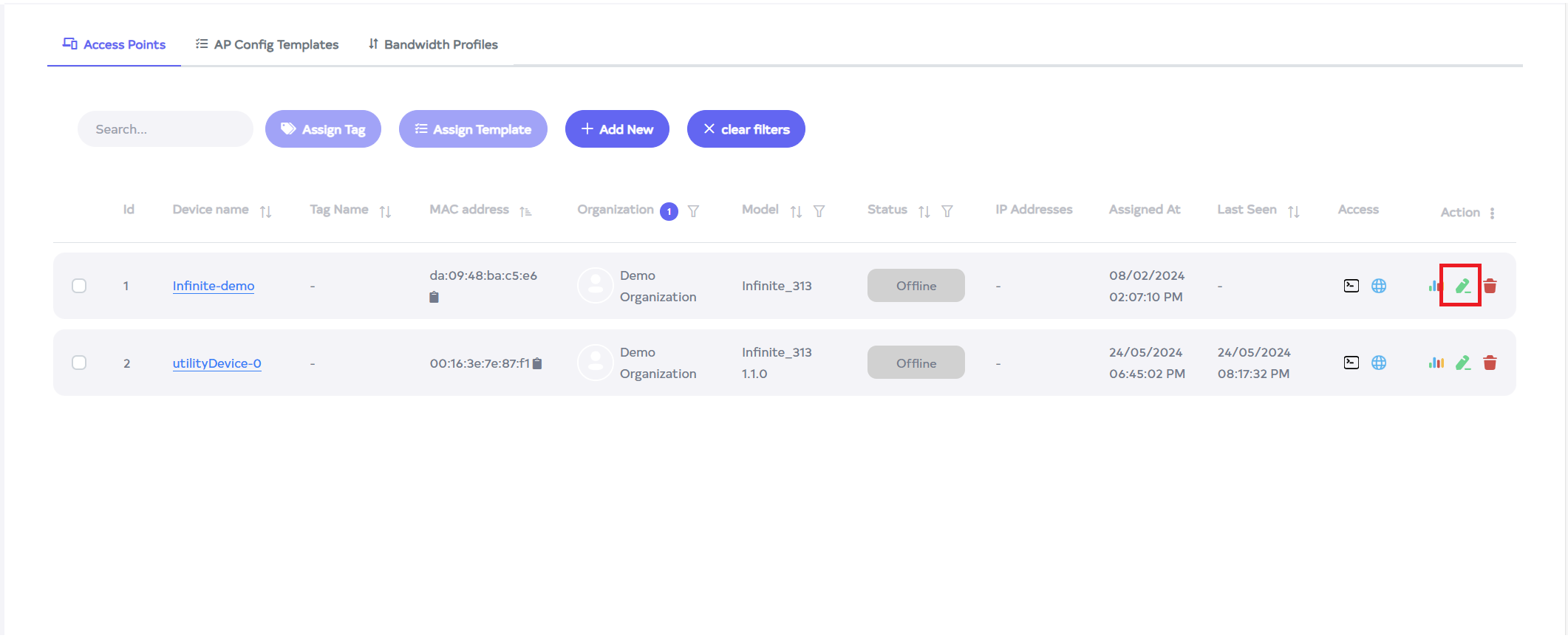
-
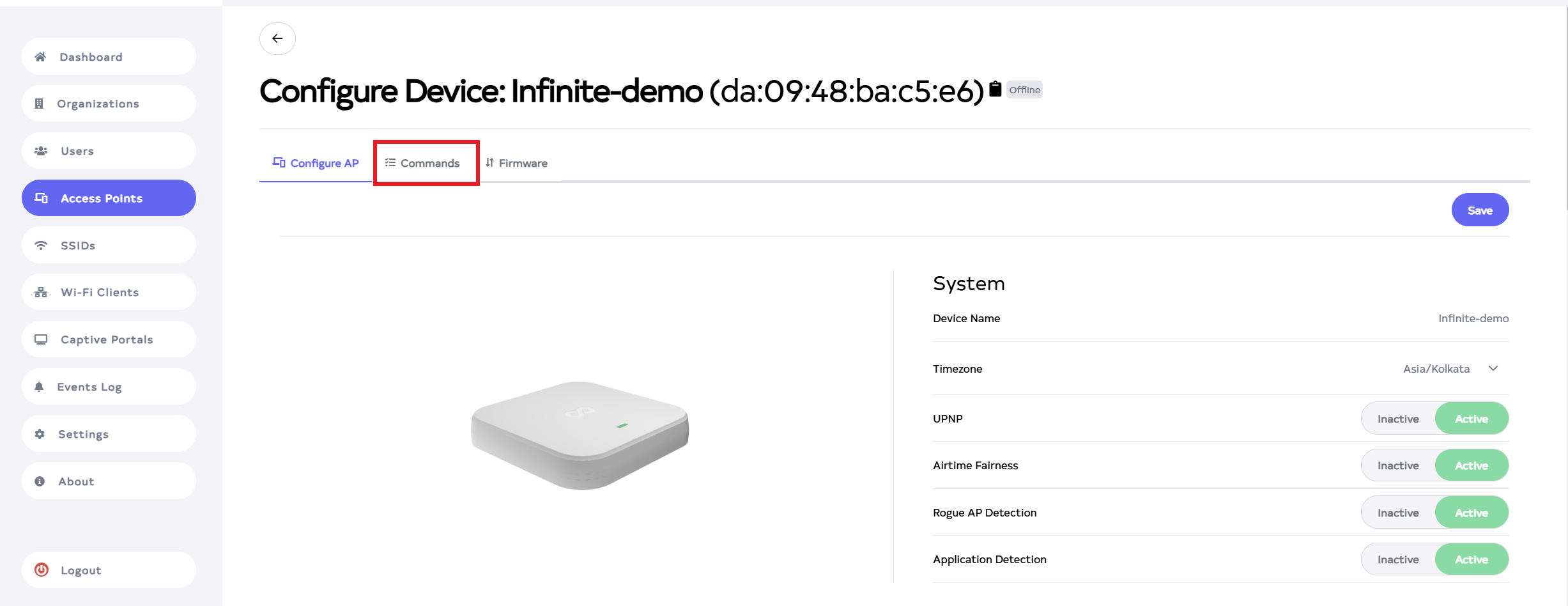
After clicking on edit button, go to the Commands tab
-
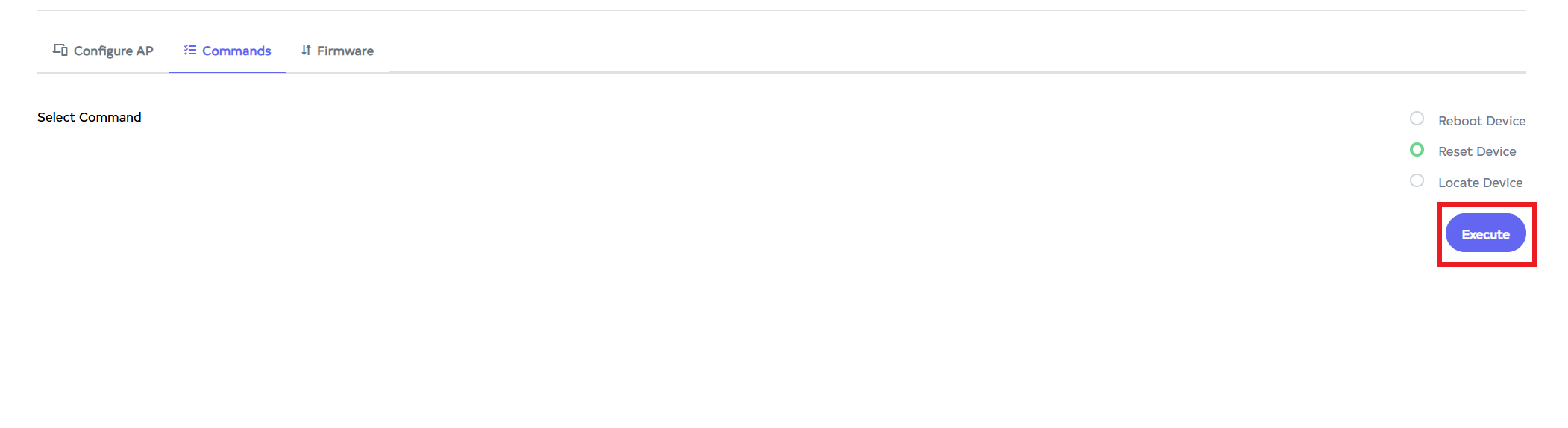
Click on the Commands tab. There, find three options.
1. Reboot Device:- Use this option to reboot the device.
2. Reset Device:- Use this option to reset the device.
3. Locate Device:- Use this option to locate the device.
For example here click on Reset Device.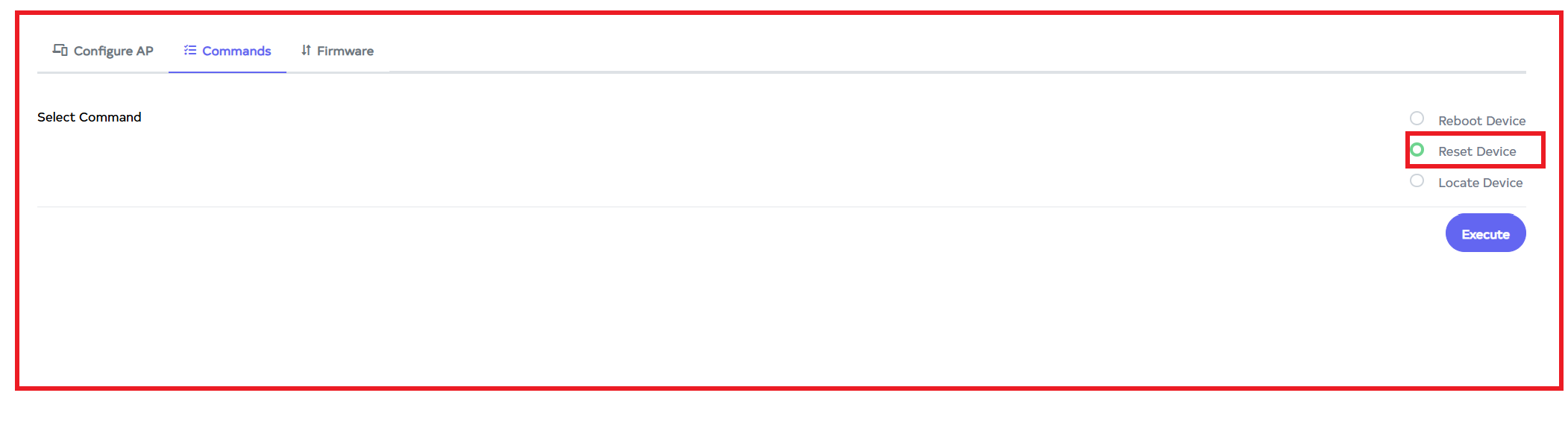
-
After clicking on the Execute button, located on the right side of bottom.
-
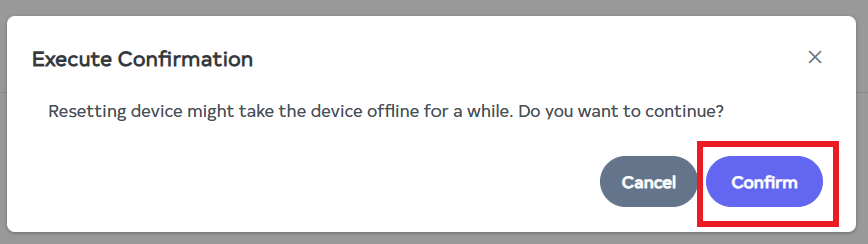
After clicking the Execute button, an execute confirmation message will appear. To reset, click the Confirm button.
-
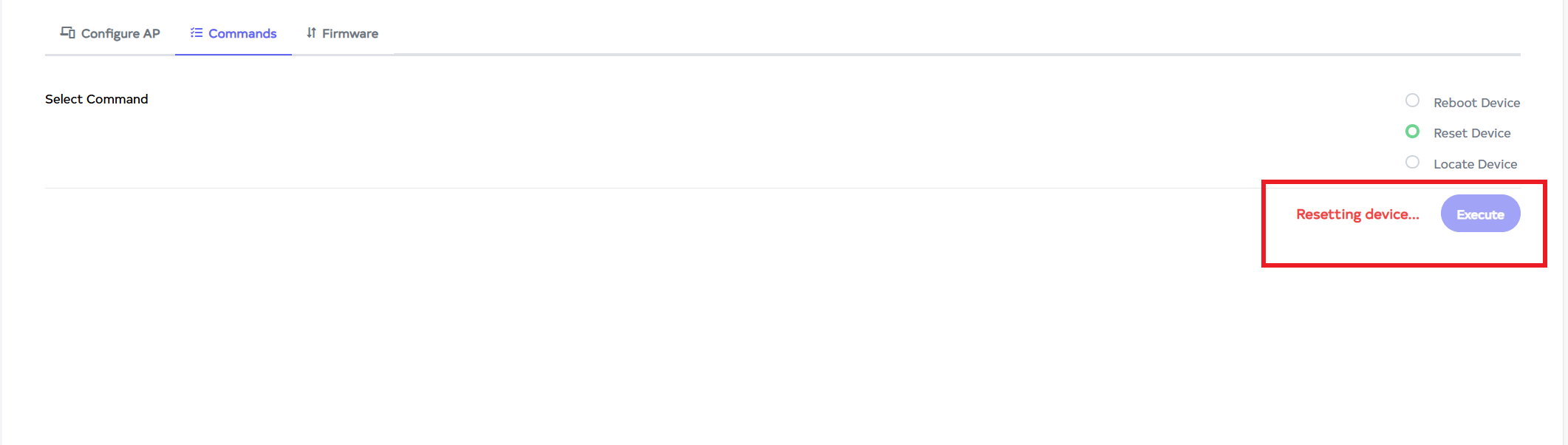
Clicking the Confirm button will display the Resetting device message as shown in the image, and the device will be reset.