Firmware Upgrade Configuration
Understanding of Firmware Upgrade Configuration
It helps to update the version using firmware configuration easily. It allows options for scheduling and broadcasting the latest firmware version and updates. To use new features and fix bugs, the firmware configuration needs to be updated so that new features can be used. So that the devices run continuously with the current version for better performance and security. By configuring the firmware, users can effectively manage updates to maintain optimal performance of the devices.
This guide provides essential steps for configuring firmware on Infinite Clouds technology products.
Steps to Configure Firmware Upgrade Configuration
-
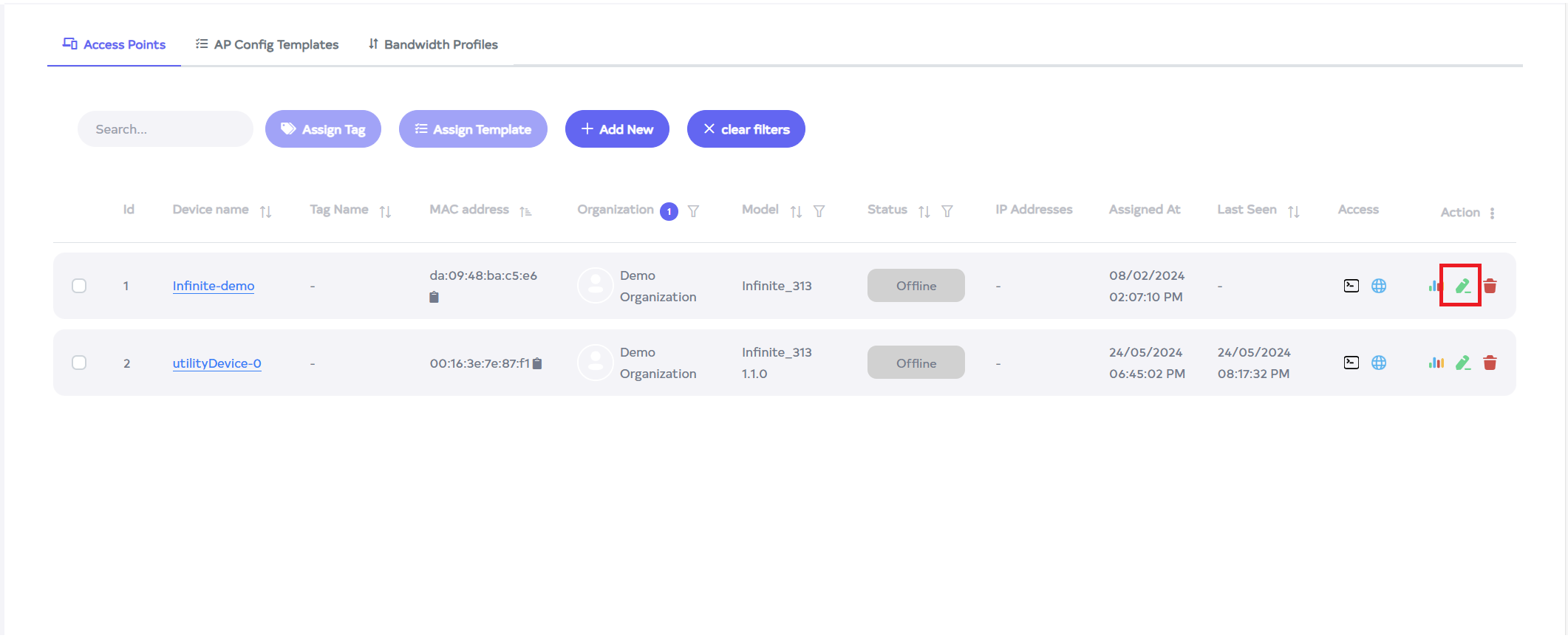
Navigate to the Access Point menu. Once there, the grid will display the Access Points. Click on the edit button located to the right of the Access Point entry.
-
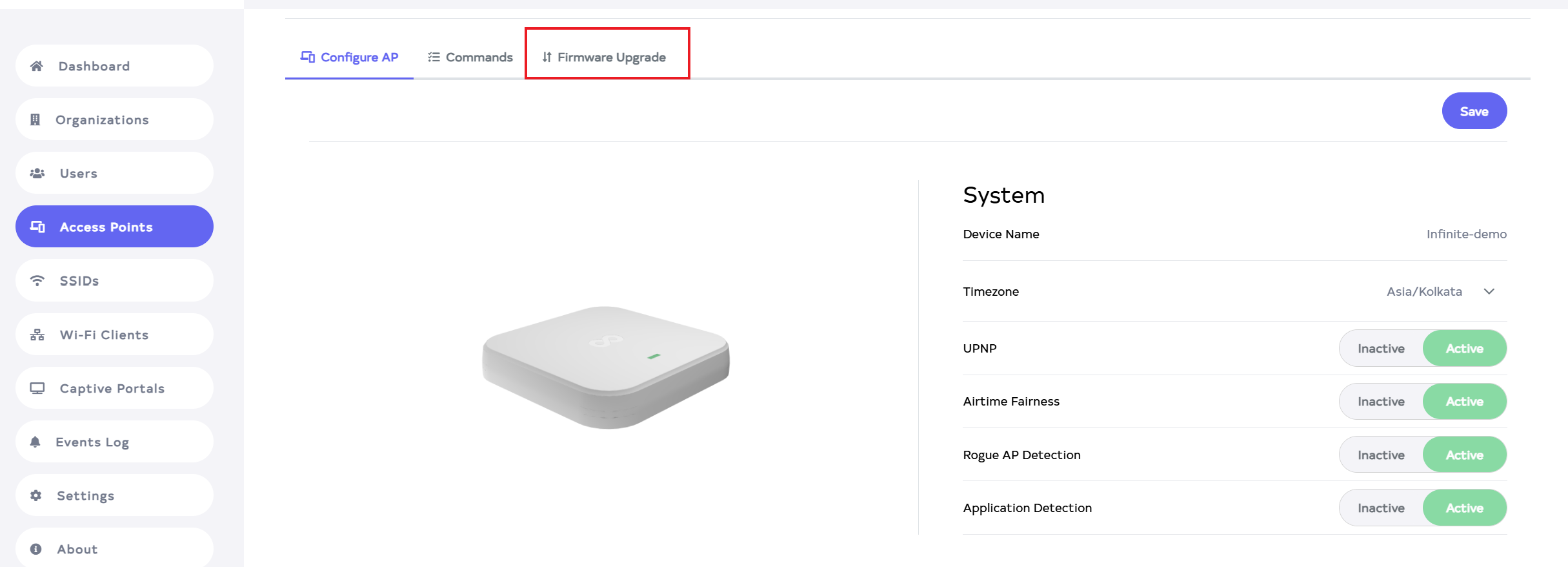
After clicking on edit button, And after go to the Firmware Upgrade tab.
-
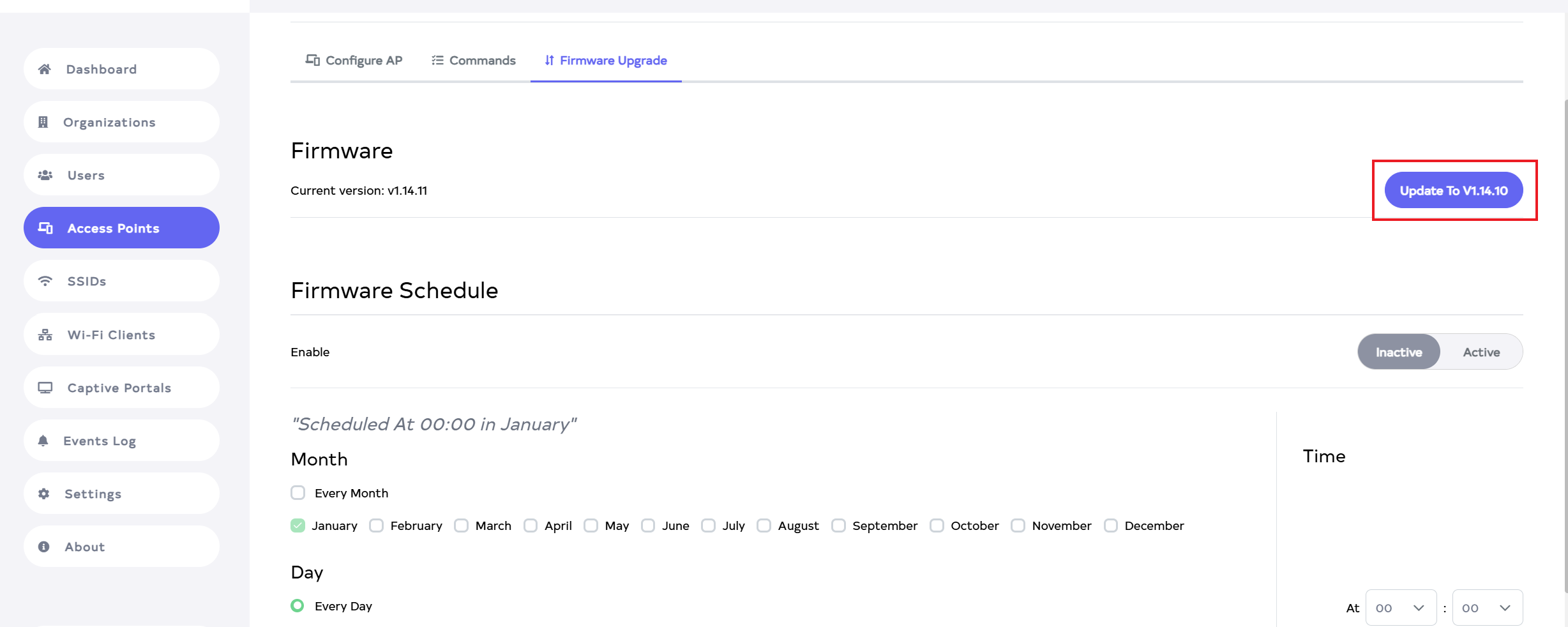
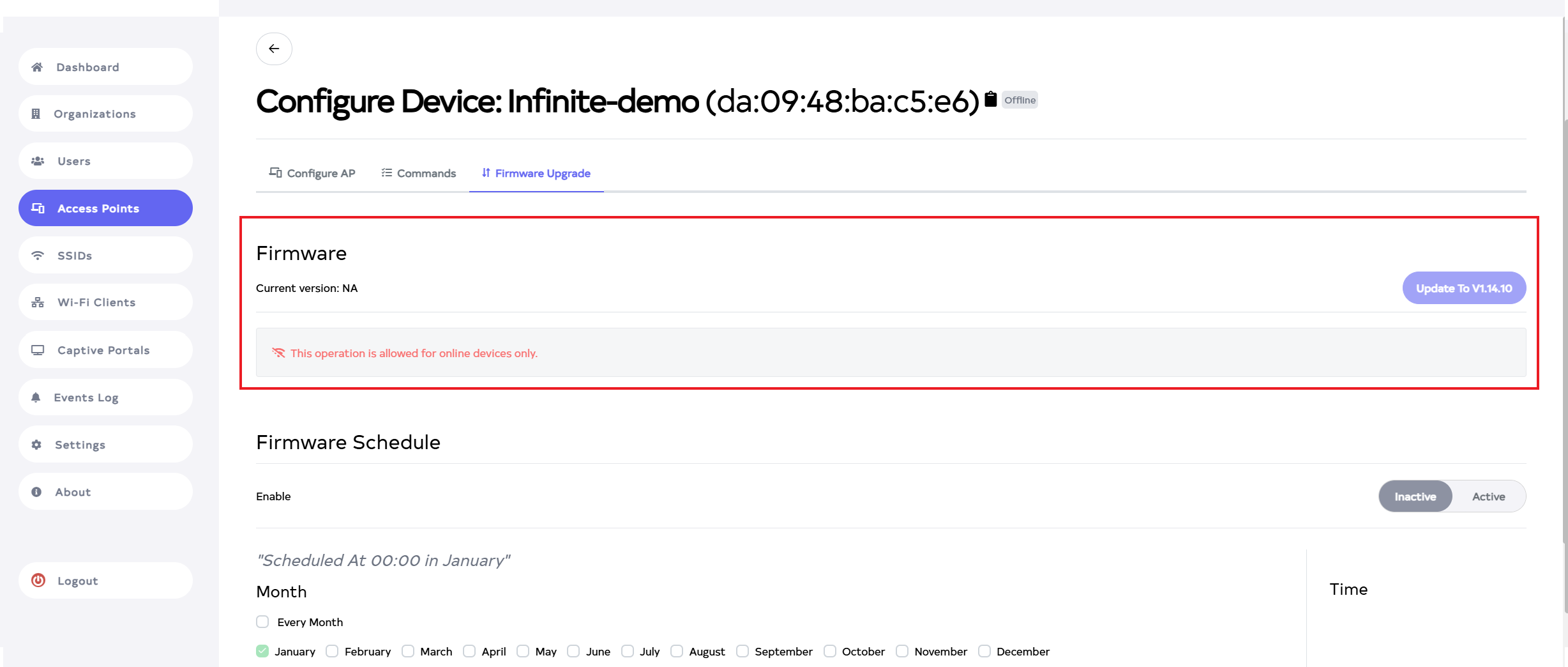
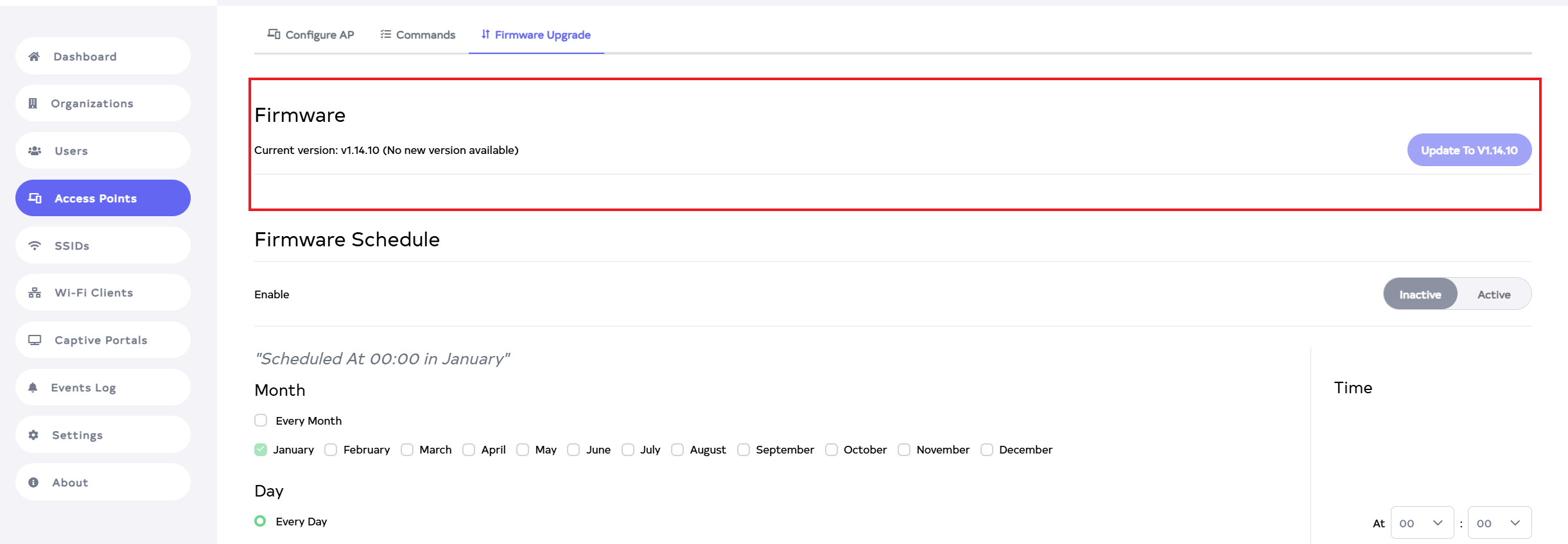
After navigating to the Firmware Upgrade tab, the Firmware version will be displayed. Click the Update To [latest_version_of_firmware (e.g., Update To V1.14.4)] button to download the version. If the version has been updated since then, the updated version will be shown.
 info
infoThe 'Update To' button is disabled when the firmware version is already up-to-date or the AP is offline.
-
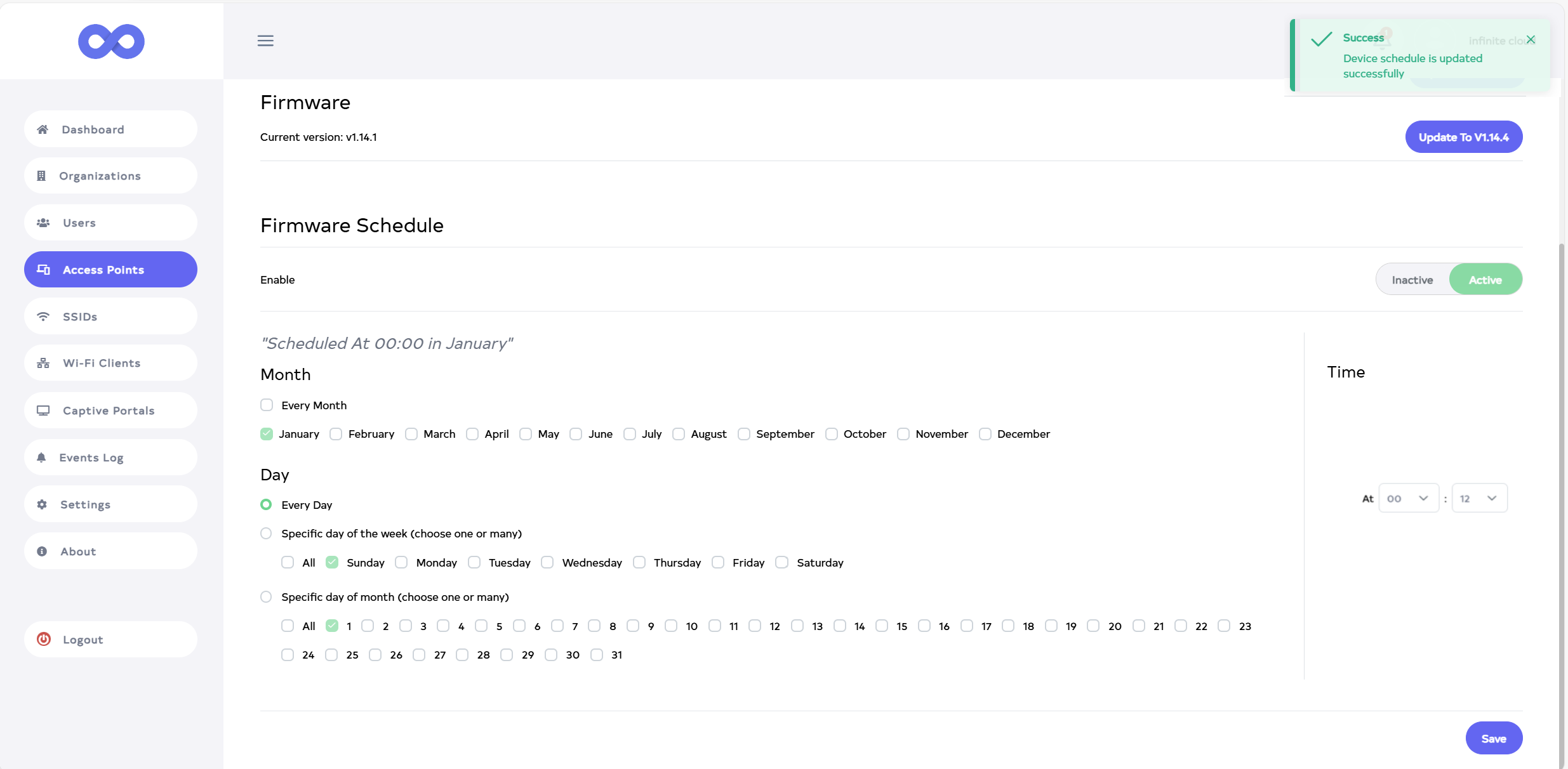
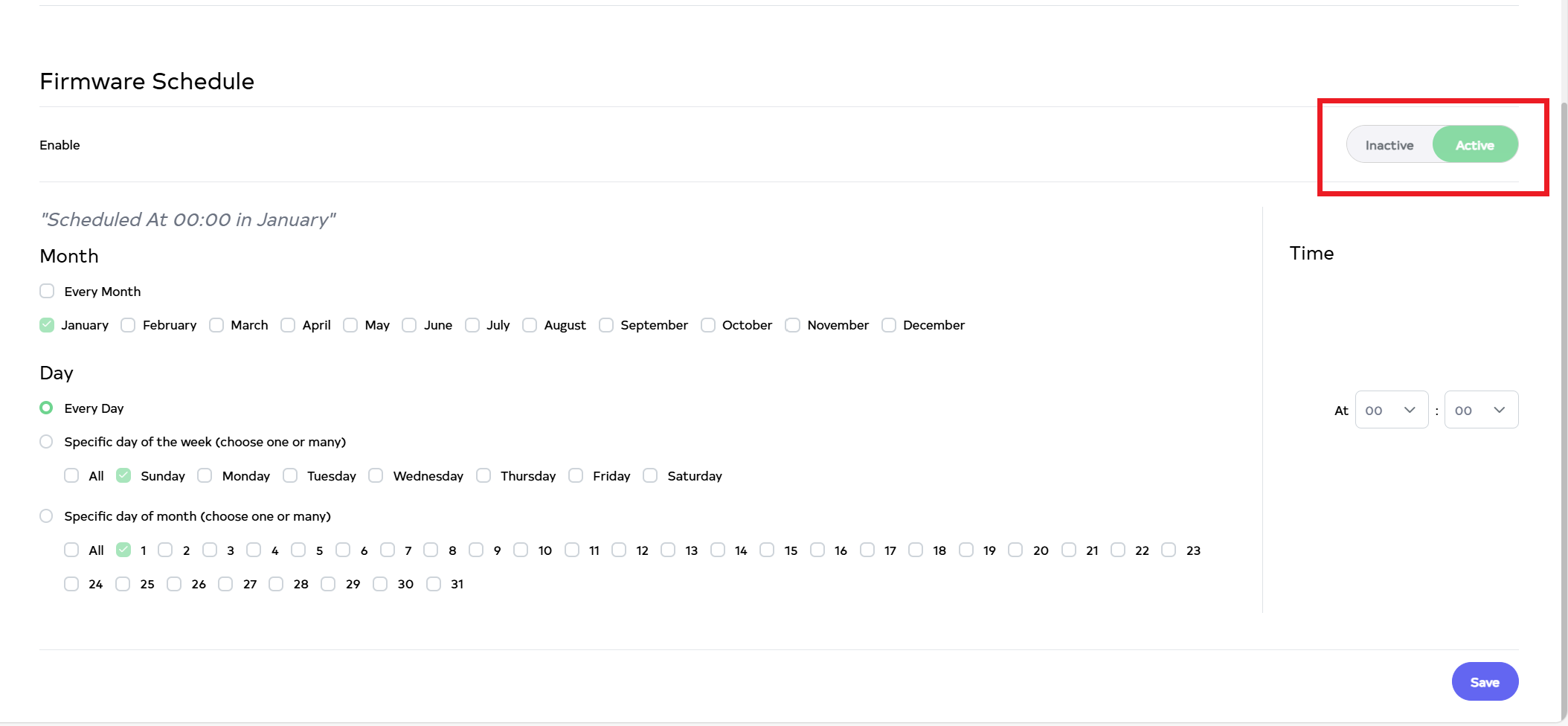
To schedule Firmware, click on the Active button.
-
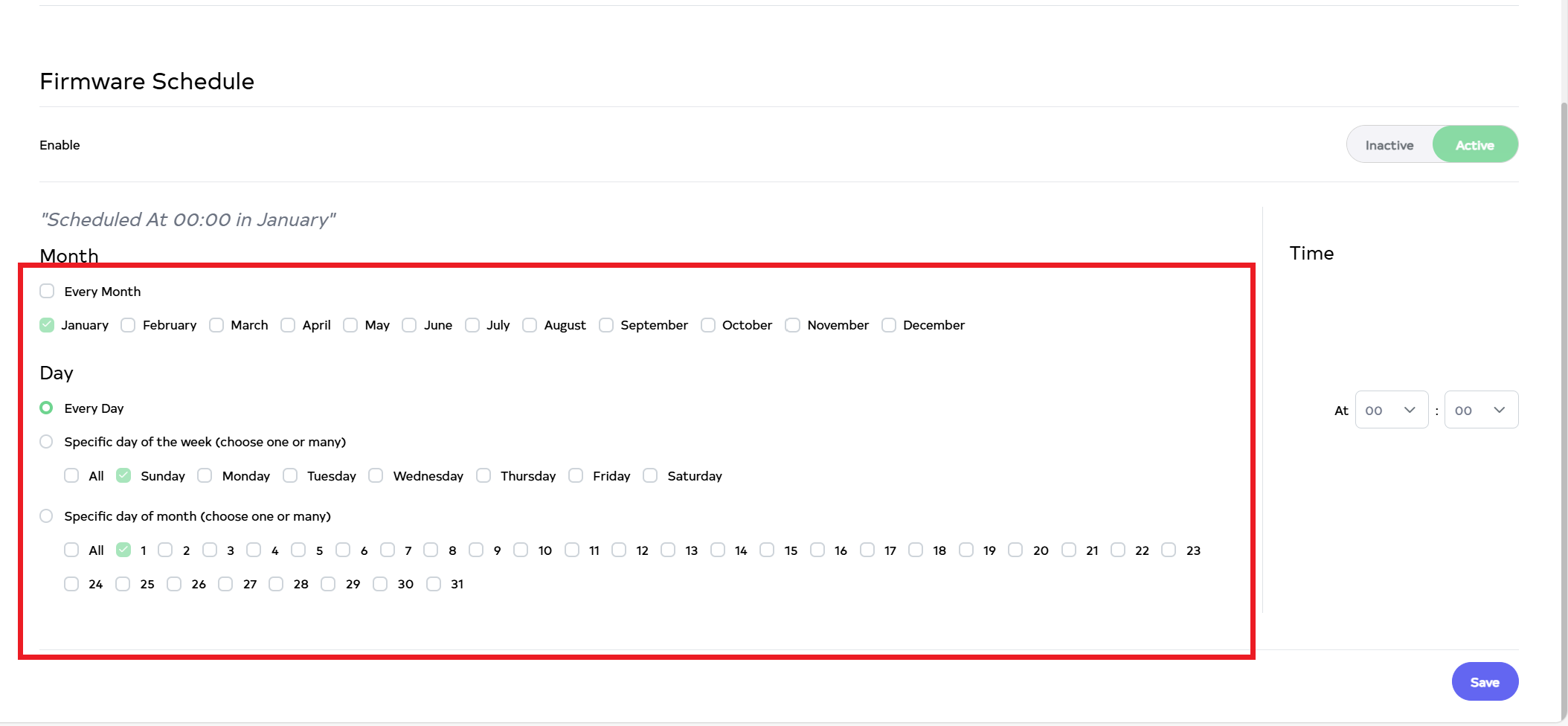
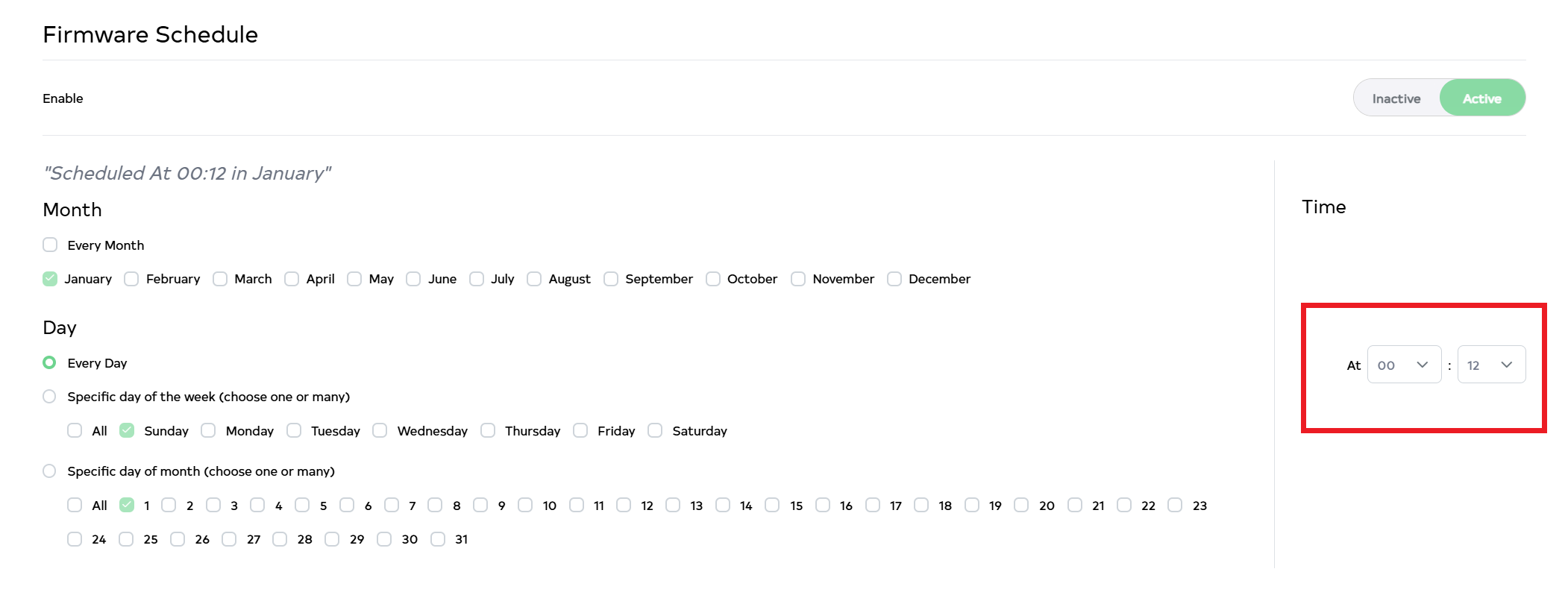
Then, select the month and day for scheduling. Choose a specific day for a particular month or select every day for every month if needed. To schedule for the entire week on all days, click on all.
-
Navigate and select the time at which want to broadcast. For example here 12:00AM to 12:00PM is selected.
-
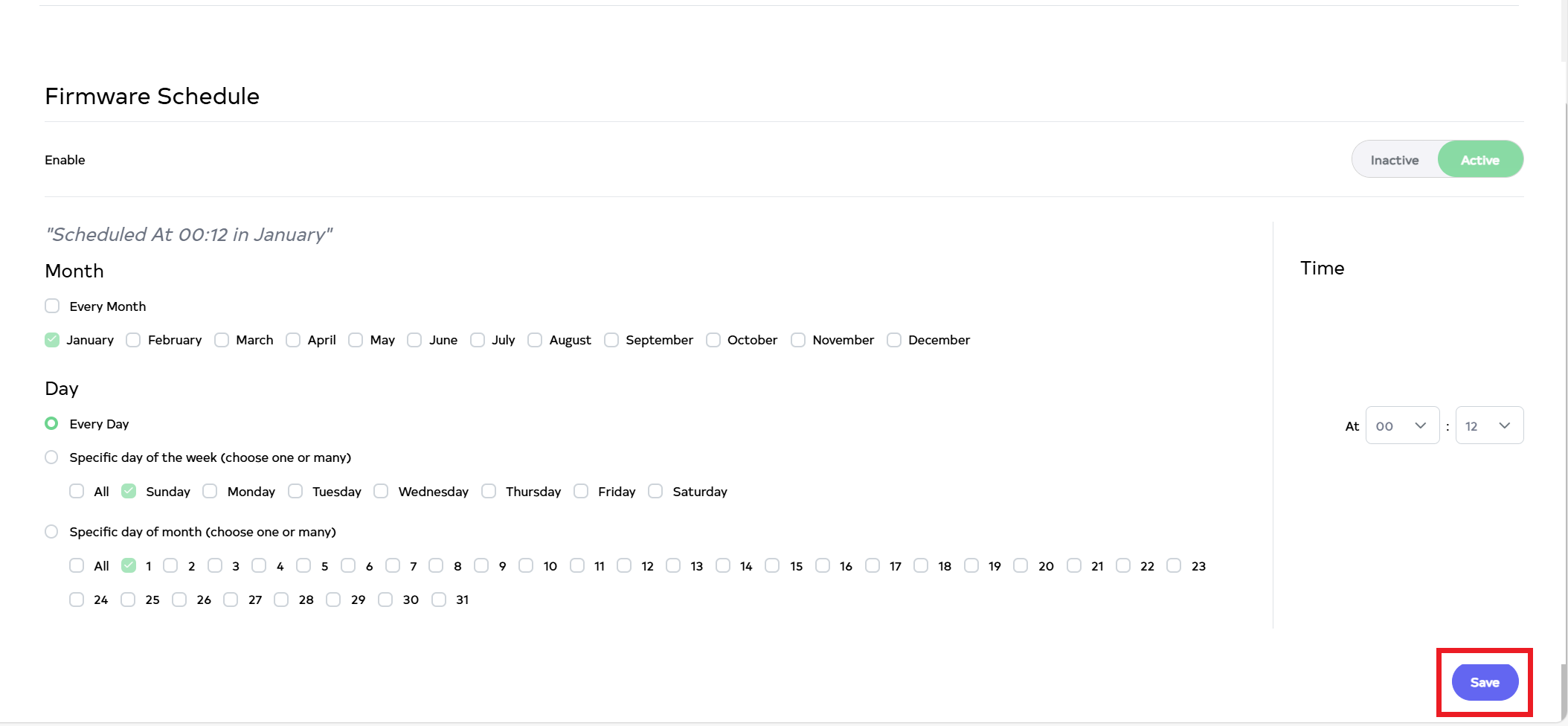
Then click on the Save button, located right side of the bottom.
-
After the Firmware Upgrade Section updated successfully, you will get the success messageDevice schedule is updated successfully.