Firmware Management
The Firmware Management section allows users to manage firmware updates for their devices. This includes adding new firmware, editing existing firmware details and deleting firmware from the system. The interface is user-friendly, which makes it easy to maintain the device firmware efficiently. Below is a step-by-step guide on how to manage the firmware in the system.
Steps to Manage Firmware
Accessing the Firmware Management Tab
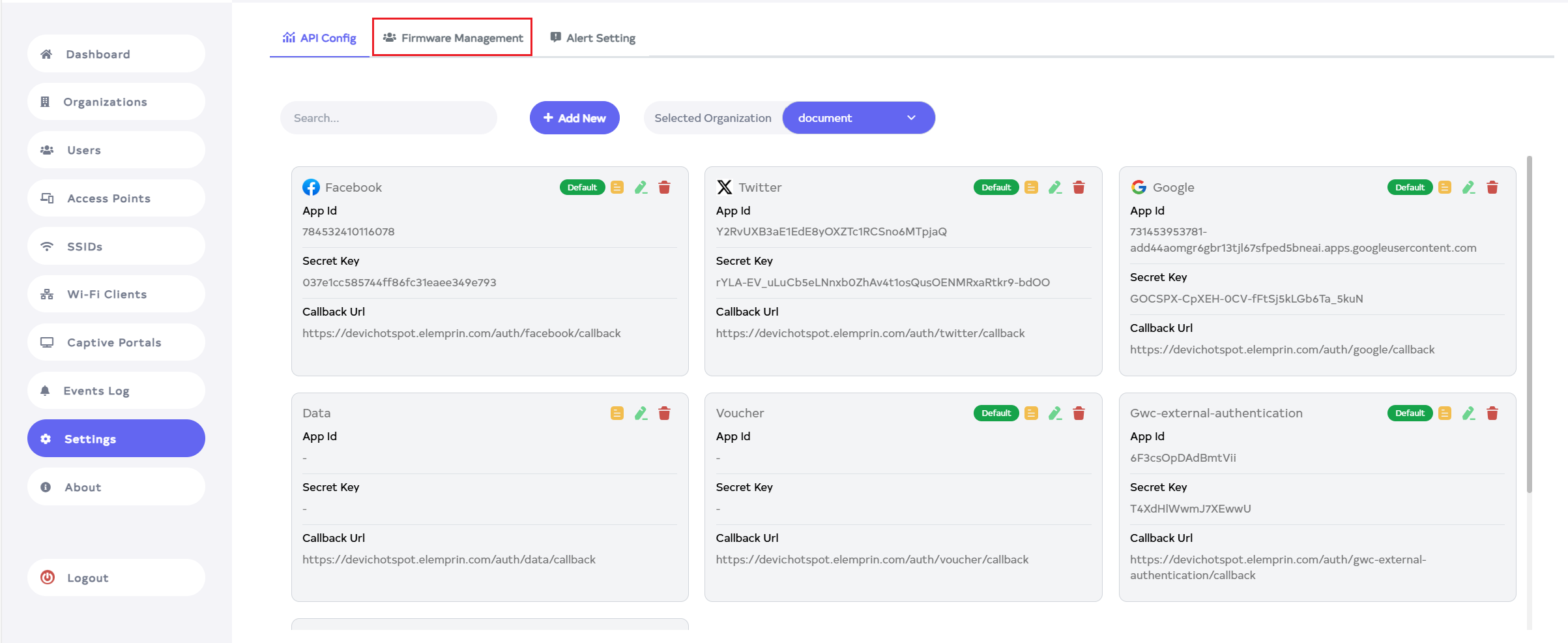
Step 1: Navigate to Login > Settings > Firmware Management tab.
Adding New Firmware
Step 1: Click on the Add New button to add a new Firmware.
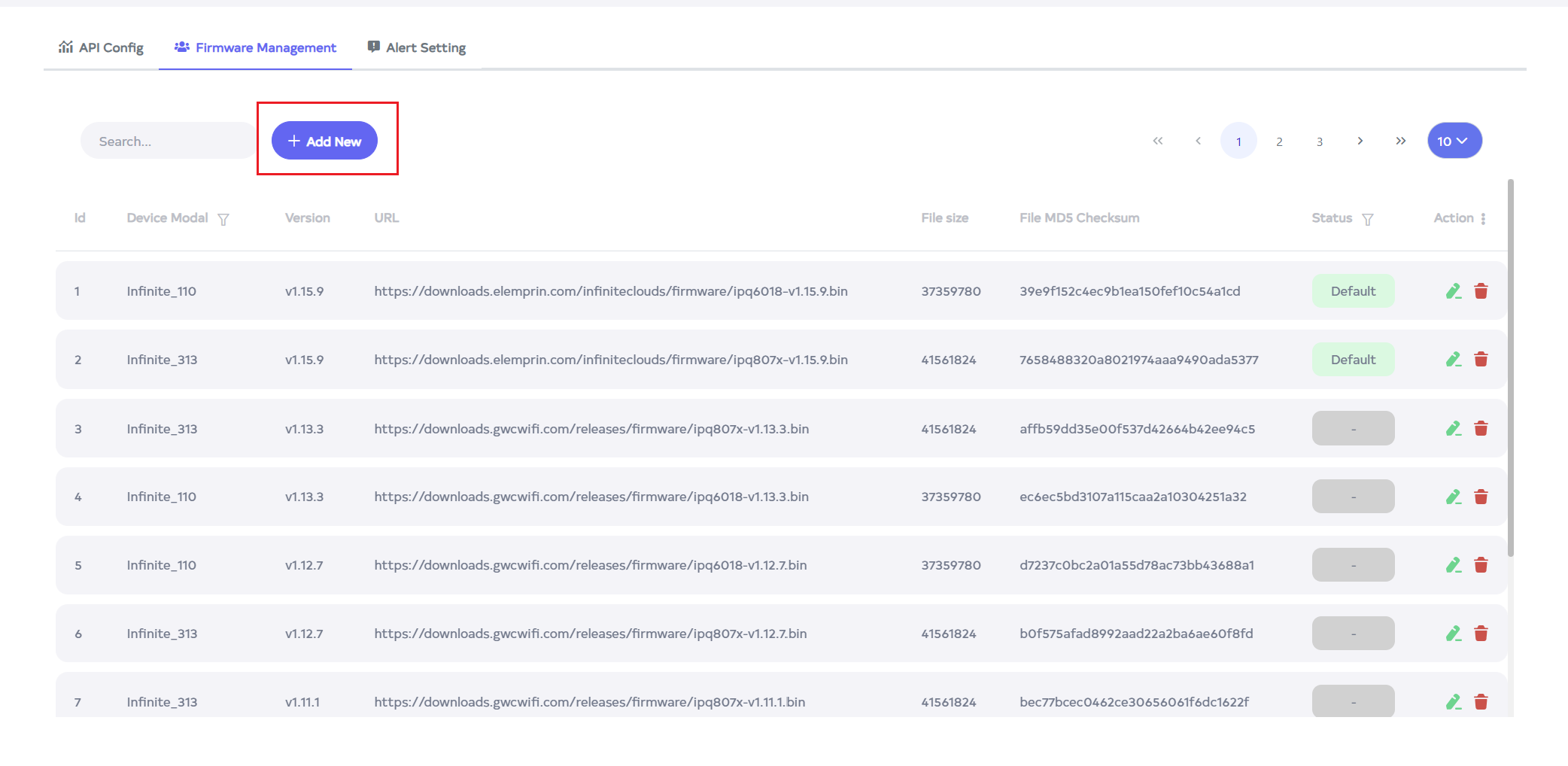
Step 2: Fill in the required details:
- Device Model: Select the device model. Available options are: Infinite_110 and Infinite_313 Choose the model corresponding to your access point (AP). For example, select Infinite_110.
- Download URL: Enter the URL from which the firmware can be downloaded. For example: https://downloads.elemprin.com/infiniteclouds/firmware/ipq6018-v1.15.9.bin.
- File Size (In Bytes): Input the file size of the firmware in bytes. For example: 37359780.
- File MD5 Checksum: Provide the MD5 checksum of the firmware file to ensure its integrity. For example: 39e9f152c4ec9b1ea150fef10c54a1cd.
- Version: Specify the version number of the firmware. For example: v1.15.9.
- Default: Select whether this firmware version should be the default. Options: Active: Sets the firmware as the default version. Inactive: Does not set it as the default.
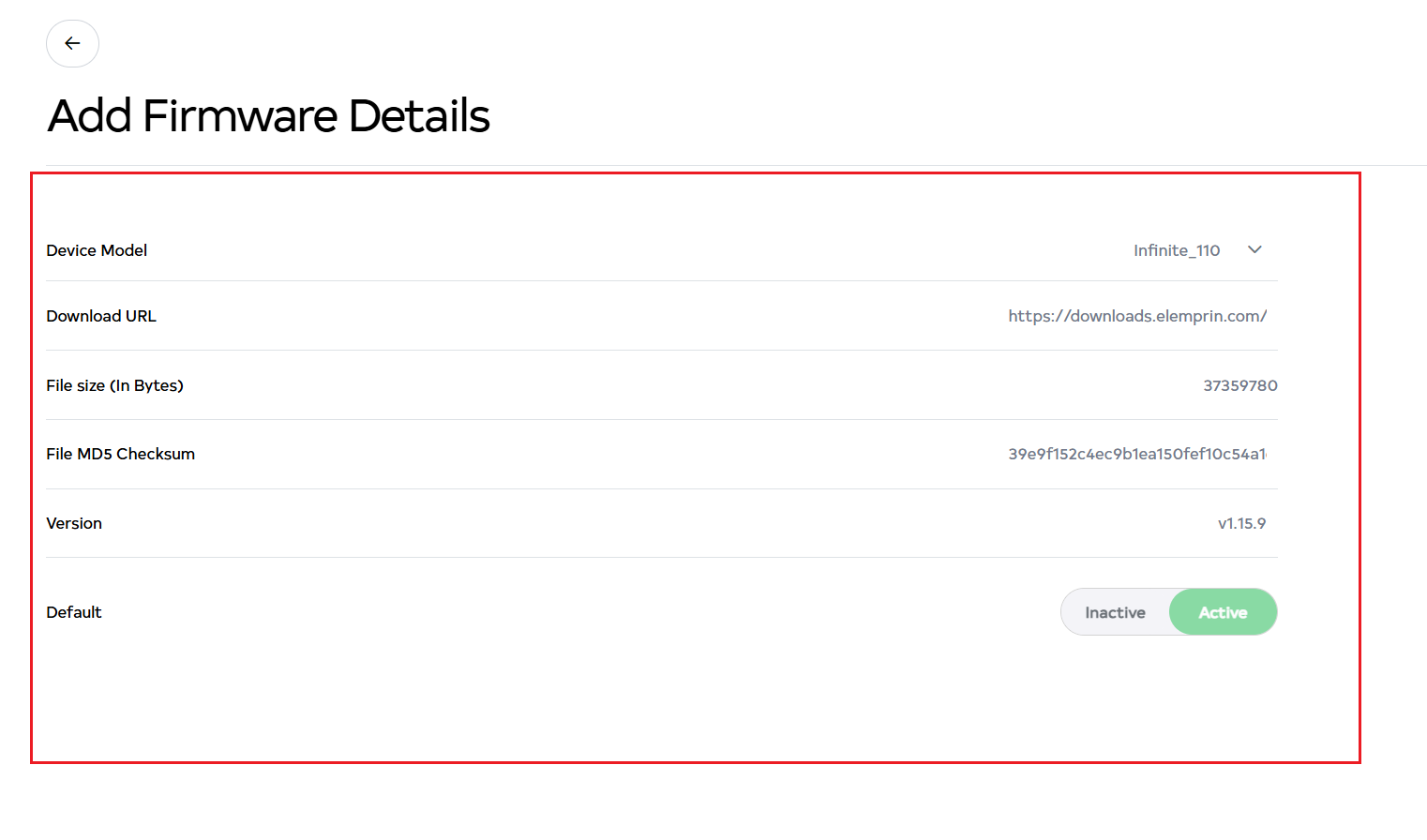
Make sure the firmware matches the AP model. Installing the wrong firmware can cause the AP to crash. Use only designated firmware.
Step 3: Click the Save button to save the new firmware details.
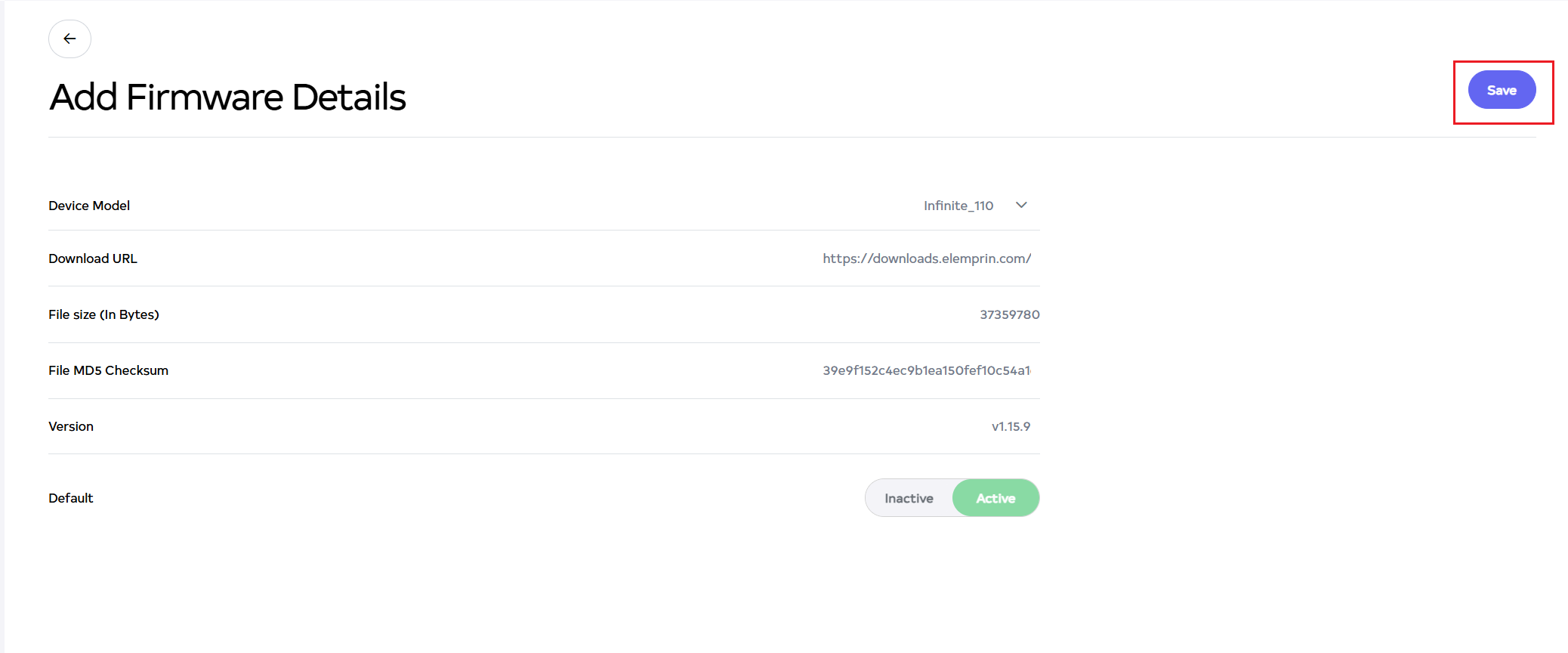
Step 4: A confirmation message will appear if the save is successfully: Firmware is added successfully.

Step-5: The new firmware will now appear in the firmware list.
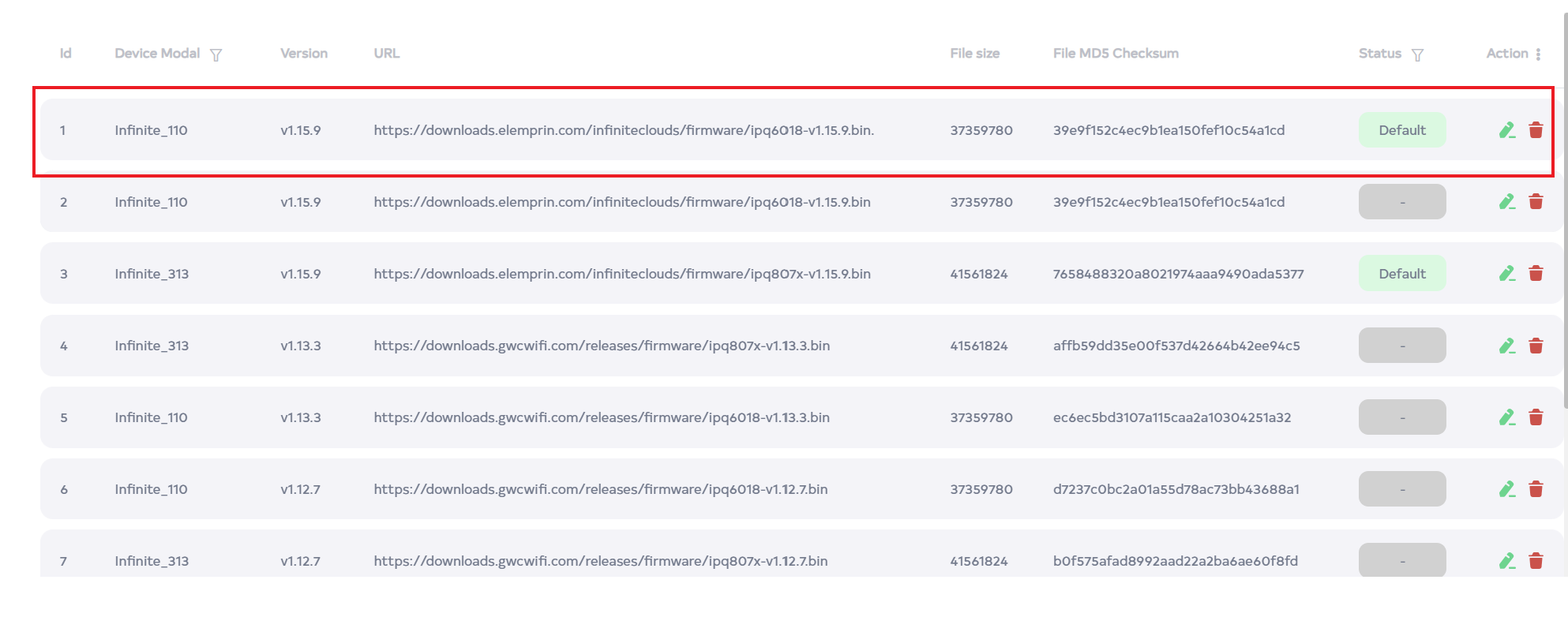
Editing Existing Firmware
Step 1: Locate the firmware to edit in the list and click the Edit button.
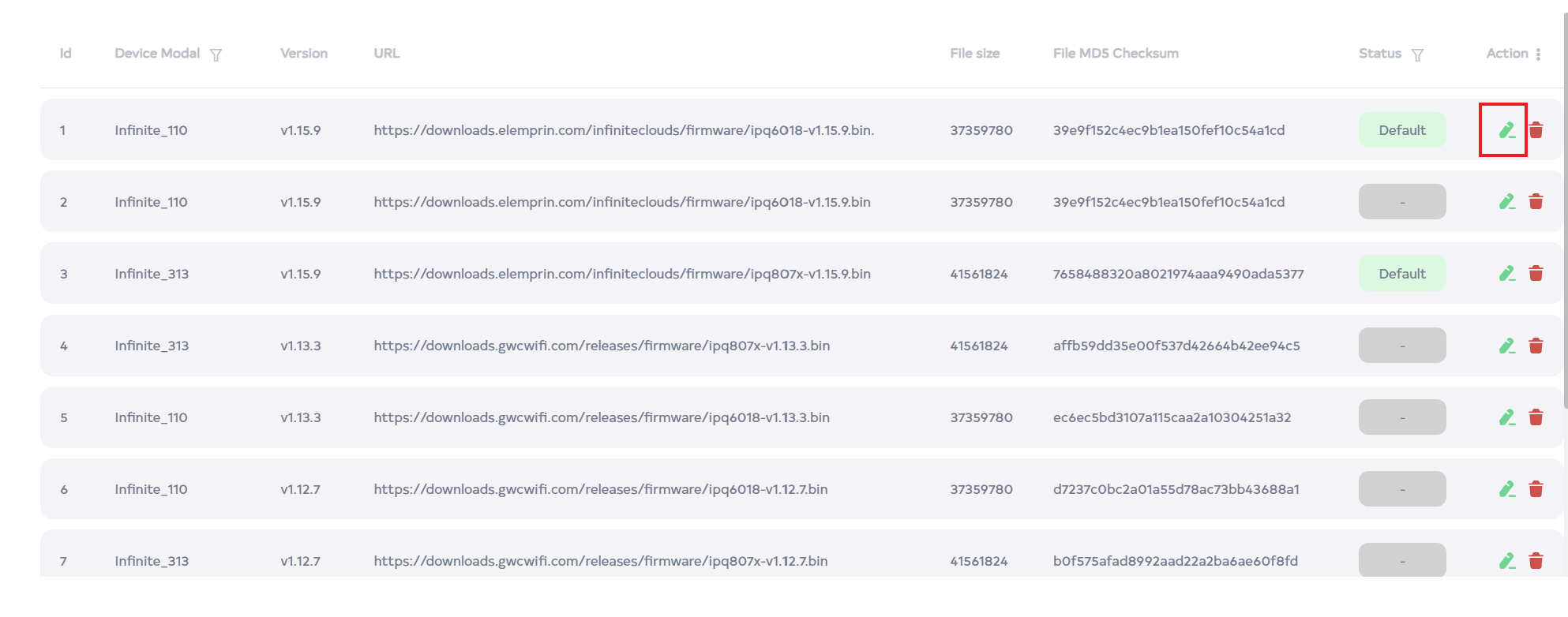
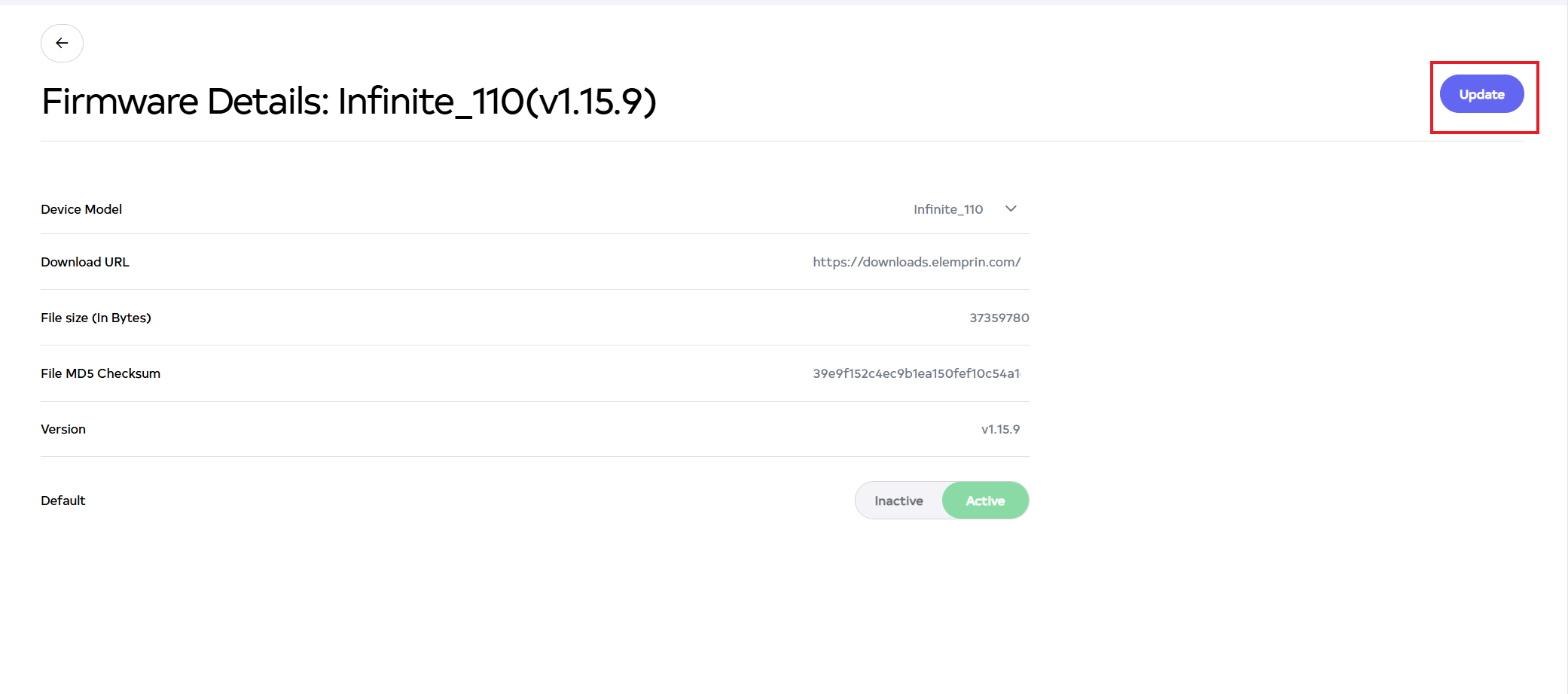
Step 2: Update the necessary fields, such as Device Model, Download URL, File Size, File MD5 Checksum, Version, and Default settings.

Step 3: Click the Update button to save your changes.
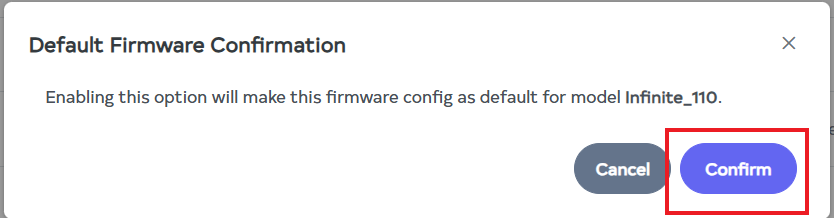
Step 4: A confirmation popup will appear. Click Confirm to finalize the update.
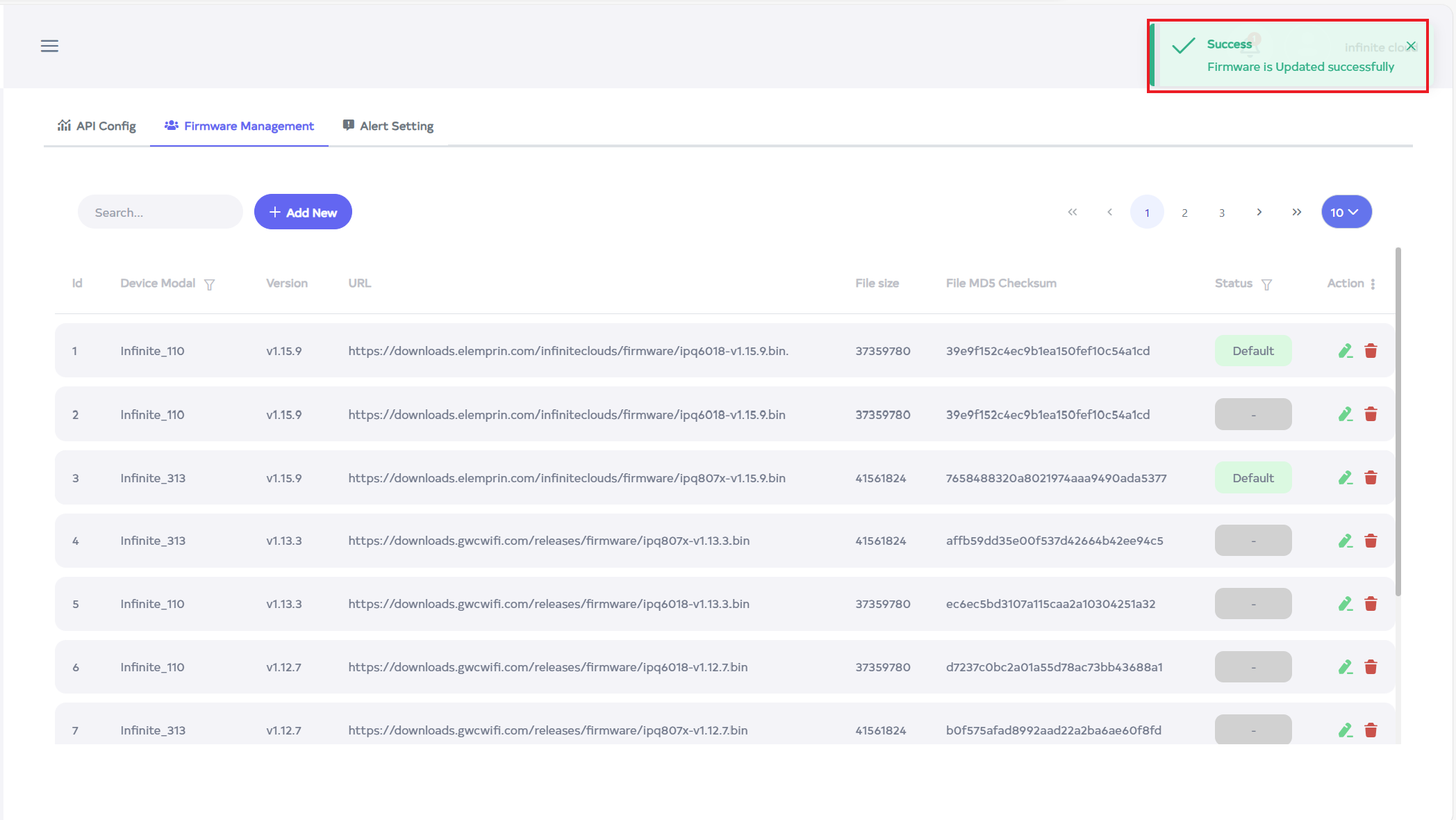
Step 5: A message will appear if the update is successfully: Firmware is updated successfully.
Deleting Firmware
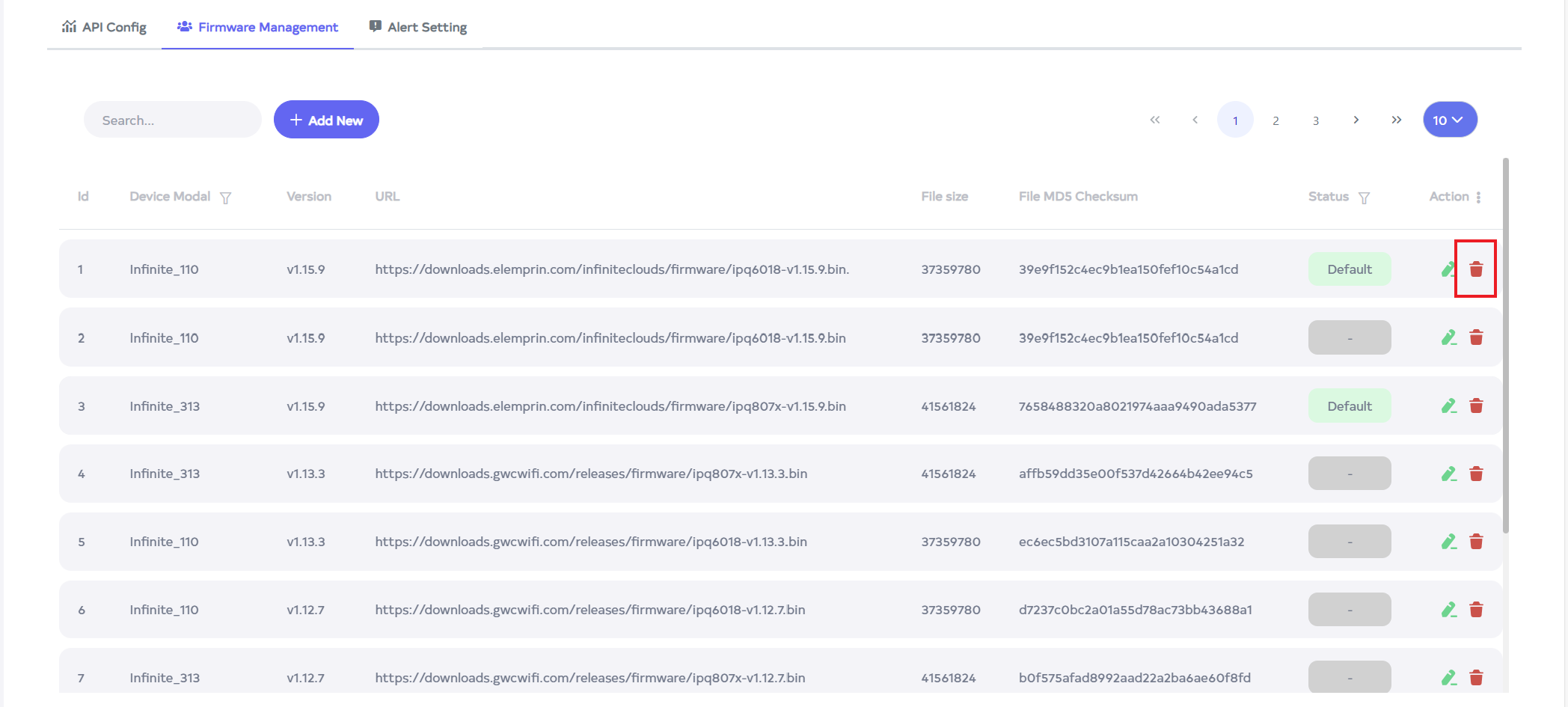
Step 1: To remove firmware, click the delete icon next to the firmware.
Step 2: A confirmation message will appear. Click the Delete button to proceed.

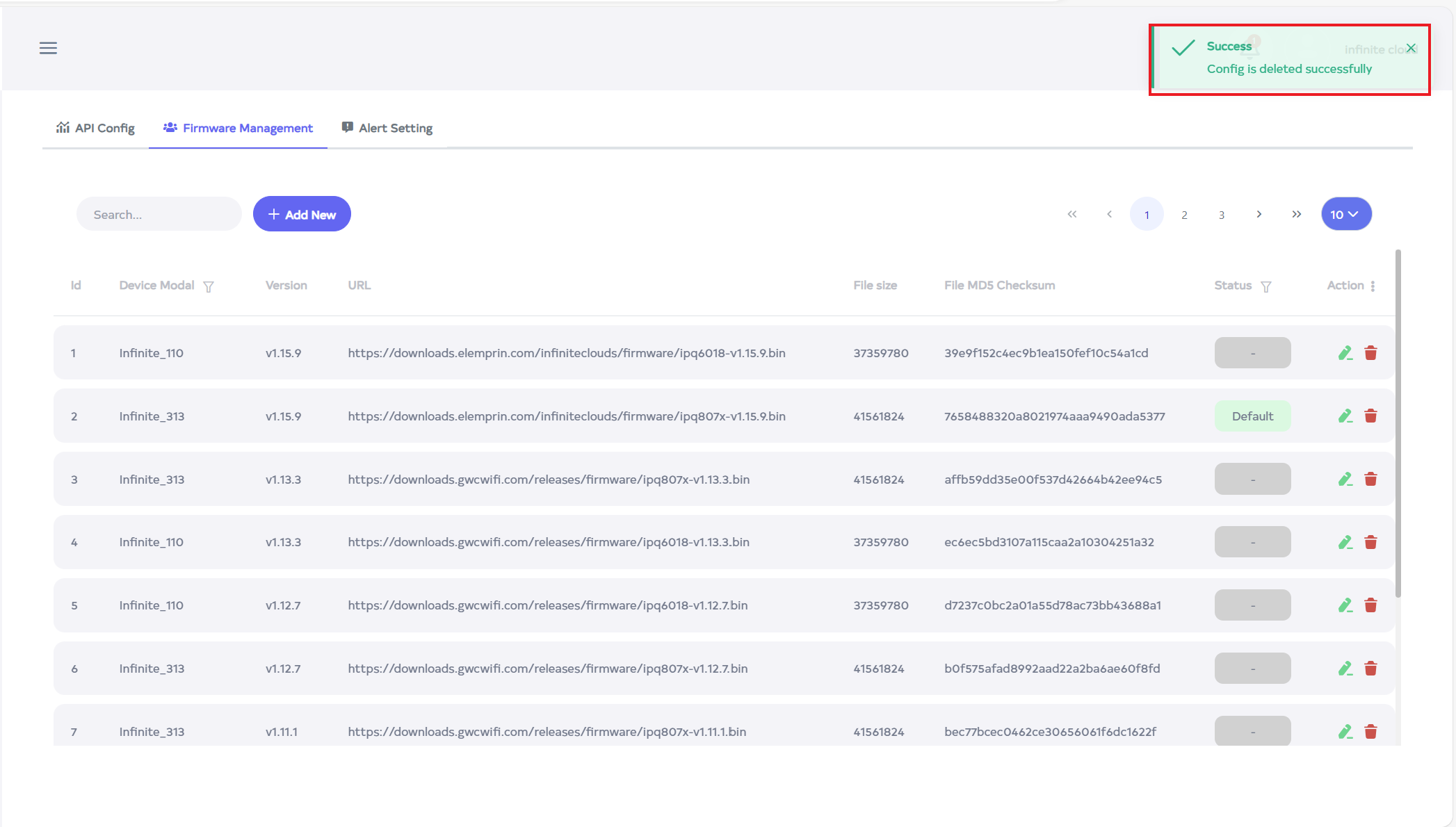
Step 3: A message will appear if the update is successfully: Firmware is deleted successfully.
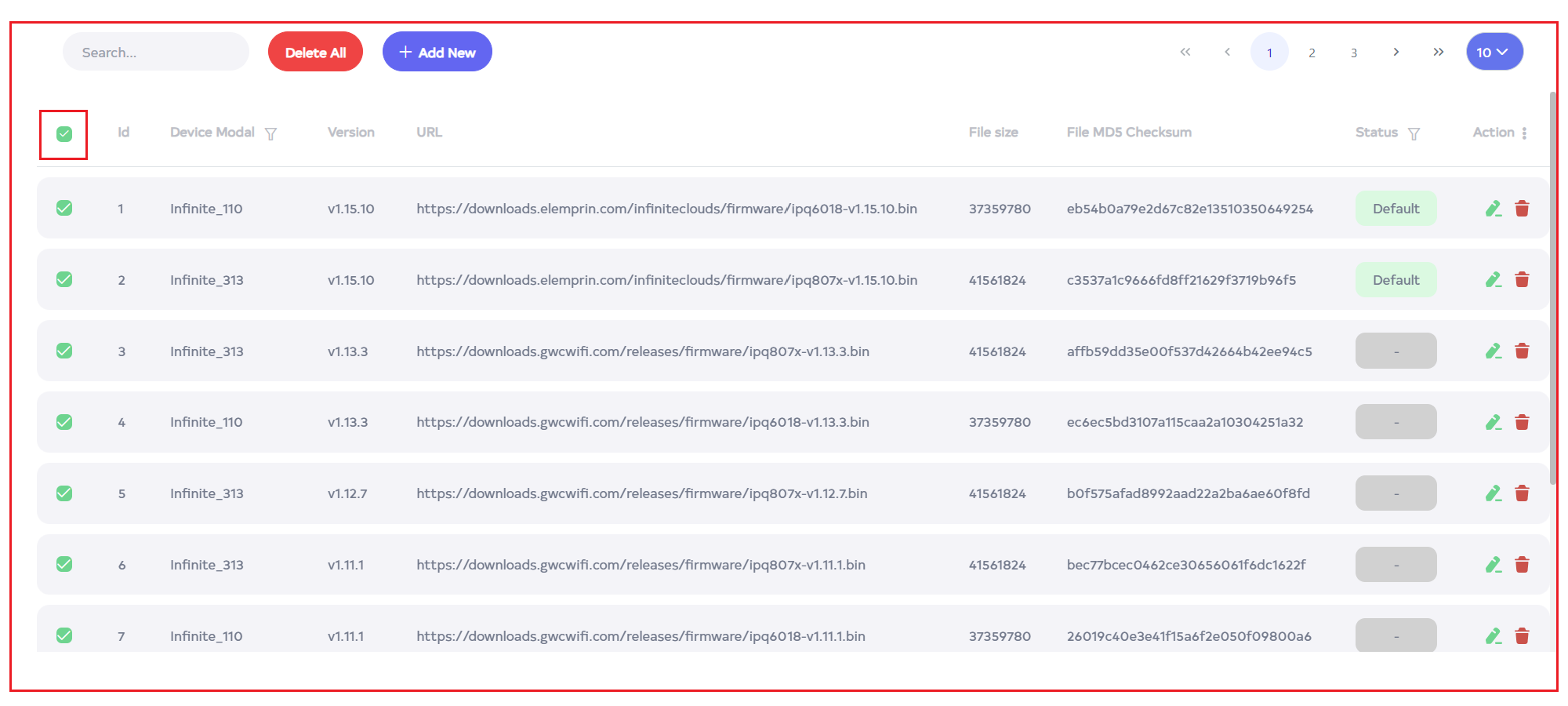
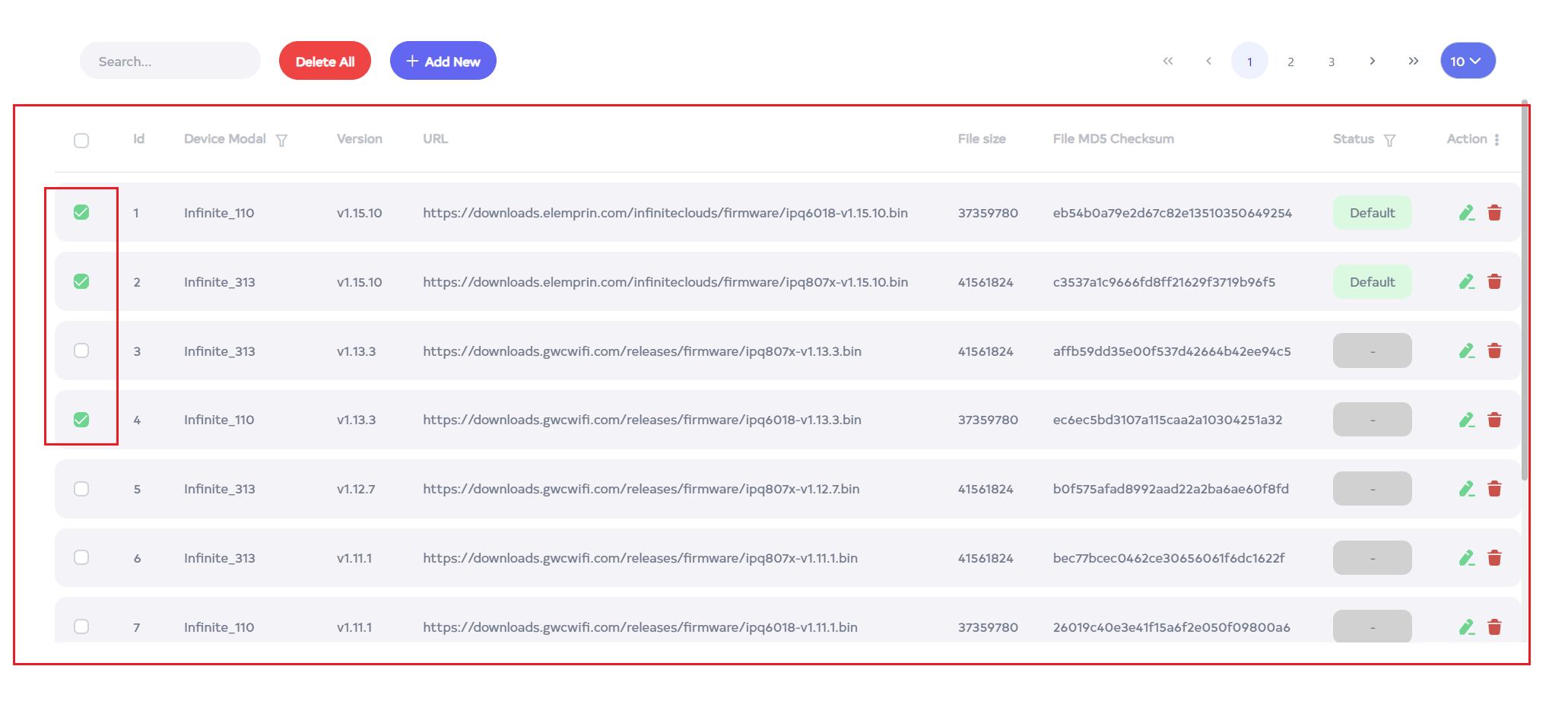
To delete multiple records, select the desired records by using the checkboxes and delete the selected records. To delete all Firmware management ID in bulk, use select-All checkbox next to the "ID" column header to select all entries and click the "Delete All" button to execute the bulk deletion process.