Organization Data Export & Import
Overview
The Export and Import functionalities provide an efficient way to manage organizational configurations within the system.
-
Import: A new organization can be added by importing organization a JSON data file. The JSON file includes meta-data of connected access points, captive portal (CP), bandwidth profiles, vouchers and other related profiles.
-
Export: Pressing the export button allows for easy export of organization data. By using this feature we can download .json file which contains meta-data of organisation like connected AP, CP, bandwidth-profiles, voucher etc.
Exporting Organization Data
- Access the Export Menu
-
Navigate to Login > Organization Menu > Export to initiate the export process.
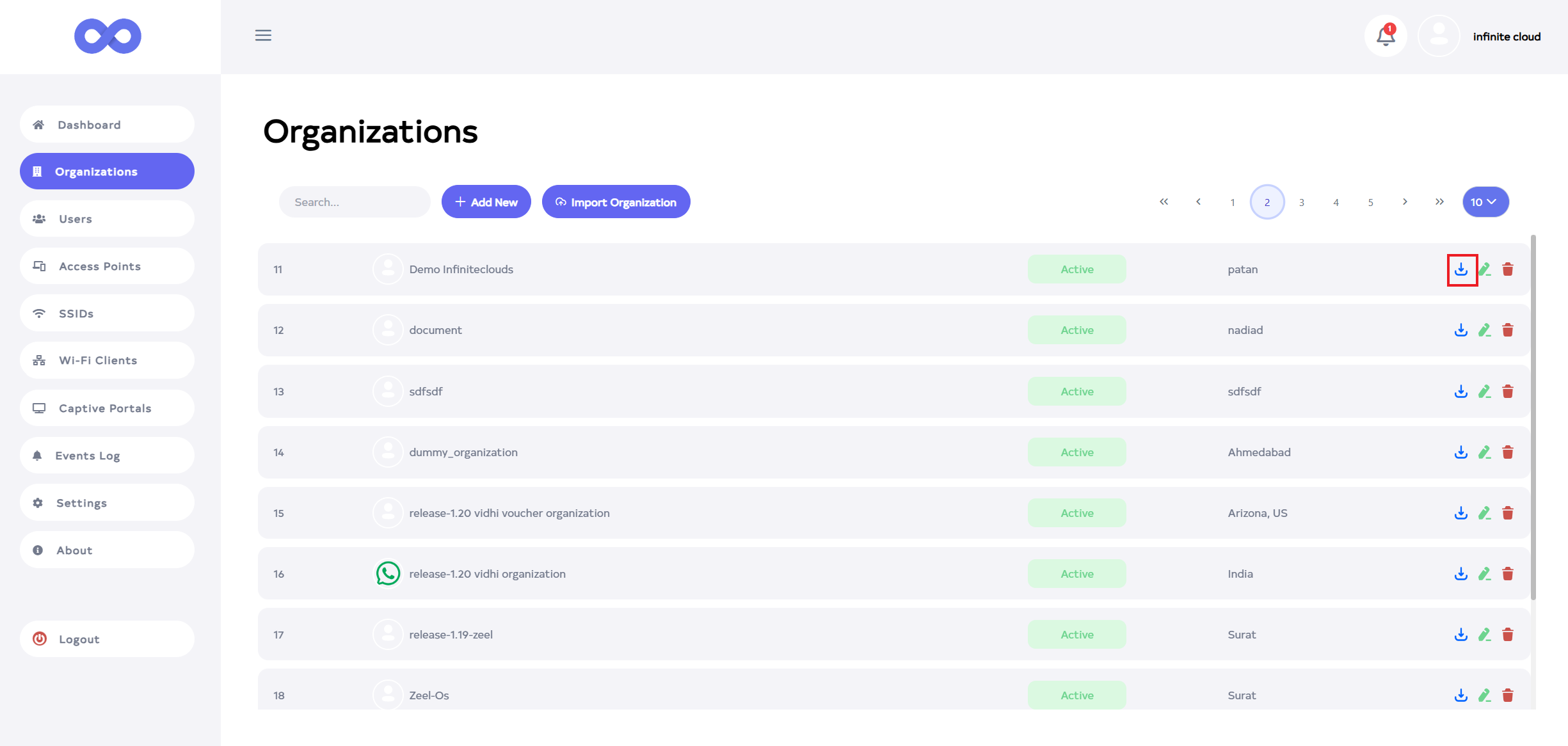
- Initiate the Export Process
-
Click on the Export Data button to start exporting the organization’s details. This action will generate a JSON file containing all relevant data.
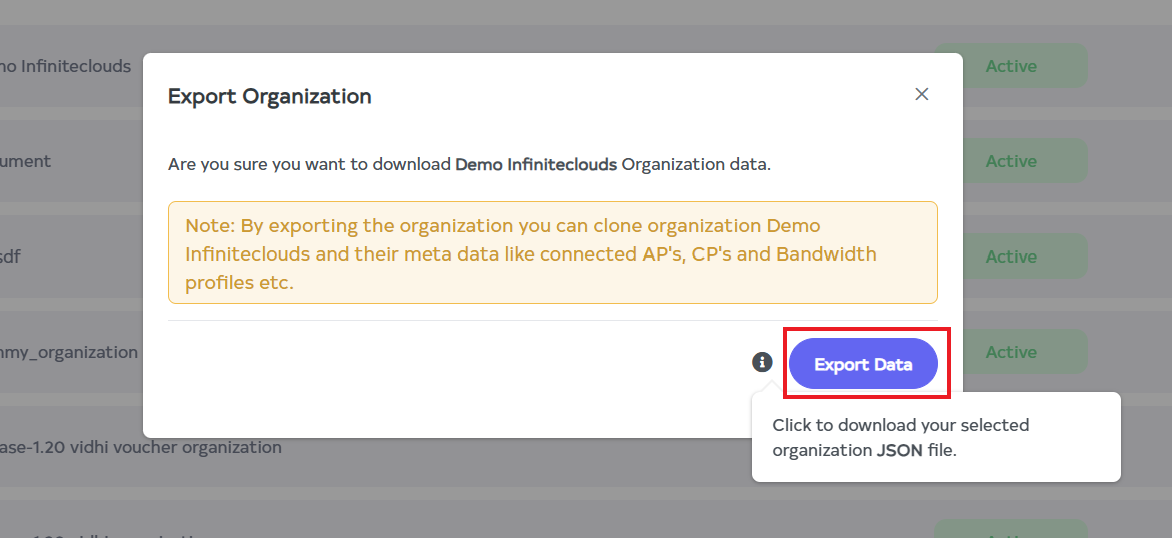
- Completion Confirmation
-
Upon successfully export a confirmation message will be displayed stating Organization data exported successfully.
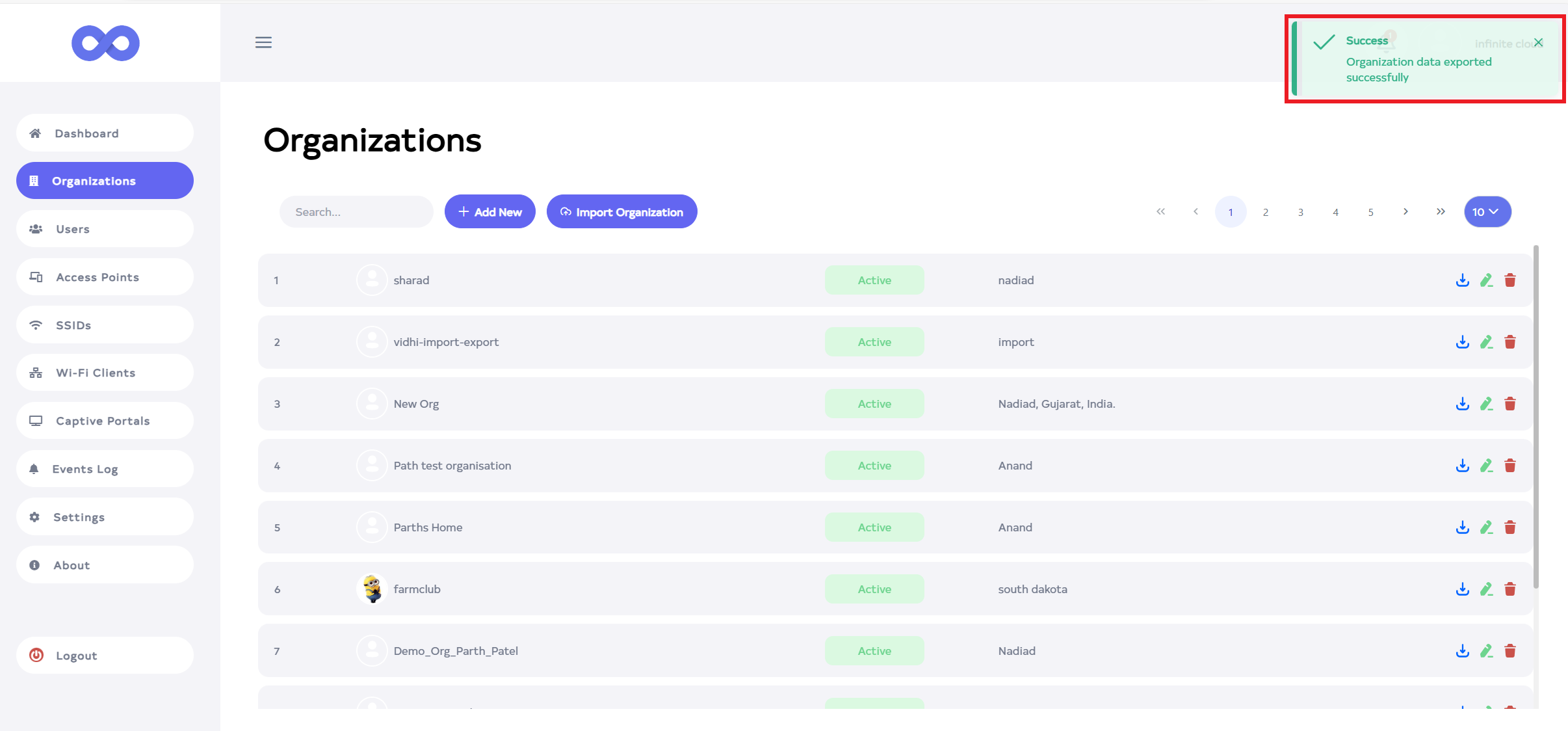
- Save the Exported JSON File
- Ensure the JSON file is securely stored on your device for later use in replication or restoration processes.
Importing Organization Data
- Access the Import Menu
- Navigate to the Import Organization option to begin the import process.
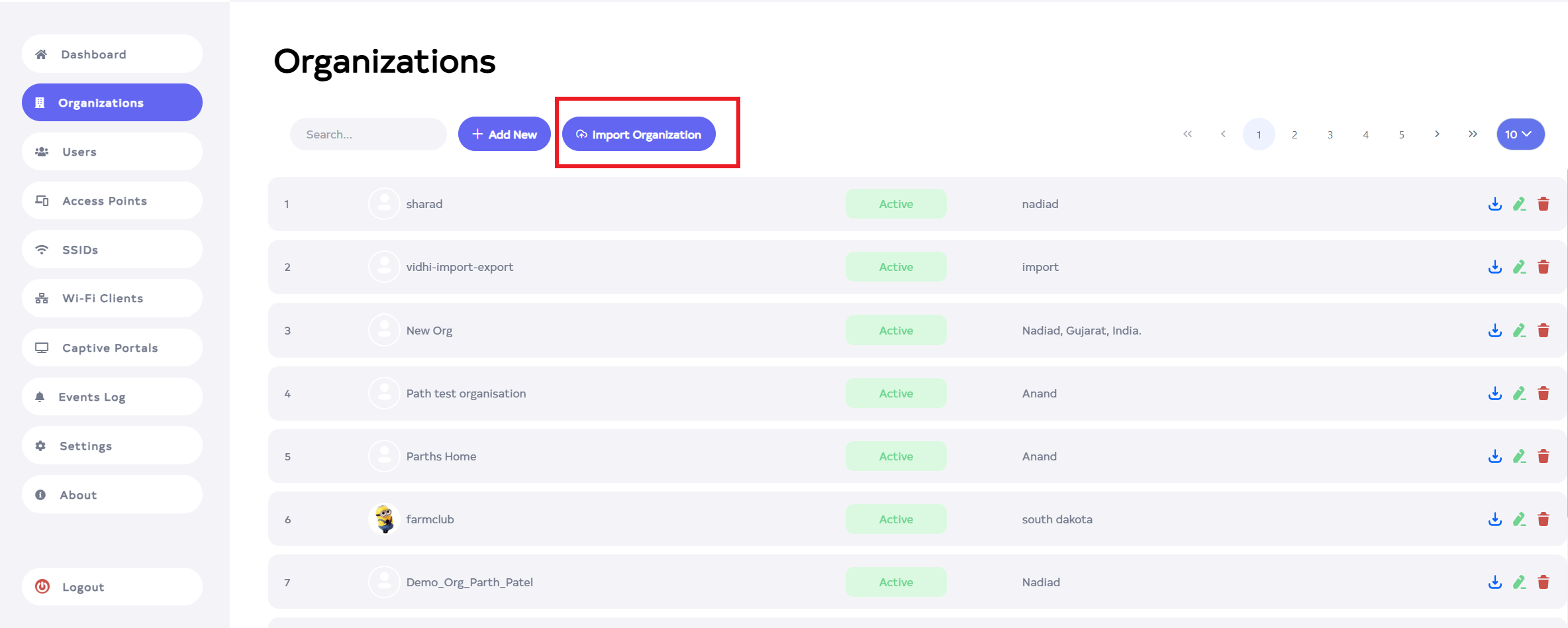
- Select the JSON File
- Click Choose File and select the JSON file from your device that contains the organization data to be imported.
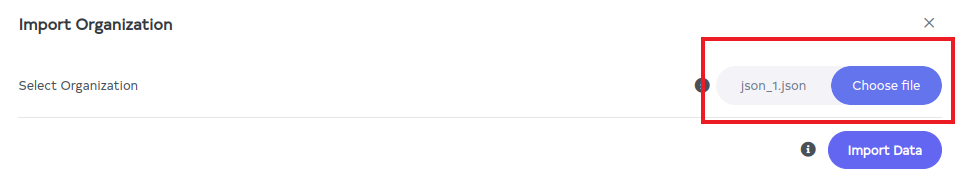
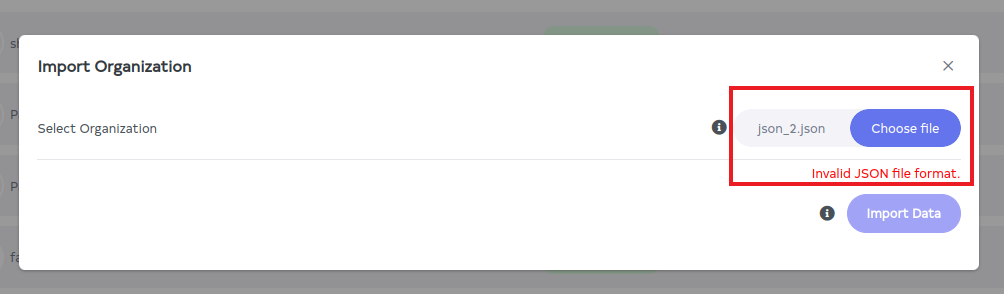
If the selected file is not in JSON format, an error message will appear. Ensure the correct file format before proceeding to avoid any disruption.
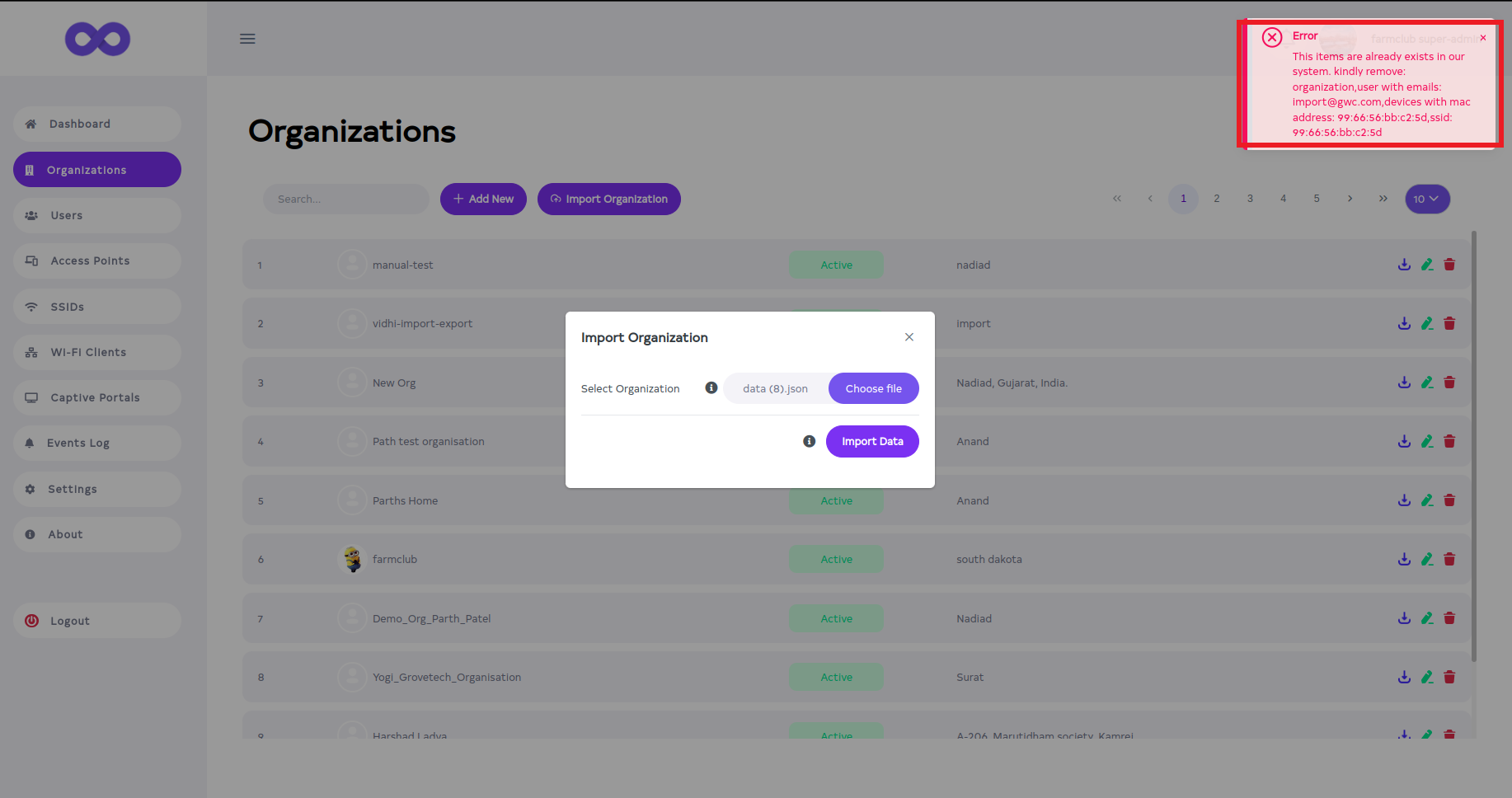
- Finalize the Import Process
- Click Import Data to complete the process. The system will automatically populate the organization’s settings based on the JSON file.
If the data is already available at the time of import then the existing message will be displayed as shown in the image.
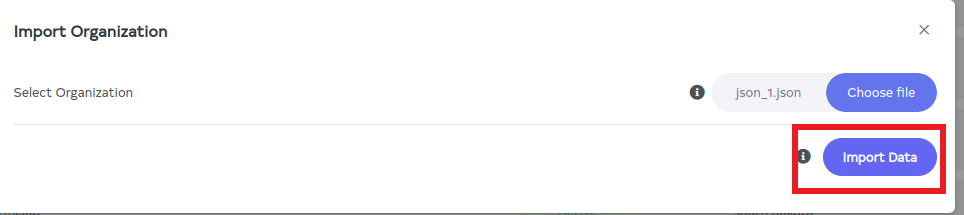
- Completion Confirmation
- Upon successfully import a confirmation message will be displayed stating Organization data imported successfully.
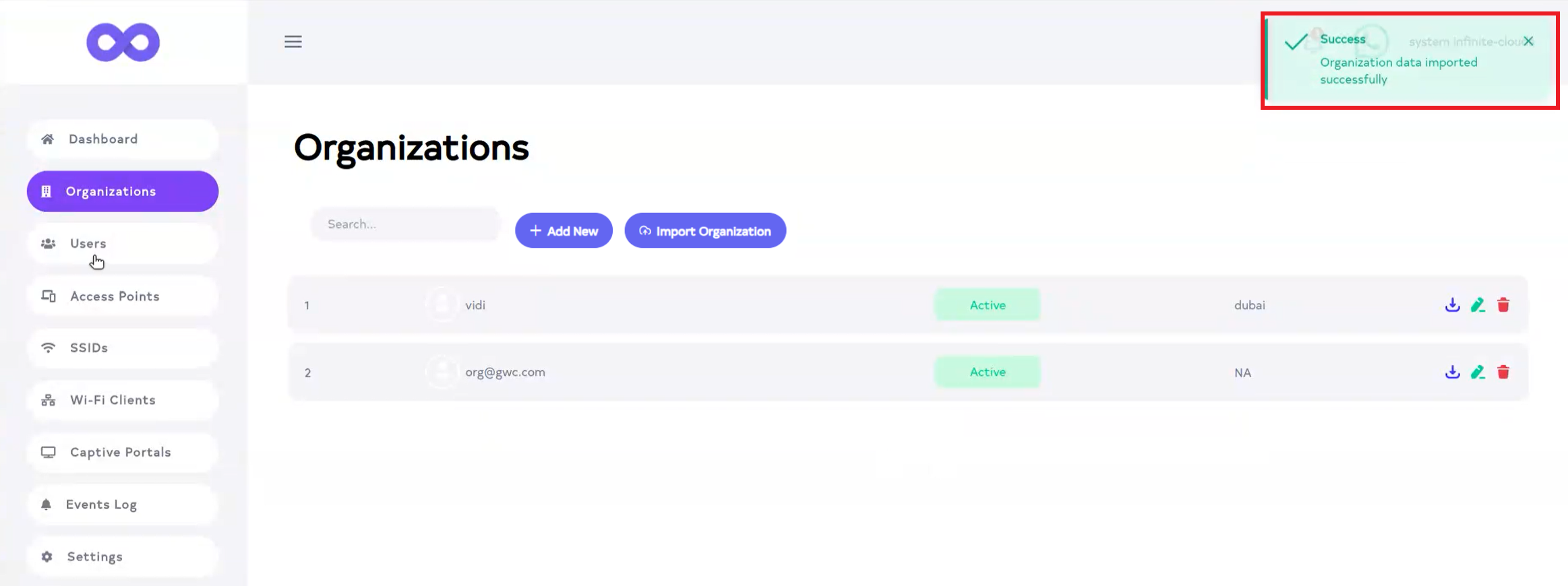
- Verify New Organization
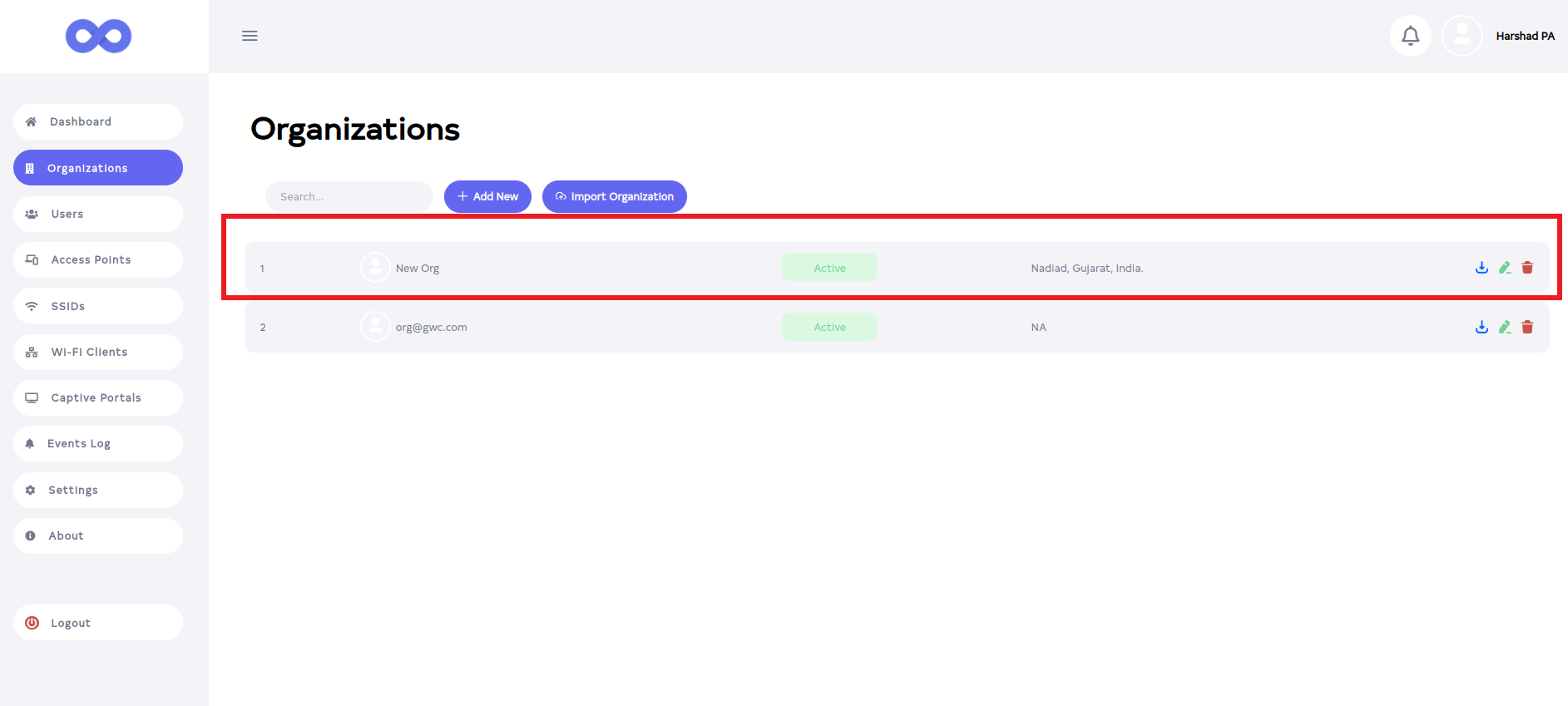
- After the import is done successfully, by default the new organization will be show as shown in the image.