Organization
What is an Organization
The organization plays a special role in user management. Without it, it is impossible to create a user, access points, SSIDs, Wifi clients, or captive portals. Organization is only a structural prerequisite that sets the stage for the creation and management of users in the system. which provides a framework for effectively organizing and categorizing users, access points, SSIDs, Wifi clients, or captive portals.
Why do we need an Organization
Organization is the basic structure for effective management and coordination in the system. The organization plays an important part in user, access points, SSIDs, Wifi clients, or captive portals. A network can be set up with the help of one organization. Provides a framework for systematically organizing and classifying elements. Where users, access points, SSIDs, Wifi clients, or captive portals. can be efficiently organized. Here organization plays an important role. It is also impossible to create a user, access points, SSIDs, WiFi clients, or captive portals.
How to Create an Organization
-
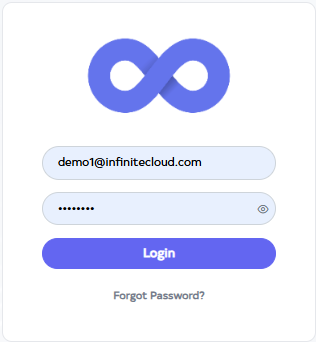
Go to Cloud platform and go there fill the details and then click on login button
-
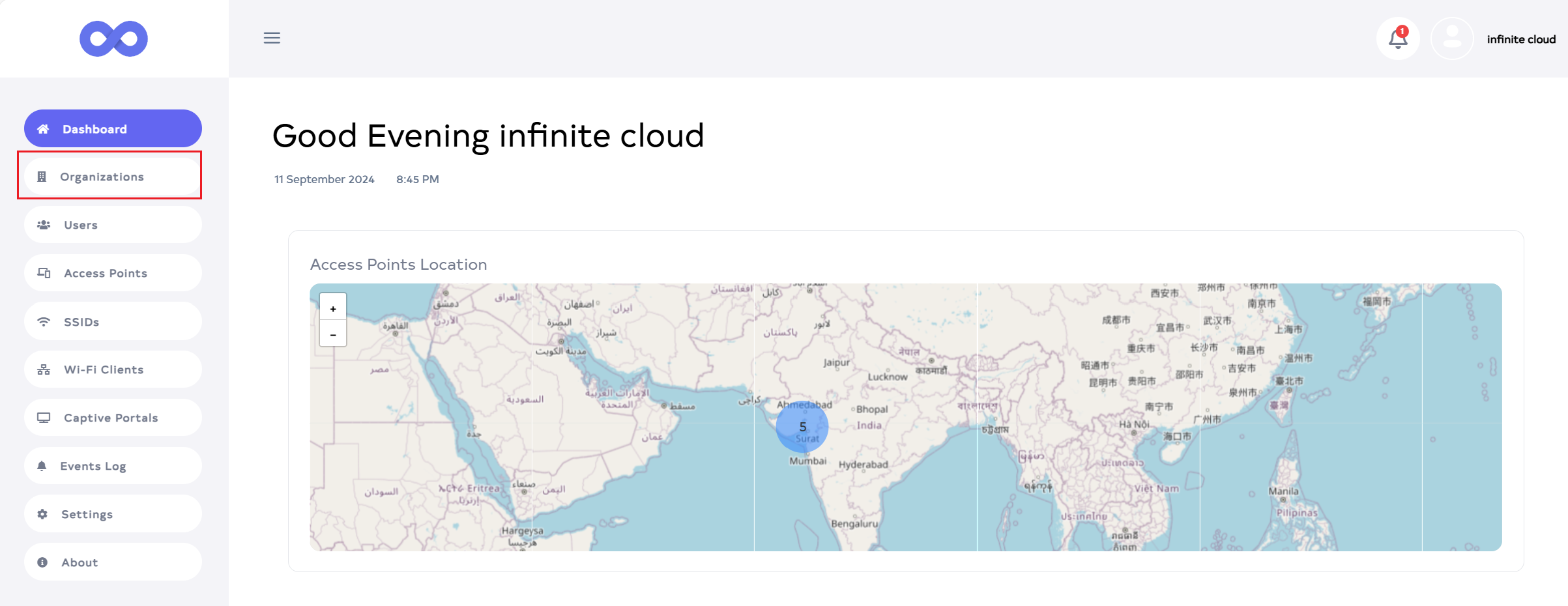
After logging in, the dashboard will appear by default. Click on the Organization menu located on the left side.
-
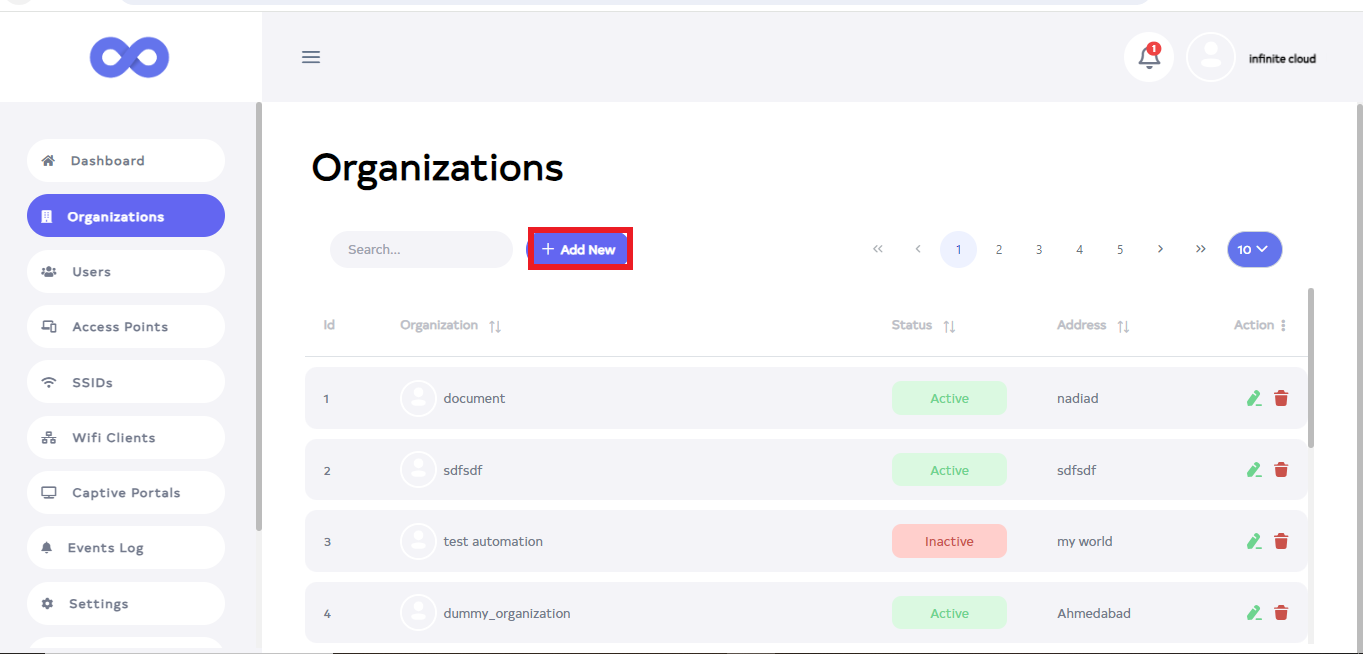
Click on Organization menu to view a list of organizations, then click the Add New button.
-
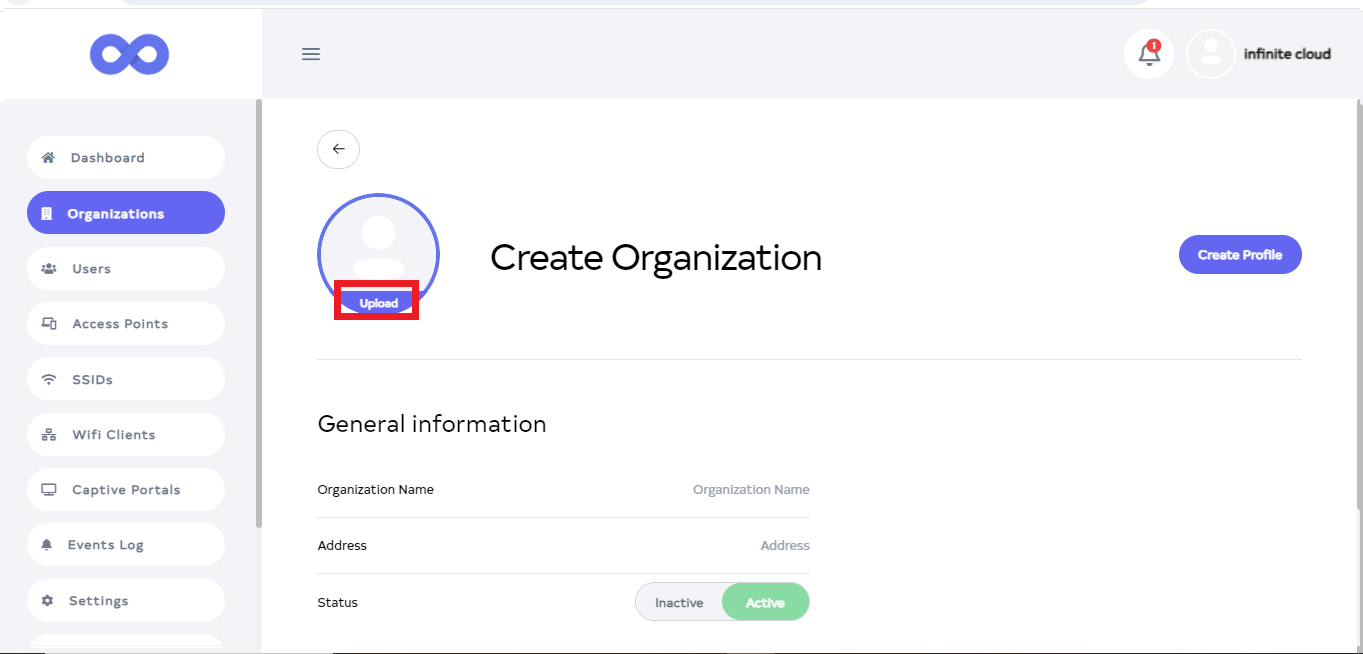
After clicking the Add New button, a new window will appear. Click on upload and set your photo from there.
picture-informationAdding a profile picture is optional and not mandatory.
-
Fill in the details as follows
1.Organization Name:-Enter the Organization Name for ex:- Document1.
2.Address:- Type Address for ex:- patan.
3.Status:- Select Status for ex:- Active.
4.Email:- Enter the Email, for ex:- admin@infinitecloud.com
5.Contact:- Input the Contact information.
6. Find your work:- Input the Find your work for ex:-Technical writer.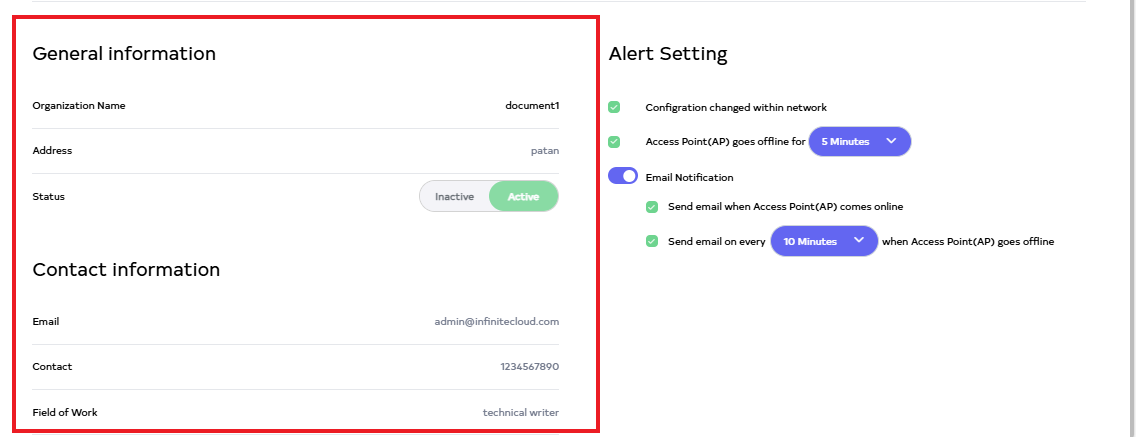
-
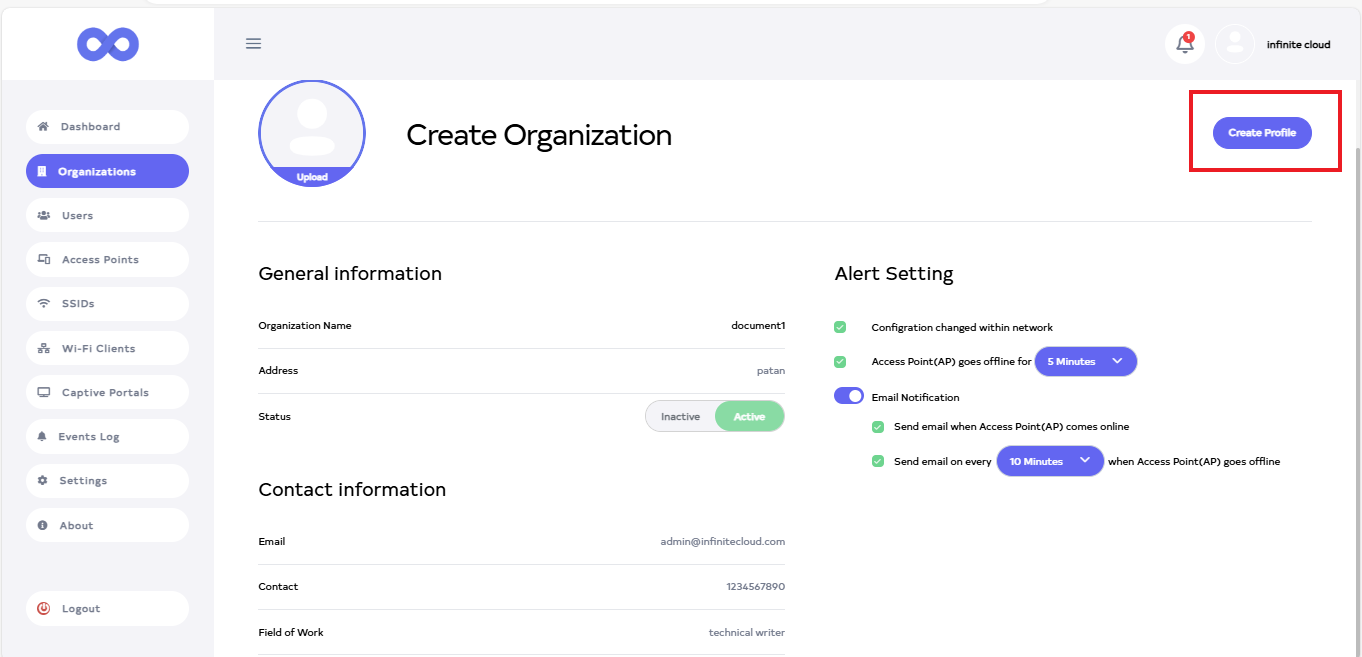
Then Click on the located right side Create profile.
-
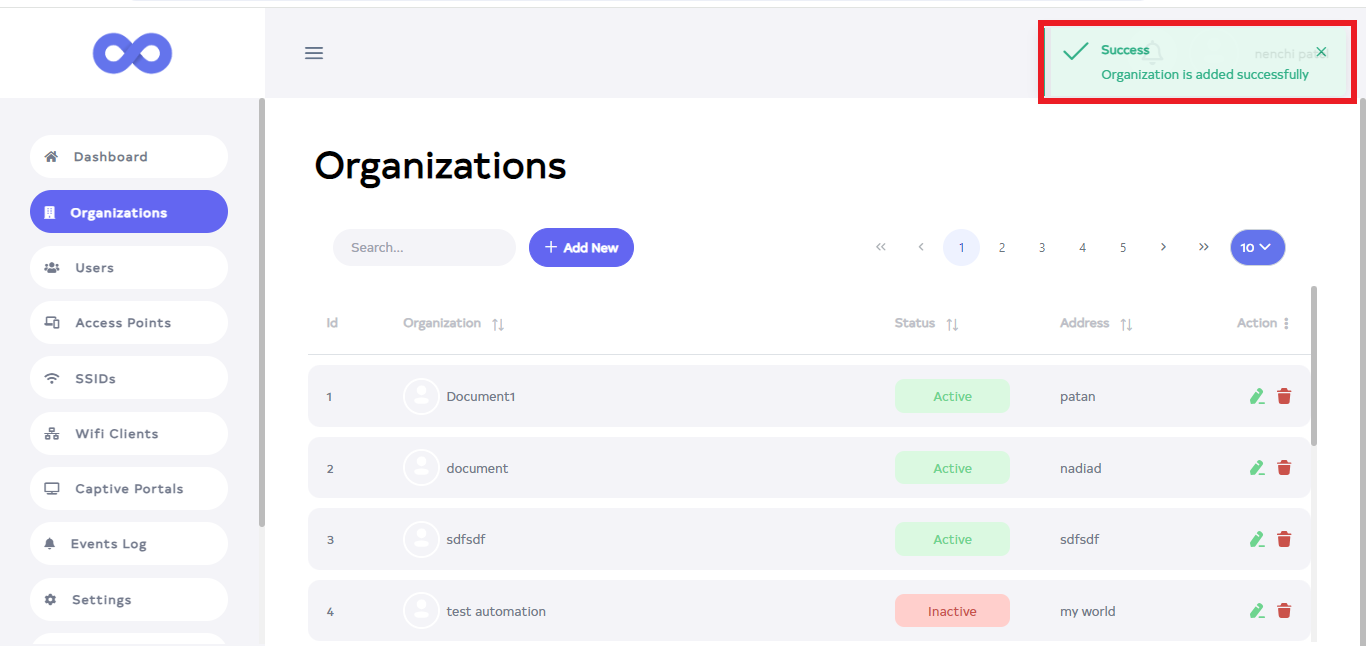
Clicking the Create Profile button will display a message on the screen indicating that the Organization is added successfully.
-
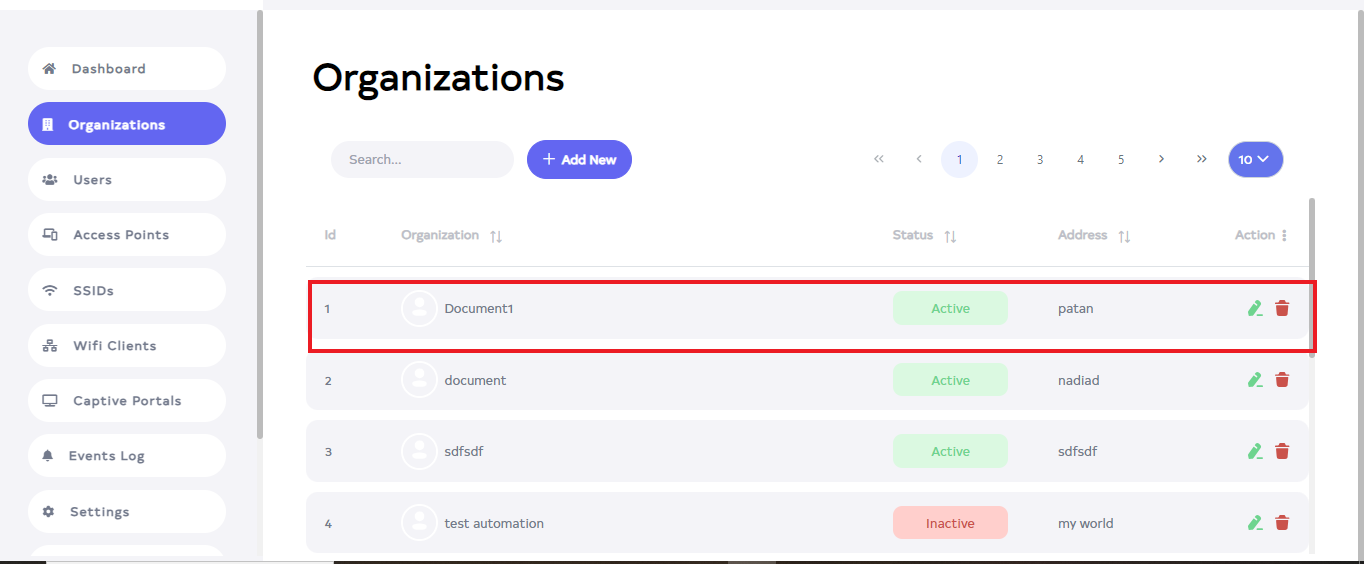
The Organization will then be visible.
How to edit Organization
-
Go to the oraganization want to edit.
-
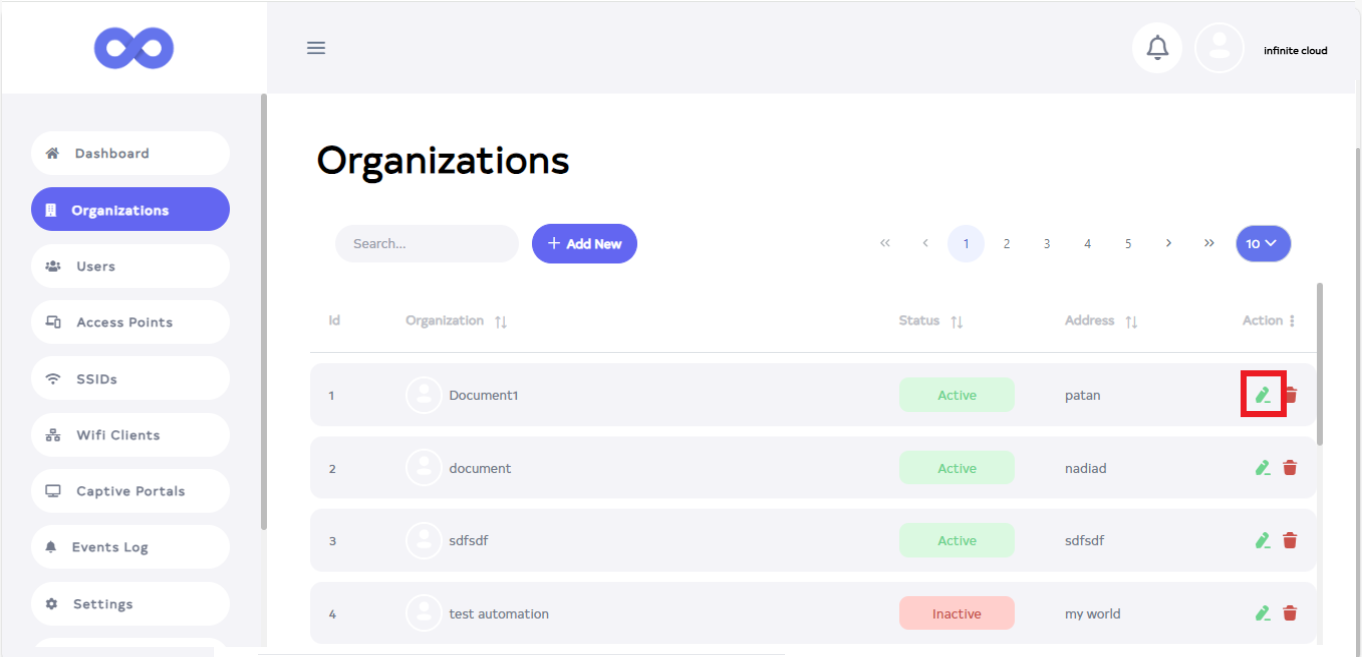
Click on the Edit button located on the right side of the organization.
-
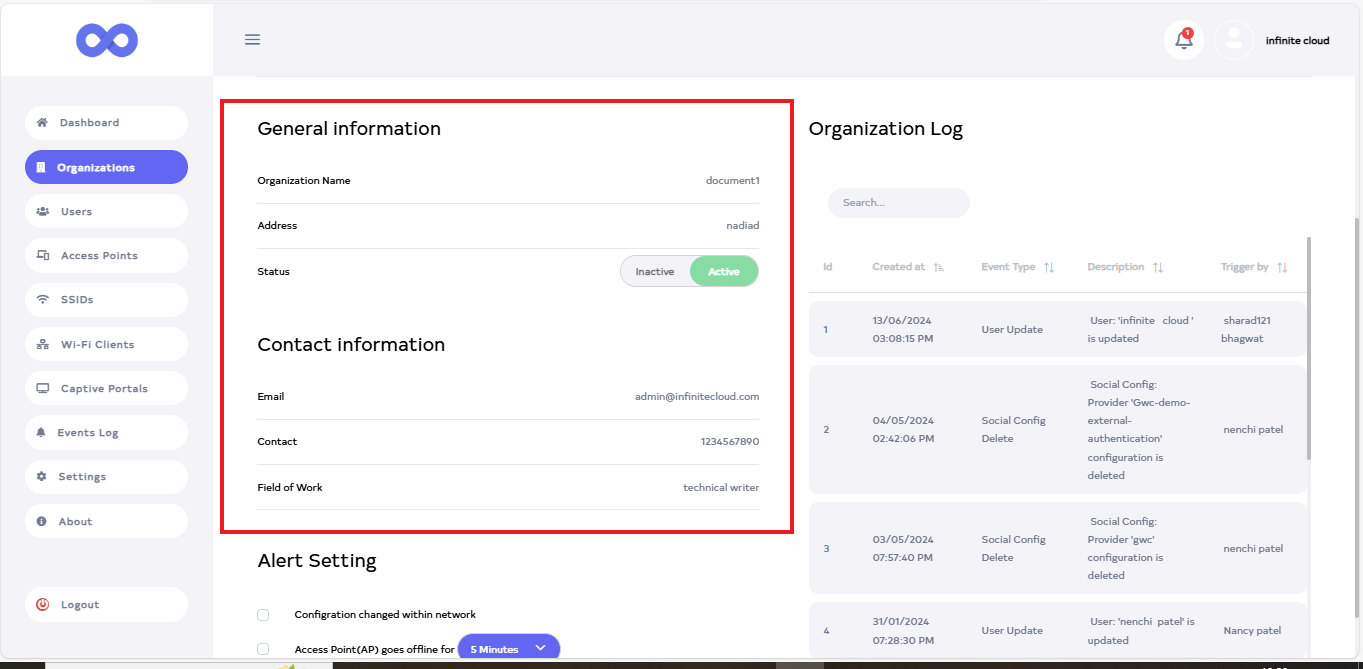
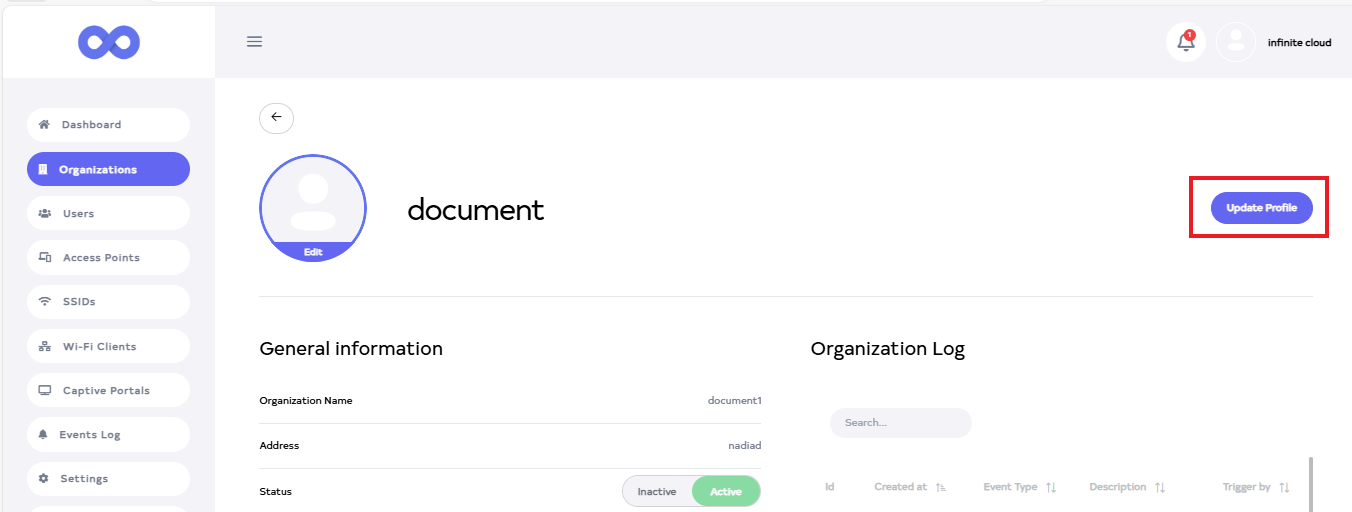
After clicking, the options to change the Profile Photo, Organization Name, Address, Status, Email, Contact, and Work will be available.
-
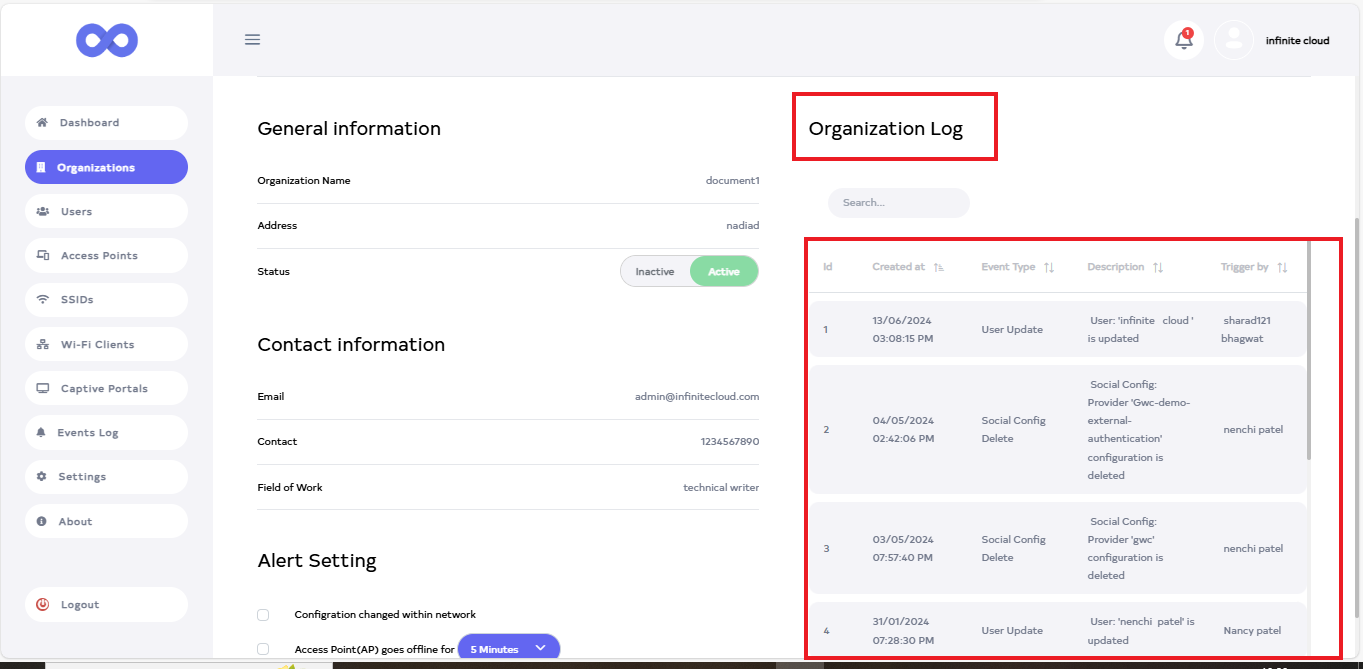
Located on the right, the Organization Log shows the changes made to the organization.
-
Then click on the Update Profile button.
-
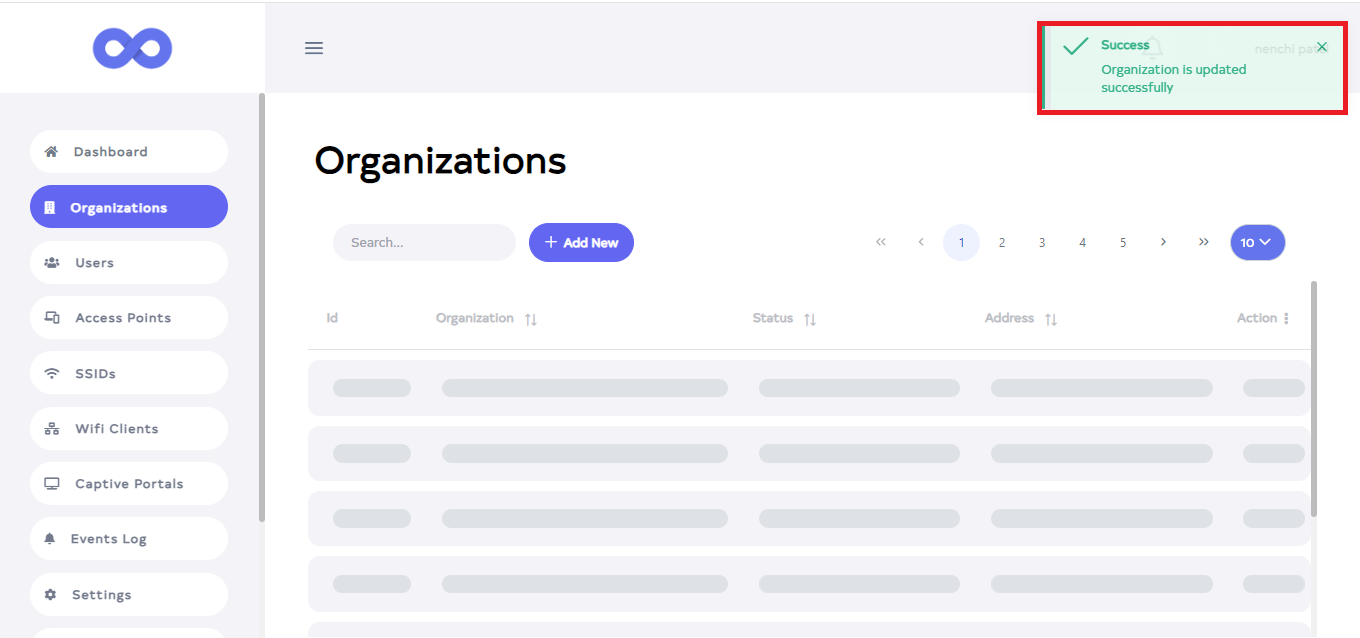
After the Organization Section is updated successfully, a success message will display Organization update successfully.
How to delete Organization
-
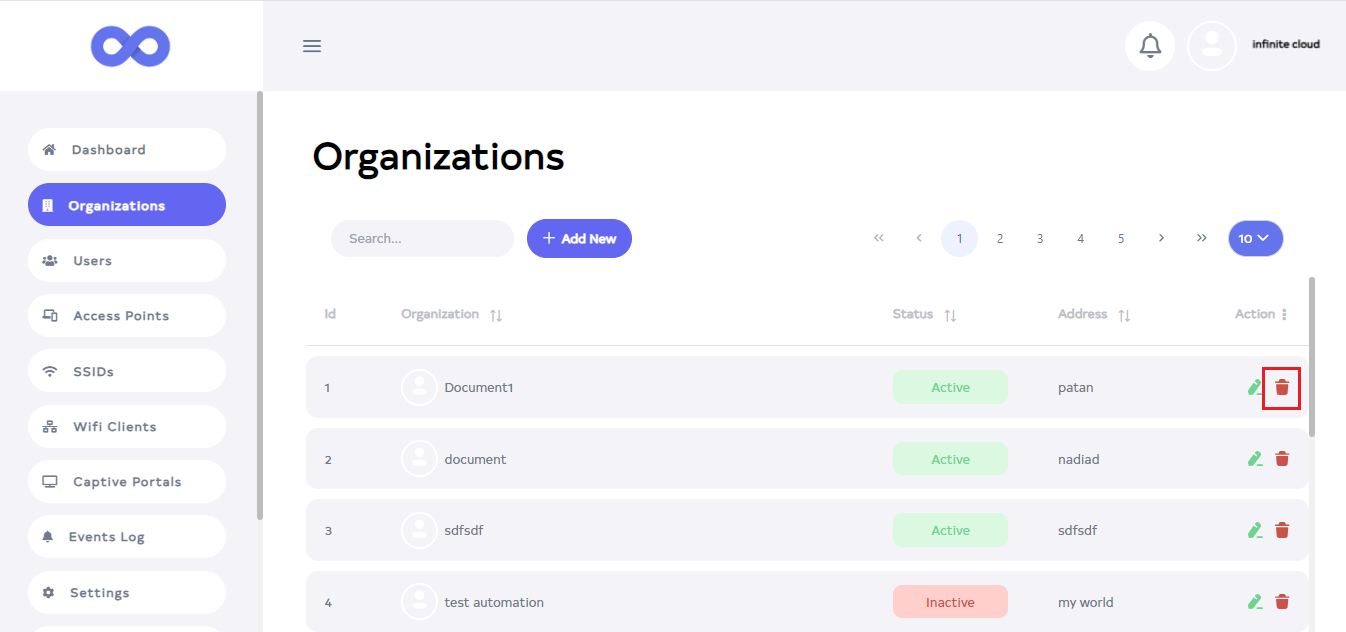
Click on the delete located on the right side.
 Deleting-an-Organization
When an organization is deleted, all data associated with it will be permanently removed. This means that once a user deletes an organization, all its associated data will be erased and cannot be recovered.
-
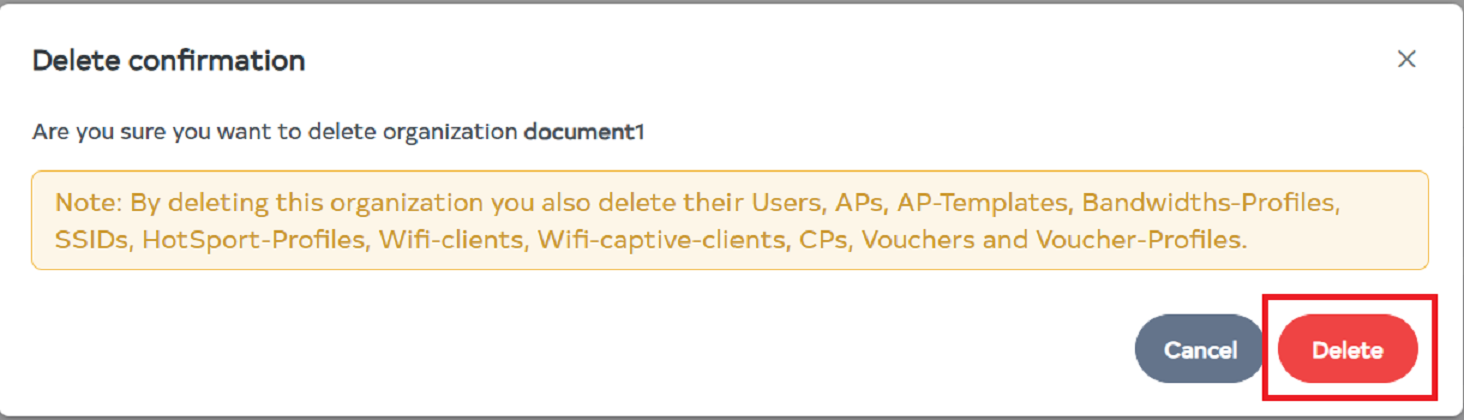
After clicking, a confirmation message will appear. Click the Delete button.
-
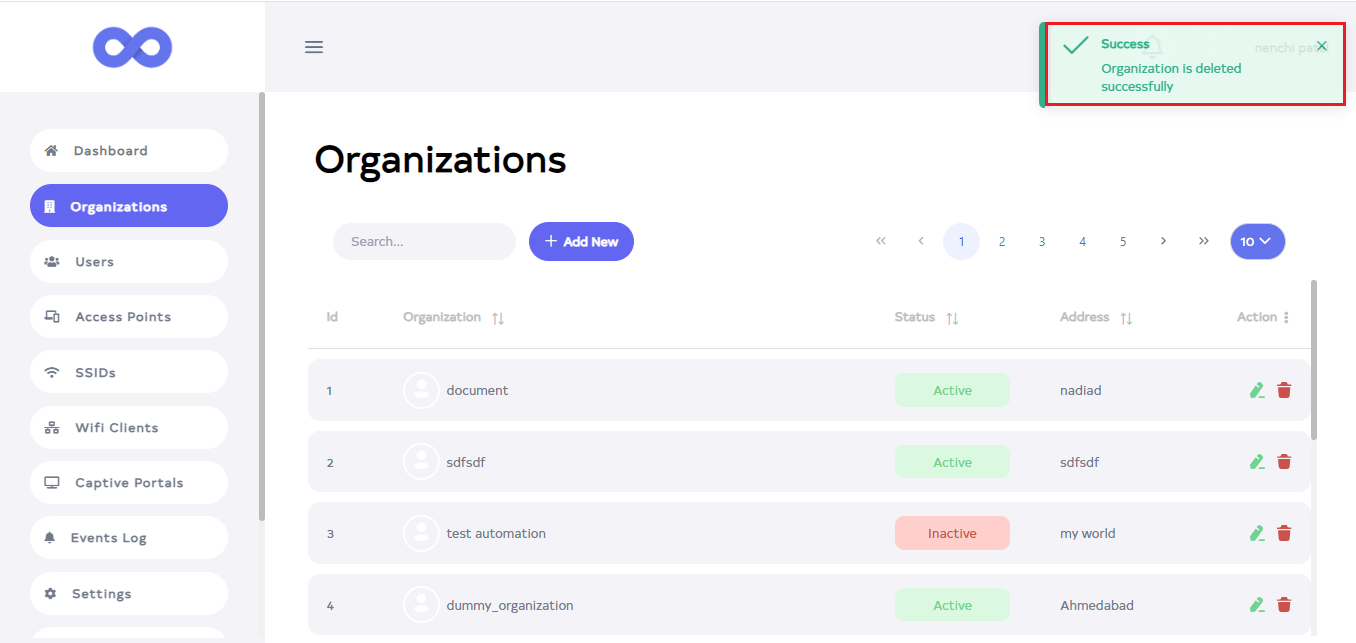
A success message will be displayed after successfully deleting the organization, Organization is deleted successfully.