SNMP Configuration
Explanation of SNMP
Simple network management protocol (SNMP) allows network administrators to query devices for various information. SNMP stands for Simple Network Management Protocol. It's a software tool widely used to manage and monitor network devices like printers, hubs, switches, servers, and routers that support SNMP.
Role of SNMP
The purpose of SNMP is to provide network devices, such as routers, servers and printers, with a common language for sharing information with a network management system (NMS). It allows administrators to collect information, configure settings, and monitor network performance in real-time. SNMP helps identify and resolve network problems effectively, ensuring smooth and reliable network operations.
How to config a SNMP
-
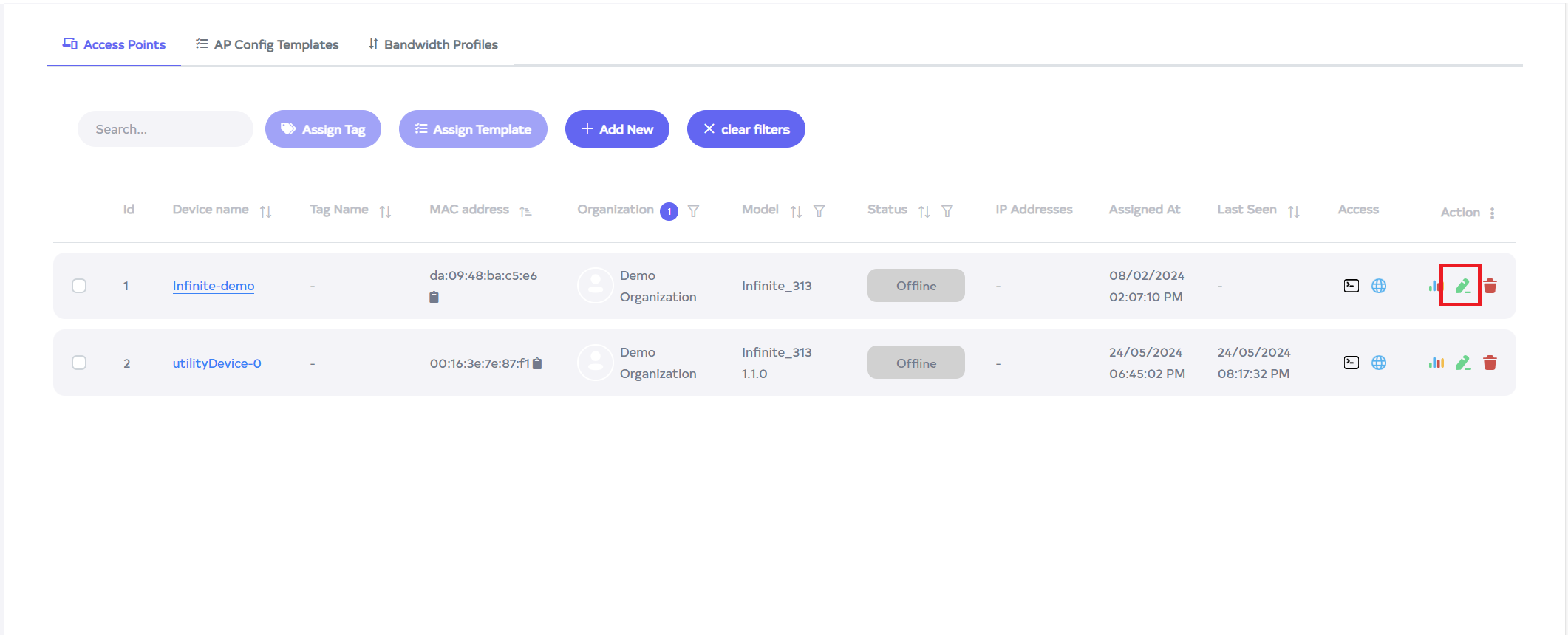
Go to the Loging > Access points > Access Points edit button.
-
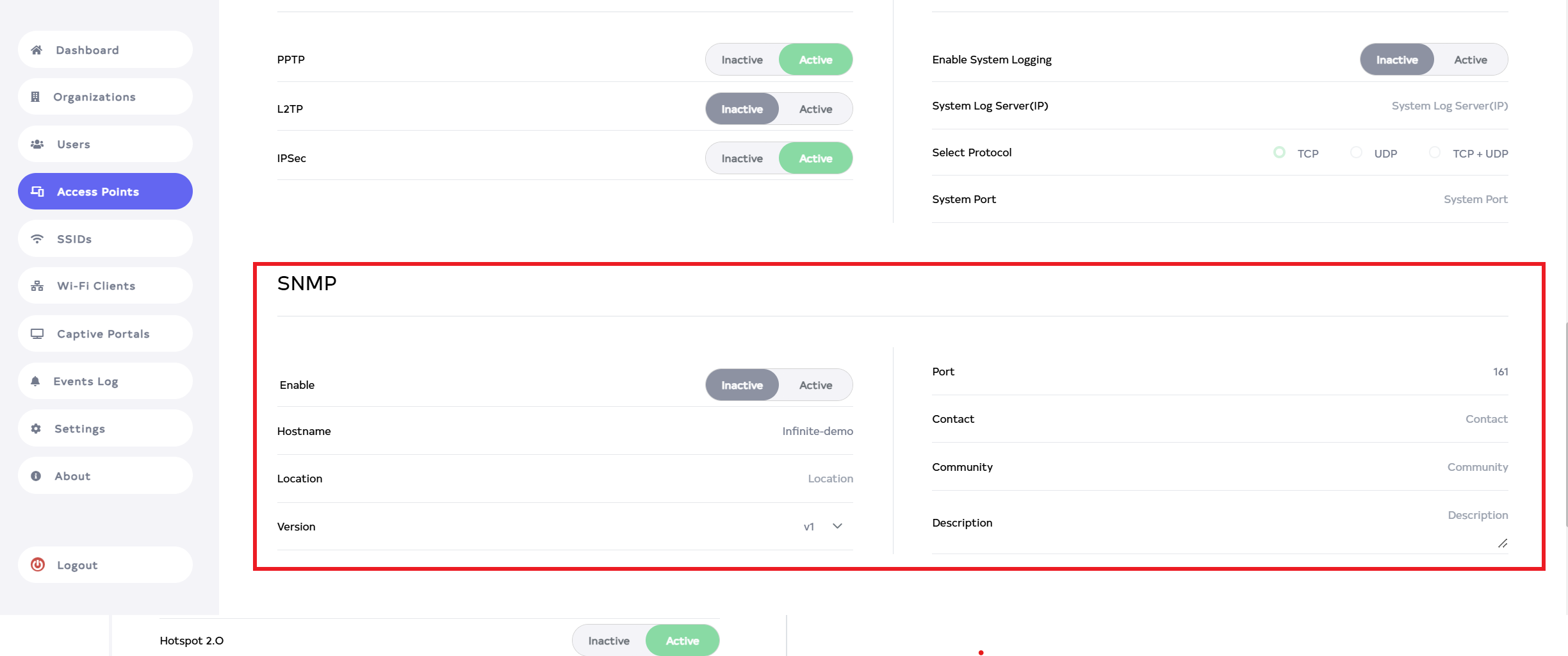
After clicking on edit button, scroll down a little to find SNMP.
-
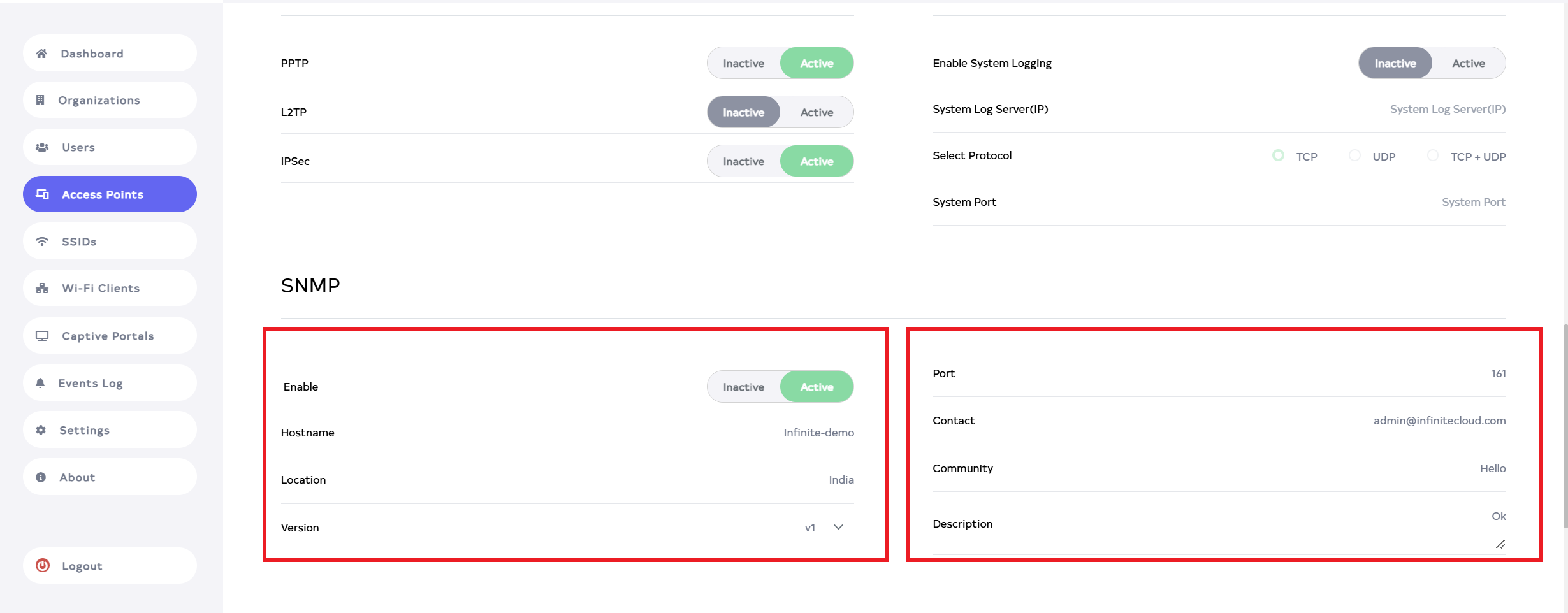
Then fill the following details.
-
Enable:-Select Inactive or Active. To enable logging, click Active, to disable it, click Inactive. For Example Active.
-
Hostname:- Enter the Hotsname. This will be used for identification purposes during SNMP communication. the hostname is the hostname of the snmp server. which will appear by default but can also be edited. For example: Infinite-demo.
-
Location:- Input the Location. The location can be entered here location. For example:- india.
-
Version:- Navigate and select version type. Here is two types 1.v1 and 2.v2c. In this example, the v1 is selected from the list.
-
Port:- Enter the Port value. On which port is the SNMP server running. That port value will come here. By defualt 161 will come. But you can change it if needed.
-
Contact:- Enter the contact. For example:- admin@infiniteclouds.com.
-
Community:- Enter a Community. This acts like a shared password that allows authorized devices to access SNMP information from your access point. For example: Hello.
-
Description:- Input the Description. The device will automatically send details when it reports, including this description. For example: Ok.
COMMUNITY-TIPRemember, The community string on the access point must match the one configured on the SNMP management software. If it doesn't match, data reporting will not be allowed.
-
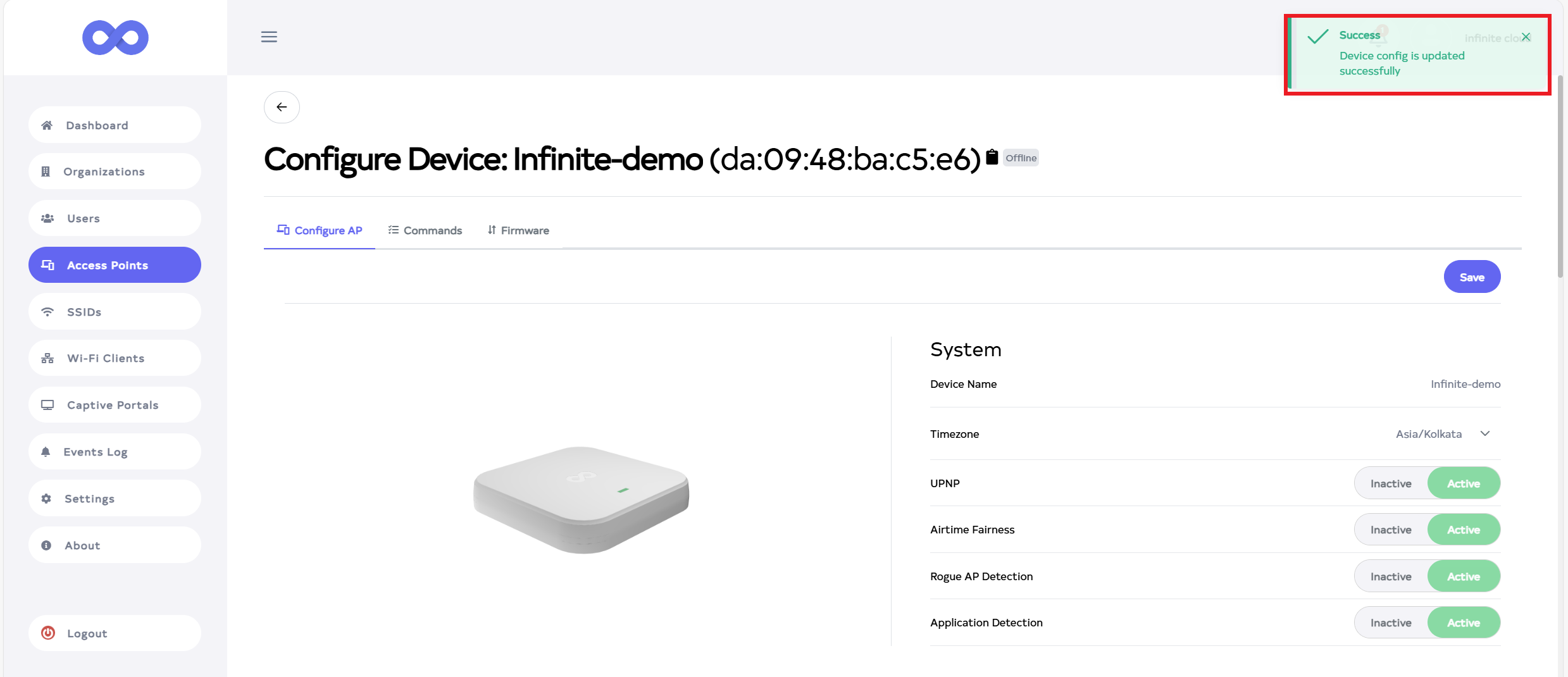
Then click on the Save button, located right side on top.
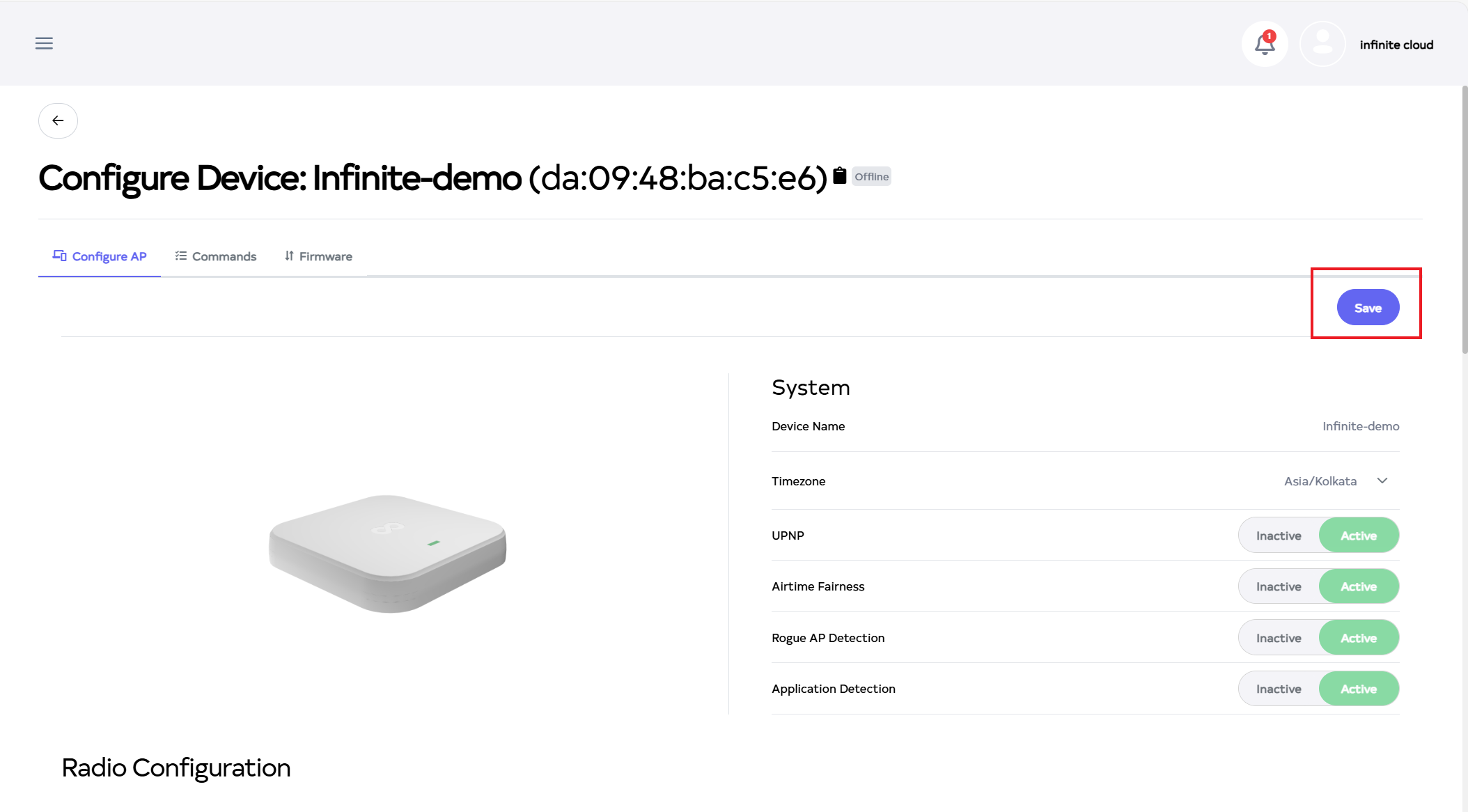
-
After the SNMP Section is saved successfully, a success message will display Device config is update successfully.