SSID Schedule
An SSID schedule is configured to control times when your network's SSID Service Set Identifier is broadcasted. There are basically two kinds of schedules:
- Current Schedule: The days and times to broadcast your SSID can be selected as per your choice.
- Always Available: This option will continuously broadcast the SSID.
The Infinite Clouds product documentation provides a detailed, step-by-step guide for configuring SSID schedules.
How to config SSID Schedule
-
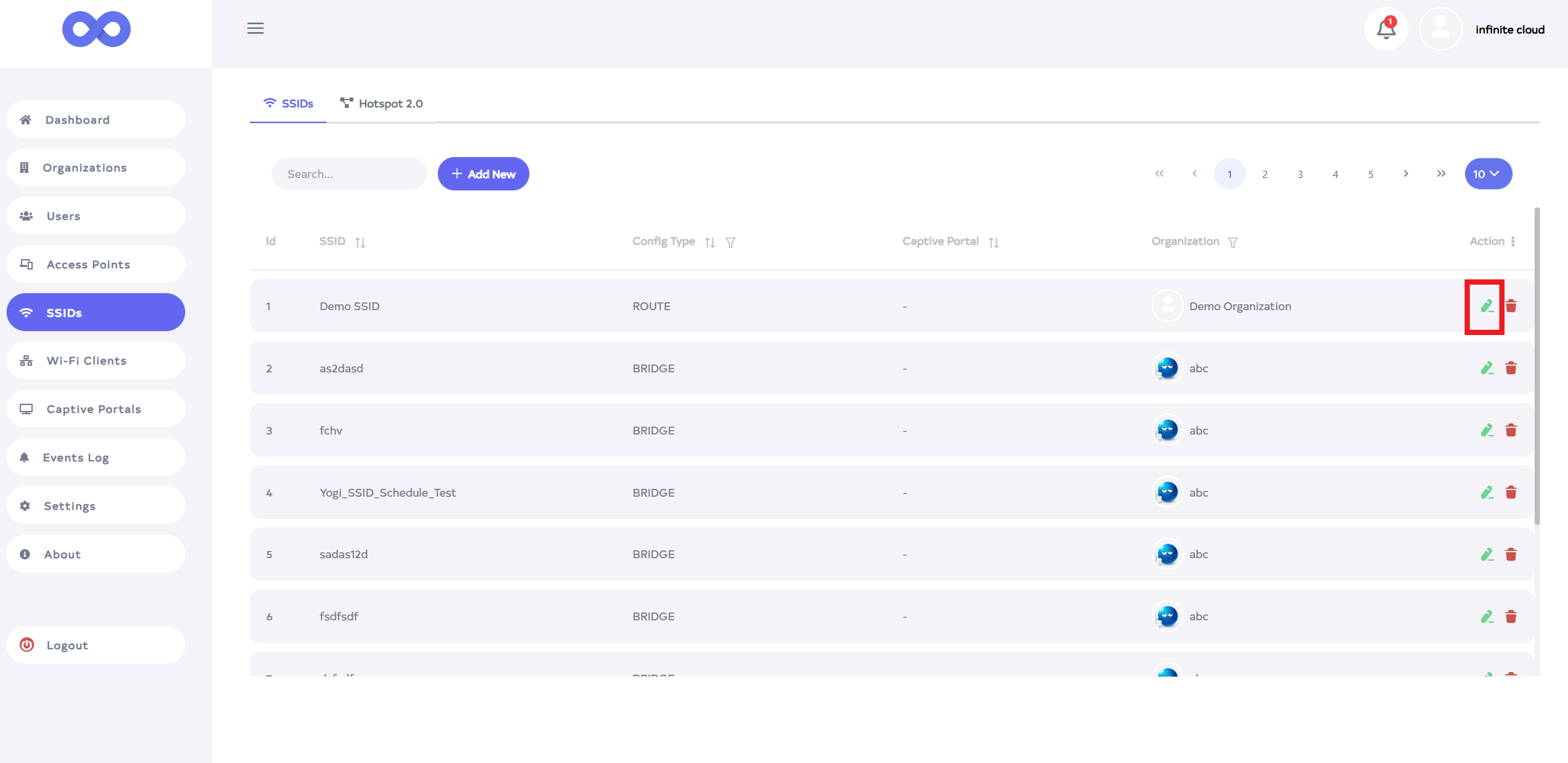
Go to the Login > SSIDs menu > SSID edit button.
-
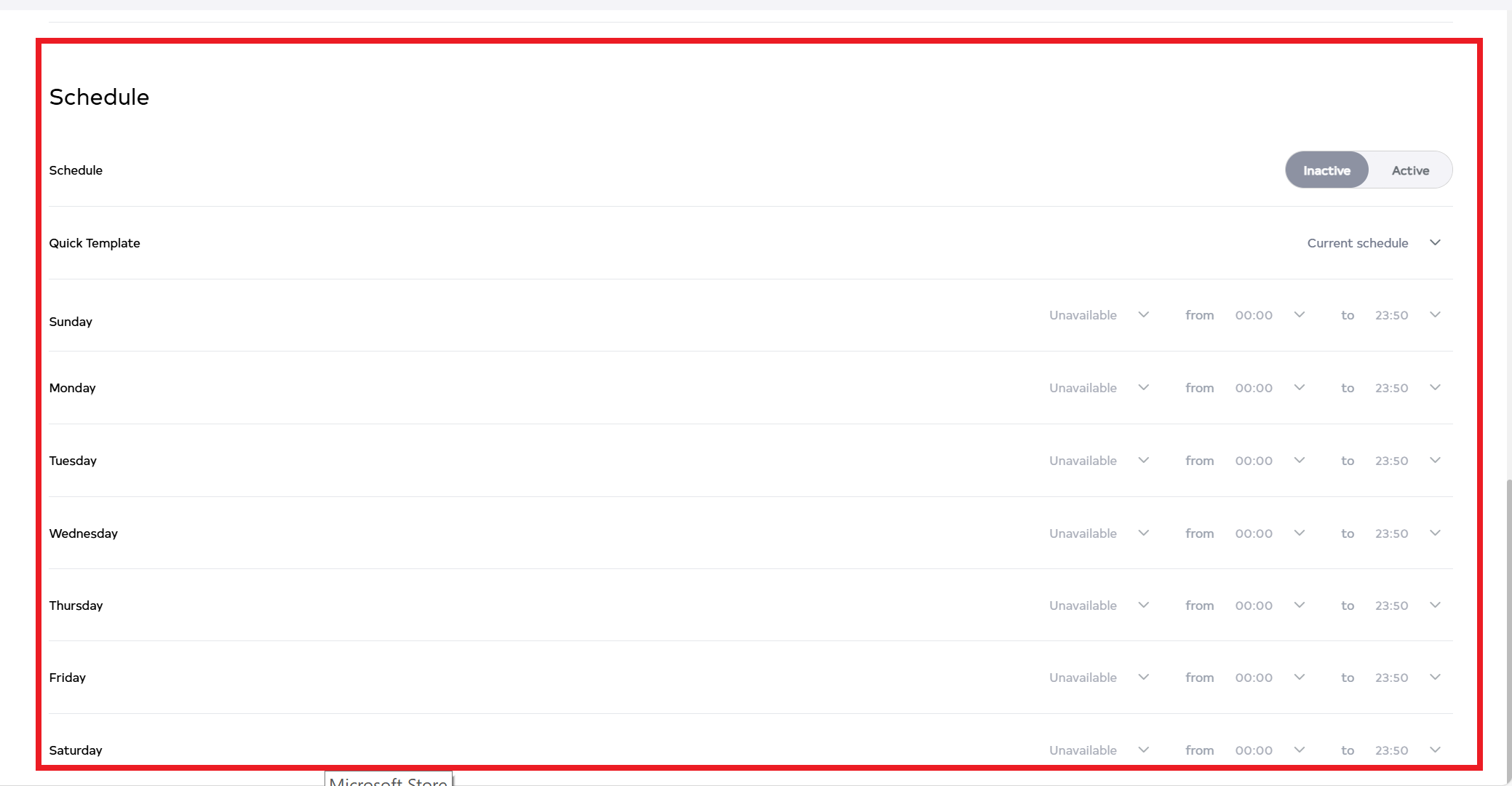
After clicking on edit, scroll down to see the schedule.
-
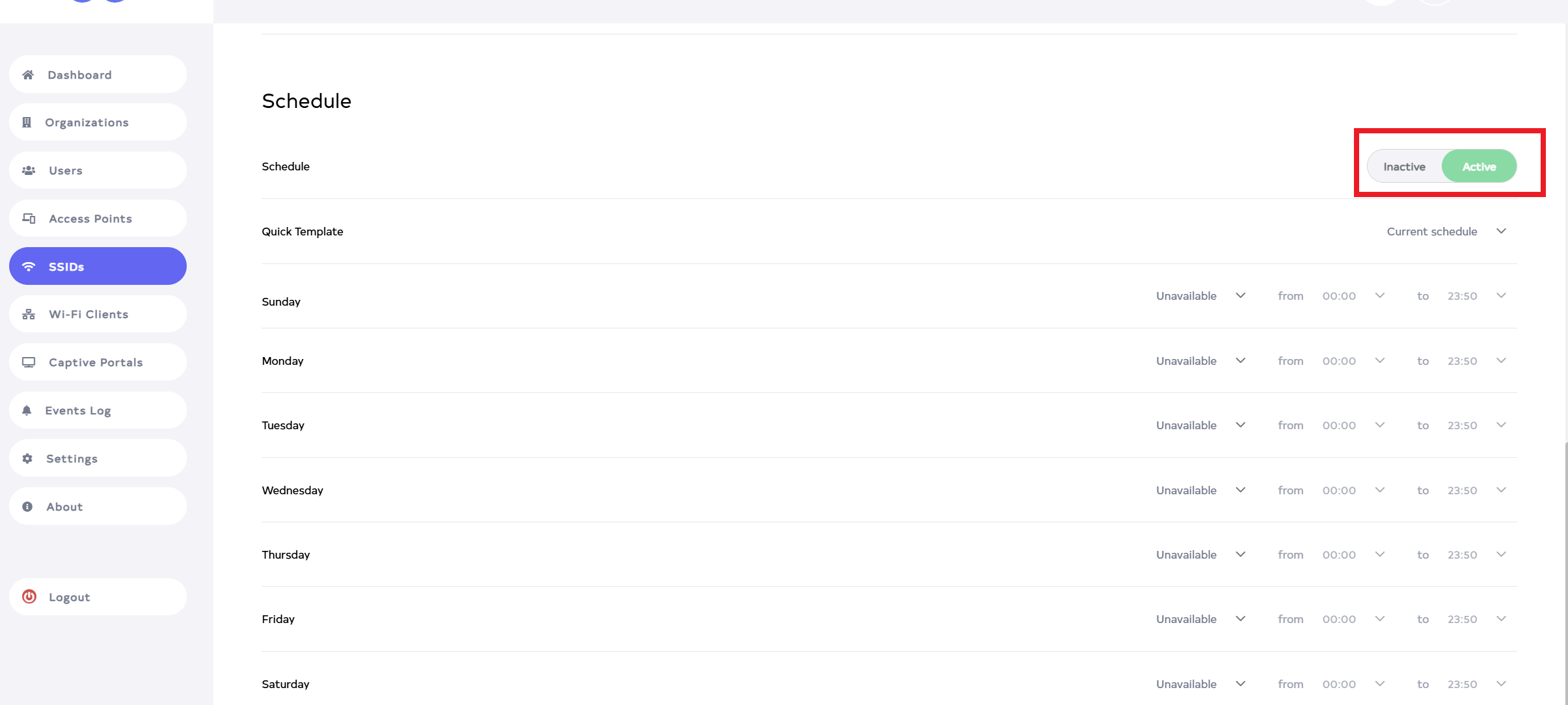
The SSID schedule has two states Inactive and Active. When set to Inactive, the custom schedule option does not apply to the SSID. When set to Active, we can configure custom schedule options for the SSID.
-
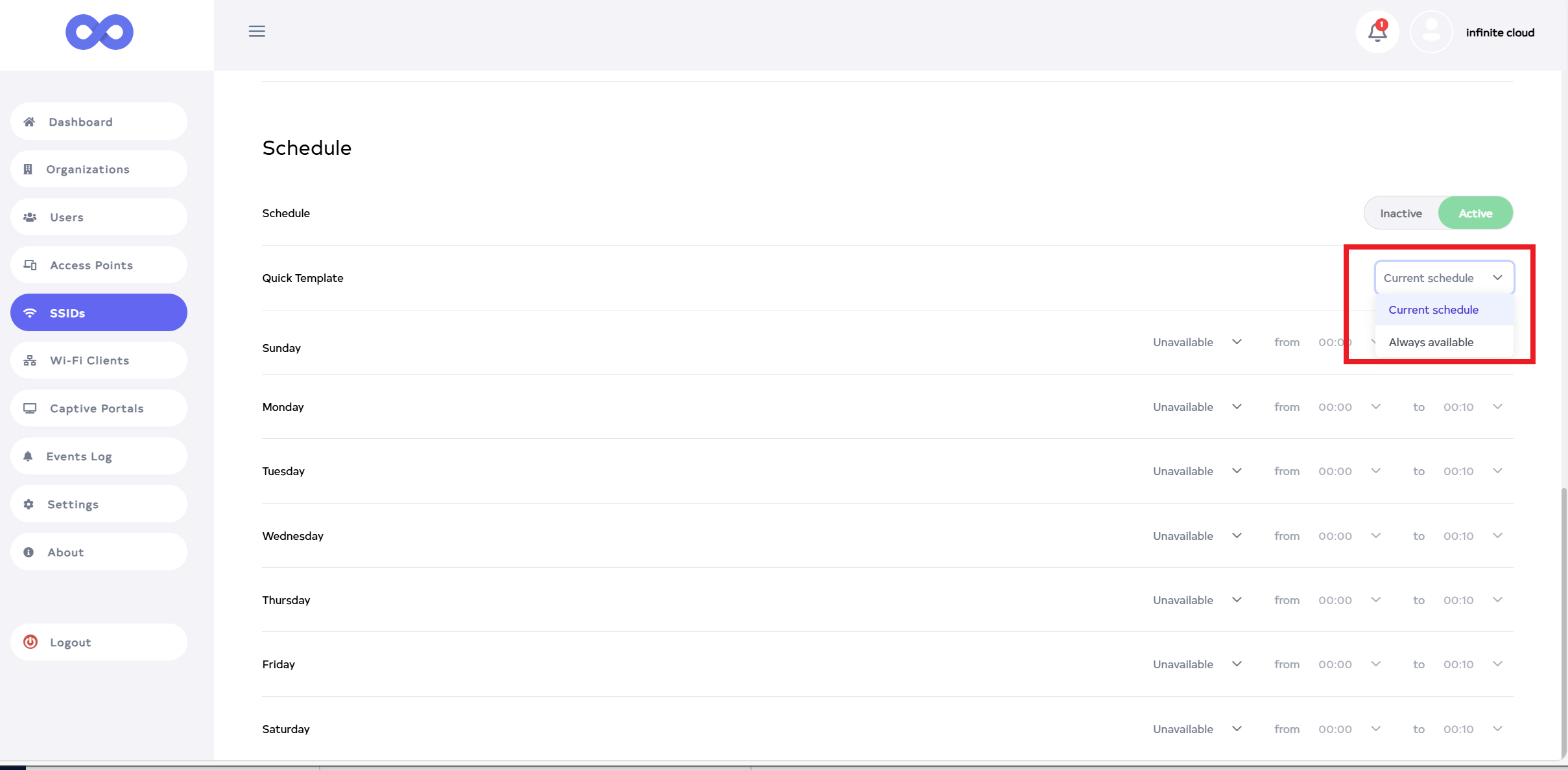
Clicking on Active button shows two quick templates. 1.Current schedule and 2.Always available.
-
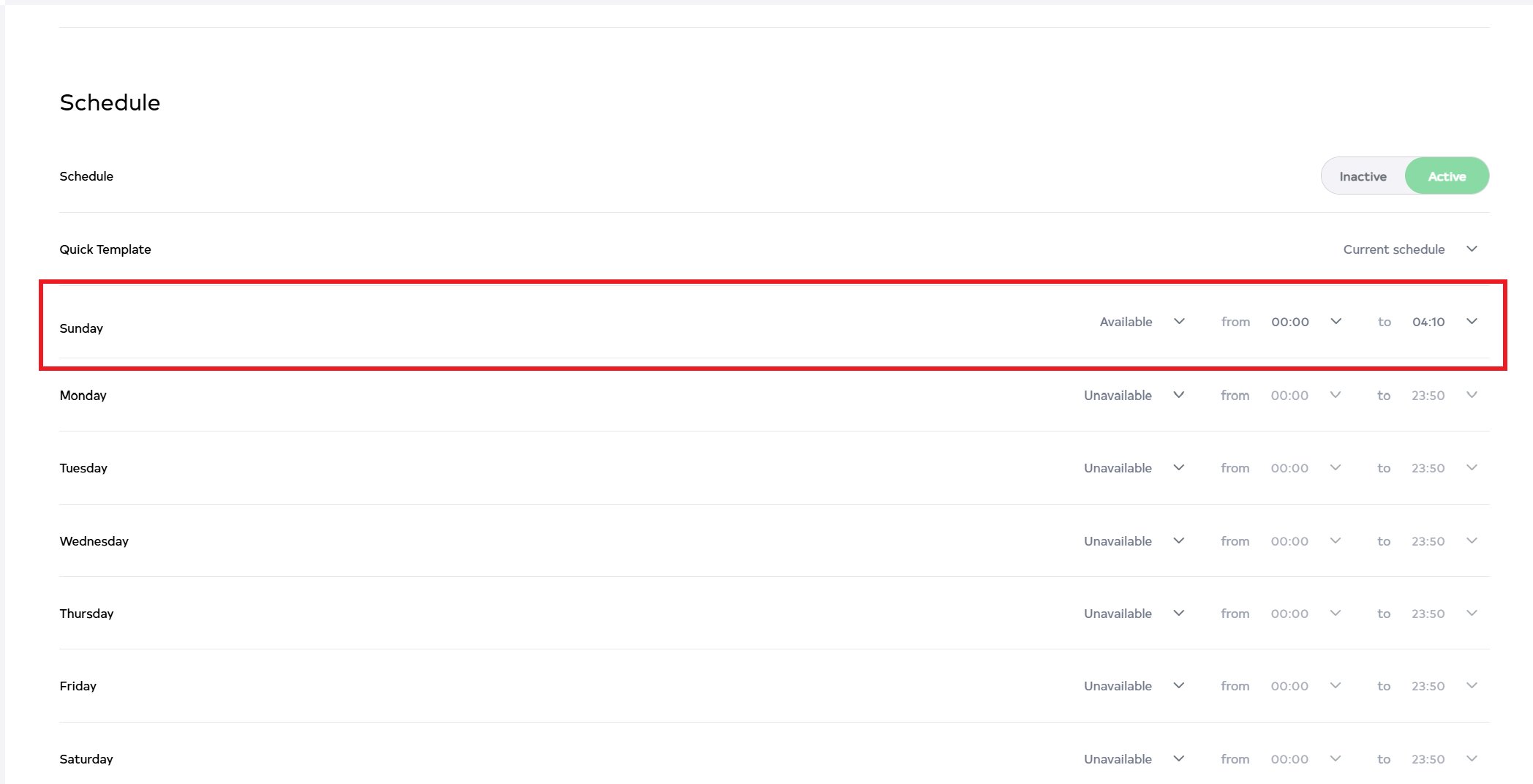
Select the current schedule to choose which day to broadcast the SSID. Pick the time from the dropdown for scheduling the SSID and ensure the end time is greater than the start time. For example Here want to make it available on Sunday. And if it is 00:00 Means or 12:00 AM, the start time is set to 12:00 AM and the time is set to 4.10 AM.
InfoKeep in mind that always start time should be small and end time should be big.
-
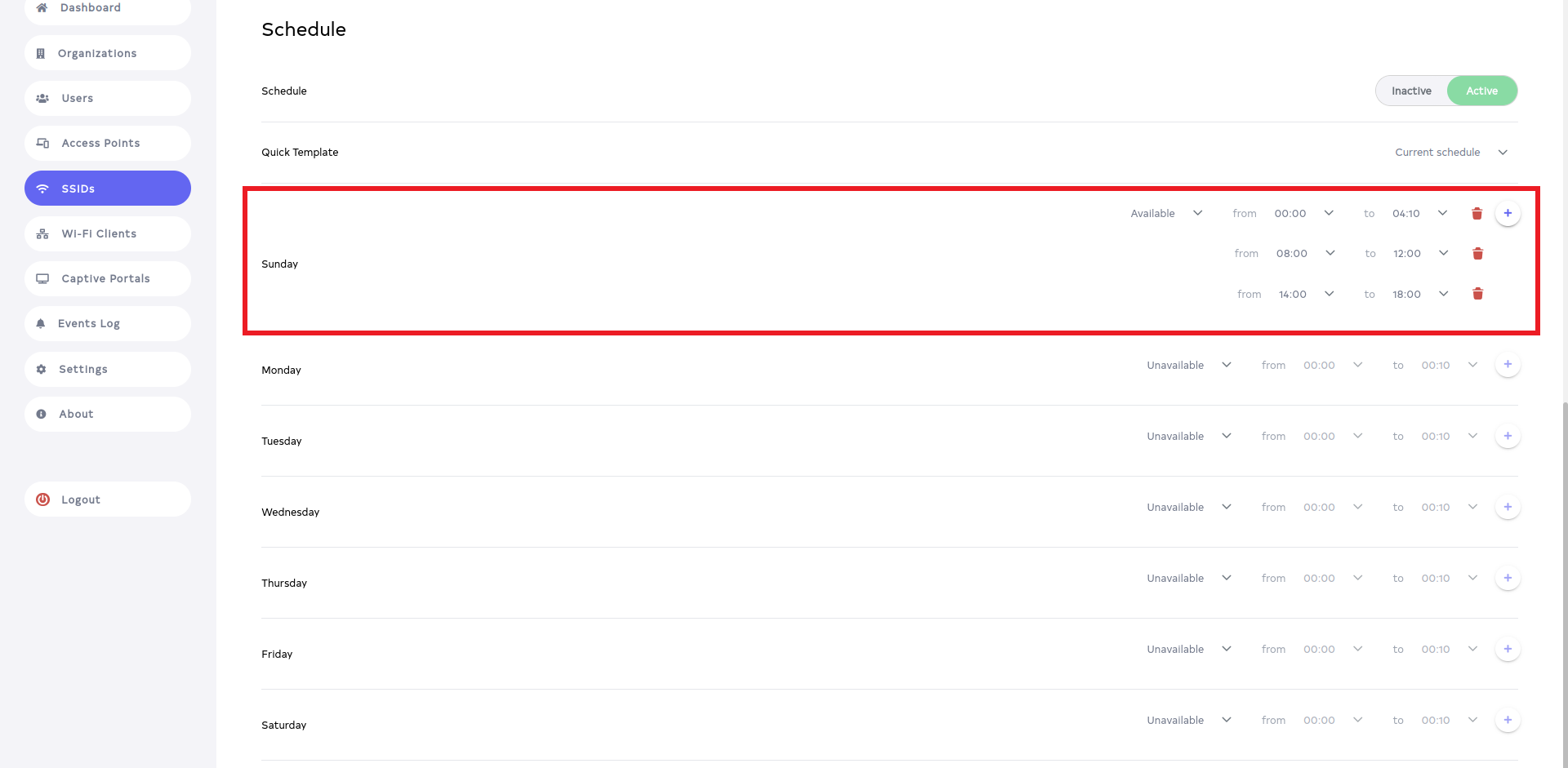
Multiple times can be selected from here. To broadcast three times in a single day at different times, click the + icon to add the screen and delete it by clicking the delete button. For example, Here want to make it available on Sunday and if it is 00:00 means 12:00 AM then the start time is 12:00 AM and the end time is 04:10 AM. That means it will broadcast from 12:00 to 04:10 and after that I add another time again which will broadcast from 8:00 AM to 12:00 PM. And then from 2:00 PM to 6:00 PM it will broadcast. It will be broadcast three times.
-
The SSID will broadcast every sunday as per selected time periods of start and stop time.
-
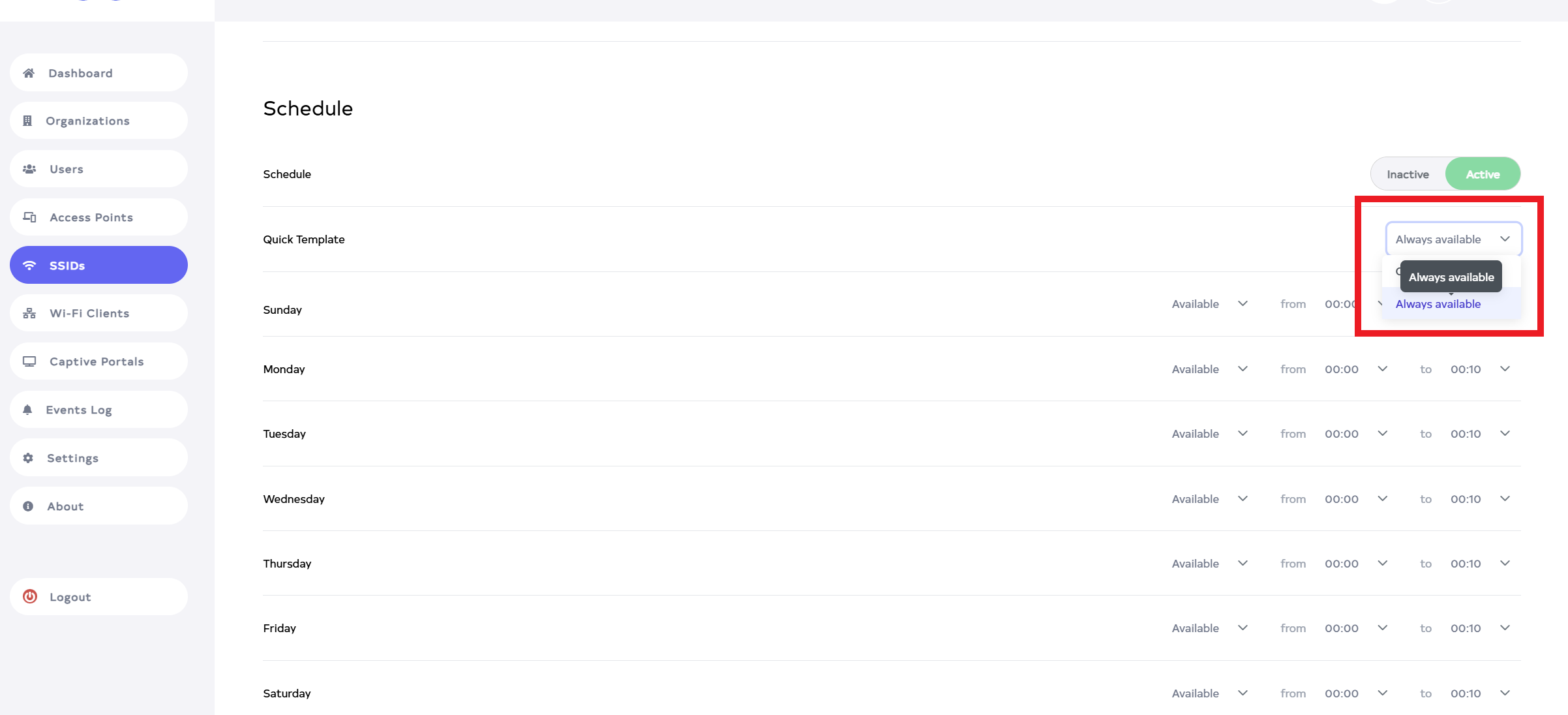
Now I selecting Always Available from Quick Templates.
-
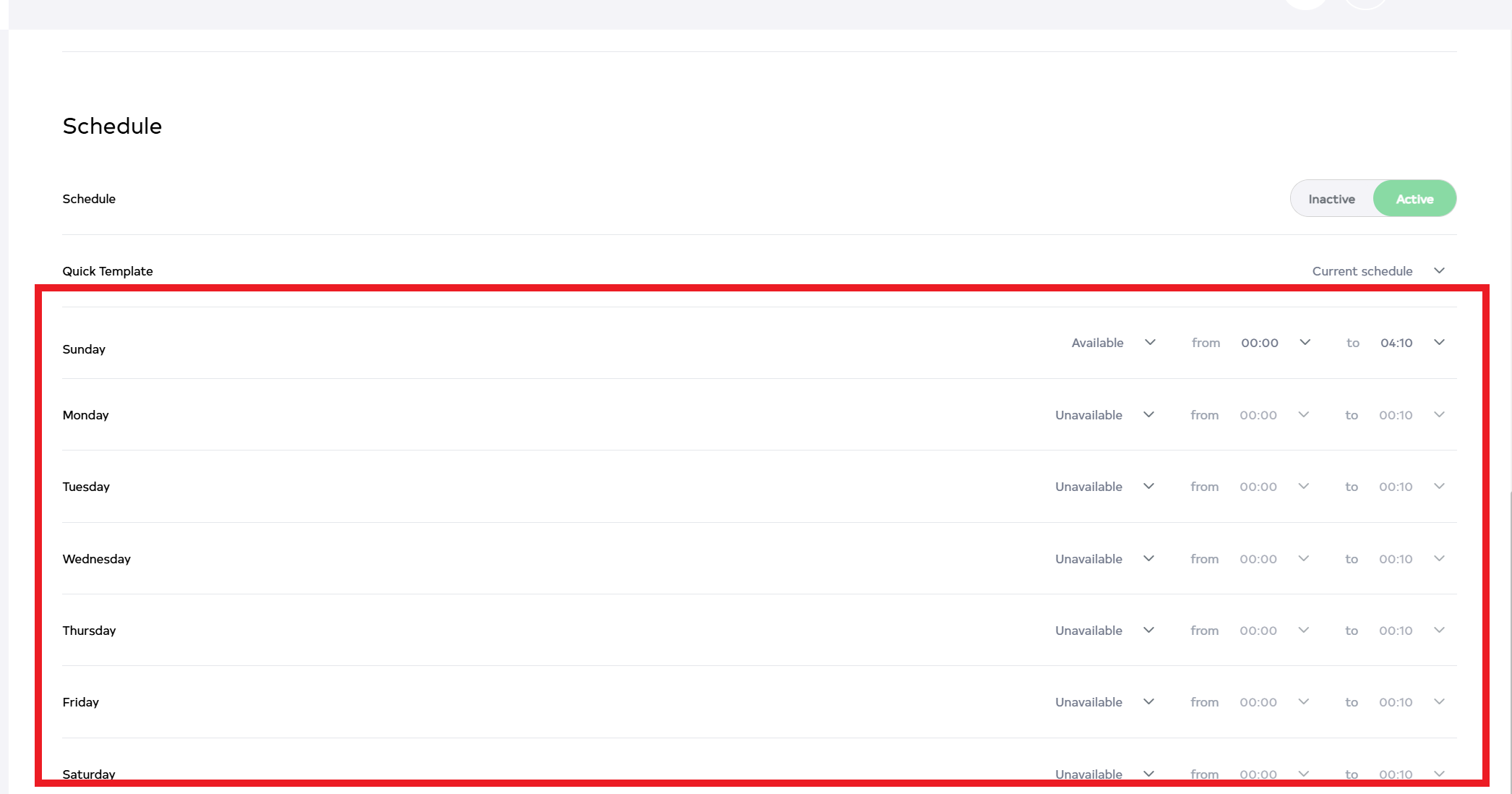
Clicking on Always Available will display the schedule as shown in the image. In Always Available, it will be available every day from Sunday to Saturday, meaning it will broadcast daily from Sunday to Saturday. The start time and end time can be changed. To broadcast daily, select Always Available.
-
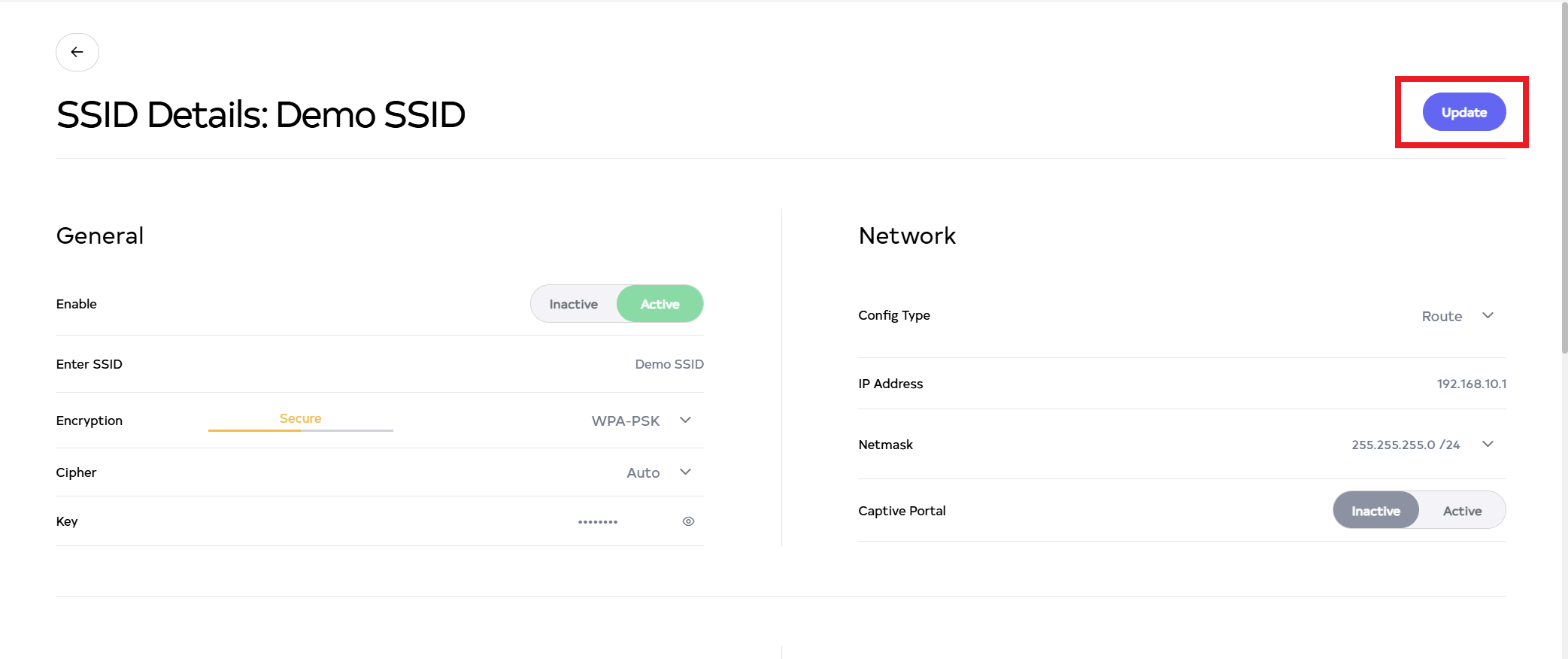
Then click on the Update button, located right side on top.
-
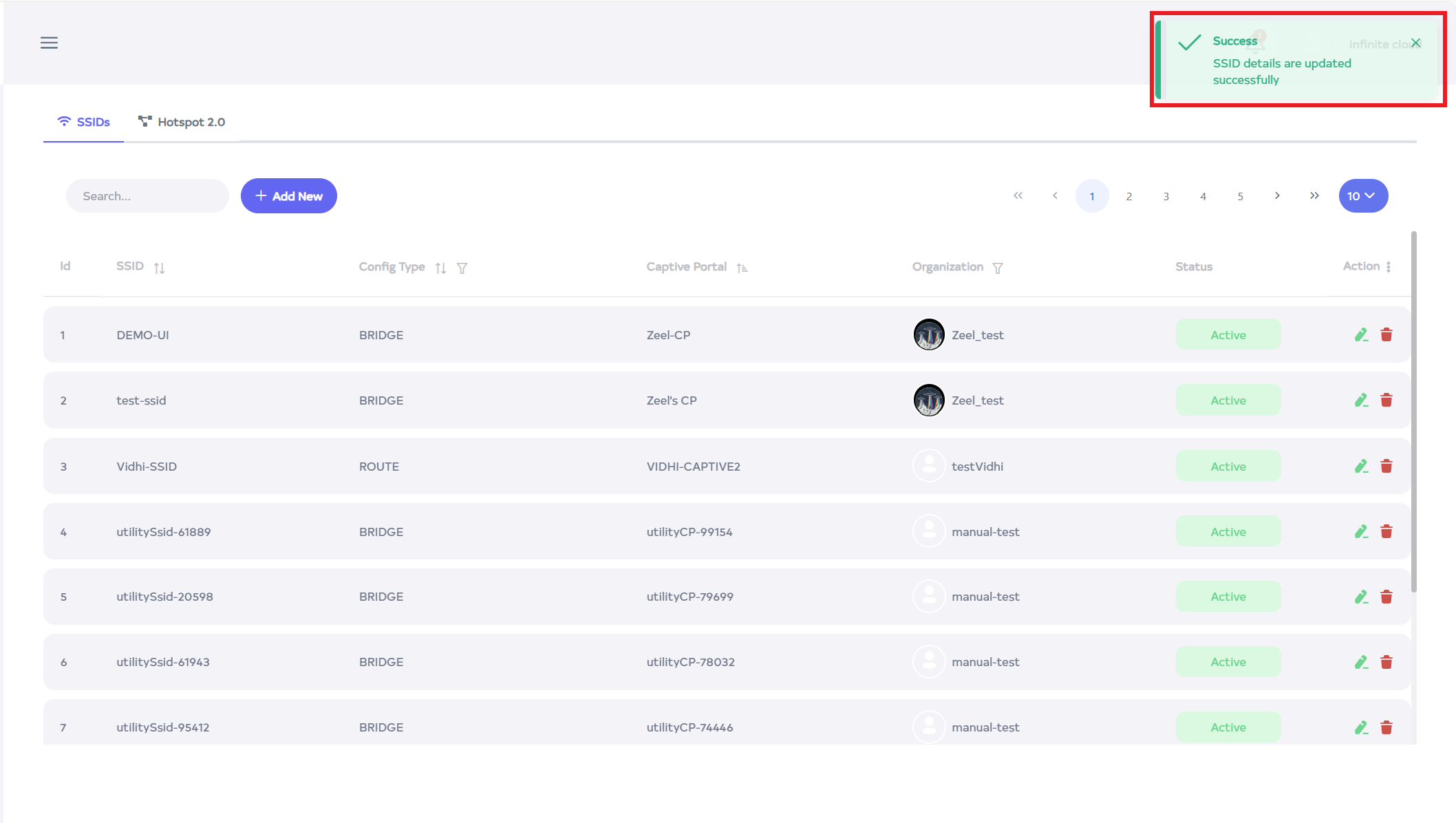
After the SSID section is Update successfully, a success message will display SSID details are updated successfully, and it will redirect to the SSID list page.