User Role
How to Organization Admin User work
-
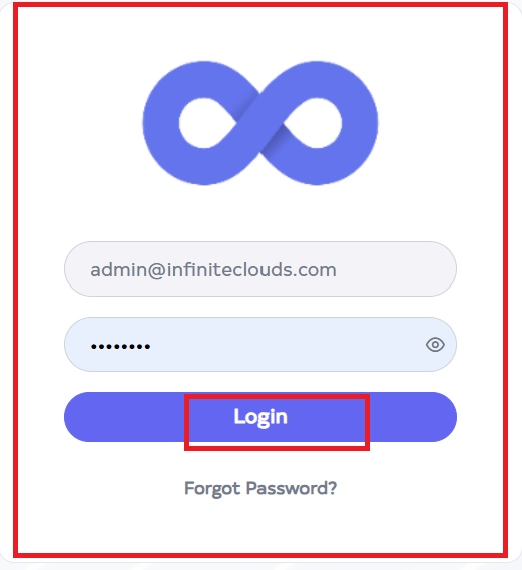
Go to Cloud platform and go there fill the details and then click on login button
-
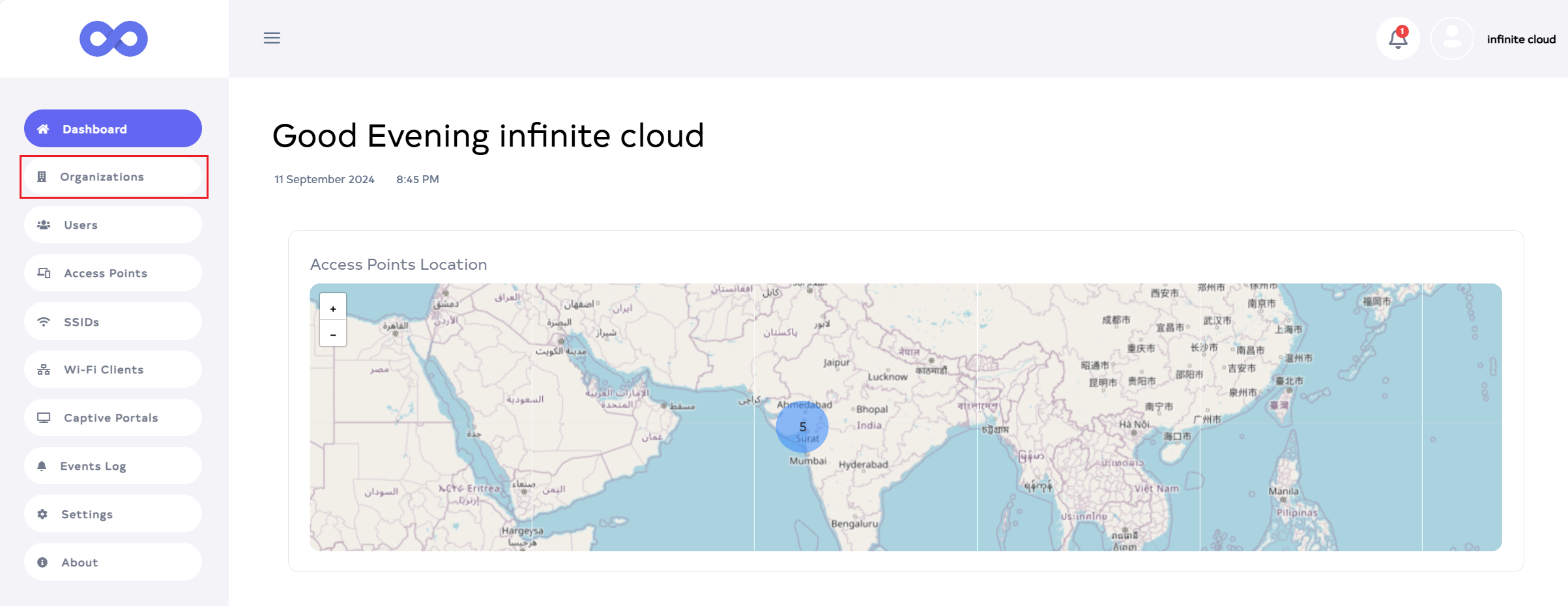
After Login, the dashboard will be displayed by default. Then click on the Organization menu located on the left side.
-
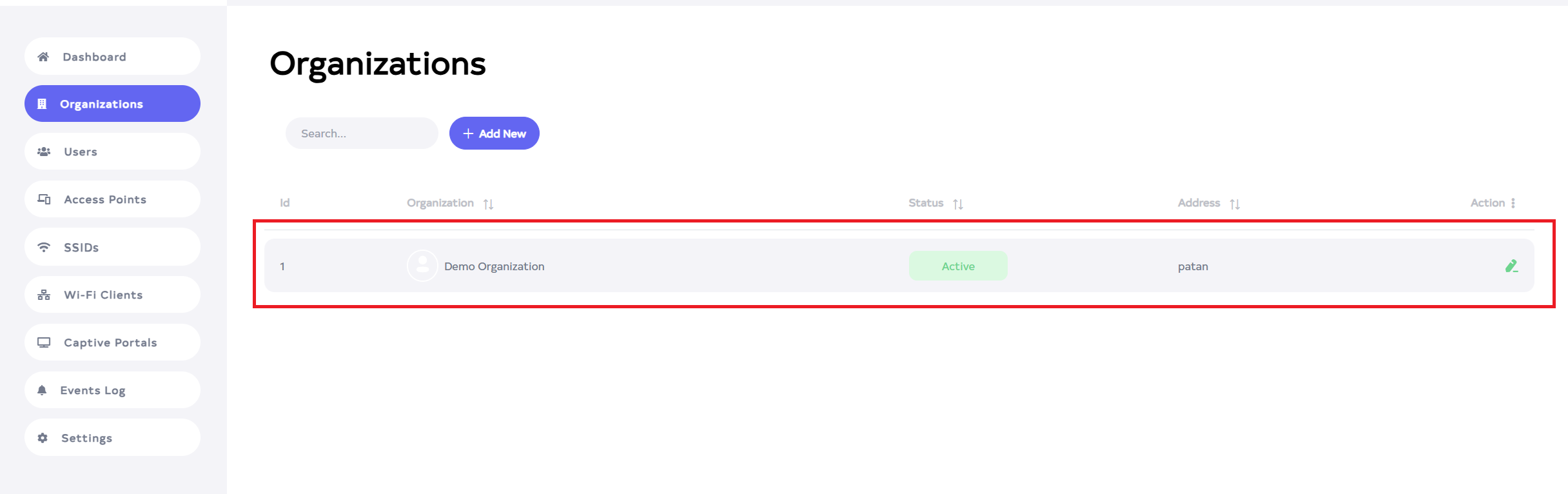
After navigating to Organization, it is possible to edit the Organization but not to add a new one. Only the user own Organization will be visible for updates, other organizations will not be visible.
-
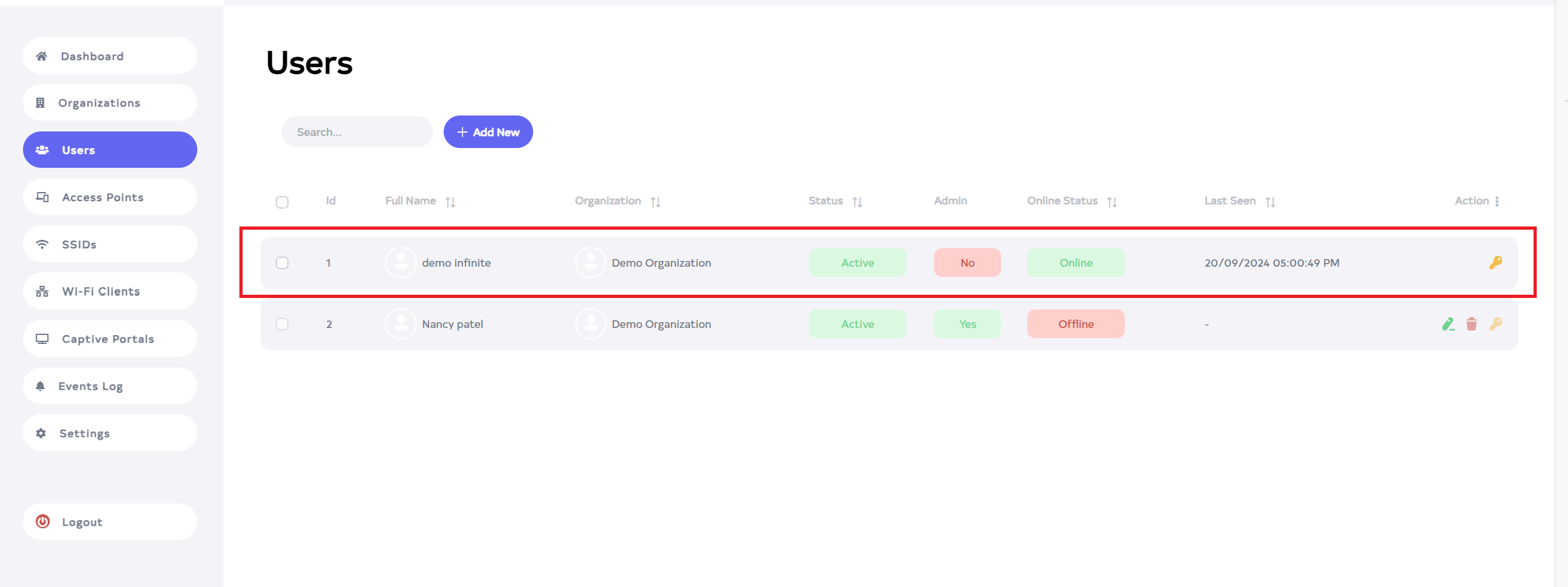
Go to Users to view the User list. Passwords can be reset by clicking on the key, but no other changes can be made. New users can be created by clicking the Add New button. The Organization Admin can only create Organization Admin Users and Users but cannot create a Platform Admin User.
-
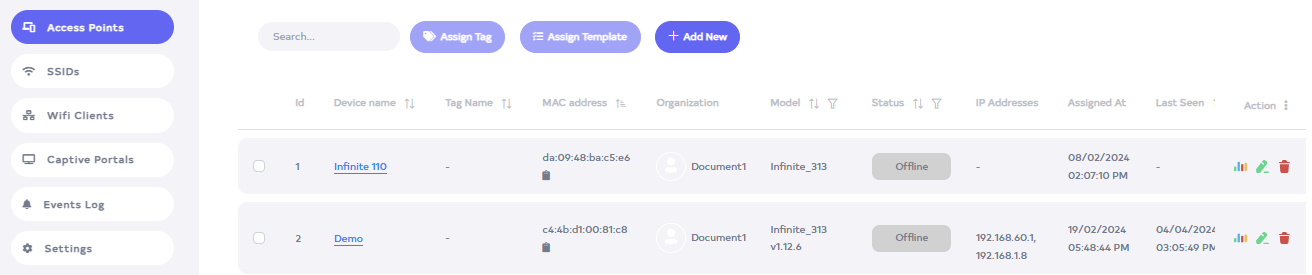
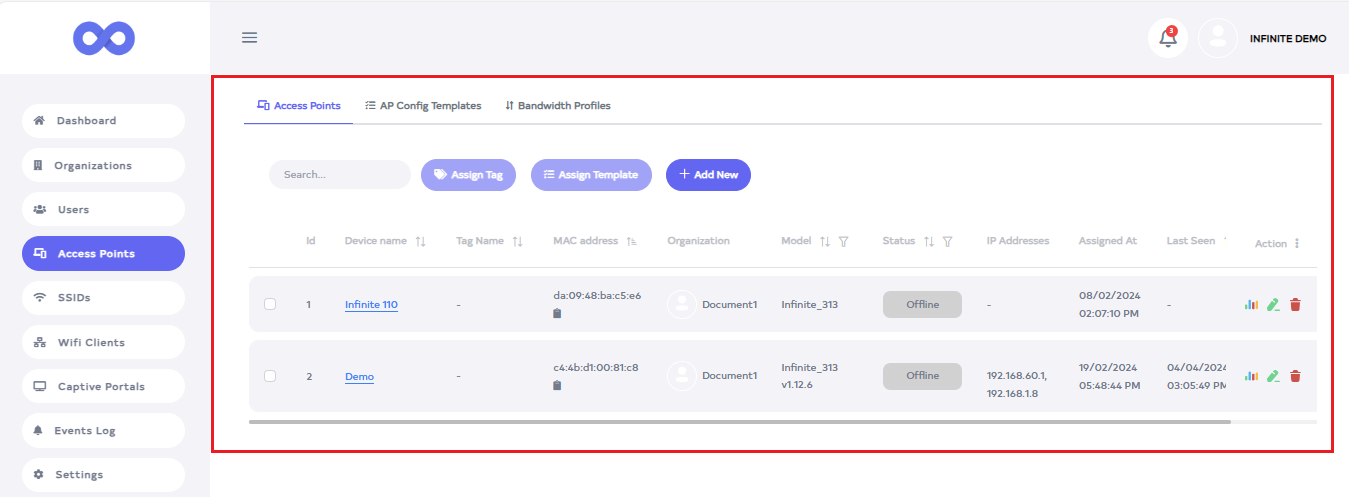
Go to Access Point. There, a list of devices will be visible, with options to Edit and Delete. Additionally, a new Access Point can be created by clicking the Add New button shown above. Only access points of the current organization will be visible.
-
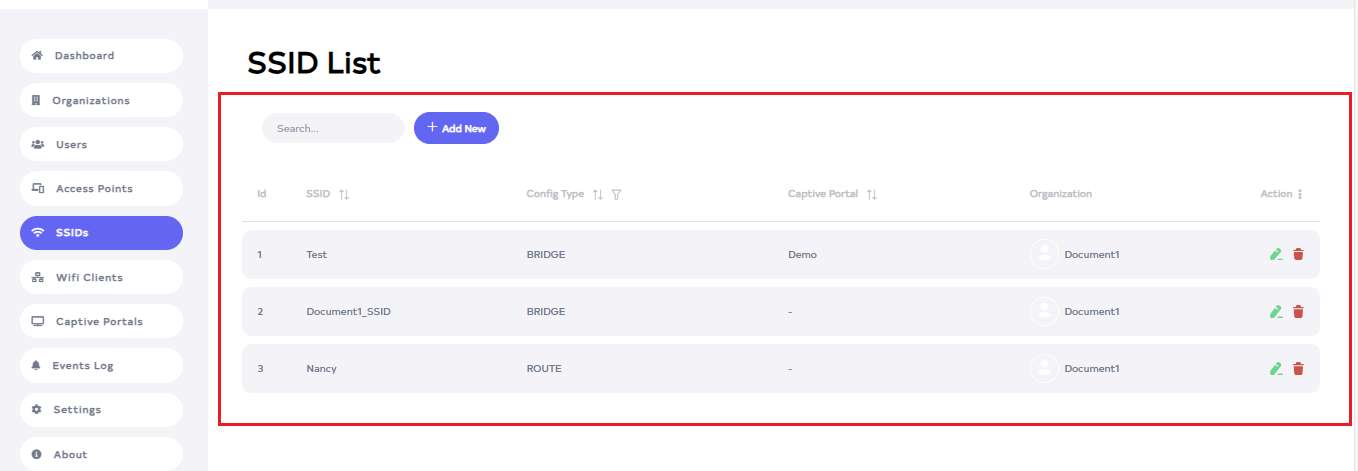
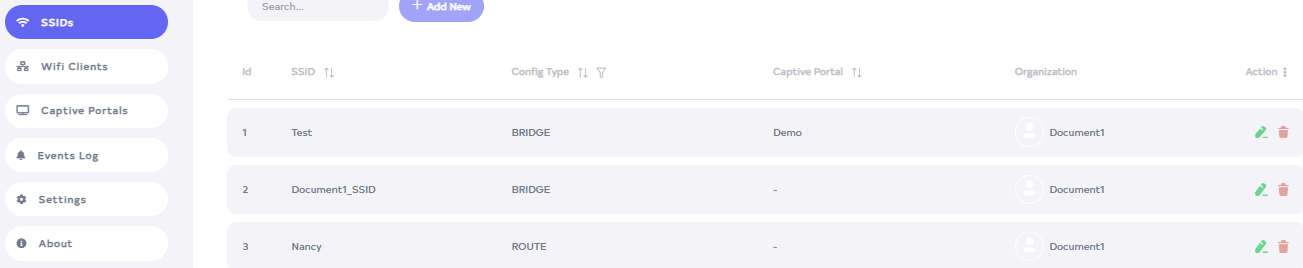
Go to the next SSIDs section and view the SSIDs list. Edit and delete existing SSIDs or create a new one by clicking the Add New button. Only the SSID of the respective organization will be visible.
-
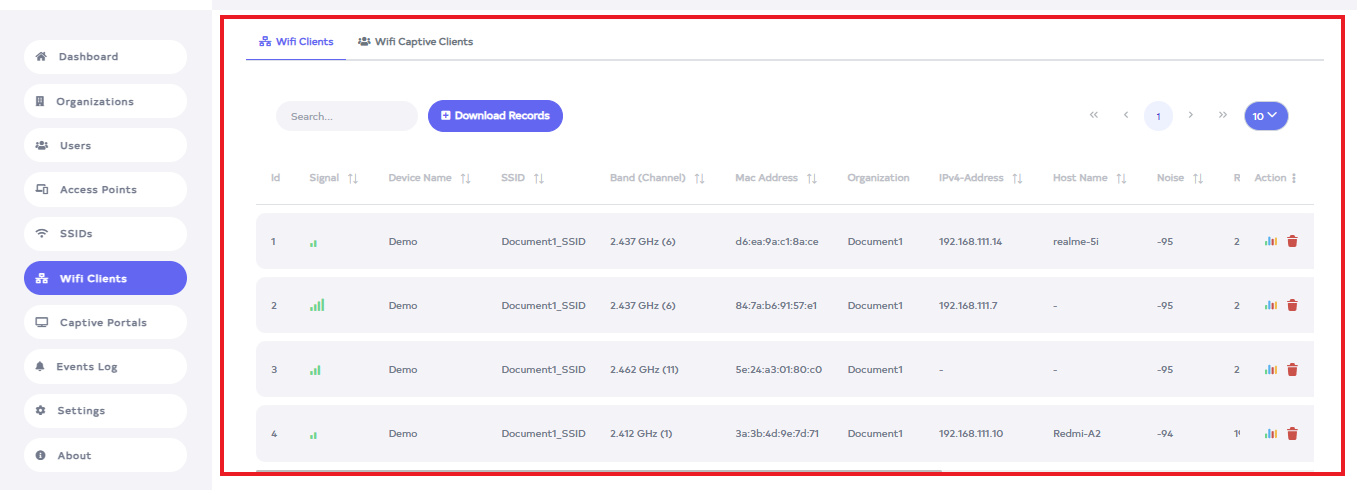
In WiFi Client, a list of WiFi clients will be visible. To download the record, click on the Download Record button. Only the WiFi clients of the respective organization will be visible.
-
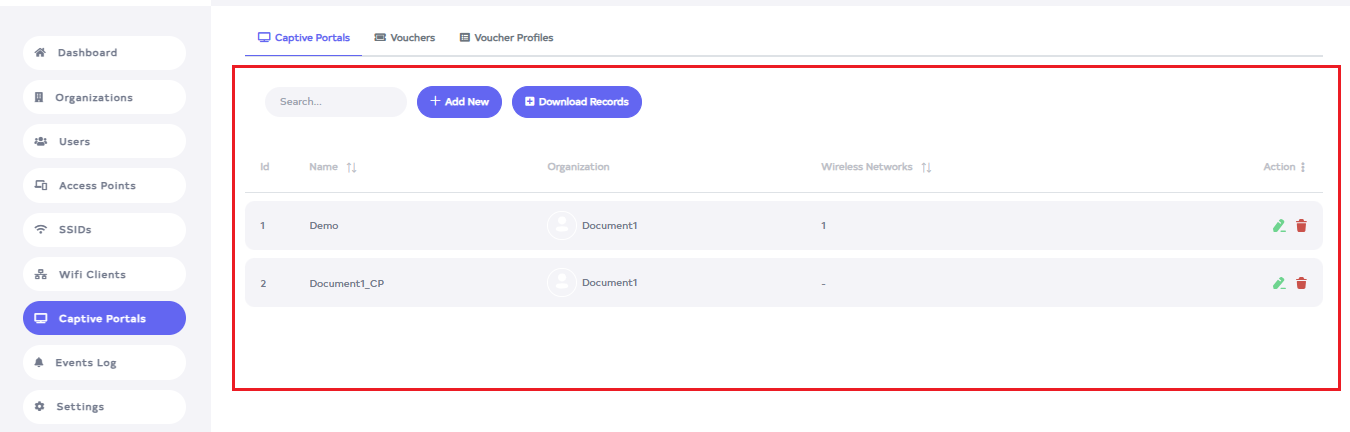
On the Captive Portals page, the list of captive portals is displayed. Options are available to Edit and Delete each captive portal. To create a new one, click the Add New button. To download records, click on Download Record button. Only the captive portals of the respective organization will be visible.
Normal User
How to Normal User work
There are two types of users 1. Read only and 2. Full access.
Read only
-
Login by entering Username and Password.
-
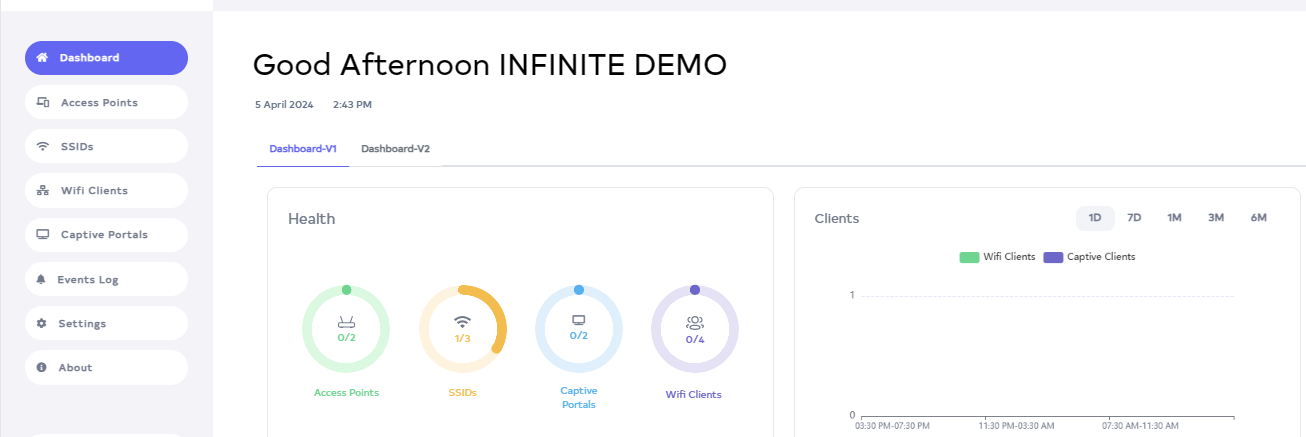
After login, the Dashboard will open by default.
-
Read only User has Read only access, and cannot add new to any menu or delete or edit any device.
-
It also cannot create new Users or new Organizations.
-
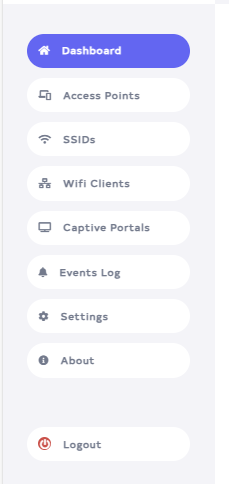
Dashboard, Access Point, SSID, WiFi Client, Captive Portal, Event Log, Settings, About and Log Out menus will be found on the screen. But there is no Users or organization menu.
-
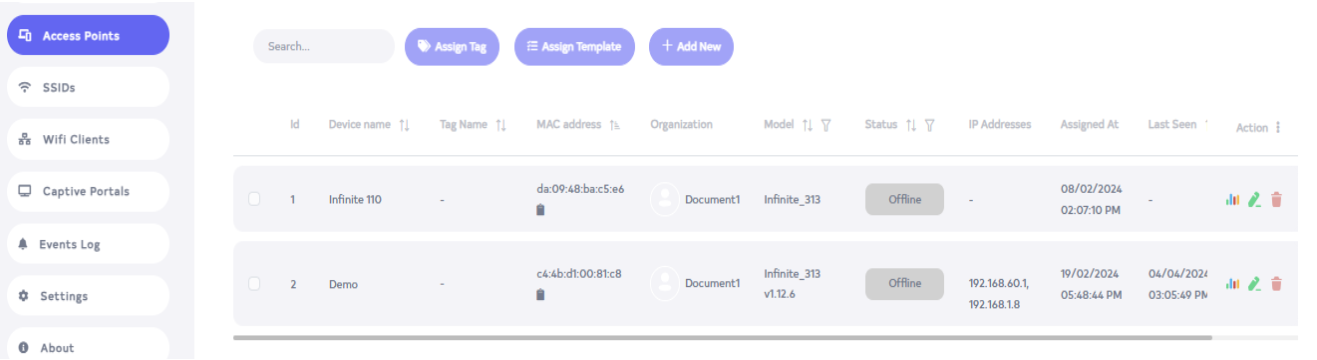
Access Point, SSID, and Captive Portal cannot be added or modified, only viewing of these details is allowed.

Full Excess
-
A Full Excess user does not have access to the Organization and Users menu and does not show the Users and Organization menu in his Dashboard.
-
Edit and Delete Access Point, SSID, and Captive Portal. A new one can also be added by clicking the Add New button.