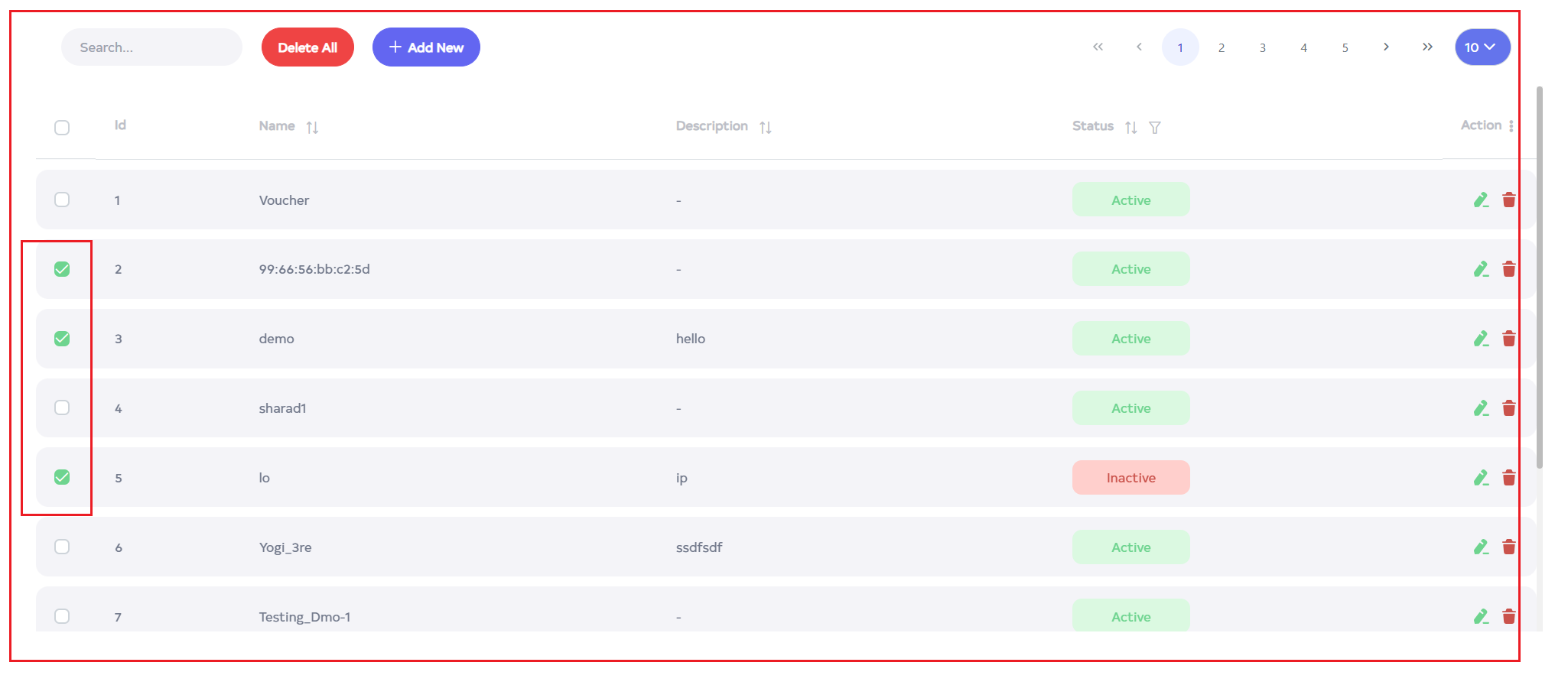
Voucher
What is a Voucher
A digital authentication token called a voucher is used to provide access to particular resources or services. Usually, it consists of a specific code or identification that customers can use to exchange for access benefits like special discounts or internet connectivity.
The Importance of Voucher
We may use it to login to Hotspot. One easy and safe way to manage access to resources or services is with vouchers. Whether it is for limited material, promotional offers, or internet connectivity in public areas, they enable enterprises to effectively control and distribute access privileges. Vouchers provide flexibility in granting temporary or one-time access credentials, improve security, and ease administration.
How to create a Voucher Profiles
-
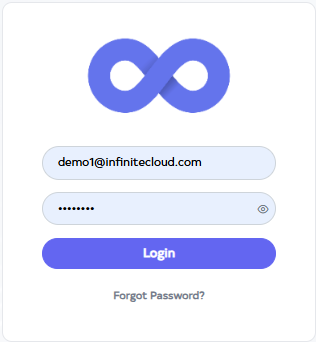
Go to Cloud platform and go there fill the details and then click on login button
-
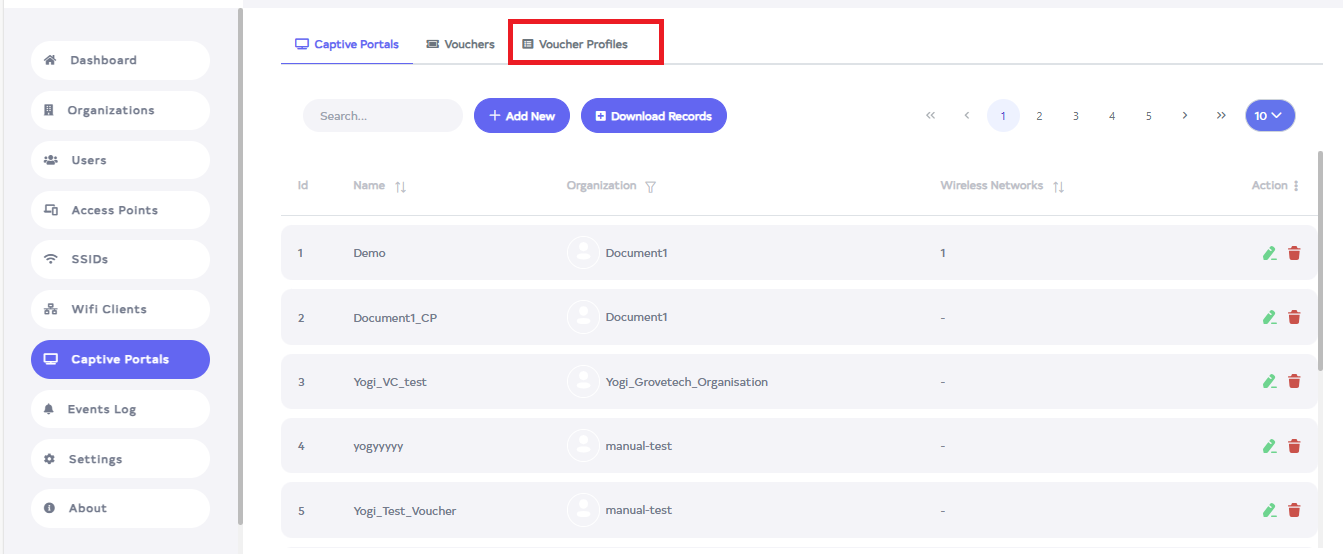
After logging in, navigate to Captive Portals > Voucher Profiles.
-
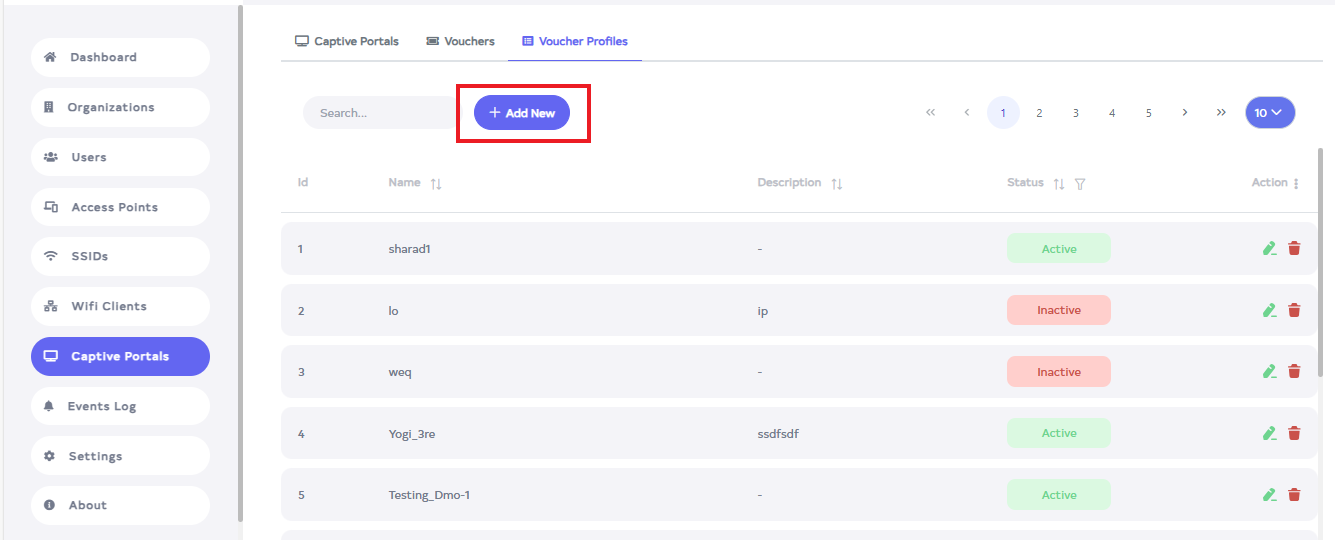
Click on Add New button.
-
A redirect will happen, after that, you can fill in the details given.
Status:- By default the status is Active.
Profile Name:- Enter the Profile Name. For ex:- demo.
Organization:- Navigate and select Organization. For ex:- Demo Organization.
Description:- Enter the Description. For ex:- hello.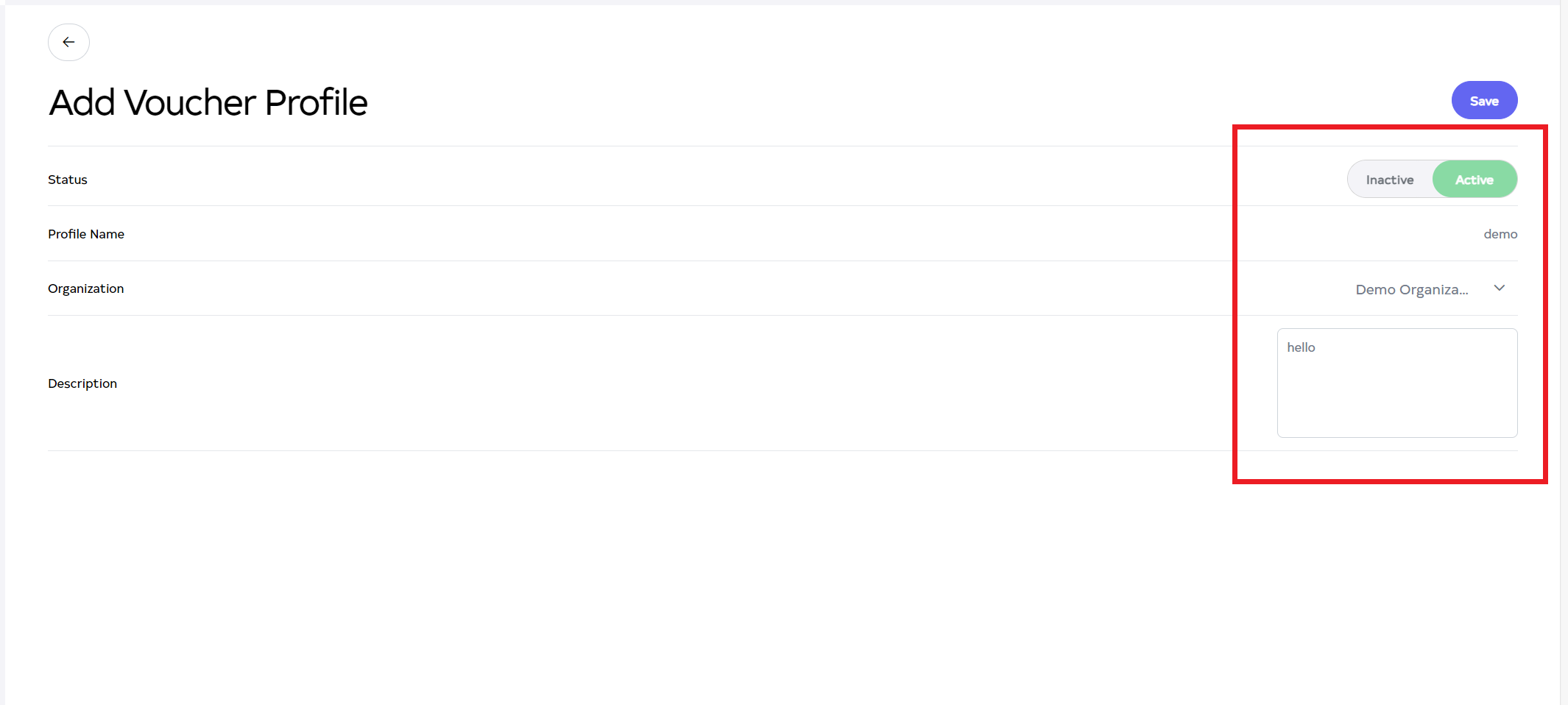
-
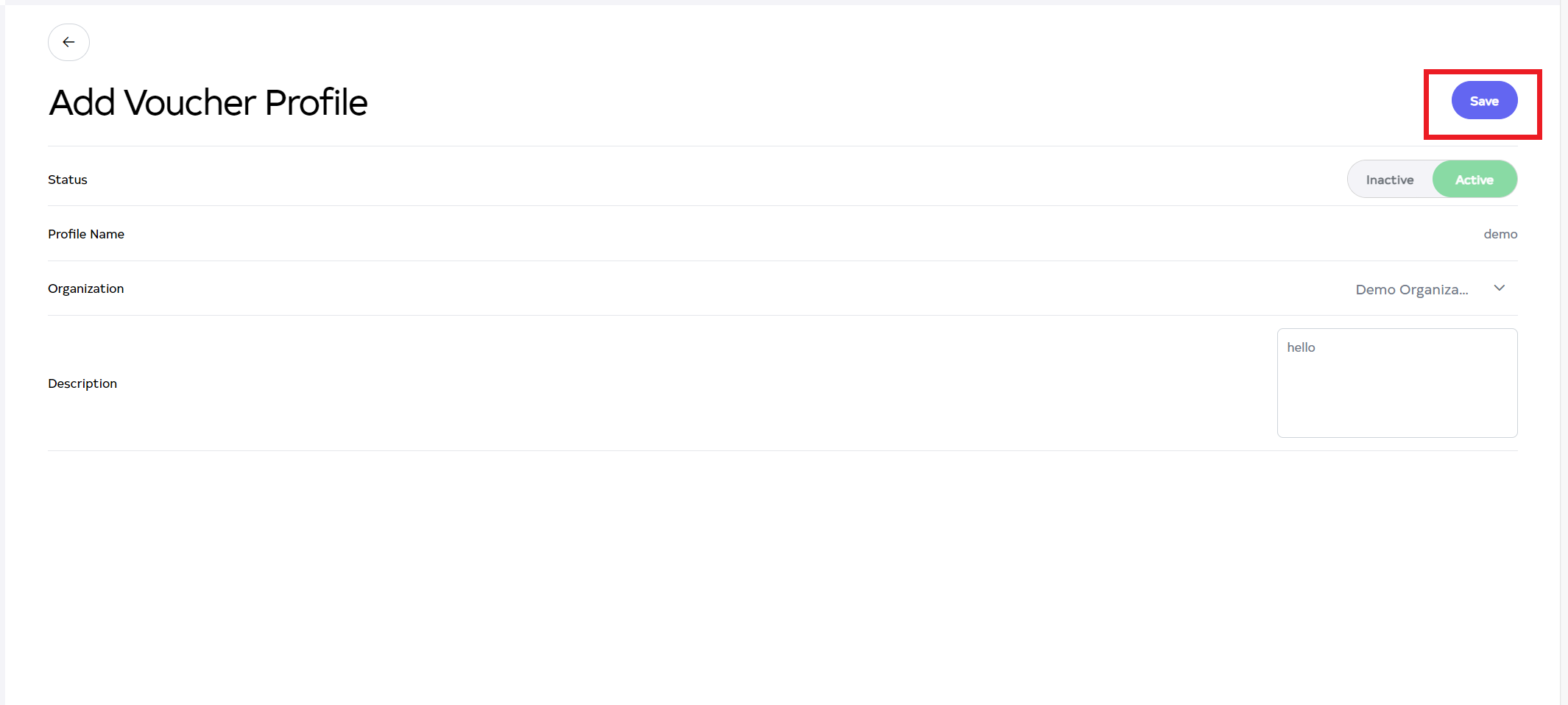
Next, click on the Save button located on the right side.
-
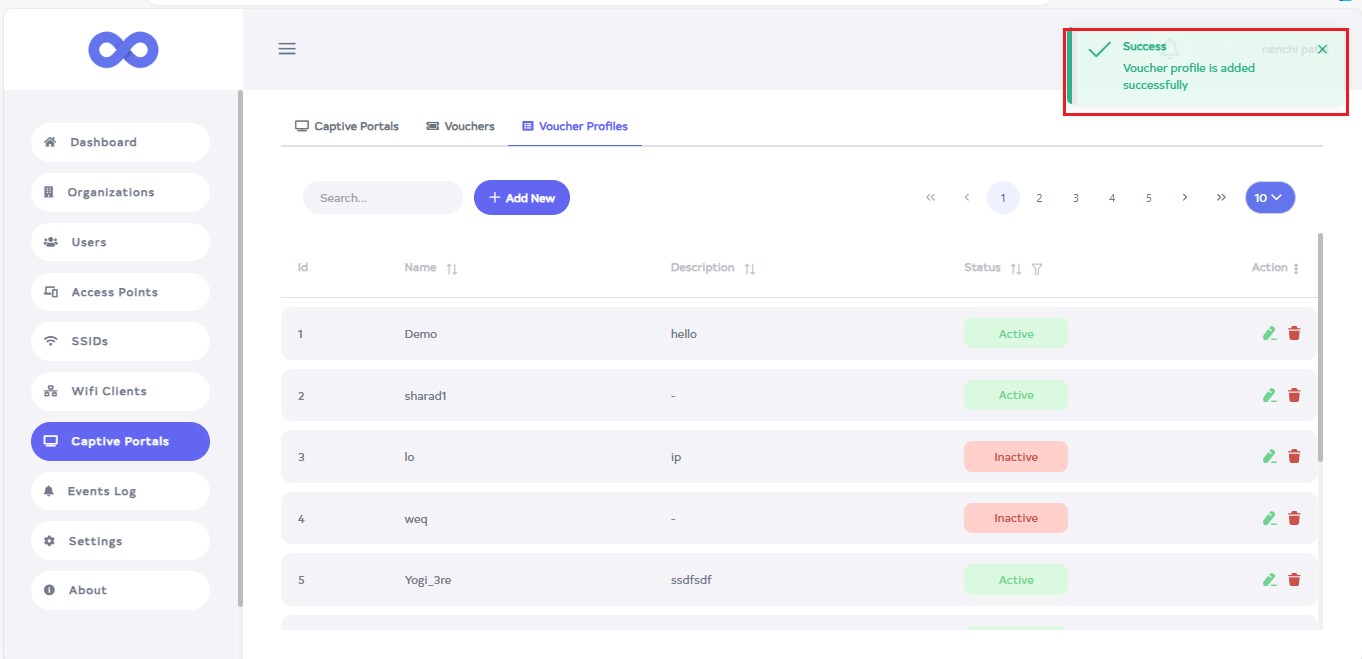
After the Voucher Profile Section is saved successfully, a success message will display Success Voucher profile is added successfully.
How to create a Vouchers
-
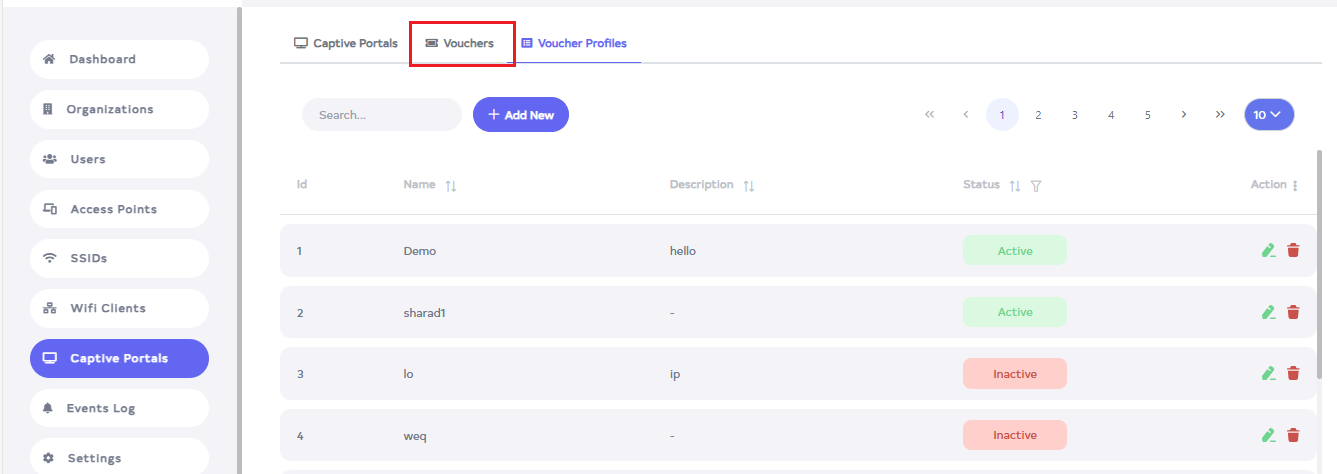
Go to the Vouchers tab.
-
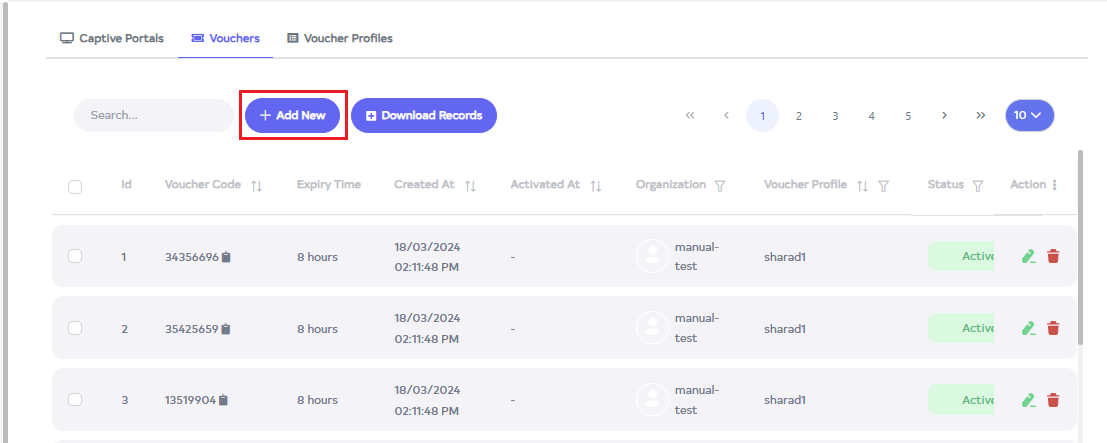
A redirect will happen, after that, click on the Add New button.
-
Fill the details.
Quantity:- Enter the Quantity. For ex:- 2.
Duration:- Navigate to select the desired duration for Active.
Organization:- Navigate and choose an Organization. For ex:- Document1.
Select Voucher profile:- Voucher Profile comes by default and you can also select it. If there is no profile, you can create a new Voucher Profile from there by clicking on the Add button.
Active:- Click on Active button.
Description:- Enter the Description. For ex: Hello.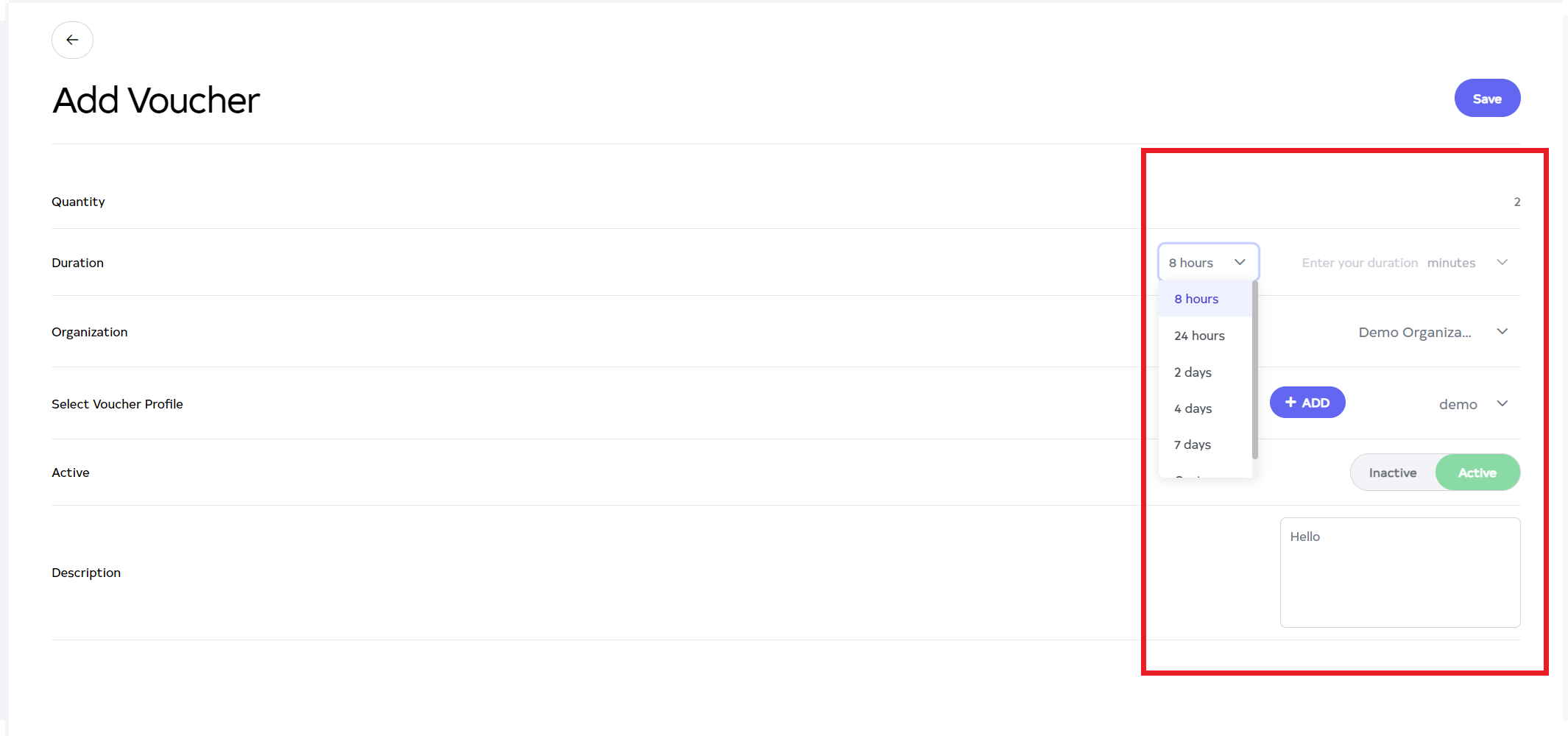
-
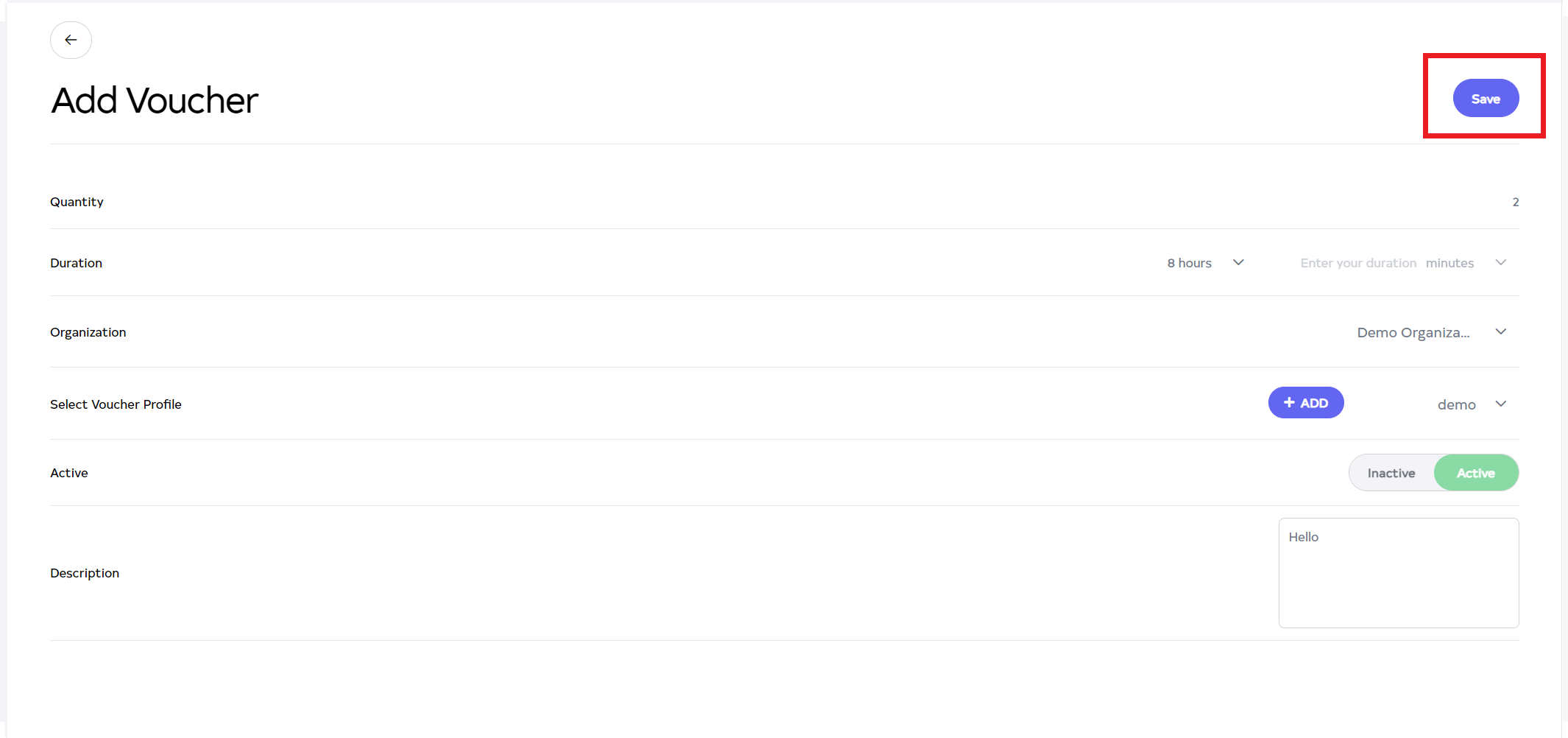
Next, Click on the Save button.
-
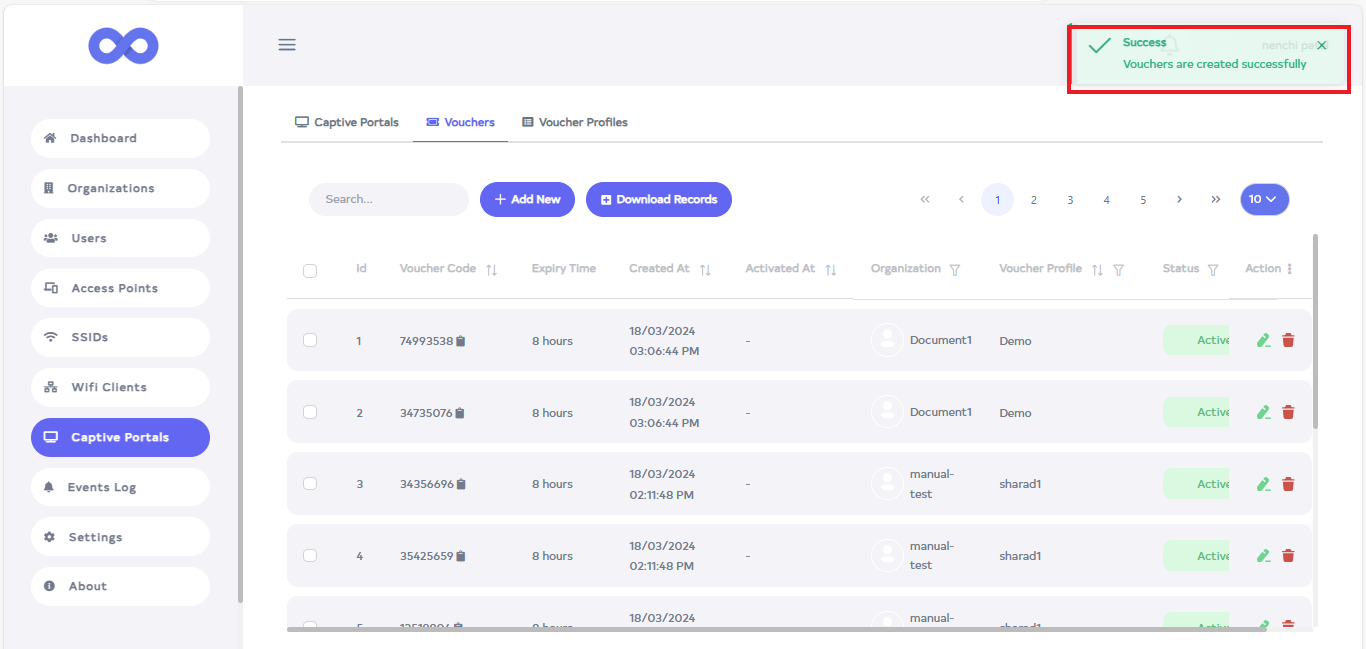
After the Voucher Section is saved successfully, a success message will display Success Voucher are created successfully.
How to Use Voucher
-
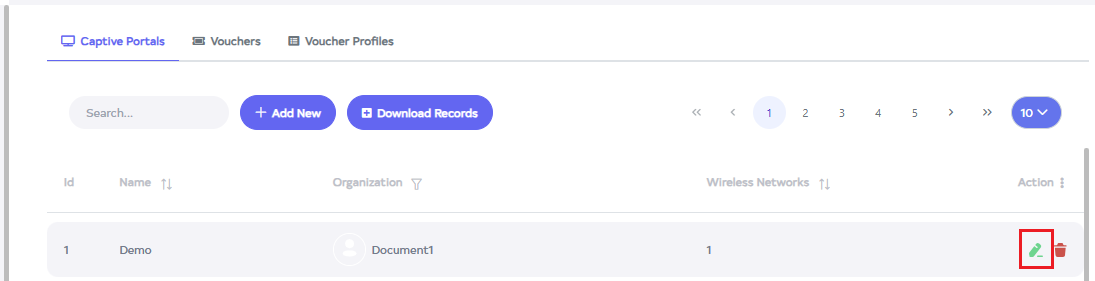
Go to the Captive Portals want to Edit button.
-
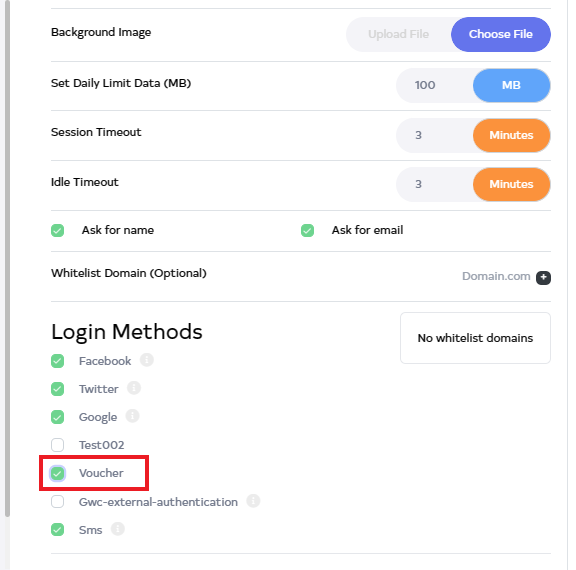
After clicking the Edit button, go to the Login Method and click on Voucher.
-
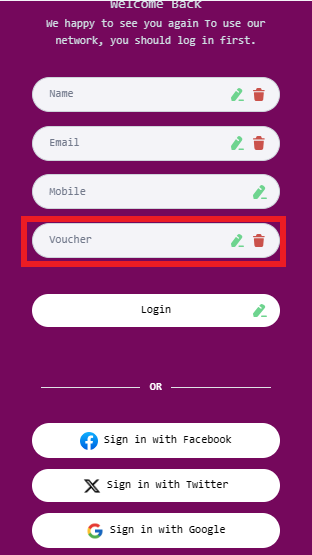
There the option to Enter Voucher will appear on the screen. Copy the Voucher created there and enter it.
How to Edit Voucher
-
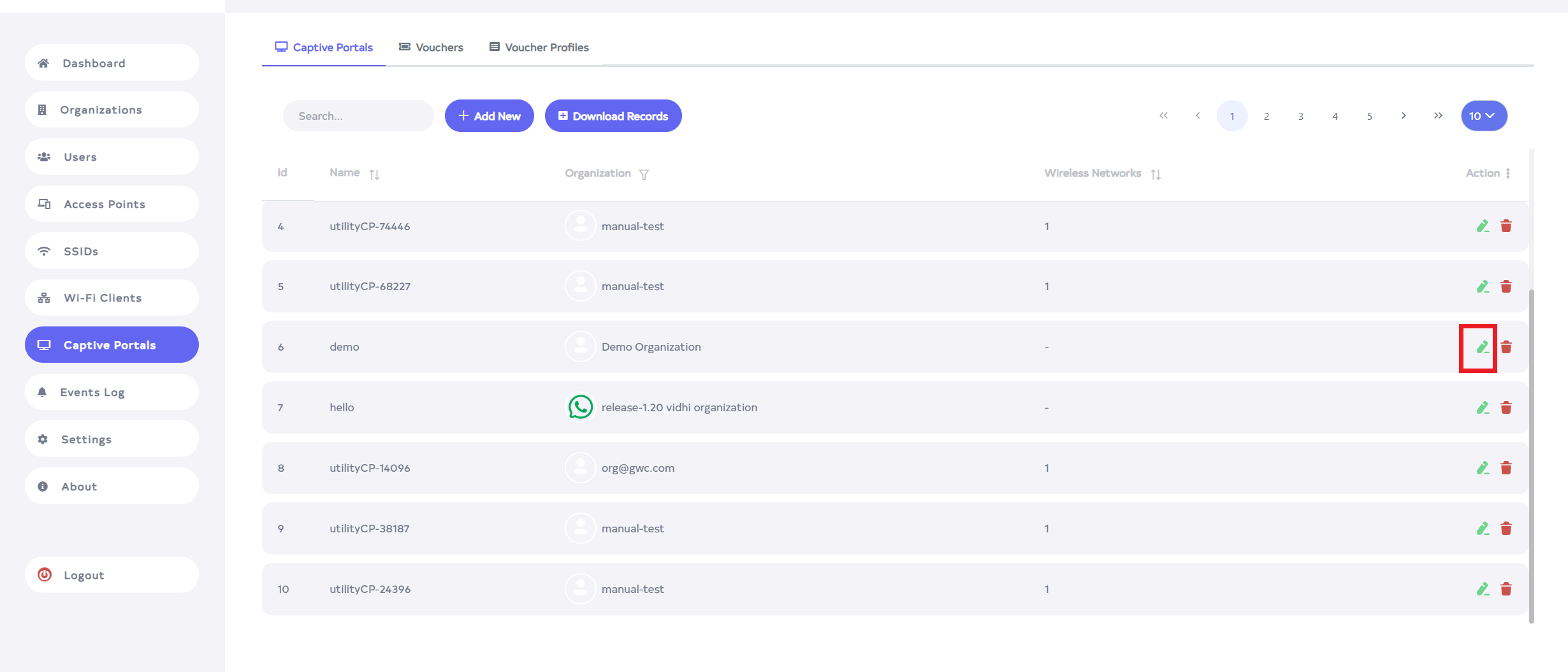
Go to the Vouchers want to Edit button.
-
Click on the Edit button located on the right side of the Vouchers.
-
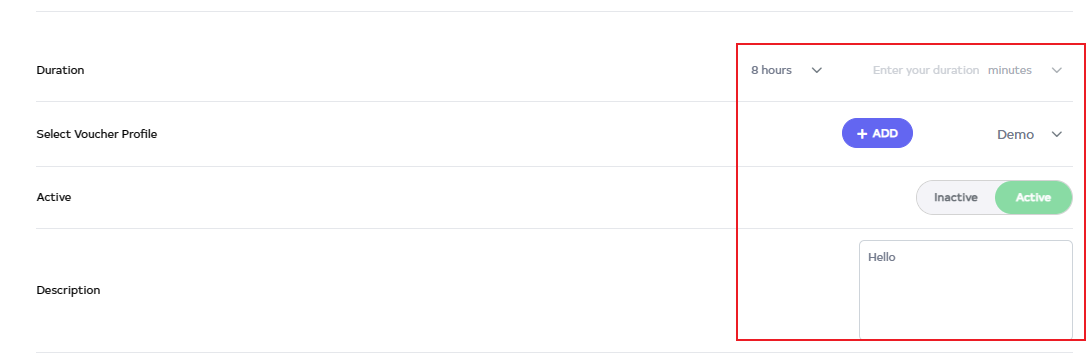
After clicking, you can change Enter Duration, Select Voucher profile, Active status, and Description from here.
-
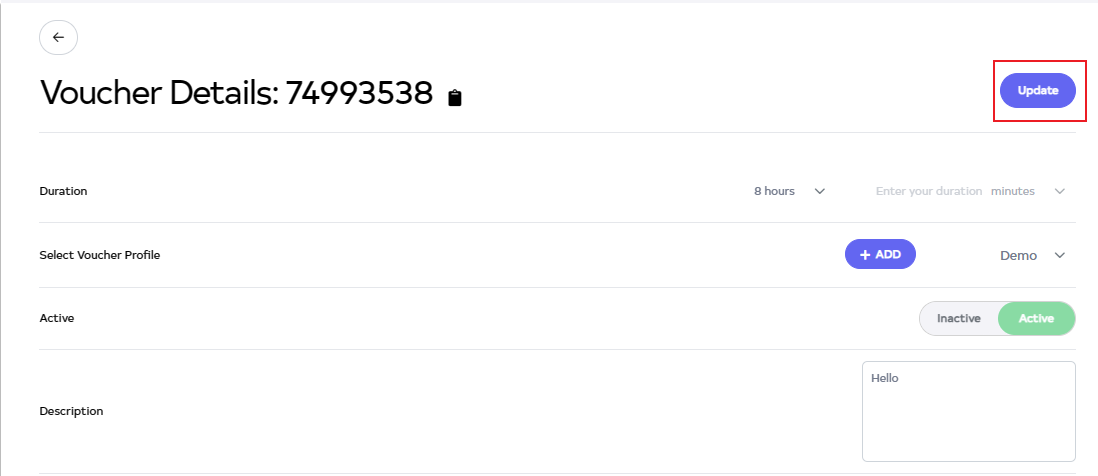
Then click on the Update button.
-
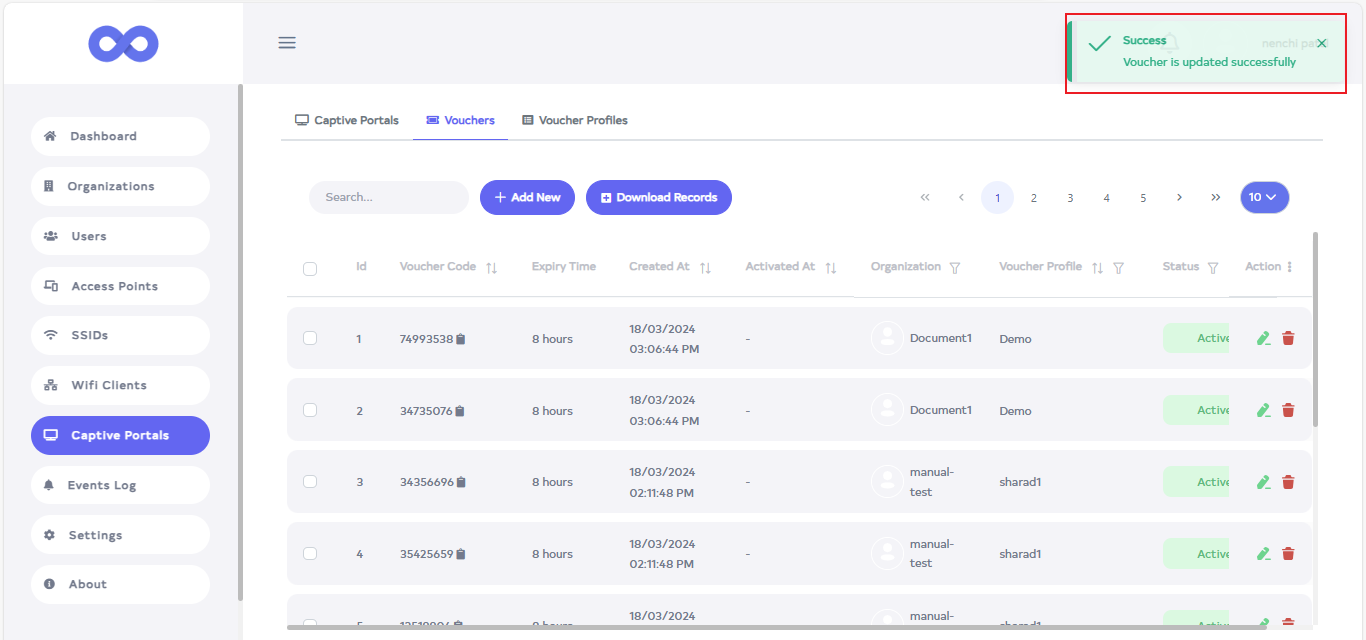
After the Voucher Section is updated successfully, a success message will display Success Voucher is updated successfully.
How to Delete Voucher
-
Click on the delete located on the right side.

-
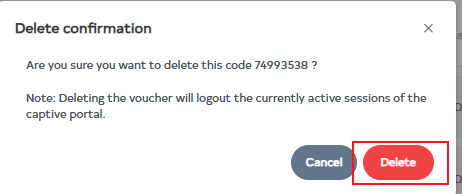
After clicking, you will be directed to a page where you will receive a confirmation message. Click on the Delete button there.
-
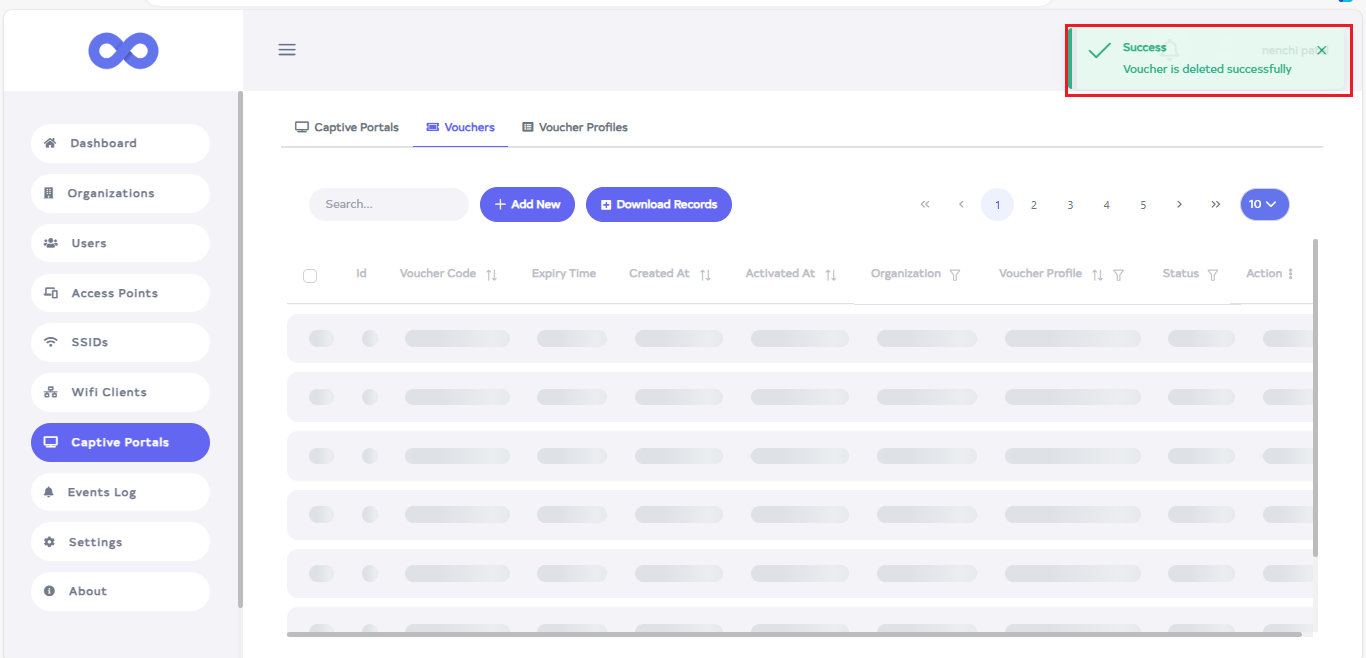
After the Voucher Id is deleted successfully, a success message will display Success Voucher is deleted successfully.
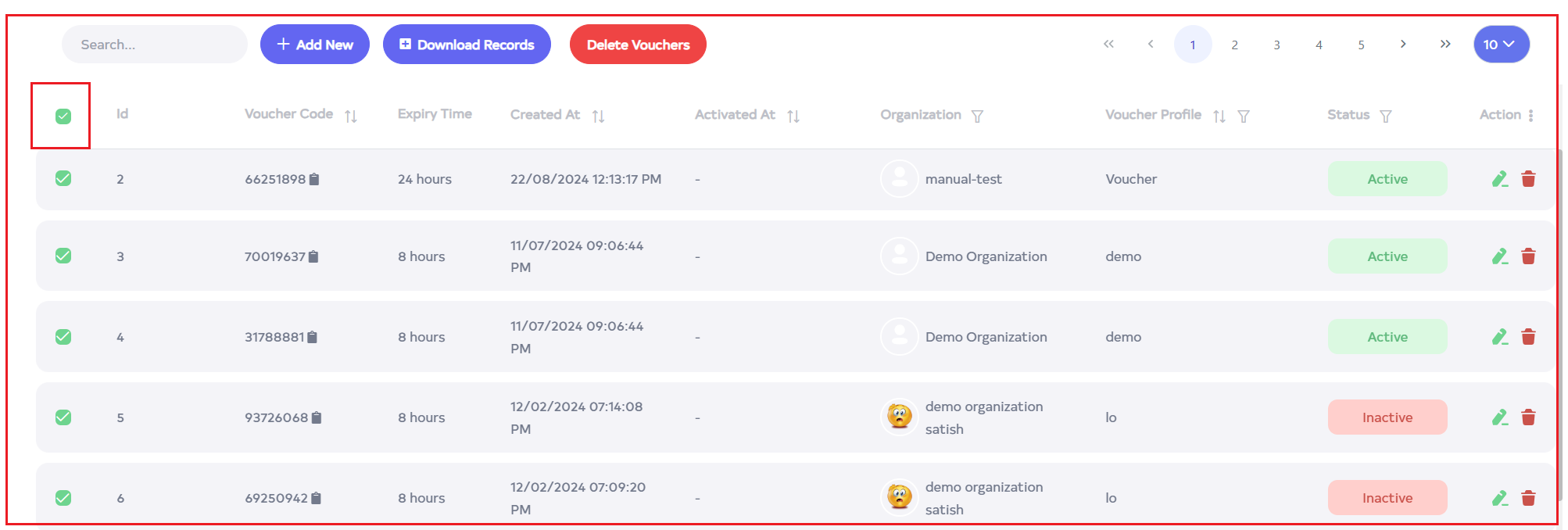
To delete multiple records, select the desired records by using the checkboxes and delete the selected records. To delete all Voucher in bulk, use select-All checkbox next to the "ID" column header to select all entries and click the "Delete All" button to execute the bulk deletion process.

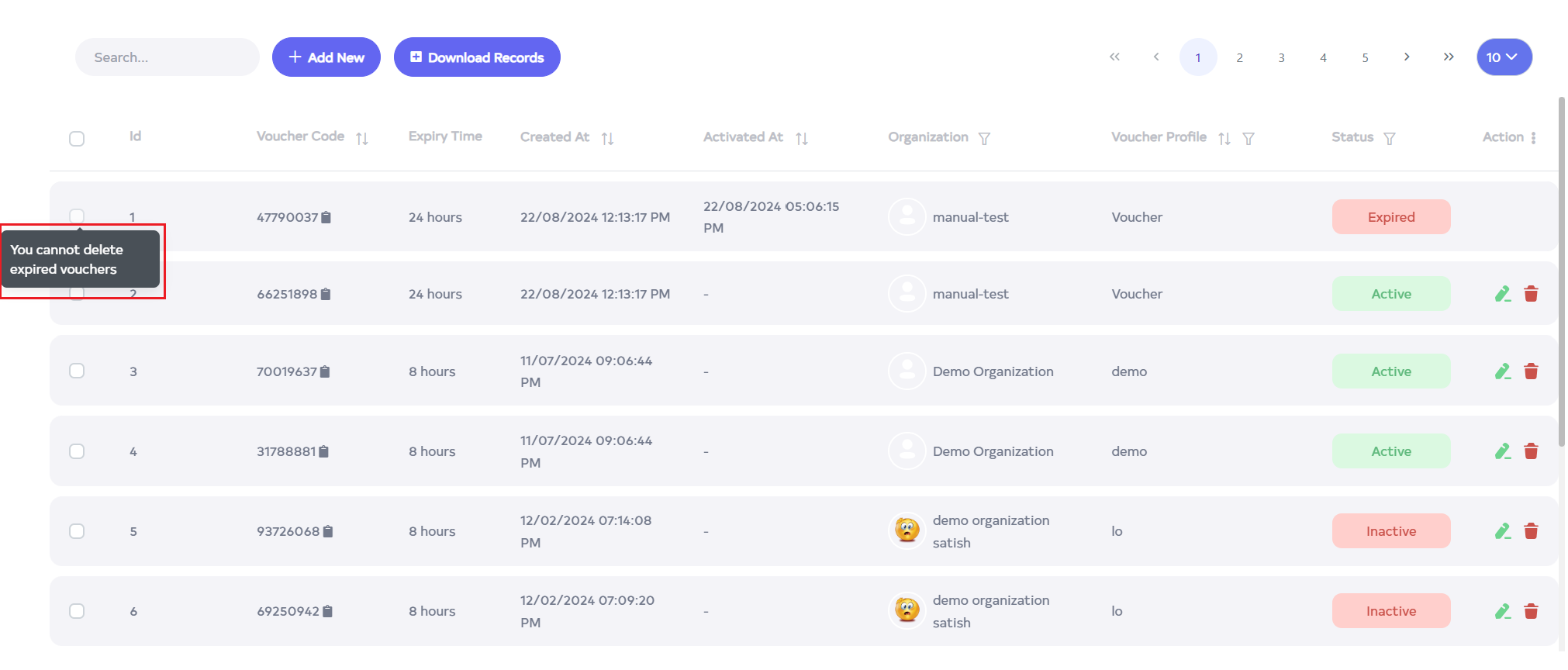
When selecting the "checkbox" to delete an expired voucher, a tooltip will be displayed, as shown in the image, indicating that the voucher cannot be selected for deletion.
How to Edit Voucher Profile
-
Go to the Voucher Profile want to Edit button.
-
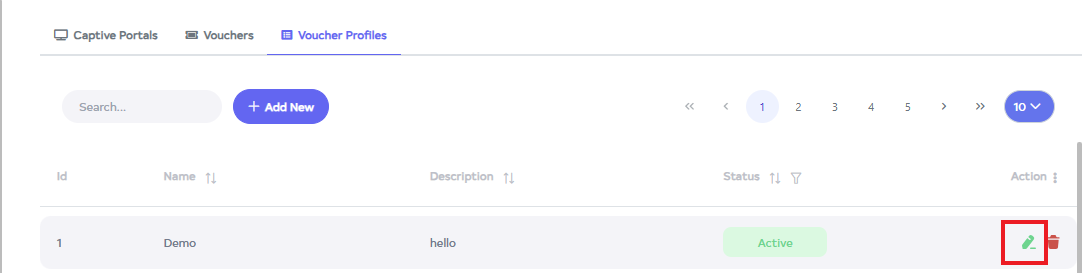
Click on the Edit button located on the right side of the Voucher Profile.
-
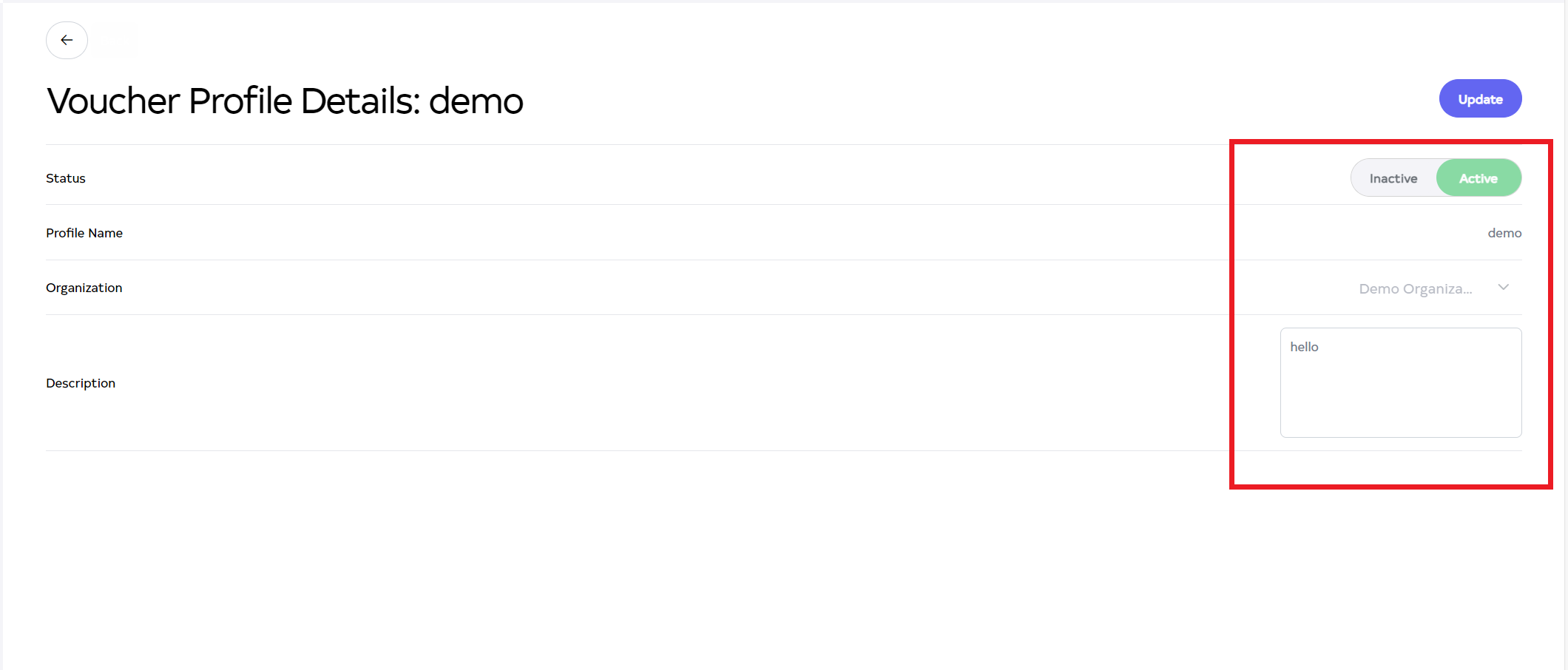
After clicking, you can change Enter Status, Profile Name, Organization, Description In the Voucher Profile.
-
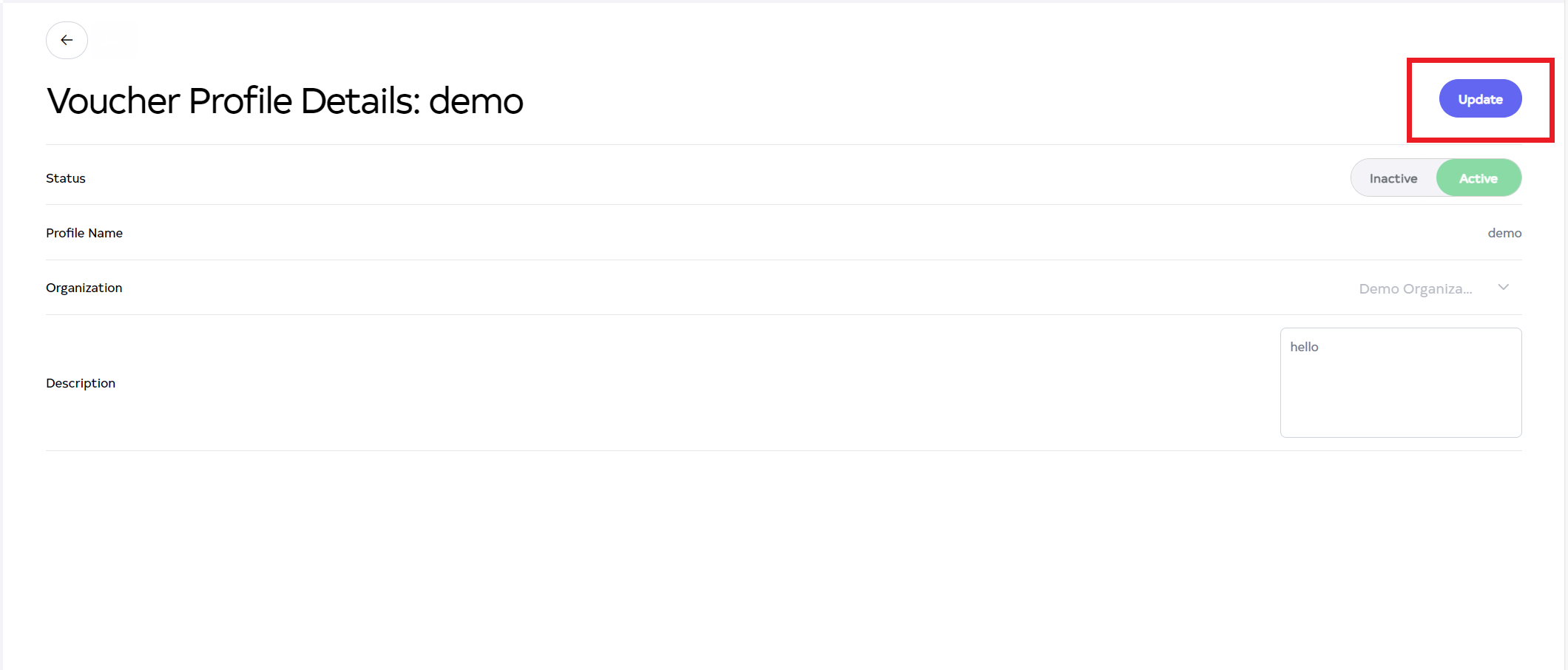
Then click on the Update button.
-
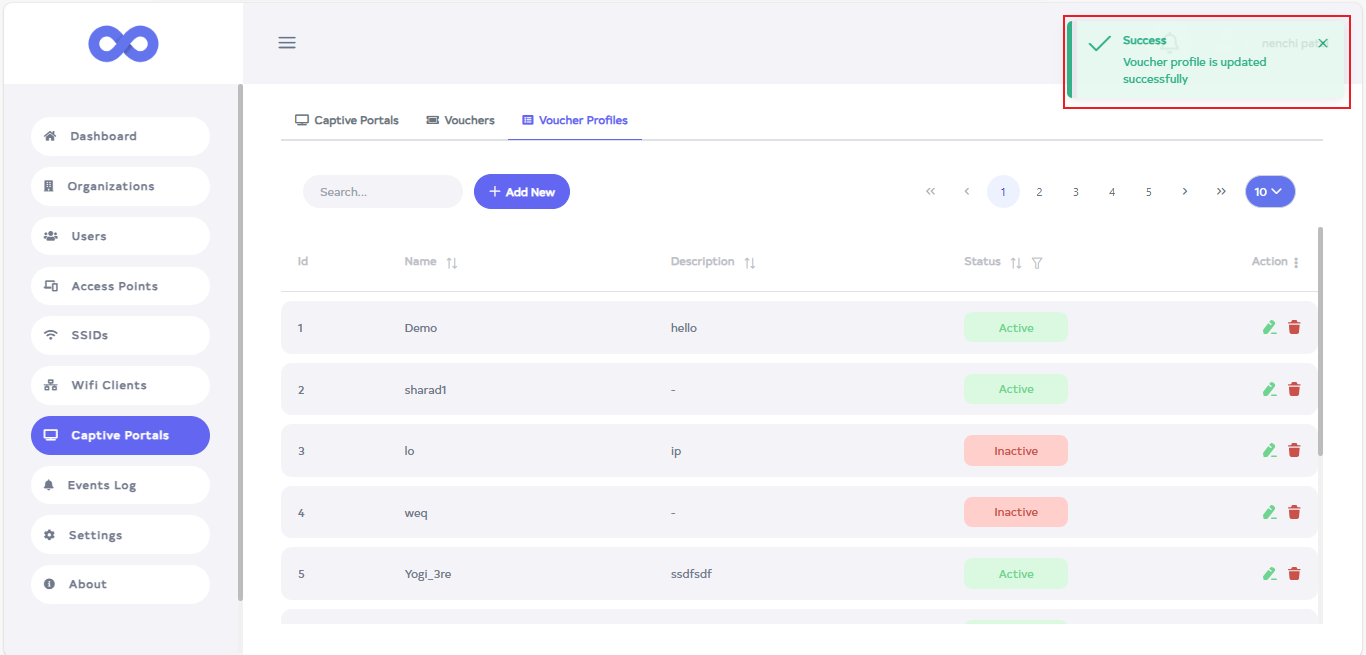
After the Voucher Profile Section is updated successfully, a success message will display Success Voucher Profile is updated successfully.
How to Delete Voucher Profile
-
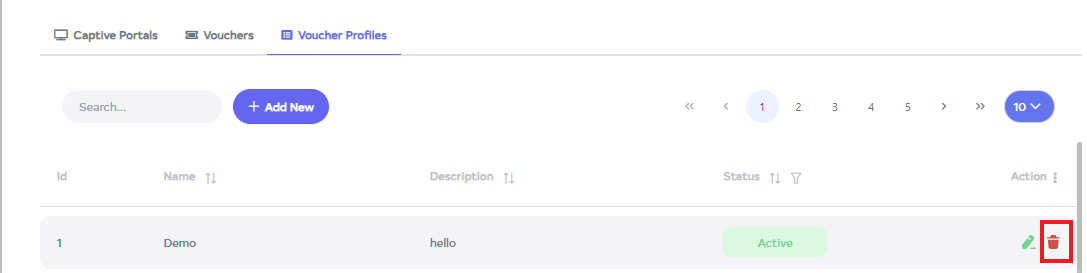
Click on the delete located on the right side.
-
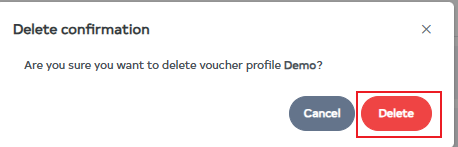
After clicking, user will be directed to a page where you will receive a confirmation message. Click on the Delete button.
-
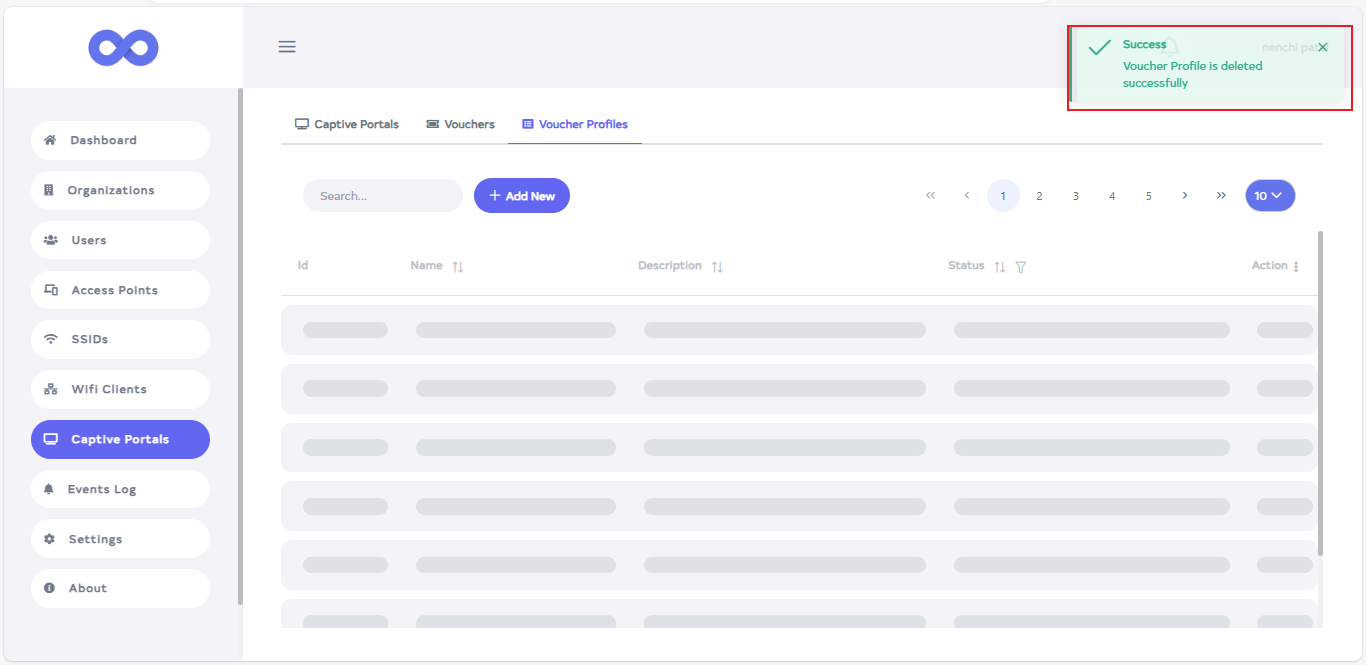
After the Voucher Profile ID is deleted successfully, a success message will displaySuccess Voucher Profile is deleted successfully.
To delete multiple records, select the desired records by using the checkboxes and delete the selected records. To delete all Voucher Profie in bulk, use select-All checkbox next to the "ID" column header to select all entries and click the "Delete All" button to execute the bulk deletion process.