Wi-Fi clients & Wi-Fi Captive Clients
Explained of Wi-Fi clients & Wi-Fi Captive Clients
- Wi-Fi clients:- A client that connects directly to an access point is called a WiFi client.
- Wi-Fi Captive Clients:- Clients connected through a captive portal are called WiFi captive clients.
Importance of Managing Wi-Fi Clients & Wi-Fi Captive Clients
Knowing how to view and control Wi-Fi clients and Wi-Fi captive clients is essential for maintaining a network's security, tracking its usage, and providing uninterrupted access to the internet. The difference between these kinds of clients gives a network administrator finer control over access and thus enhances the optimization of a network's performance.
Diffrence between Wi-Fi Clients and Wi-Fi Captive Clients
-
Wi-Fi Clients
-
Go to the Wi-Fi Clients menu. After going to Wi-Fi Clients menu you will see a grid of Wi-Fi Clients there. A list of all Wi-Fi clients will be found there. The details of all Wi-Fi clients connected to the access point will be shown here. You will find the Wi-Fi client Id, Signal, Device Name, SSID, Band, Mac Address, Organization, Ipv4 Address, Host name, Vendor Name, Noise, RSSI, RX Rate, Tx Rate, Associated Time, Status, Last Seen, and Action.
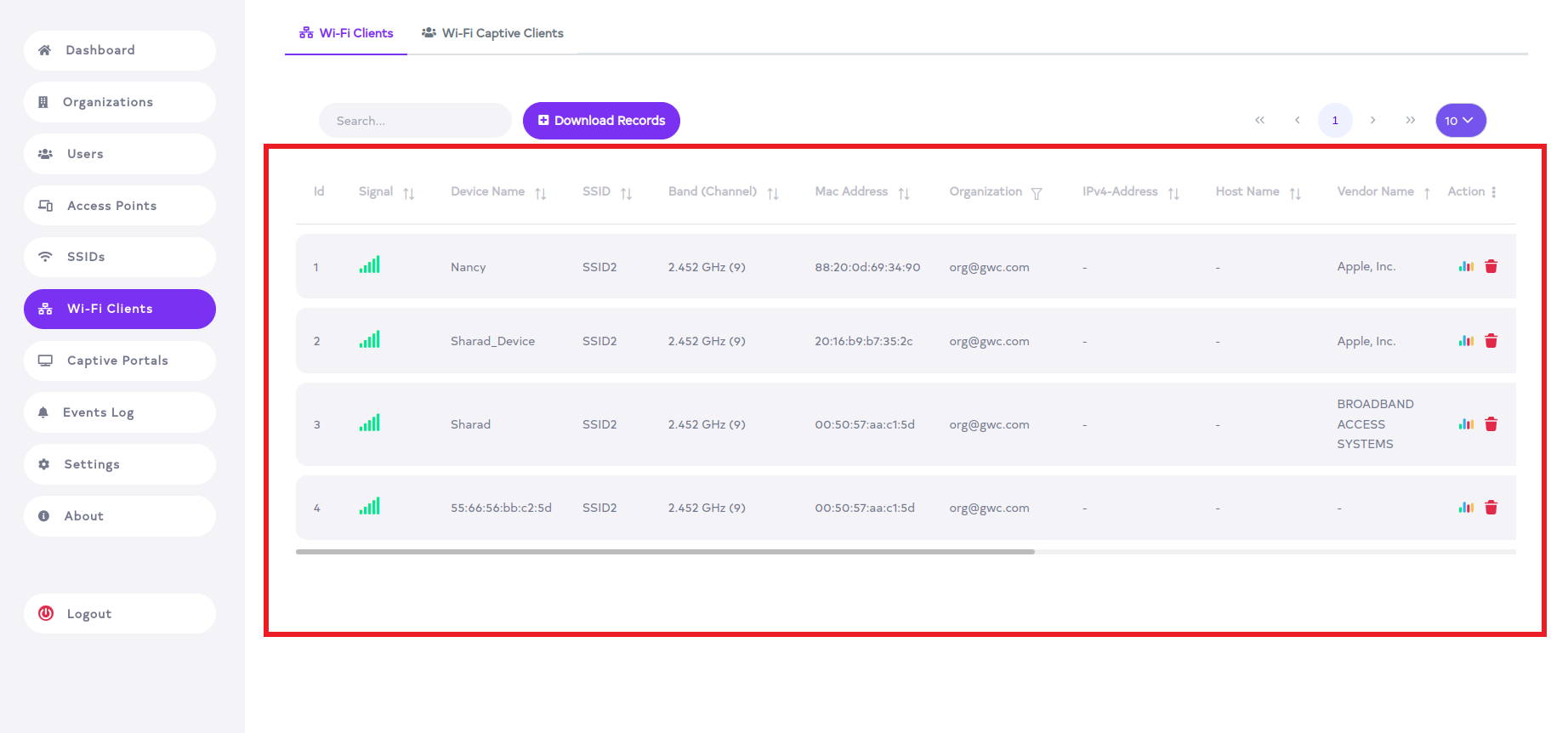 vendorname-information
The name of the vendor will be displayed from its Mac Address. The name of the company to which the Mac Address belongs will be shown in the vendor name.
disable-randommac-addressA default random MAC address is used when connecting to the SSID. Which doesn't work with the Vendor Name. An original MAC address is required for that. So it is necessary to disable the random MAC address, To disable the random MAC address, Please visit the link here How to disable Random MAC Address.
-
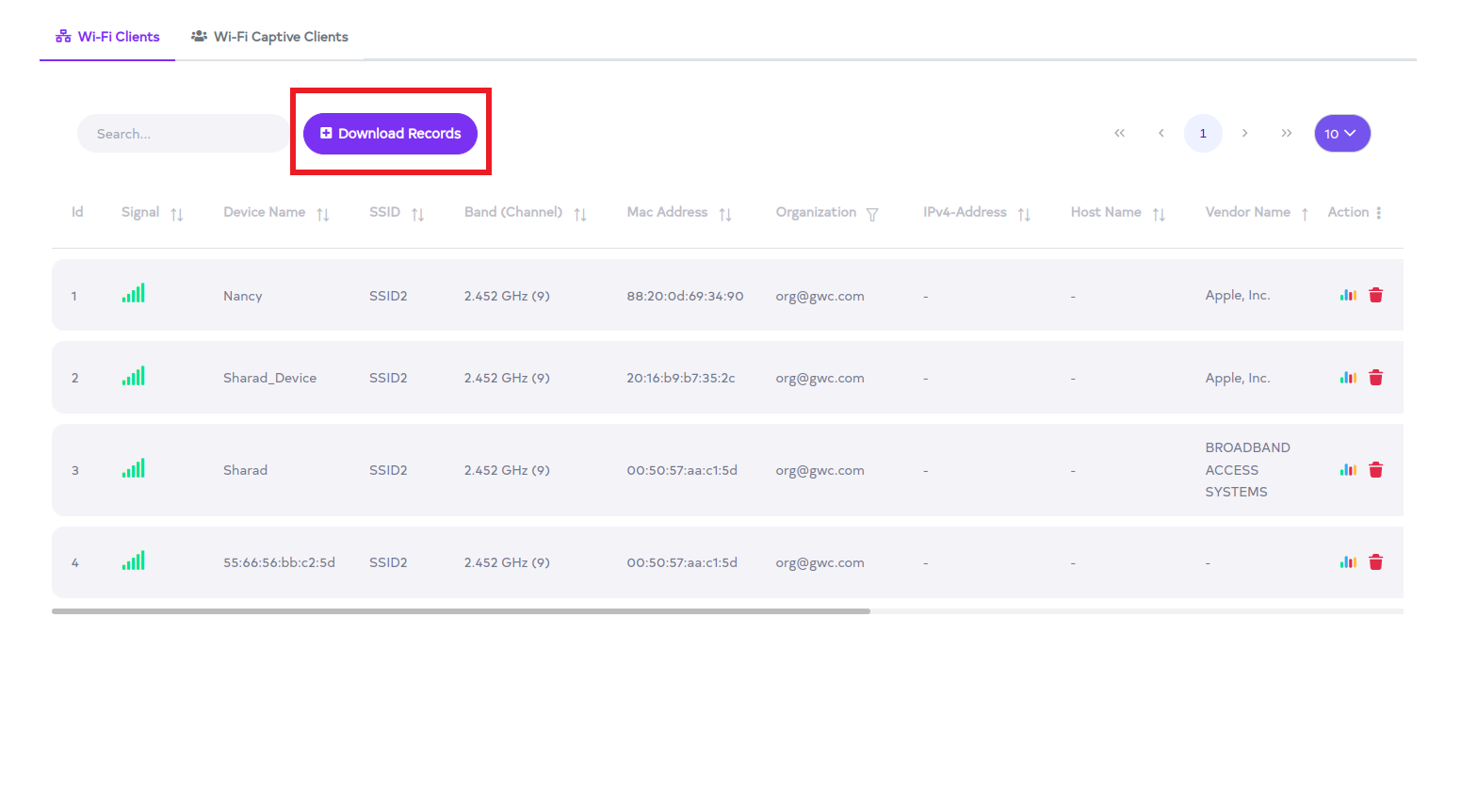
To download the record of WiFi captive clients, click the Download Records button.
-
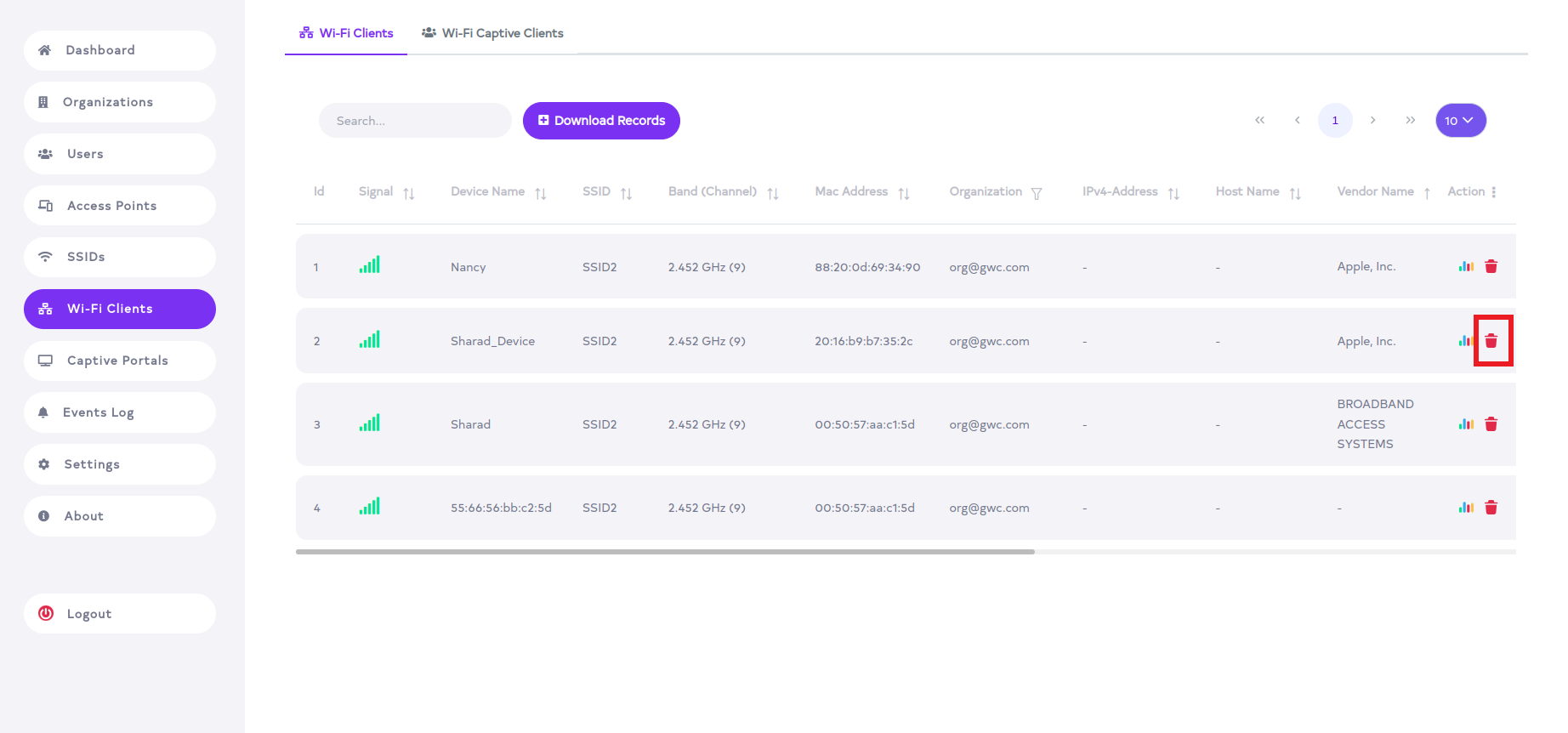
To delete WiFi Captive Clients, click on the delete button.
-
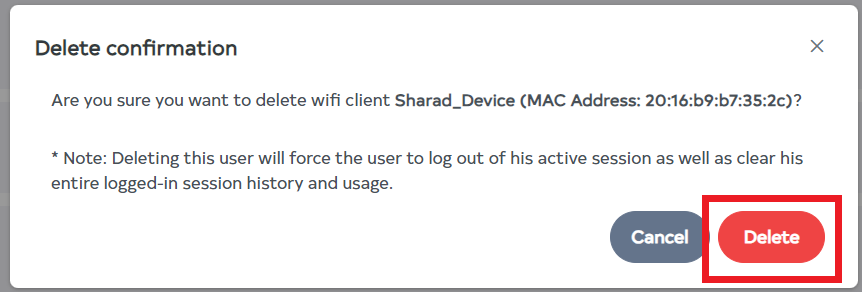
Clicking the delete button will display a confirmation message. To proceed with deletion, click delete button, otherwise click on cancel button.
-
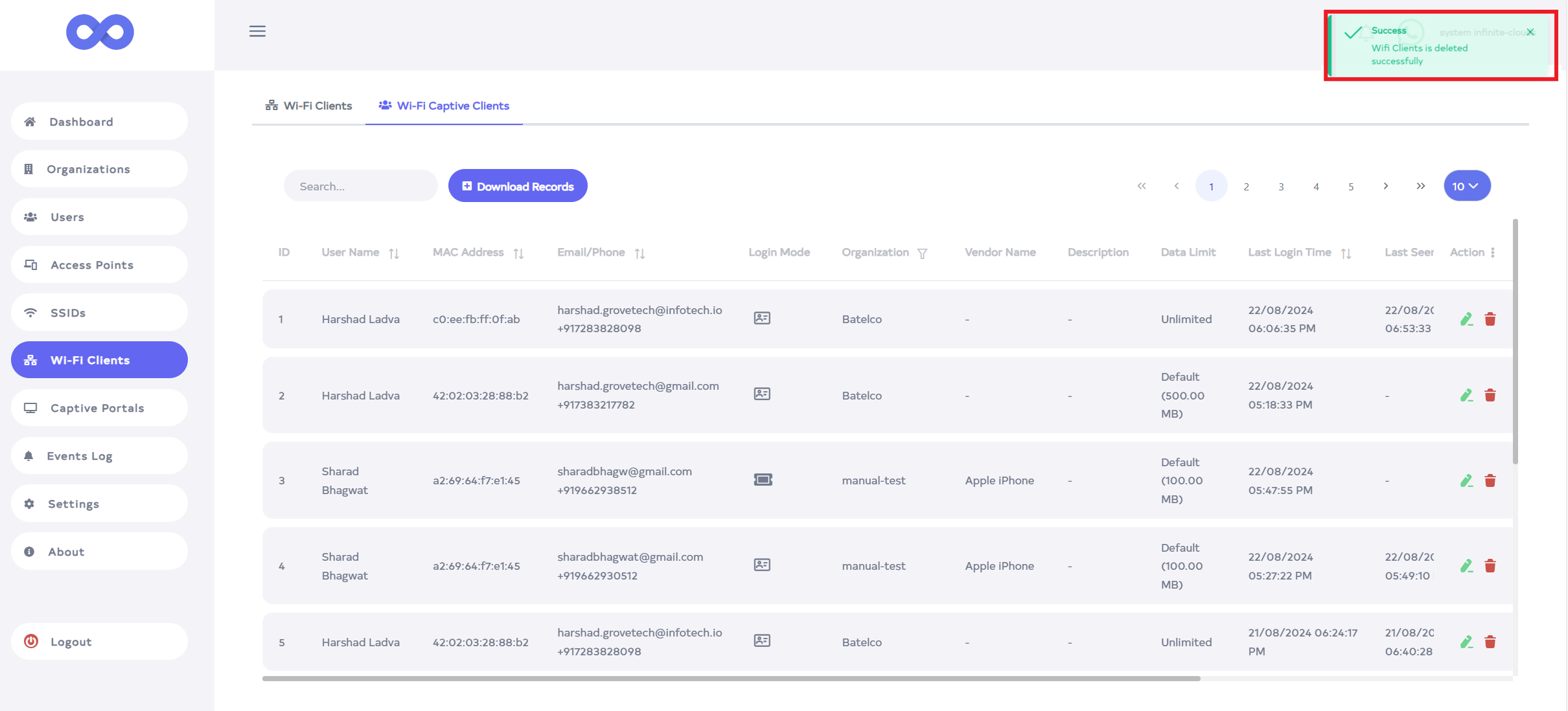
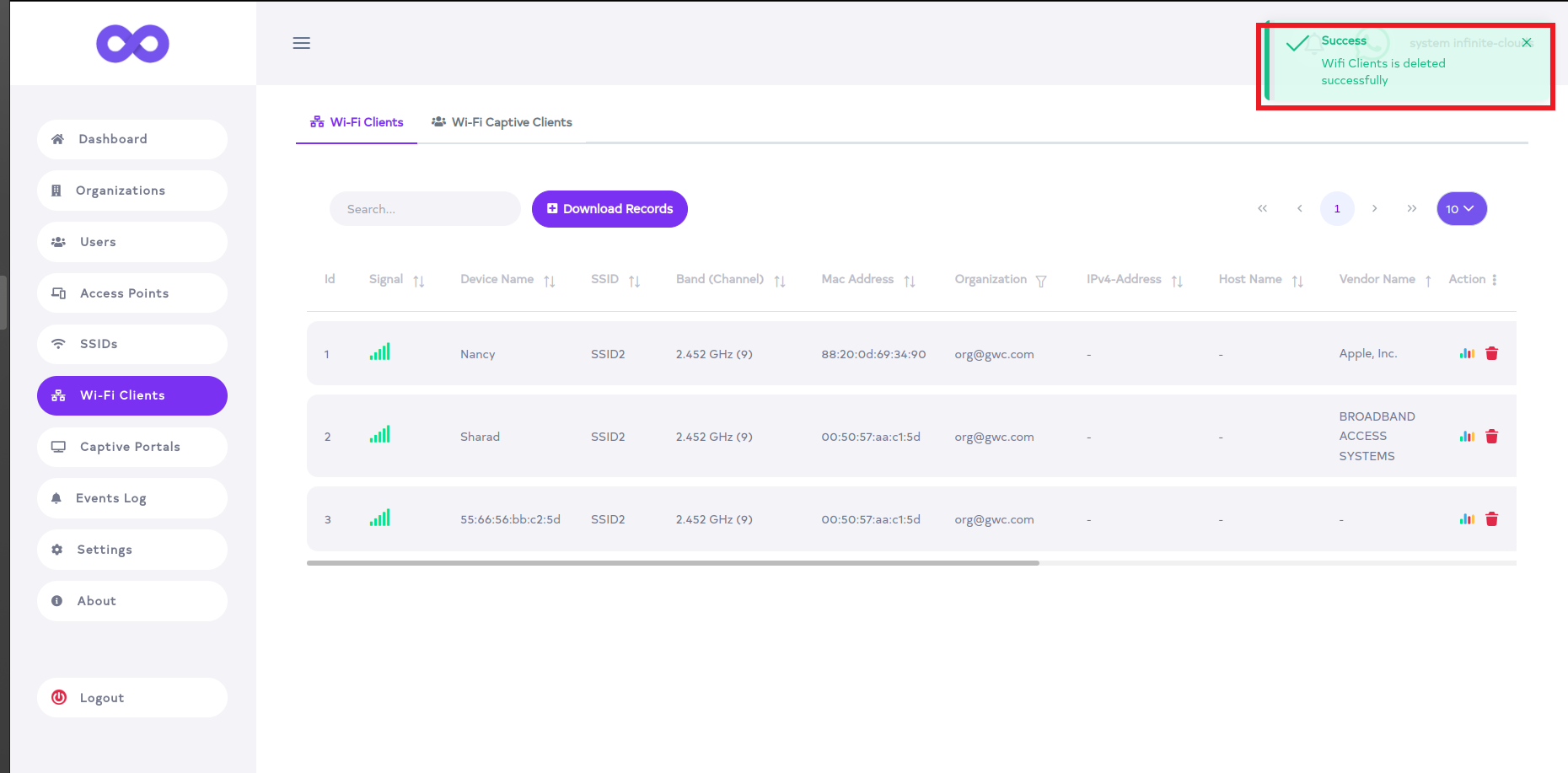
After the Wi-Fi client ID is deleted successfully, a success message will display WiFi Clients is deleted successfully on the screen.
-
Wi-Fi Captive Clients
-
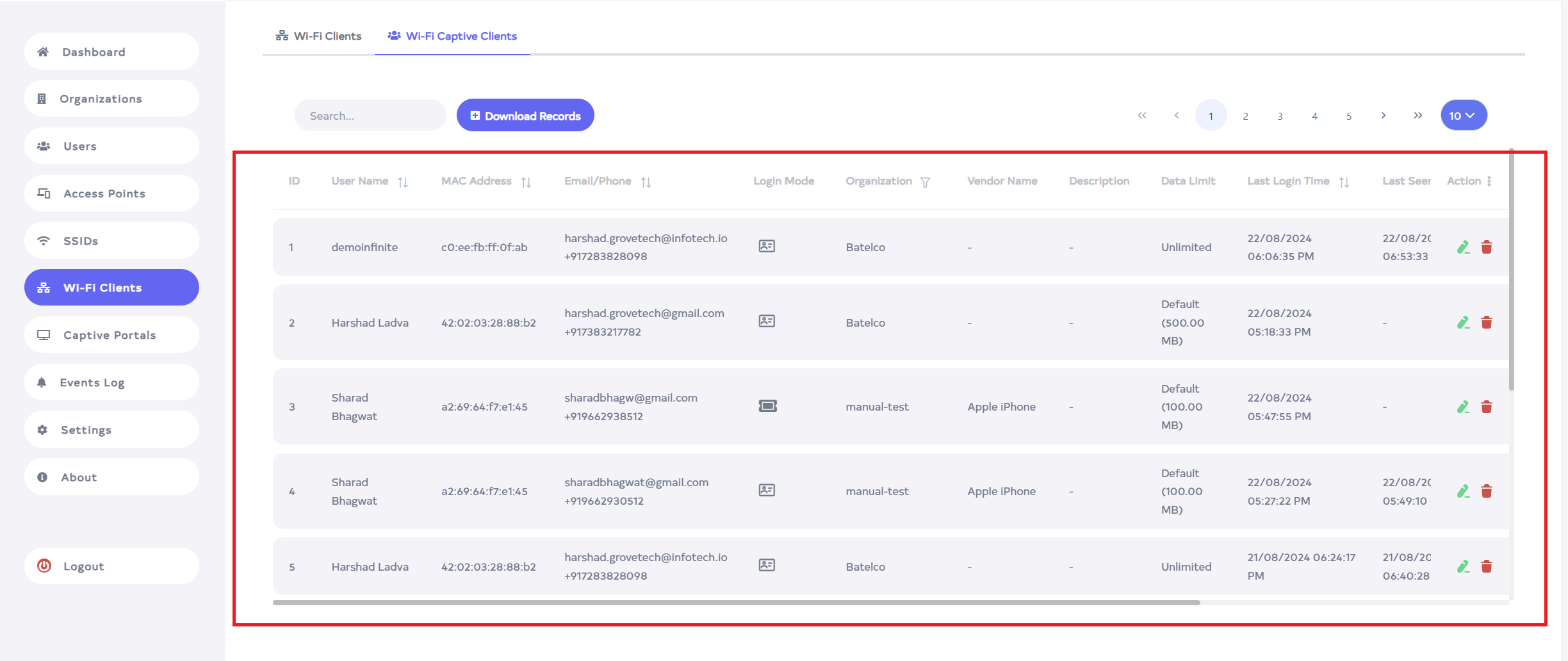
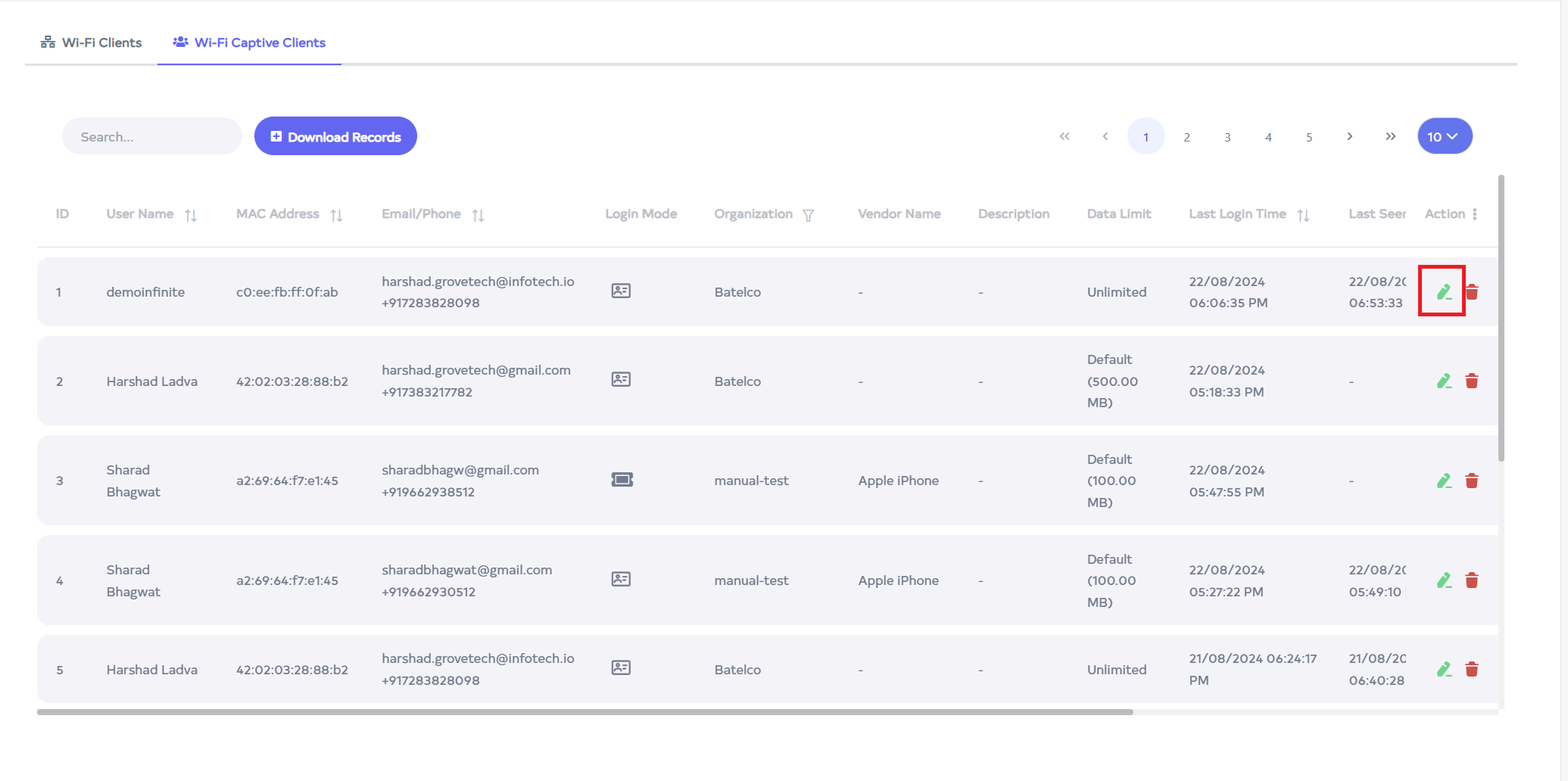
Go to the Wi-Fi Captive Clients tab. Click on this tab to find a list of WiFi captive clients connected to the captive portal. The client details include ID, User Name, Mac Address, Email/Phone, Login Mode, Organization, Vendor Name, Description, Data Limit, Last Login Time, Last Seen Time, Session Usage, Current Usage, Status, and Action.
-
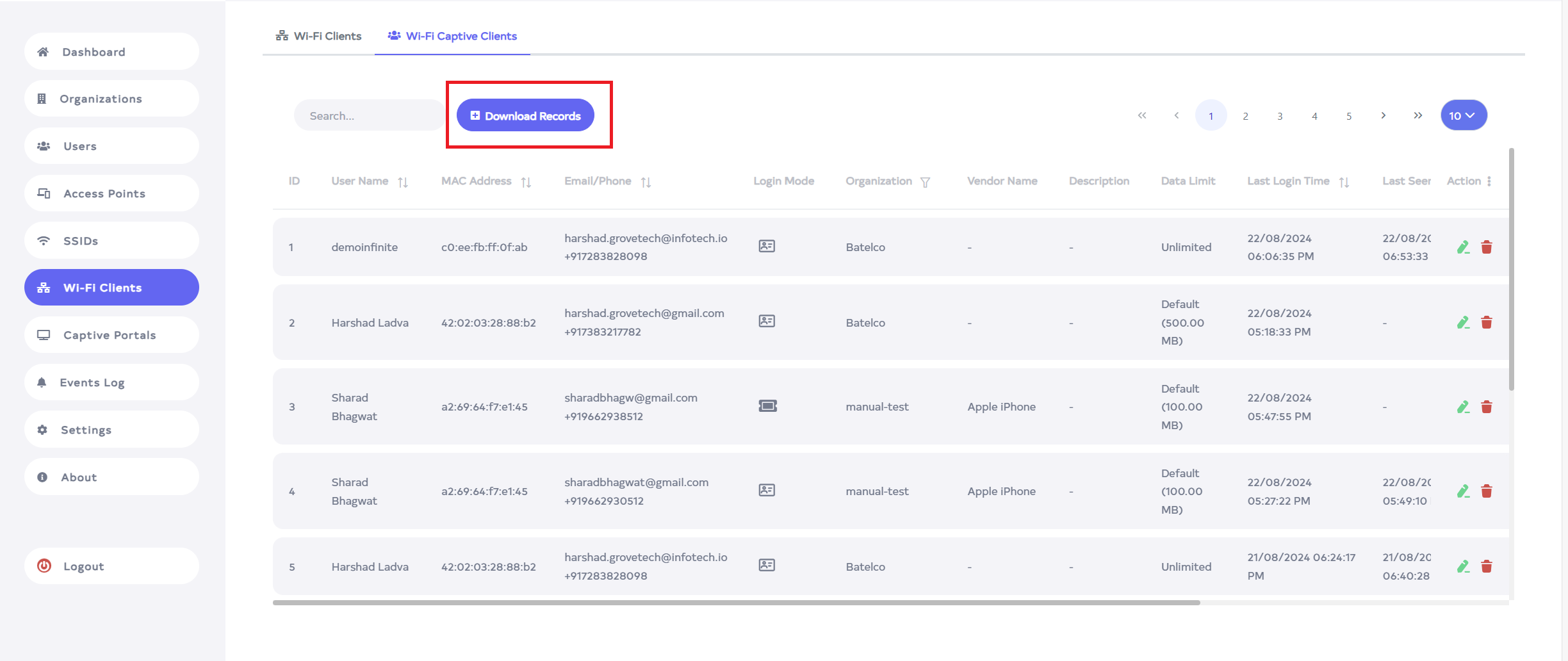
To download the record of WiFi captive clients, click the Download Records button.
-
Update the WiFi captive client by using the edit button.
-
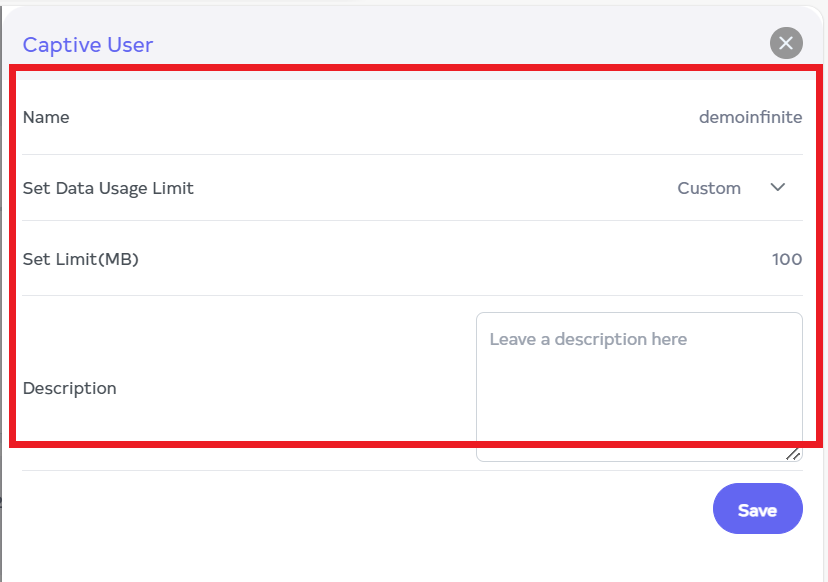
Clicking on the edit button will open the details of the captive user. Update the following details:
-
Name: Update the name.
-
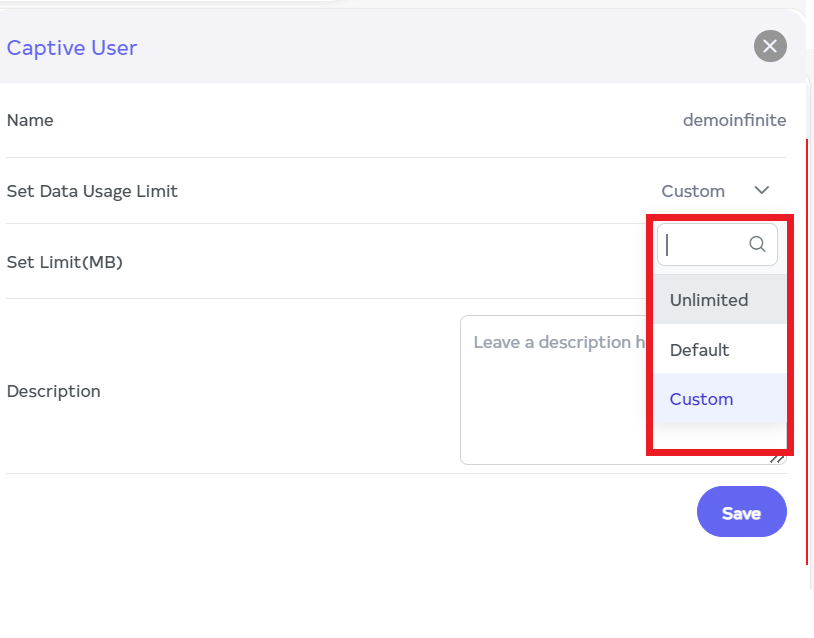
Set Data Usage Limit: There are 3 types of data usage limits:
- Unlimited: Allow the user to access unlimited data.
- Default: Set the data limit in the captive portal daily data limit.
- Custom: Selecting Custom allows you to set a data limit in MB. For example, here is set 100 MB.
-
Description: Enter the description.
-
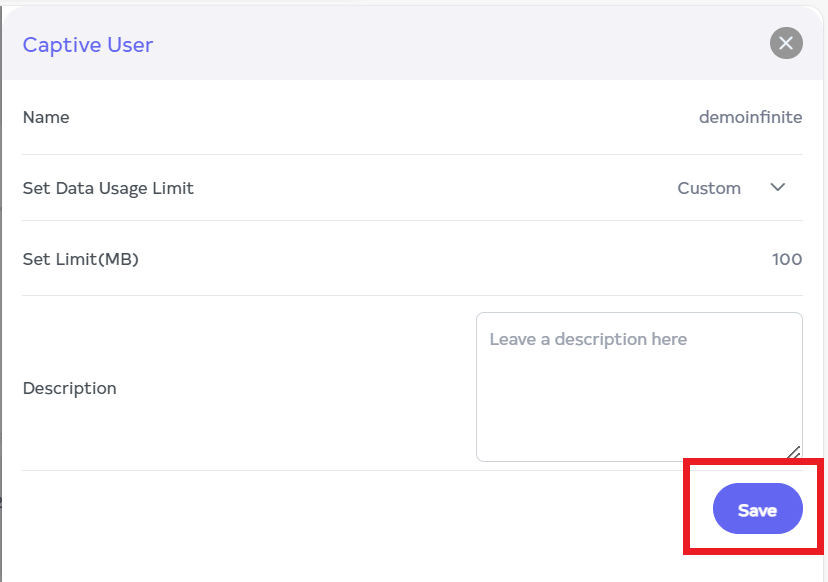
Then click on the Save button.
-
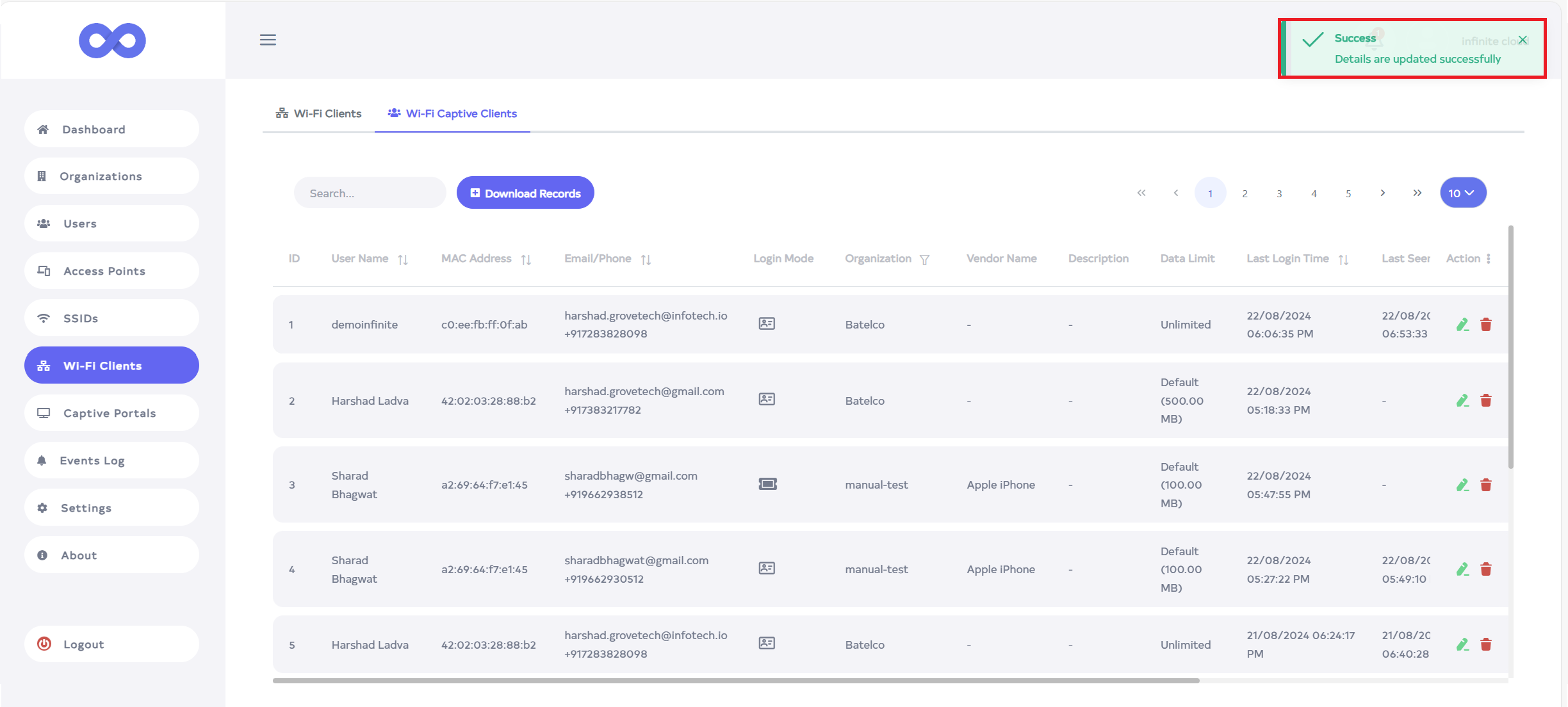
After the Wi-Fi captive clients Id is saved successfully, a success message will display Details are updated successfully on the screen.
-
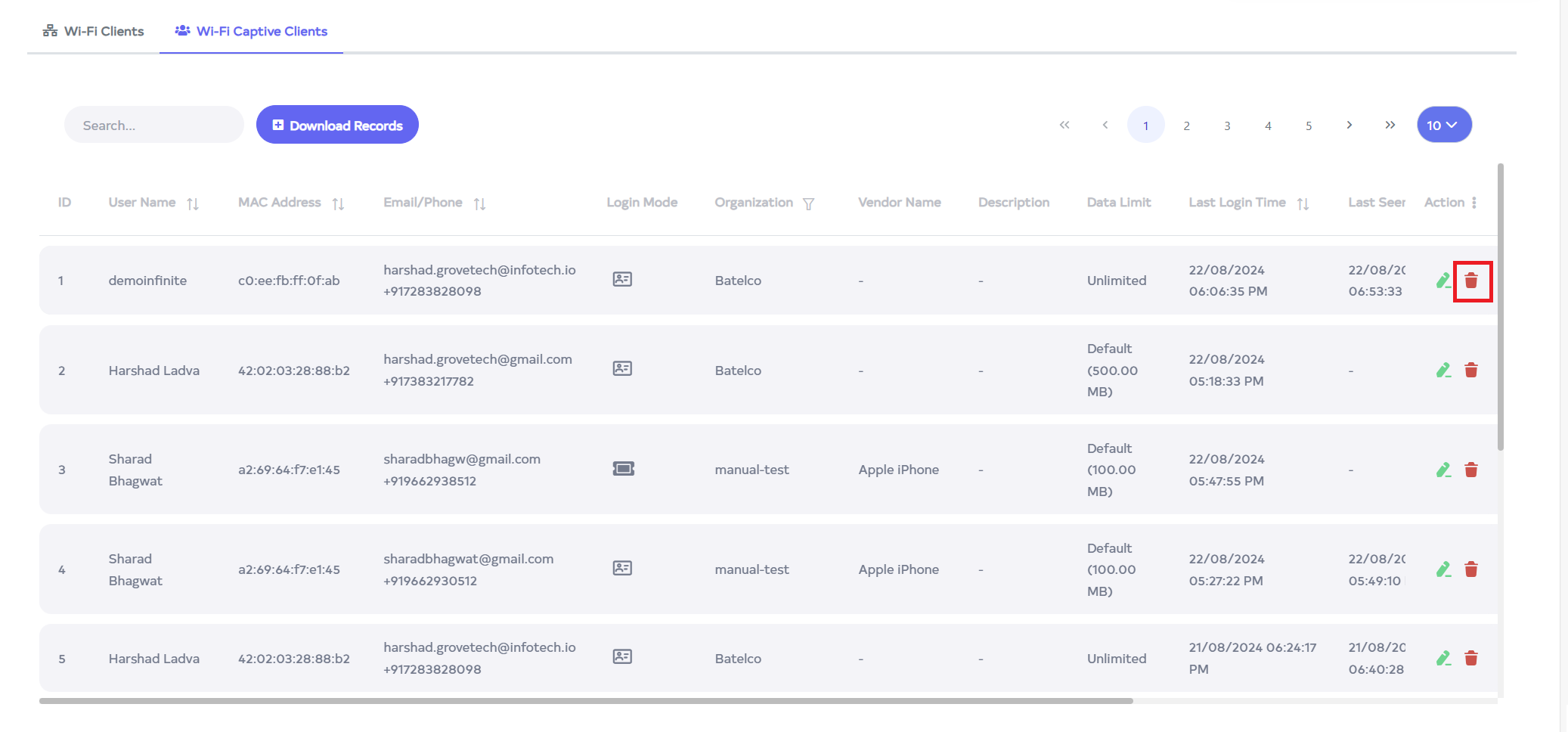
To delete WiFi Captive Clients, click on the delete button.
-
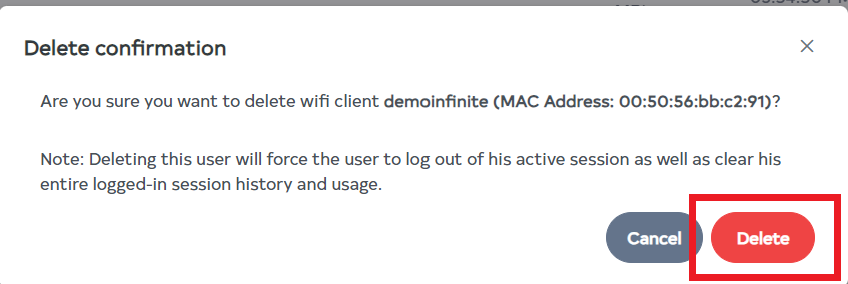
Clicking the delete button will display a confirmation message. To proceed with deletion, click delete button, otherwise click on cancel button.
-
After the Wi-Fi captive clients Id is deleted successfully, a success message will display WiFi Clients is deleted successfully on the screen.