Wizard Configuration
This guide outlines the steps required to configure the application through the wizard setup. The process involves specifying the external URL, enabling or disabling services like Grafana and Kafka, setting up login credentials, and applying SSL certificates. Once the configuration is completed, the application will be accessible via the domain specified during setup.
Configuration Steps
External URL Configuration
-
Visit the link given here for how to install the application and how to access it How to application install and access.
-
The user will be prompted to enter an external URL where the application will be accessible.
-
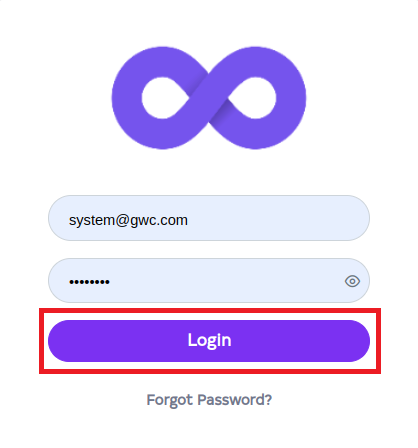
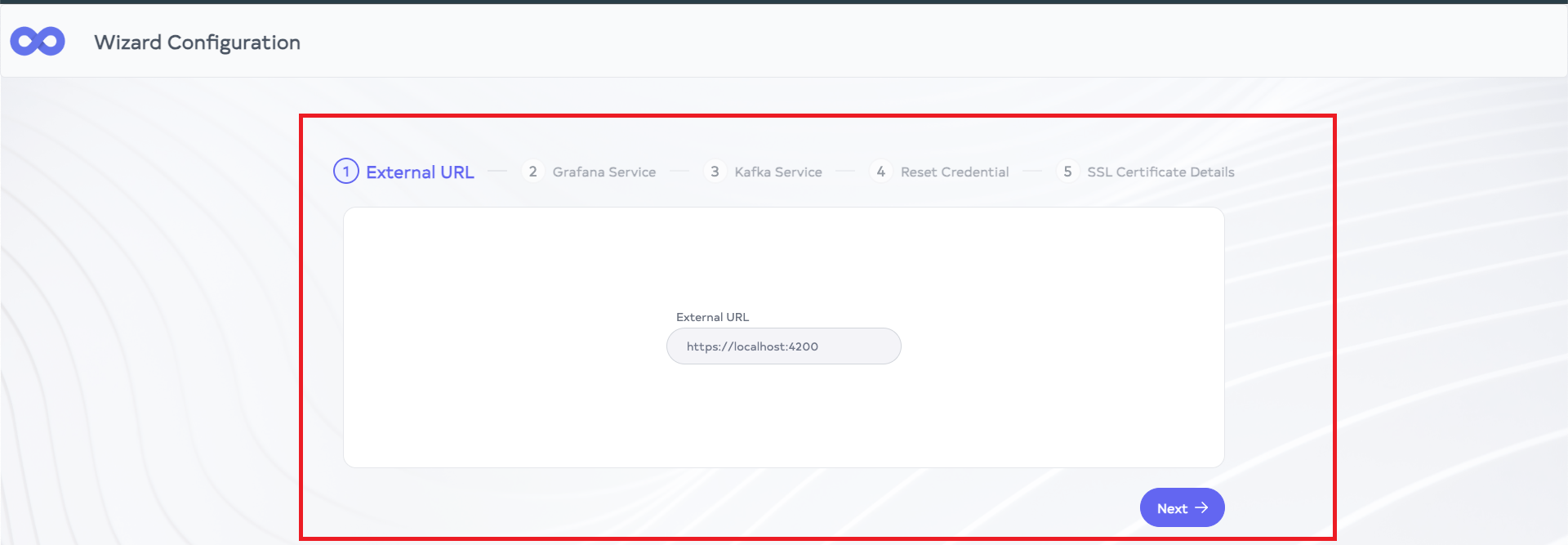
After logging into the application, the Wizard Configuration page will appear. Enter the desired External URL and click the Next button.
external-infoThe application will be accessible via the domain entered here.
Enabling Grafana Service
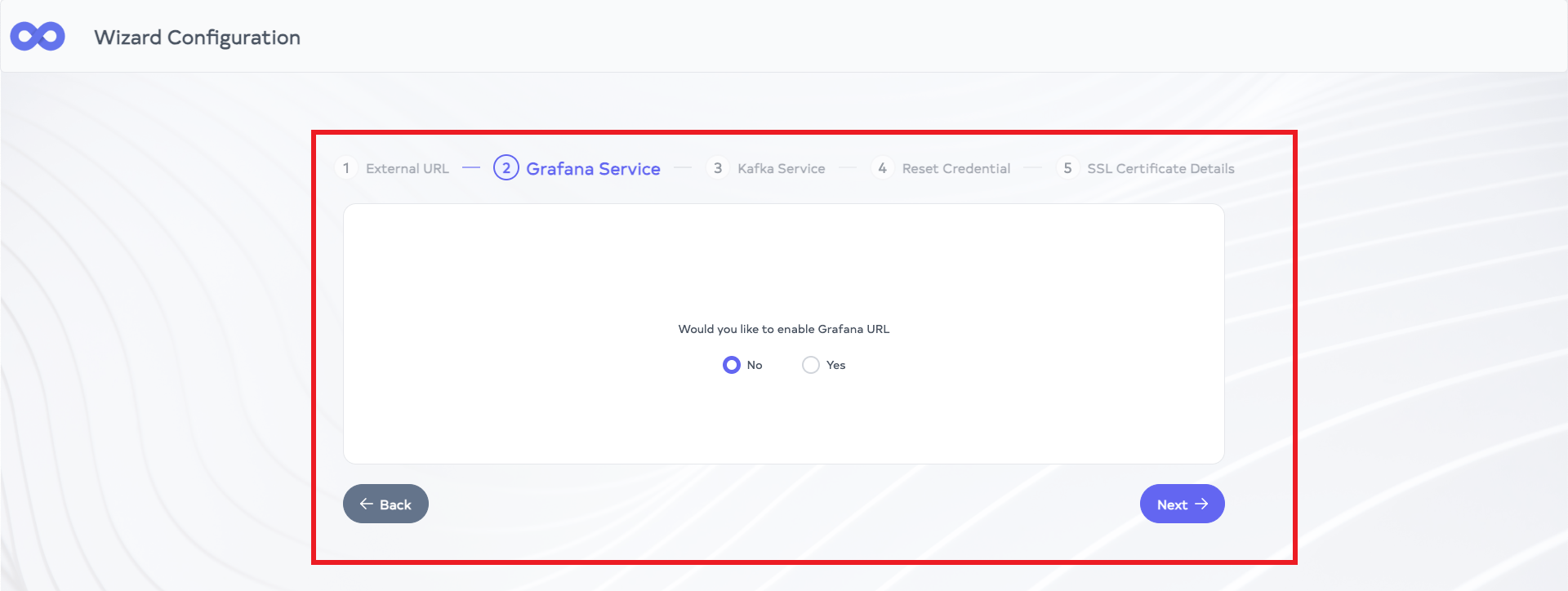
- Next, decide whether to enable the Grafana Service.
-
Select Yes to enable Grafana and input the Grafana URL required for loading Grafana-based graphs, or choose No to skip this step and continue without Grafana. Once the selection is made, click Next button.
grafana-service-infoThere are two options: Yes and No. If yes selected than Grafana url should required to load grafana based graphs and if No selected than Grafana Graphs will not accessible.
-
Enabling Kafka Service
-
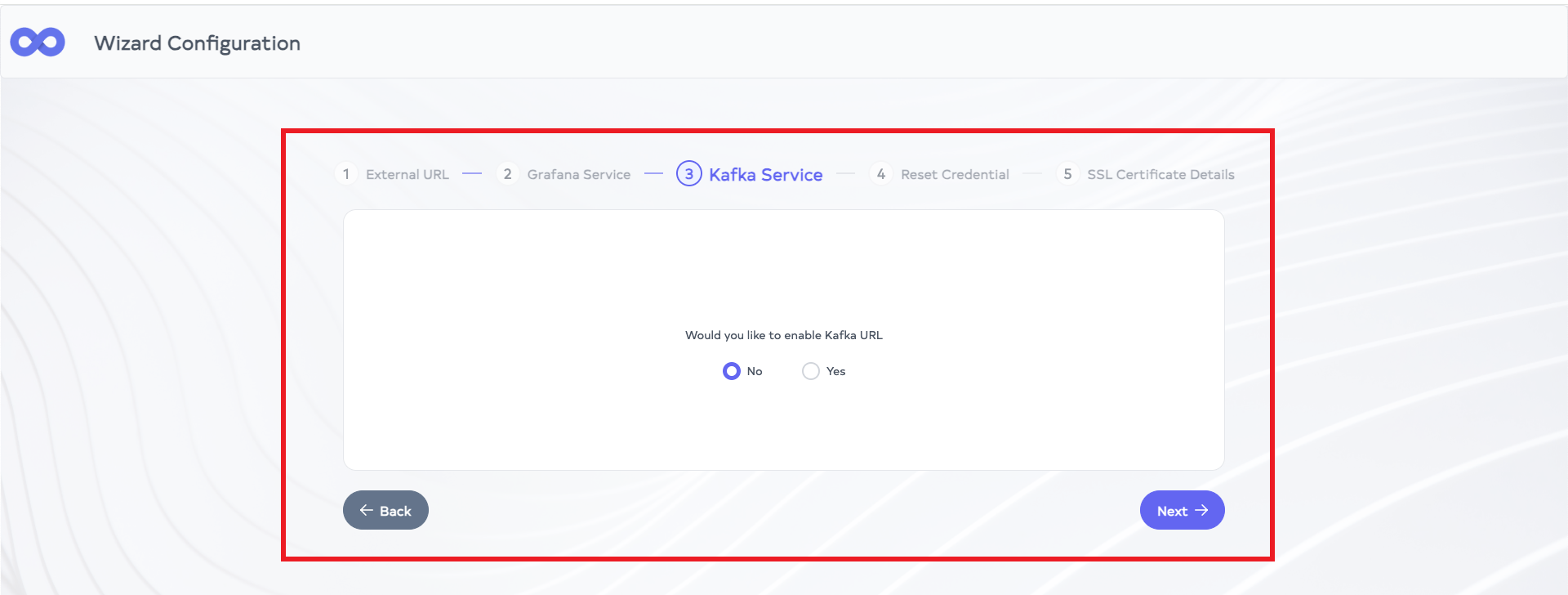
Configure the Kafka service, following the Grafana setup.
-
Select Yes to enable Kafka and enter the required Kafka Server URL. Kafka will capture application events using this server. To disable Kafka, select No and proceed. Click Next button after making the selection.
kafka-service-infoThere are two options: Yes and No. If Yes is selected, a URL must be provided, and Kafka will capture events using the provided Kafka server. If No is selected, no Kafka server will be used for capturing events.
-
Updating Credentials
-
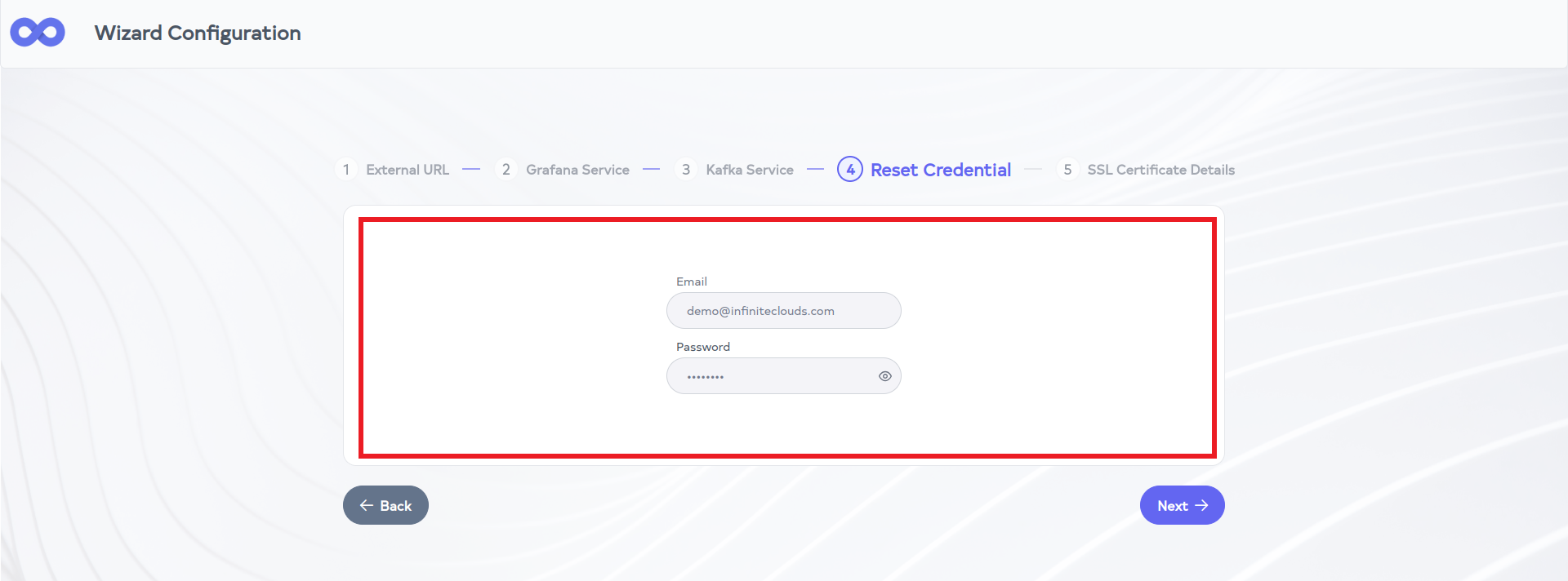
In the next step, update the application's login credentials.
-
Enter a new email address and password. These new credentials will replace the old ones, which will no longer be valid. After updating, click Next button.
reset-credential-infouser will enter their new email and password to access the application. old credentials will no longer be working
-
Configuring SSL Certificate
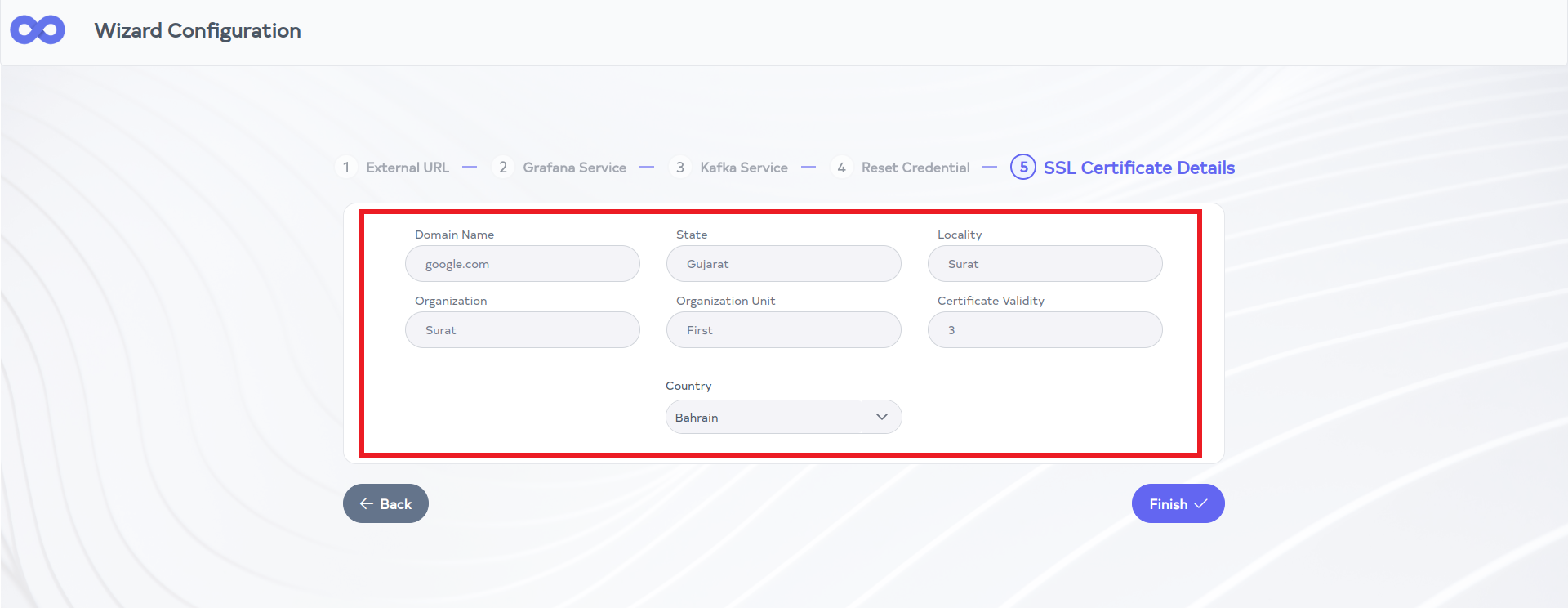
- In the final step, configure the SSL certificate details to secure the application.
-
The following fields must be completed:
- Domain Name: Input the Domain Name (e.g., google.com)
- State: Input the state.
- Locality: Input the locality.
- Organization: Input the organization.
- Organization Unit: Input the organization unit.
- Certificate Validity: Enter certificate validation in days. The validity must be 1 or greater. Negative numbers are not allowed.
- Country: Input the country. and then click on Finish button.
application-restartOnce the SSL certificate information has been updated, the service will transition to operating under the newly applied user-specific certificate.
-
Access the Dashboard
-
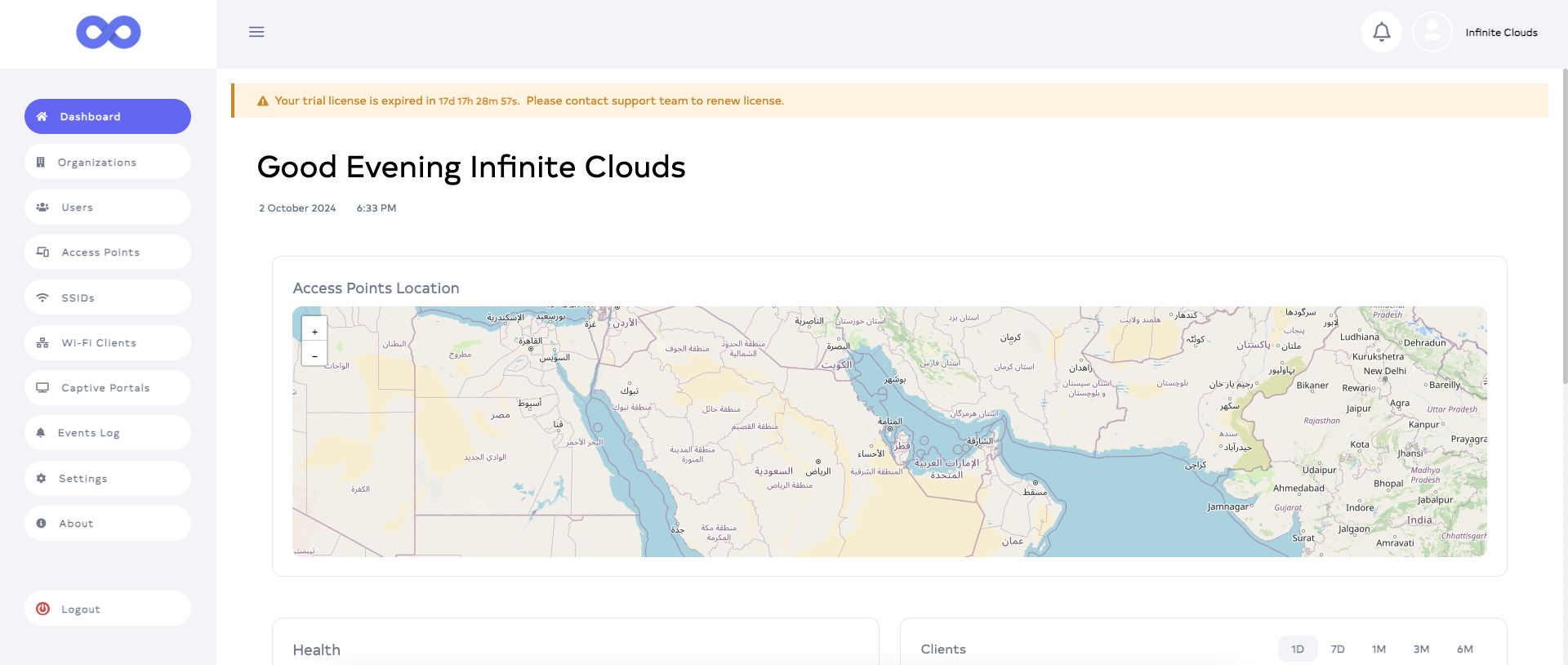
After the wizard configuration is complete, the system will redirect to the previously specified URL. The dashboard can now be accessed from this URL.